Solving “Limited Connectivity” Warnings on Windows Laptops Connected via Office Ethernet
Restart your router, switch, and laptop to clear glitches, then check for damaged cables or interference from nearby electronics-shielded Cat6 or STP cables help. Renew your IP with *ipconfig /release* and */renew* to fix conflicts, or disable and re-enable the Ethernet adapter to reset connectivity. Update your network driver manually from the manufacturer’s site. If DHCP fails, a static IP may work but requires precise settings. You’ll uncover deeper fixes that go beyond basic steps.
Notable Insights
- Check for signal interference from fluorescent lights or machinery that may disrupt Ethernet data transmission.
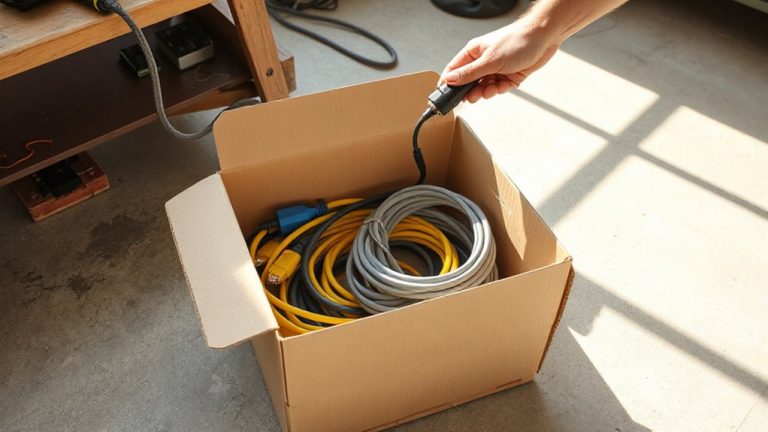
- Inspect Ethernet cables for internal damage, as frayed wires or bent connectors can degrade performance despite visible integrity.
- Restart network devices by powering down the router and switch for 30 seconds to reset connectivity handshakes.
- Renew the IP address using “ipconfig /release” and “ipconfig /renew” to resolve IP conflicts or DNS issues.
- Update the network adapter driver manually from the manufacturer’s website to ensure compatibility after system updates.
Why Ethernet Shows “Limited Connectivity”
What could be causing your Ethernet connection to show “Limited Connectivity” despite a solid cable connection? More often than not, it’s due to signal interference or cable degradation. Signal interference from nearby fluorescent lights, power cables, or heavy machinery can disrupt data transmission, even if your Ethernet cable looks intact. Over time, cable degradation-especially in older or poorly shielded Cat5e or Cat6 cables-reduces conductivity and increases errors. You might not see visible damage, but internal fraying or bent connectors degrade performance. While shielded cables (STP) help reduce interference, they’re not immune to wear. Test your link with a known-good cable and port to isolate the issue. Remember, a solid physical connection doesn’t guarantee clean data flow. Environmental factors and cable age matter just as much as the plug-in click. Always verify with direct testing-assumptions lead to wasted fixes.
Fix It Fast: Restart Your Network
While it might seem too simple to make a real difference, restarting your network is one of the most reliable first steps when dealing with limited connectivity-don’t overlook it just because it doesn’t involve cables or settings tweaks. Unplug your laptop’s Ethernet cable, then power down the router and switch for 30 seconds before restarting them. This clears temporary glitches in network handshakes that often trigger false warnings. Once devices reboot, reconnect and check the signal. Still having issues? Don’t assume the fix failed-perform a quick port inspection to rule out debris or bent pins, and verify cable integrity by testing with a known-good cable. These physical checks matter because even minor damage can disrupt connectivity despite a working restart. While this won’t solve configuration errors, it resolves many invisible handshake problems fast-making it a smart, low-effort move before diving into deeper troubleshooting.
Renew Your IP to Restore Connection
How often does a quick IP renewal fix what looks like a broken connection? More than you’d think. If your laptop shows limited connectivity despite a solid Ethernet connection, renewing your IP address can resolve underlying problems like IP conflict or DNS issues. An IP conflict-when two devices on the same network share the same address-causes disruptions that mimic hardware failure. Renewing your IP resets this assignment, letting your PC grab a clean, unique address from the router. This also refreshes DNS settings, helping if web pages fail to load despite network detection. Run “ipconfig /release” then “ipconfig /renew” in Command Prompt as admin. It’s fast, safe, and built into Windows. But it won’t help if the issue is physical cabling, driver corruption, or network policy restrictions. Use it as a mid-step after basic reboots but before deeper troubleshooting.
Disable and Re-enable Ethernet
If you’re still seeing limited connectivity after renewing your IP, try disabling and re-enabling the Ethernet adapter-it’s a quick reset that often restores communication with the router. This step is part of basic Ethernet diagnostics and can clear temporary glitches without needing a reboot. Before you start, do a quick hardware inspection: guarantee the cable is firmly seated and undamaged. Sometimes, the issue isn’t software at all.
| Step | Action |
|---|---|
| 1 | Open Network Connections via Control Panel |
| 2 | Right-click Ethernet and select Disable |
| 3 | Wait 10 seconds |
| 4 | Right-click again and choose Enable |
This works in most Windows 10 and 11 setups. It’s fast and non-invasive, but won’t fix driver or cable faults. If problems persist, deeper troubleshooting is necessary.
Update Your Network Driver
Updating your network driver often resolves persistent limited connectivity issues that disabling and re-enabling the adapter didn’t fix. Outdated drivers can cause hardware compatibility problems, especially after Windows updates. You’re better off getting the latest driver directly from your laptop or Ethernet adapter manufacturer-don’t rely solely on Windows Update. Many manufacturers include firmware updates that improve stability and performance on office networks. Check the support page for your model, download the correct driver version, and install it manually. While it’s usually safe, a bad update can temporarily break connectivity, so note your current driver version first. This fix doesn’t always help, particularly if the issue is network-side, but it’s a quick step with high real-world success in office environments. Always verify compatibility before installing.
Use a Static IP When DHCP Fails
Why does your laptop keep dropping its connection even when the network seems fine? Sometimes, DHCP fails to assign an IP address, causing limited connectivity. When that happens, switching to a static IP can help. Static allocation means your laptop keeps the same IP address, which avoids conflicts and keeps you online. You’ll need to set it up through manual configuration in your network settings-input the IP, subnet mask, gateway, and DNS servers your office uses. It’s a reliable fix, but only if you enter the right details. Get them wrong, and you’ll lose access completely. Use this method only when DHCP is confirmed down, not as a daily workaround. Static IPs work best in stable office networks where addresses don’t change often.
When to Call IT for Network Help
You’ve tried restarting the router, toggled Airplane mode, and even set a static IP, but your laptop still shows “Limited Connectivity” with no internet access-now it’s time to call IT. Persistent issues like signal interference from nearby electronics or fluorescent lights can disrupt Ethernet stability, especially in crowded office setups. You might also be dealing with cable degradation-older or damaged Ethernet cables suffer from frayed wiring or worn shielding, reducing data throughput. If multiple devices fail on the same port or rebooting doesn’t help, it’s not just your machine. IT can run network diagnostics, test line quality, and swap out wall ports or switches as needed. While trying fixes yourself saves time short-term, misconfigurations risk broader disruptions. They also track recurring problems site-wide, like faulty hubs or aging cabling. Skip the guesswork: when basic troubleshooting fails, professional support prevents wasted effort and gets you back online reliably.
On a final note
You’ve likely fixed limited connectivity if renewing your IP or restarting the network helped-these solve most office Ethernet issues. Updating drivers and using a static IP work when DHCP fails, but double-check settings to avoid conflicts. Disabling and re-enabling the adapter often restores link quickly. If problems persist after three resets, contact IT-there may be cabling, switch, or authentication issues beyond user fixes.