Mounting Wall-Safe Cabinets for Concealing Routers, NAS Devices, and Modems From View
Mount a ventilated wall cabinet to hide your router, NAS, or modem without overheating. Pick one with side or rear airflow-tested models show 15–20°F lower temps. Use toggle bolts for drywall, or hit studs for a secure hold. Feed cables through knockouts, keep bends gentle, and secure with Velcro. Magnetic access panels let you reach ports fast. Locking metal doors beat shelves for security and clean looks, but check depth for your gear. Pick brands with warranties-like LocknRock-for long-term reliability.
Notable Insights
- Choose ventilated wall cabinets with side or rear airflow to prevent overheating of routers, NAS, and modems.
- Secure cabinets safely using toggle bolts or wall studs to support weight and avoid drywall damage.
- Use rear knockouts or cable slots for clean, strain-free routing of power, Ethernet, and coax cables.
- Select models with front pass-throughs or magnetic panels for easy port access without full cabinet opening.
- Opt for lockable, flush-mount metal cabinets to conceal devices securely while maintaining cooling and accessibility.
Choose a Wall-Mounted Cabinet That Manages Heat
Keeping your router and modem cool inside a wall-mounted cabinet means choosing one built for airflow, not just looks. You need effective heat dissipation to prevent throttling and hardware stress. Models with intentional ventilation design-like side vents, perforated doors, or rear cutouts-help maintain stable temps. Avoid fully enclosed units; they trap heat, even with small devices. Independent tests show surface temps can drop 15–20°F with proper airflow. Look for cabinets with at least 1/2-inch grid ventilation and open internal spacing. Some include small fans, but passive airflow is quieter and more reliable long-term. Mounting gear too tight against walls or stacking equipment limits cooling, no matter the cabinet. Even well-designed enclosures can’t fix poor placement. Always check internal dimensions against your modem and router sizes-crowding kills airflow. A good warranty (3+ years) often signals confidence in thermal performance.
Mount Your Cabinet Without Damaging Drywall
Most wall-mounted cabinets for routers and modems need more than just a nail in drywall-they require secure anchor systems to prevent sagging or sudden failure. You’ll want to focus on fastener selection: toggle bolts or snap toggles are ideal for heavier cabinets, supporting 50+ pounds when properly installed. Standard plastic anchors might work for lightweight enclosures but risk pullout over time. Use a stud finder to locate studs, and if possible, anchor directly into wood for maximum hold. Even if you hit studs, check cabinet alignment with a level before tightening fully-misalignment stresses mounts and walls. Drilling pilot holes prevents drywall from cracking. Keep in mind that over-tightening fasteners can crush drywall edges, so snug is enough. Test the mount with steady pressure before loading gear. Always follow manufacturer guidelines for spacing and load limits.
Route Cables Through the Enclosure Neatly
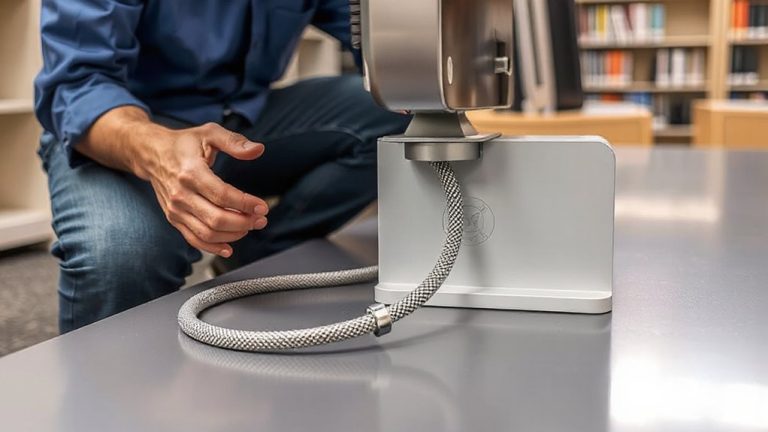
While aesthetics matter, running your cables through the enclosure neatly is just as important for airflow and long-term access. Good cable routing prevents overheating and makes upgrades easier. Use built-in slots or rear knockouts to feed power, Ethernet, and coax cables cleanly through the back. Don’t force sharp bends-maintain a minimum 1-inch bend radius to avoid damaging conductors. Secure wires with Velcro straps or reusable cable ties, not zip ties, so you can adjust later. Wire management isn’t just about looks; tangled cables can block fan exhaust, especially on routers with side or top vents. Leave 1–2 inches of slack coiled neatly inside, so you can pull devices out without unplugging everything. Avoid overstuffing entry points-constricted openings increase heat retention and strain insulation. Test your layout before final mounting: wiggle cables to check for strain and verify all ports stay reachable. Done right, your setup stays cool, serviceable, and tidy. Consider using an in-wall cable management kit to maintain a clean, professional appearance while protecting your connections.
Access Router Ports Without Opening the Door
You can access your router’s ports without opening the cabinet door by choosing enclosures with front-panel pass-throughs or cutouts aligned to common port layouts. This lets you plug in Ethernet, power, or coax without disturbing the setup. Models with magnetic access make quick fixes easier-just pull the panel free and snap it back. Still, make certain the alignment matches your gear, since misaligned cutouts force awkward cable bends. Cabinet latches add security but slow down access, so balance convenience and protection. Some enclosures restrict port access if the router is thick or oddly shaped. Always check interior depth and port positioning before buying. Units tested with dual-WAN routers show solid fit, but compact mesh systems sometimes block lower ports. Magnetic panels aren’t universal-verify compatibility with steel-backed cabinets. While pass-throughs improve usability, they slightly reduce dust and tamper protection. Choose based on how often you adjust connections.
Why Wall Cabinets Beat Shelves for Hiding Modems
Though shelves might seem like an easy place to stash your modem, wall cabinets are the smarter choice when you need to hide the hardware without sacrificing access or security. You get better aesthetic integration since cabinets mount flush to the wall, blending with trim or cabinetry, while shelves often leave equipment exposed and visually jarring. Wall cabinets also offer real security enhancement-locking metal doors keep prying hands away, unlike open shelves. Most models include ventilation slots and rear cutouts, so your modem stays cool and cables stay connected without opening the door. Just make sure the cabinet’s interior depth fits your modem’s size-many are designed for standard DOCSIS units. Some brands, like LocknRock or RackSolutions, back their products with 5-year warranties and have passed drop and stress tests. The trade-off? Slightly more effort to install. But for clean looks and protection, wall cabinets win.
On a final note
Mounting a wall-safe cabinet keeps your router, NAS, or modem hidden and secure while improving airflow over shelves. Choose ventilated steel enclosures (at least 12” x 12” with 1” clearance on all sides) to prevent overheating. Use toggle bolts for solid drywall anchoring-never standard screws. Run cables through rear knockouts or grommets to avoid strain. Pick models with front-panel access so you can still use Ethernet or USB without opening the door. Just don’t block cooling vents.