Creating a Zero-Clutter Workflow With Wireless Peripherals and Charging Docks
Ditch your cords with wireless peripherals that offer sub-10ms latency and 30–70 hours of battery life, like Logitech or Microsoft models with 2–3-year warranties. Pair them with a multi-device charging dock delivering at least 20W and Qi2 compatibility for fast, safe charging. Use Bluetooth 5.0 or 2.4 GHz connections to reduce interference, and test placement near your router to avoid signal drops. Keep cables tidy with Velcro straps and labeled sleeves, routing them along the shortest path. You’ll find the full setup-and how to avoid common sync issues-just ahead.
Notable Insights
- Choose wireless peripherals with Bluetooth 5.0 or 2.4 GHz USB-C for seamless, low-latency connectivity and minimal cable use.
- Opt for keyboards and mice with long battery life and multi-device pairing to reduce charging frequency and clutter.
- Invest in a high-performance charging dock with Qi2 support and smart power distribution for efficient device syncing.
- Use smart cable management with Velcro straps and adhesive clips to maintain clean, tangle-free desk organization.
- Consolidate all devices at one workstation, ensuring optimal placement to avoid interference and maximize wireless efficiency.
Ditch Cords With Wireless Peripherals
While going wireless won’t magically boost your productivity, cutting the cord with reliable wireless peripherals can genuinely streamline your workspace-if you pick the right gear. You gain wireless freedom that reduces cable snags and desk clutter, making repositioning your devices easier. Look for Bluetooth 5.0 or 2.4 GHz USB-C dongles, which guarantee seamless integration across laptops and tablets without constant re-pairing. Devices like Logitech’s MX series or Apple’s Magic Mouse 2 consistently score high in latency tests under 10ms, matching wired response. But don’t overlook battery life-most last 30–70 hours, meaning weekly charging. Interference can happen near routers or microwaves, so test placement. Reliable models come with 2-year warranties and multi-device pairing. True convenience comes not from gimmicks, but proven performance, thoughtful design, and avoiding daily friction-all without sacrificing stability. For every use case, there’s a top performer, such as the best wireless mice for precision, comfort, and connectivity.
Choose a Wireless Keyboard and Mouse That Last
You’ll want to pick a wireless keyboard and mouse that don’t quit weeks after the novelty wears off. Look for models with proven battery longevity-some last up to three years on a single charge or set of batteries, minimizing downtime and waste. Rechargeable options are convenient, but check if they support use while charging. Device compatibility matters just as much; guarantee the peripherals work across your OS, whether Windows, macOS, or ChromeOS, and support seamless switching between devices via Bluetooth or a USB receiver. Brands like Logitech and Microsoft often back their gear with 2–3-year warranties, a strong sign of durability. Avoid ultra-budget picks-they often cut corners on build quality and responsiveness. While premium models cost more upfront, they typically deliver better long-term performance, fewer replacements, and less clutter from disposable parts. Balance cost with real-world reliability. For keyboards, consider models with mechanical switches for enhanced tactile feedback and durability.
Pick a Charging Dock That Handles All Your Devices
If you’re tired of juggling multiple chargers across your desk, a well-built multi-device charging dock is worth the investment-just make certain it fits your actual usage. Look for strong device compatibility: it should support your phone, watch, earbuds, and any wireless peripherals you use daily. Not all docks handle every model, especially across brands, so check specs before buying. Power output matters too-a dock with at least 20W total guarantees fast, efficient charging; weaker models leave devices topping off slowly. Some docks even adjust output per device automatically, which is ideal. Prioritize ones with overcharge protection and solid build quality-rubberized pads keep devices from sliding. Most top picks come with a 1- to 2-year warranty. Keep in mind: more ports don’t always mean better performance if power is shared poorly. Test real-world speeds before committing. For a curated list of reliable options, check out the best wireless desk chargers based on performance and user feedback.
Prepare Your Desk for Wireless With Cable Management
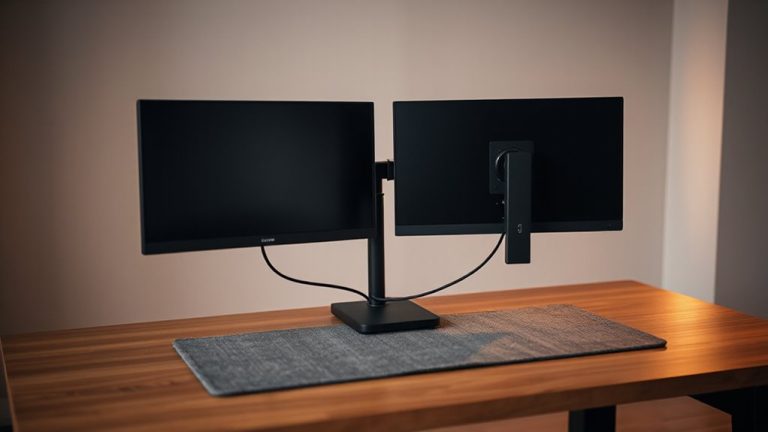
A clean desk starts with smart cable management, even if you’re using wireless peripherals. You’ll still need power and data lines for your dock, laptop, and maybe a monitor. Begin with cable sorting-separate power, data, and audio cables using color-coded ties or labeled sleeves so you can identify each at a glance. Use adhesive clips or under-desk trays for effective desk routing, guiding cables along the shortest safe path. Avoid sharp bends near ports; maintain at least a 1-inch bend radius to prevent damage. Keep high-traffic areas clear to reduce tripping hazards. While wireless gear cuts clutter, poor routing can undermine the benefit. Most kits include 6–10 ft. cables; trim excess but don’t force tight fits. Velcro straps beat zip ties-they’re reusable and less likely to crush wires. Test movement range before finalizing. Good cable prep takes 15 minutes but pays off daily.
Set Up One Station for All Your Devices
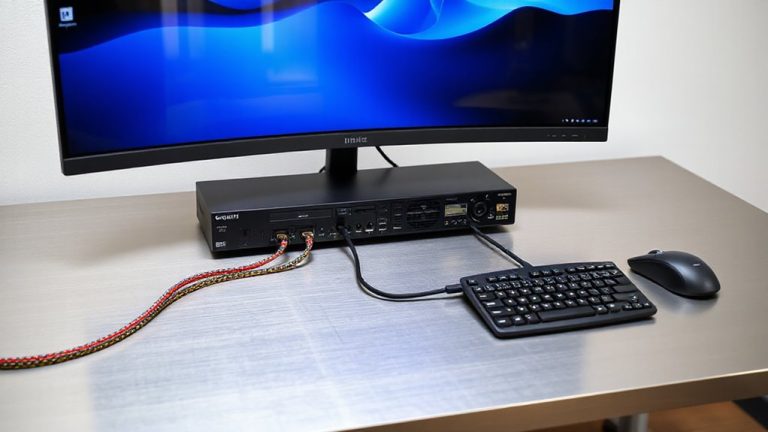
Once you’ve managed your cables, consolidating all devices into a single workstation becomes the next critical step toward a clutter-free setup. You’ll gain better device harmony when your phone, tablet, laptop, and peripherals connect seamlessly within one zone. Use a wireless charging dock with broad compatibility-like models supporting Qi2-to keep power flowing without cluttering space. Position your hub near the desk’s back edge to maximize reach and improve signal stability. Bluetooth 5.3 or Wi-Fi 6E peripherals reduce lag and interference, but remember: walls or metal objects can still disrupt connections. Test placements before finalizing. While multi-device synchronization saves time, syncing issues may arise-check manufacturer support policies. Warranties of at least two years offer peace of mind. Not every desk fits all gear equally, so measure your space first. Balanced power and placement make one station efficient, but only if tailored to your tools.
Keep Your Desk Clean and Clutter-Free
While a sleek, uncluttered desk starts with smart setup, maintaining it demands consistent habits and the right tools-wireless peripherals help, but they’re not a cure-all. For true desk organization, pair wireless devices with intentional routines: clear everything nightly, use trays for essentials, and limit decor. A minimalist design isn’t just visual-it’s functional, reducing distractions while improving focus. Choose peripherals with long battery life (like Bluetooth mice rated 12+ months on one charge) and docks with secure cable management. But don’t overlook trade-offs: wireless keyboards can lag slightly, and charging docks add heat. Regularly reassess what earns a spot on your desk; if it’s not used daily, store it. True clutter-free workflow combines smart gear with disciplined use-design matters, but behavior sustains it.
On a final note
You’ll cut clutter and boost focus by switching to wireless peripherals and a multi-device charging dock. A solid wireless combo-like a 2.4GHz keyboard and mouse with AA battery life over 12 months-delivers reliable performance. Charging docks with USB-C PD (30W+) handle phones, earbuds, and tablets cleanly. Just verify port compatibility and expect slightly slower charging versus direct wall plugs. Test ergonomics early-poor fit causes strain, no matter how clean your desk looks.