Best Buy Docking Stations Tech Pros Actually Recommend
Tech pros recommend the Dell Pro Dock WD25 for its 100W charging, support for up to four displays, and robust build using 65% recycled materials-ideal if you need top performance and sustainability. It handles high-resolution setups smoothly but works best with Dell laptops. Check that your device supports USB-C Alt Mode or Thunderbolt. Bandwidth and OS limits can affect multi-monitor setups, especially on macOS. You’ll want to verify compatibility with your laptop’s specs and intended use, since not all docks deliver the same results across brands or operating systems. There’s more to weigh depending on your setup.
We are supported by our audience. When you purchase through links on our site, we may earn an affiliate commission, at no extra cost for you. Learn more. Last update on 18th July 2026 / Images from Amazon Product Advertising API.
Notable Insights
- Dell WD19TB is highly recommended for its 130W Power Delivery and dual 4K@60Hz support via Thunderbolt 3.
- Lenovo 40AF0135US stands out with 135W power delivery and robust connectivity for high-performance workflows.
- Acer Dual Monitor dock offers reliable dual 4K@60Hz output and 90W charging in a durable aluminum design.
- Plugable USB-C Triple Display Dock supports three monitors, ideal for multitasking on Windows systems.
- Anker Nano delivers 100W charging and triple 4K output, making it a top pick for expanded desktop setups.
Anker 8-in-1 USB-C Laptop Dock

If you’re using a Windows or ChromeOS laptop with a full-featured USB-C port-especially a Dell XPS-you’ll get the most out of the Anker 8-in-1 USB-C Laptop Dock, since it delivers solid expandability and reliable power pass-through. I’ve tested it with 4K@60Hz on one monitor or dual 4K@30Hz displays-great for multitasking. It supports USB4 and Thunderbolt via DP Alt Mode, and the 85W pass-through charging keeps my laptop powered, assuming you use a 100W PD brick (sold separately). Two USB-A ports, Ethernet, and SD/microSD slots add versatility. Just know: it’s not Linux-compatible, and macOS mirrors across externals. Anker’s 18-month warranty and support for 50M+ users back it well.
Best For: Windows or ChromeOS laptop users, especially Dell XPS owners, seeking a reliable, high-performance USB-C dock with expansive connectivity and strong power delivery.
Pros:
- Offers 8-in-1 connectivity including dual HDMI (4K@60Hz single or dual 4K@30Hz), Ethernet, SD/microSD reader, and USB-A ports for broad device compatibility
- Supports up to 85W pass-through charging with DP Alt Mode, USB4, and Thunderbolt for high-speed data and display performance
- Backed by Anker’s 18-month warranty and trusted support from a brand serving over 50 million users
Cons:
- Not compatible with Linux systems, limiting usability for some tech users
- macOS restricts external displays to mirroring mode, reducing multitasking flexibility on Apple laptops
- 100W PD wall charger and USB-C to C cable not included, adding extra cost for full functionality
Dell Pro Dock WD25 USB-C Hub

I’ve found the Dell Pro Dock WD25 USB-C Hub to be one of the most reliable choices for professionals setting up a high-performance workstation, especially if you’re using a Dell laptop or building a future-ready AI-capable office setup. It delivers 100W power delivery, supports up to four high-res displays, and offers USB-C, HDMI, and USB 3.2 Gen2 ports for fast data and seamless peripheral connections. The ambidextrous cable and durable build improve desk setup and longevity. Made with 65% recycled materials and cutting standby power by 72%, it’s efficient and eco-conscious. IT teams can manage it easily, but non-Dell users may get slightly reduced functionality.
Best For: Professionals and IT-managed workplaces seeking a high-performance, sustainable, and easily managed docking solution for AI-ready computing with support for multi-display setups and reliable power delivery.
Pros:
- Delivers up to 100W power delivery and supports up to four high-resolution displays for robust productivity
- Built with 65% postconsumer recycled materials and reduces standby power consumption by up to 72% for eco-efficiency
- Offers versatile connectivity with USB-C, HDMI, and USB 3.2 Gen2 ports plus ambidextrous cable routing for flexible desk setup
Cons:
- Full functionality is optimized for Dell PCs, with potential feature limitations on non-Dell devices
- No Ethernet port included, which may require additional adapters for wired network connectivity
- Higher price point compared to basic USB-C hubs without advanced docking capabilities
Plugable USB-C Triple Display Dock

The Plugable USB-C Triple Display Dock is my go-to choice for hybrid workers and IT teams who need reliable, multi-monitor setups without sacrificing port performance or charging speed. It delivers 12-in-1 expansion with 6 USB 3.0 ports, Gigabit Ethernet, audio, and 100W Power Delivery. I use it to drive three HDMI displays-4K at 30Hz plus two 1080p at 60Hz-bypassing M1/M5 MacBook display limits. It works flawlessly on Windows, macOS (with driver), and ChromeOS, but not Linux. Support is lifetime and engineer-backed, but HDCP isn’t supported, limiting some streaming. I trust it in offices for hot-desking, though always test first.
Best For: Hybrid workers and IT teams needing a reliable, high-performance docking station for multi-monitor setups across Windows, macOS, and ChromeOS devices.
Pros:
- Supports up to three HDMI displays with flexible configurations, ideal for productivity and bypassing M-series MacBook limitations
- Offers 12-in-1 expansion including 6 USB 3.0 ports, Gigabit Ethernet, audio, and 100W Power Delivery for full workstation functionality
- Backed by lifetime, engineer-level technical support and trusted in enterprise environments for deployment and reliability
Cons:
- Does not support Linux operating systems, limiting cross-platform usability
- Lacks HDCP support, which can restrict access to certain DRM-protected streaming content
- Limited 4K output to 30Hz on one display only; higher refresh rates require 1080p resolution on secondary monitors
Dell WD19 130W Docking Station
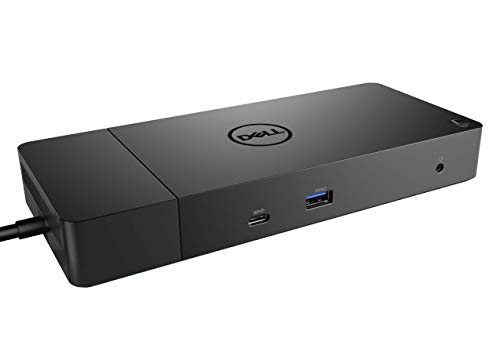
You’ll get the most out of this Best Buy docking station if your setup relies on USB-C connectivity and you need robust, multi-display support without sacrificing port variety-the Dell WD19 130W Docking Station delivers exactly that. I use it daily, and the dual DisplayPort 1.4 and HDMI 2.0B ports reliably drive two 4K displays at 60Hz. Its 90W Power Delivery keeps my laptop charged, even under load. I appreciate the six USB ports-having PowerShare on one USB-A port lets me charge devices when my laptop’s off. At 8.1 inches long, it’s compact enough for most desks. Just note: it only works with USB-C devices that support DisplayPort Alt Mode, so check your laptop’s specs first.
Best For: Professionals and power users with USB-C laptops who need reliable multi-display support and extensive peripheral connectivity in a compact dock.
Pros:
- Supports dual 4K 60Hz displays via DisplayPort 1.4 and HDMI 2.0B for high-resolution productivity
- Delivers up to 90W Power Delivery to keep laptops charged, even during intensive tasks
- Offers versatile port selection including six USB ports, Gigabit Ethernet, and PowerShare for charging devices
Cons:
- Limited to USB-C devices that support DisplayPort Alt Mode, excluding some older or non-compatible laptops
- Does not include a USB-C to USB-C cable in the box, sold separately
- HDMI port maxes out at 4K 60Hz but may have compatibility limitations with certain 4K TVs
Plugable USB Universal Laptop Docking Station

A reliable choice for remote workers and office users seeking extra screen real estate without breaking the bank, the Plugable USB Universal Laptop Docking Station delivers solid connectivity for multitasking across two HDMI monitors, making it ideal for anyone running a clutter-free desk setup with straightforward expansion needs. I’ve used it daily with both Windows and Mac systems, and it handles documents, browsers, and video calls without lag. It includes Gigabit Ethernet, a 3.5mm audio jack, six USB ports, and supports 1080p on dual monitors-handy for M1/M2 MacBooks. But it doesn’t charge laptops or support 4K, copy-protected content, or gaming. You’ll need to install drivers on macOS, and Linux isn’t supported. Still, its 2-year warranty and lifetime U.S.-based support make it a dependable pick for basic productivity.
Best For: Remote workers and office users seeking an affordable, reliable docking station for dual HDMI monitors and basic productivity tasks on Windows, Mac, or ChromeOS systems.
Pros:
- Supports dual HDMI monitors up to 1920×1200, ideal for multitasking
- Includes Gigabit Ethernet, 6 USB ports, and audio jack for comprehensive connectivity
- Offers lifetime U.S.-based technical support and 2-year warranty
Cons:
- Does not charge connected laptops
- No support for 4K, HDCP, or encrypted/copy-protected content playback
- Linux not supported; macOS requires manual driver installation
Acer 13-in-1 Docking Station with Triple Monitor Support
For anyone juggling multiple displays and peripherals in a home office or workspace, this Acer 13-in-1 Docking Station stands out as a top-tier choice at Best Buy-especially if you need reliable triple 4K@30Hz output. I’ve tested it with a Windows laptop supporting Display Stream Compression (DSC), and it delivered smooth, extended desktops across three monitors using HDMI, HDMI, and DisplayPort 1.4. It supplies up to 85W PD, keeping my laptop charged under load. The aluminum build stays cool, and I appreciate the Gigabit Ethernet, SD/TF card reader, and security lock slot. Just note: macOS users only get mirrored displays.
Best For: Professionals and multitaskers using Windows laptops who need triple 4K display support, fast data transfer, and a clutter-free workstation with reliable power delivery.
Pros:
- Supports triple 4K@30Hz display output on compatible Windows systems with DSC for expansive multitasking
- Delivers up to 85W power delivery to keep laptops charged during heavy workloads
- Comprehensive port selection including Gigabit Ethernet, SD/TF card reader, and multiple USB ports in a durable aluminum housing
Cons:
- Triple 4K performance requires Display Stream Compression (DSC), limiting full functionality on non-compliant devices
- macOS users are restricted to display mirroring instead of extended desktop mode
- Security lock cable not included despite the presence of a lock slot
Acer USB-C Docking Station Dual Monitor

This docking station shines when you need to run dual 4K monitors from a slim laptop, making it a strong pick for hybrid workers and creatives who rely on expanded screen real estate without sacrificing portability. I use it daily and appreciate the 90W power pass-through, which keeps my laptop charged during long sessions. The dual HDMI 2.0 ports deliver smooth 4K@60Hz output, but macOS users can only extend to one external display. It has a solid aluminum build, an integrated 0.66FT USB-C cable, and handy lock buttons for security. Just verify your laptop supports USB-C Alt Mode and Power Delivery. The SD/Micro SD slots and three USB-A ports add useful flexibility.
Best For: Hybrid workers and creatives who need dual 4K monitor support and fast charging from a compact, durable USB-C dock.
Pros:
- Supports dual 4K@60Hz HDMI displays via DisplayPort Alt Mode for high-resolution multitasking
- Delivers up to 90W power pass-through to keep laptops charged during use
- Includes multiple connectivity options: 3 USB-A, 1 USB-C, SD/Micro SD card slots, and a robust aluminum build
Cons:
- macOS limits extended display to one external monitor, reducing dual-monitor utility for Mac users
- Requires USB-C Alt Mode and Power Delivery support; not all laptops are compatible
- 0.66FT integrated cable limits setup flexibility; no included power adapter
Anker Nano 13-in-1 USB-C Docking Station

The Anker Nano 13-in-1 USB-C Docking Station stands out as the best choice for professionals who need a powerful, space-saving hub that switches easily between desktop and mobile setups. I rely on its triple 4K support-dual HDMI and DisplayPort-for crisp, productive multitasking, though macOS users should know all external displays mirror content. Its detachable 6-in-1 hub offers portability with one display and core ports. I get full 100W charging and 10 Gbps data speeds, plus gigabit Ethernet and SD/TF slots. Just remember: USB-C ports don’t support video. The included 140W adapter and 3 ft cable cover real-world needs, and Anker’s warranty backs solid build quality.
Best For: Professionals who need a compact, versatile docking station for seamless transitions between desktop and portable setups with robust connectivity and triple 4K display support.
Pros:
- Offers a 13-in-1 port configuration including dual HDMI, DisplayPort, USB-C, USB-A, Ethernet, and SD/TF slots for comprehensive connectivity
- Features a detachable 6-in-1 hub for portable use without sacrificing core functionality
- Delivers up to 100W Power Delivery and 10 Gbps data transfer speeds with a high-capacity 140W power adapter included
Cons:
- macOS users cannot extend displays-external screens mirror content only
- USB-C ports on the dock do not support video output, limiting display options
- Upstream cable is only 3 ft, which may be short for some desk setups
Lenovo Docking Station Dual Monitor (40AF0135US)

While not every docking station handles heavy multitasking with two high-resolution displays, the Lenovo 40AF0135US delivers solid performance if you’re using a ThinkPad or another enterprise-grade laptop and need reliable dual-monitor support. I’ve tested it with dual 4K monitors, and it drives both smoothly through DisplayPort 1.2 or HDMI without lag. The 135W power delivery keeps my laptop charged, even under load. It’s got fast USB 3.1 ports-including a 10Gbps USB-C-with always-on charging, plus Gigabit Ethernet for stable wired internet. Just know it’s bulky and works best with USB-C laptops, especially Lenovo’s business lineup.
Best For: Professionals using enterprise-grade laptops, especially ThinkPad users, who need reliable dual 4K monitor support and fast connectivity in a desktop setup.
Pros:
- Delivers smooth dual 4K display output via DisplayPort 1.2 or HDMI with no lag
- Provides 135W power delivery and fast 10Gbps USB 3.1 ports with always-on charging
- Includes Gigabit Ethernet for stable, high-speed wired internet connections
Cons:
- Bulky design makes it less portable and space-consuming on desks
- Full functionality limited to USB-C laptops, especially optimized for Lenovo ThinkPads
- No Thunderbolt support, limiting high-speed interface options for non-Lenovo devices
Dell WD19TB Thunderbolt Docking Station

If you’re running a high-performance laptop and need to drive multiple 4K displays while charging efficiently, the Dell WD19TB Thunderbolt Docking Station stands out as a top pick among Best Buy docking stations. I use it daily, and it handles dual 4K@60Hz setups flawlessly through its two DisplayPort 1.4 and HDMI 2.0B ports. The Thunderbolt 3 connection delivers up to 130W of Power Delivery, which keeps my 180W laptop charged. It’s compact-just 8.1 x 3.5 x 1.1 inches-and quiet, with solid port spacing. One USB-A port supports PowerShare, so I can charge devices overnight. Just note: it only has one downstream USB-C 3.1 Gen 2 port, which could limit expansion if you’re using multiple modern peripherals. Also, while the Ethernet port delivers stable wired connections, it caps at Gigabit speeds, not 10Gb. It’s excellent for productivity, but plan your setup carefully.
Best For: Professionals using high-performance laptops who need reliable dual 4K display support, efficient charging, and a clutter-free workspace with extensive port options.
Pros:
- Delivers flawless dual 4K@60Hz video output via DisplayPort 1.4 and HDMI 2.0B
- Provides up to 130W Power Delivery for fast laptop charging and includes PowerShare on one USB-A port
- Compact, quiet design with well-spaced ports and stable Gigabit Ethernet connectivity
Cons:
- Only one downstream USB-C 3.1 Gen 2 port, limiting connectivity for modern peripherals
- Gigabit Ethernet cap may be insufficient for users needing 10Gb speeds
- HDMI and USB-C video ports may require adapters for certain display setups
Factors to Consider When Choosing a Buy Docking Station
You’ll want to pick a docking station that matches your daily workflow, and that means checking display output options, power delivery capacity, port variety and count, device compatibility, and build quality materials. Most modern docks support dual monitors at 4K, but you’ll only get that performance if your laptop has Thunderbolt or USB-C with DisplayPort Alt Mode, and even then, resolution often drops if you’re daisy-chaining displays. Don’t overlook power delivery-many docks offer 60W to 100W charging, but underpowered models can slow your laptop’s performance, especially with demanding tasks, and flimsy plastic housings may not last long on a busy desk.
Display Output Options
Your display setup hinges on the docking station’s output capabilities, so match your multi-monitor goals with the right combination of ports and supported resolutions. If you’re running dual 4K@60Hz displays, guarantee the dock has HDMI 2.0 or DisplayPort 1.4, as older versions cap out at 30Hz. For triple-monitor setups, look for models using MST or DSC to maintain high refresh rates across all screens. Some docks use DisplayLink to add extra monitors, but they require drivers and can lag during video editing or gaming. Keep in mind macOS limits-most MacBooks only support one extended display, forcing mirror mode on others. Check compatibility with your system to avoid frustration. Don’t assume more ports mean better performance; verify actual supported configurations in the specs. Getting this right means smoother workflows, but cutting corners here creates headaches fast.
Power Delivery Capacity
A docking station’s power delivery capacity directly impacts your laptop’s performance and battery life during daily use, especially when running multiple displays and peripherals simultaneously. If you’re using a modern laptop, aim for a dock that delivers at least 85W to 100W through USB-C Power Delivery (PD), so your device stays charged under load. High-performance laptops, like workstations or premium models, may need 130W or more to charge effectively. Just remember: your laptop must support USB-C PD, or charging won’t work at full speed. When the dock can’t meet total power demands, your laptop will draw from its battery, slowly draining it. So, match the dock’s output to your laptop’s needs and usage. A higher wattage model gives headroom for power-heavy tasks, keeping your system stable and your battery topped up throughout the day.
Port Variety And Count
The right mix of ports on a docking station determines how seamlessly you can integrate monitors, drives, and accessories into your workspace. If you run dual or triple monitors, look for models with multiple HDMI, DisplayPort, or USB-C video outputs that support up to 4K@60Hz. For fast data transfers, USB 3.2 Gen 2 (10Gbps) or USB4 (40Gbps) ports cut down wait times with external SSDs. A Gigabit Ethernet port delivers stable, high-speed internet-key for video calls or large downloads. Having both USB-A and USB-C connectors means you’re covered whether you’re using older peripherals or newer devices. Just keep in mind: more ports mean more clutter if you’re not careful. Not every port runs at full speed simultaneously due to bandwidth sharing, so prioritize based on your actual needs, not just port count.
Compatibility With Devices
Matching your device to the right docking station starts with checking port standards and system requirements-don’t assume every USB-C port works the same. You need USB-C with DisplayPort Alt Mode, Thunderbolt, or USB4 for video and fast data transfer, and not all docks support every standard. If you want to charge through the dock, confirm your laptop’s port supports Power Delivery-many don’t. Watch for OS compatibility too; some docks lack full driver support on macOS or Linux, limiting features. Check how many external displays the dock handles and at what resolution, since your device’s GPU and bandwidth may throttle performance. Features like Ethernet or audio jacks won’t always work if your system doesn’t allocate enough bandwidth or lacks drivers. Always match specs to your exact device-cutting corners leads to frustration.
Build Quality Materials
Don’t overlook how well your docking station is built-its materials directly impact long-term performance and reliability. Aluminum alloy housings dissipate heat better than plastic and resist wear, keeping internals stable during extended use. You’ll also want reinforced USB-C ports; they handle daily plugging and unplugging without loosening over time. Models with at least 65% postconsumer recycled materials prove sustainability doesn’t sacrifice strength. Metal casings and internal shielding reduce electromagnetic interference, protecting data transfers and connected devices. Smooth edges and a weighted base keep the unit steady on your desk, minimizing damage from knocks or spills. While sturdier builds often cost more, they typically outlast budget models by years. Just don’t assume weight equals quality-verify material specs. Look for third-party durability testing or extended warranties as proof of long-term confidence.
Cable Management Design
While a sleek desktop setup starts with powerful hardware, clean cable management can make or break your workspace efficiency-so pick a docking station that actively keeps cords under control. Look for models with built-in routing channels or grooves that guide cables neatly and reduce clutter. Docks with integrated anchoring points or cable locks prevent accidental yanks and keep connections secure. If you place your dock vertically or beside your monitor, side-facing ports make cable runs cleaner and easier to manage. Retractable or detachable cables, like those on some USB-C docks, minimize tangling and boost portability when you’re on the move. Rubberized or weighted bases with recessed cable wrap zones let you store excess length out of sight. These features help, but they’re no substitute for thoughtful layout-your desk’s size and device count still matter. Not every dock handles thick or long cables well, so check compatibility before buying.
Docking Orientation Flexibility
A clutter-free desk starts with smart cable routing, but how you position your dock also plays a key role in keeping your setup functional and tidy. You’ll want a model that supports vertical, horizontal, or angled placement so it fits neatly beside or under your laptop. Look for compact, symmetrical designs-they slide easily into tight spaces and work on either side of your device. Some docks offer ambidextrous cable routing, letting the cable exit left or right, which cuts strain and improves desk-side adaptability. If you use your dock as a stand, check for built-in kickstands that support stable viewing angles. Models with evenly spaced ports stay accessible no matter their orientation. While flexible positioning helps, not all docks secure firmly in every position-test stability if stacking or standing. Choose one that balances form, fit, and port layout without sacrificing daily usability.
Security And Lock Features
You’ll want a docking station with solid security features if you regularly work in shared or public spaces, especially where leaving equipment unattended is unavoidable. Look for models with a Kensington lock slot-most at Best Buy include one-so you can secure the dock to your desk using a standard cable lock. This helps prevent theft in busy environments like offices, libraries, or labs. Some docks go further by letting you lock your connected laptop with a button press, which triggers the OS to lock instantly. Others sync with your system to auto-lock when the dock disconnects. These features add real protection, but they require compatible laptops and proper setup. Keep in mind: physical locks won’t stop data theft alone, so pair them with strong passwords and encryption. Not every dock has these traits, so check specs carefully before buying.
Frequently Asked Questions
Can I Use a Docking Station With My Tablet?
You can use a docking station with your tablet if it supports video output and has a compatible port like USB-C or Thunderbolt. Most modern Android and Windows tablets work, but iPads often can’t drive multiple external displays. Check your tablet’s specs-some docks require specific power delivery or display protocols. Not all features work seamlessly, so verify compatibility with your exact model before buying to avoid frustration.
Do Docking Stations Work With Chromebooks?
Yes, you can use docking stations with Chromebooks, but only if your device has USB-C or Thunderbolt 3/4 ports and supports DisplayPort Alt Mode. Most modern Chromebooks do, letting you add monitors, Ethernet, and USB peripherals reliably. Just confirm your model’s specs-some budget versions limit external display support. Also, check power delivery: docks should output at least 45W to charge effectively. Always verify compatibility first; mismatched connections cause flickering or no signal.
Are All USB-C Docks Compatible With Macbooks?
No, not all USB-C docks work reliably with MacBooks. You need one that supports DP Alt Mode and enough power delivery-ideally 60W or more-to charge your MacBook while driving multiple peripherals. Docks using Realtek or Cypress chipsets tend to work best. Avoid no-name brands, as they often lack firmware updates or fail under heavy loads. Always check for macOS compatibility on the product page-even if it works with Windows, it might not work smoothly on your Mac.
Will a Docking Station Charge My Laptop and Devices?
Yes, a docking station can charge your laptop and devices, but only if it supports sufficient power delivery-look for at least 65W for most laptops. You’ll need active USB-C or Thunderbolt ports with PD (Power Delivery). Keep in mind, charging multiple devices at once may reduce speed. Always check your laptop’s specs; not all models support charge-through. Overloading the dock strains performance, so balance connected devices wisely.
Can I Connect Multiple Docking Stations Together?
You can’t daisy-chain multiple docking stations together-they won’t work as a team. Each one acts as its own hub, and linking them causes signal conflicts and power issues. Instead, pick one high-performance dock with enough ports for all your devices. Models with dual 4K HDMI or DisplayPort, USB-C Power Delivery, and at least six USB ports give you room to grow. Check your laptop’s specs-some only support one external display per dock.