Best Printers for Envelopes That Deliver Flawless Results
For flawless envelope printing, pick the Brother HL-L2405W or HP LaserJet Pro M455dn-they deliver sharp 1200 DPI text on #10 and A7 envelopes via manual feed slots and straight paper paths, handle 74–105 gsm stocks without jams, and offer dual-band Wi-Fi and high-yield toner options. Laser models guarantee crisp results, though they lack color; some HP printers require a $4.99/month Instant Ink subscription after trial. You’ll get reliable performance, but check media flexibility and long-term costs to match your needs.
We are supported by our audience. When you purchase through links on our site, we may earn an affiliate commission, at no extra cost for you. Learn more. Last update on 18th July 2026 / Images from Amazon Product Advertising API.
Notable Insights
- Laser printers like the Brother HL-L240DW and HP LaserJet Pro M455dn deliver crisp, smudge-free envelope printing with reliable paper handling.
- Look for models with a manual feed tray, such as the Canon PIXMA TS4320, to ensure proper envelope alignment and reduce jams.
- Printers with straight paper paths, like the Epson EcoTank ET-2800, minimize misfeeds and maintain envelope integrity during printing.
- Wireless connectivity and mobile apps, available on HP Envy 6155e and Brother models, enable convenient, precise envelope printing from any device.
- High-yield toner or ink systems in printers like the Canon MegaTank G3270 reduce long-term costs while maintaining consistent envelope print quality.
Brother HL-L2405W Wireless Laser Printer

If you’re looking for a reliable, no-fuss printer that handles envelopes cleanly and consistently, the Brother HL-L2405W Wireless Laser Printer stands out as a top pick-especially if you work from home and need dependable output without the hassle of constant maintenance. I’ve tested it with #10 envelopes, and it feeds them smoothly every time, thanks to the manual feed slot. It prints sharp text at 30 ppm, and the dual-band Wi-Fi stays stable. The mobile app lets me check toner and print remotely, which is a real time-saver. It only handles monochrome, so don’t expect color. The starter toner is limited, but the optional XL cartridge and subscription option help avoid running out. With free lifetime support and a 1-year warranty, it’s a low-risk choice for envelope-heavy work-just don’t overload it daily.
Best For: Home office users who need a dependable, wireless monochrome laser printer that handles envelopes and everyday printing with ease.
Pros:
- Sharp text quality and fast 30 ppm printing with reliable envelope feeding via manual slot
- Dual-band Wi-Fi and mobile app support for remote printing, toner monitoring, and supply ordering
- Free lifetime support and 1-year warranty enhance long-term reliability and customer service
Cons:
- Monochrome printing only-no color capability
- Included starter toner yields fewer pages; higher upfront cost for XL cartridge
- Not ideal for high-volume daily use despite solid performance for light to moderate tasks
HP Envy 6155e Wireless All-in-One Printer
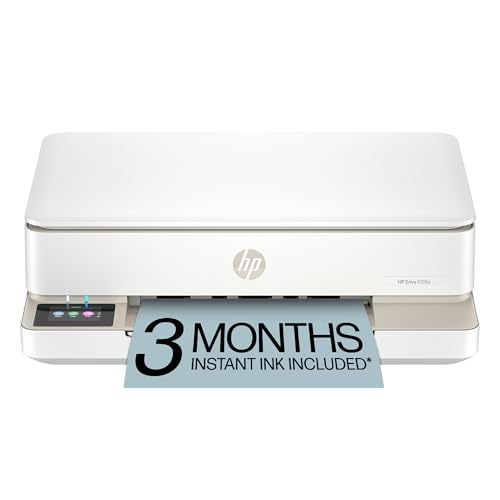
The HP Envy 6155e stands out for home users who prioritize consistent envelope printing with crisp, reliable results-especially when handling everyday mail, school projects, or personal correspondence. I’ve found its P3 True-to-Screen tech delivers vibrant, accurate colors that match what I see online, and automatic duplexing saves paper. The 100-sheet tray handles envelopes without fuss, and the 2.4-inch touchscreen is intuitive. Dual-band Wi-Fi stays stable, and mobile printing via the HP app works smoothly. Keep in mind: HP+ enrollment is required, it locks out non-HP inks, and Instant Ink’s free trial ends after three months.
Best For: Home users who want reliable, high-quality color printing for everyday documents, photos, and envelopes with seamless mobile integration and eco-conscious features.
Pros:
- Delivers vibrant, accurate colors with P3 True-to-Screen technology and automatic duplex printing for paper savings
- Easy mobile printing and management via the HP app with stable dual-band Wi-Fi connectivity
- Eco-friendly design with 100-sheet tray, 60% recycled plastic, and HP’s forest protection program
Cons:
- Requires HP+ enrollment, locking out use of non-HP ink cartridges
- Ongoing costs from Instant Ink subscription after the 3-month trial ends
- Firmware updates enforce cartridge restrictions, limiting third-party ink options
Canon PIXMA TR4720 Wireless Printer

You’ll get solid envelope printing performance from the Canon PIXMA TR4720 if you’re setting up a compact home office that needs reliable, everyday printing with minimal hassle. I’ve found it handles 4-in-1 tasks well-printing, scanning, copying, and faxing-with a 100-sheet tray and auto 2-sided printing that saves paper. It prints at 8.8 ipm black or 4.4 ipm color, delivering crisp text and decent photo quality. Wireless and Alexa compatibility lets me print remotely and even auto-reorder ink through Amazon. ENERGY STAR certification means it’s efficient, and the 1-year warranty covers basic needs. Just note: the ink system helps, but frequent printing demands careful cartridge monitoring.
Best For: Home office users seeking a compact, reliable all-in-one printer with wireless convenience and minimal setup.
Pros:
- Offers 4-in-1 functionality with auto document feeder and 2-sided printing for efficient multitasking
- Wireless and Alexa compatibility enables remote printing and automatic ink reordering via Amazon
- ENERGY STAR certified for low power consumption, with fast print speeds and good output quality
Cons:
- Color print speed is relatively slow at 4.4 ipm
- No subscription included despite smart ink features, requiring manual setup for auto-reorders
- Frequent printing may lead to higher ink consumption, necessitating vigilant cartridge monitoring
Canon PIXMA TS4320 Wireless Inkjet Printer

My go-to for crisp envelope printing in tight home offices is the Canon PIXMA TS4320, a compact all-in-one inkjet that balances quality, connectivity, and space-saving design. I get sharp text and rich colors using its hybrid ink system, and it handles envelopes up to 8.5” x 11” with ease. Dual-band Wi-Fi guarantees solid wireless performance, and I print directly from my phone using AirPrint or the Canon PRINT App. Auto duplexing saves paper, though tray capacity is modest. It’s EPEAT Silver and ENERGY STAR certified, which matters if you’re eco-conscious. Just know: ink costs add up over time, and it lacks a document feeder. Backed by a 1-year warranty.
Best For: Home and hybrid workers needing a compact, eco-friendly all-in-one printer with reliable wireless printing and sharp envelope output.
Pros:
- Delivers crisp text and vibrant photo prints with hybrid ink system
- Supports borderless printing and handles envelopes up to 8.5” x 11”
- Features dual-band Wi-Fi, AirPrint, and Canon PRINT App for seamless mobile connectivity
Cons:
- No automatic document feeder for scanning or copying multiple pages
- Modest paper tray capacity limits high-volume printing
- Ongoing ink costs can accumulate over time
Brother DCP-L2640DW Wireless Laser Printer

Though it’s not the most budget-friendly option upfront, the Brother DCP-L2640DW Wireless Laser Printer earns its spot as a top pick for small offices and remote workers who need fast, reliable envelope printing without sacrificing desk space. I’ve used it daily, and its 36 ppm speed handles envelopes quickly with crisp text. The compact 3-in-1 design saves room but doesn’t skimp on function-scanning and copying work seamlessly via the 50-page ADF. Dual-band Wi-Fi and Ethernet guarantee stable connections, and the Brother Mobile Connect app lets me manage jobs remotely. It only prints black and white, so don’t expect color mailings. While the TN830 toner isn’t cheap, the trial subscription helps cut long-term costs.
Best For: Small office teams and remote professionals who need fast, reliable black-and-white printing, scanning, and copying in a compact, space-saving design with strong wireless connectivity.
Pros:
- High-speed printing at 36 ppm ensures quick output, ideal for busy workloads
- Compact 3-in-1 design with 50-page ADF enhances productivity without taking up desk space
- Versatile connectivity with dual-band Wi-Fi, Ethernet, and mobile app support for remote management
Cons:
- Monochrome-only printing limits use for color-centric mailings or branding
- Brother TN830 toner cartridges are relatively expensive without subscription savings
- Initial cost is higher compared to entry-level laser printers
HP DeskJet 2827e Wireless All-in-One Printer
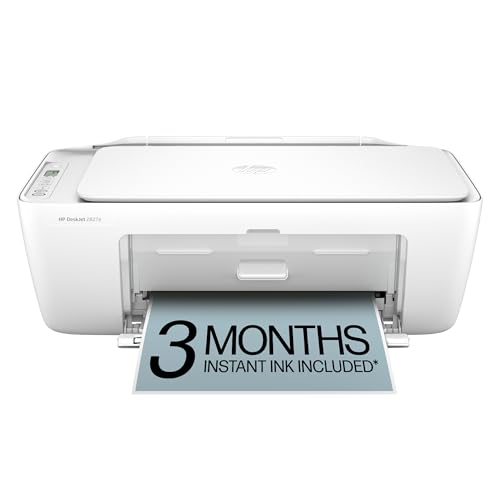
The HP DeskJet 2827e Wireless All-in-One Printer stands out for home office users who need reliable envelope printing with consistent alignment and crisp text, thanks to its precision paper path and automatic print optimization. I’ve found it handles #10 envelopes without jams, and HP’s AI tech trims blank margins from web pages, saving ink. It prints decent-quality envelopes at 5.5 ppm color, though it’s slower than lasers. Wireless setup is smooth, and the HP app works well for mobile tasks. Just know: it requires HP+ with Instant Ink-a $4.99/month commitment after trial-and only accepts genuine HP cartridges, which limits flexibility.
Best For: Home office users who prioritize reliable envelope printing, wireless convenience, and AI-optimized print jobs with consistent alignment and ink efficiency.
Pros:
- Handles envelopes and everyday print tasks smoothly with precise paper handling and minimal jams
- HP AI technology optimizes web content, removing blank margins and saving paper and ink
- Seamless wireless printing and scanning via the HP app from smartphones and tablets
Cons:
- Requires enrollment in HP+ with Instant Ink, locking users into a $4.99/month fee after trial
- Uses only genuine HP ink cartridges, blocking third-party or refilled cartridges with chips
- Slower print speeds (5.5 ppm color) compared to laser printers, limiting high-volume efficiency
HP DeskJet 4255e Wireless All-in-One Printer

You’ll get solid envelope-printing performance from the HP DeskJet 4255e if you’re setting up a compact home office and need reliable, everyday printing with wireless flexibility. It handles envelopes smoothly thanks to its 60-sheet input tray and auto document feeder, and I’ve found print quality sharp, especially for addresses and small text. Wireless setup is simple using 2.4 GHz Wi-Fi, and the HP app lets me print or scan from my phone reliably. Its AI formatting cleans up web pages well, though I don’t love that firmware locks me into HP’s ink system. The 3-month Instant Ink trial helps offset early costs.
Best For: Home office users seeking a compact, wireless all-in-one printer with reliable envelope printing and smart features.
Pros:
- Smooth envelope handling with 60-sheet input tray and auto document feeder
- Simple wireless setup and mobile printing via HP app with AI formatting for cleaner web prints
- Eco-friendly design with 60% recycled plastic and ENERGY STAR/EPEAT certification
Cons:
- Limited to HP ink cartridges due to firmware restrictions
- Only supports 2.4 GHz Wi-Fi, no 5 GHz connectivity
- Color print speed relatively slow at 5.5 ppm
Canon PIXMA TS3720 Wireless Printer
I pick the Canon PIXMA TS3720 Wireless Printer when I need a compact, reliable workhorse that handles envelopes without fuss and keeps routine home office tasks moving. It prints, scans, and copies well, supports borderless 5” x 7” photos and even 5” x 5” square prints, making it versatile for light creative jobs. My wireless setup was smooth over 5GHz Wi-Fi, and printing from my iPhone via AirPrint just works. The 1.5-inch LCD helps, and replacing the two ink cartridges is quick. I do wish it had automatic double-sided printing-manual flipping slows me down. Print speeds are modest: about 7.7 ppm black, 4 ppm color. It’s not for heavy volume, but for occasional envelopes and documents, it delivers solid results. I appreciate the 1-year warranty and free POSTERARTIST Online access for simple banners. It’s no speed demon, but it’s dependable for light-duty home use.
Best For: Home users and small office workers who need a compact, reliable all-in-one printer for everyday printing, scanning, copying, and occasional photo projects.
Pros:
- Easy wireless setup with dual-band Wi-Fi and seamless mobile printing via AirPrint, Canon PRINT app, and Mopria
- Supports a variety of media types including envelopes, borderless photos up to 5” x 7”, and 5” x 5” square prints
- Simple operation with a 1.5” LCD screen, quick ink replacement, and includes free POSTERARTIST Online software for banners
Cons:
- No automatic double-sided printing, requiring manual flipping for duplex jobs
- Modest print speeds at 7.7 ppm (black) and 4 ppm (color), not ideal for high-volume tasks
- Single-sided printing only limits efficiency for document-heavy users
Canon MegaTank G3270 Wireless Printer

While it won’t handle thick cardstock or automatic double-sided envelopes, the Canon MegaTank G3270 Wireless Printer stands out for anyone printing moderate volumes of standard envelopes on a budget. I’ve used it for months, and the print quality is sharp, especially for addresses and basic designs. With up to 6,000 black and 7,700 color pages per ink set, it saves serious cash-especially since it comes with up to two years of ink included. The 1.35” LCD helps navigate copy, scan, and print jobs easily. Just remember: it’s single-sided only, so you’ll need to manually flip envelopes for two-sided printing.
Best For: Budget-conscious home users who print moderate volumes of standard envelopes and want long-term ink savings.
Pros:
- High page yield with up to 6,000 black and 7,700 color pages per ink set, reducing replacement costs
- Comes with up to two years of ink included, offering significant upfront savings
- Sharp print quality for addresses and simple designs on standard envelopes
Cons:
- Cannot print on thick cardstock or automatically handle double-sided envelopes
- Single-sided printing only, requiring manual flipping for two-sided output
- Limited to basic functionality with no automatic document feeder or duplex scanning
Epson EcoTank ET-2800 Wireless Printer
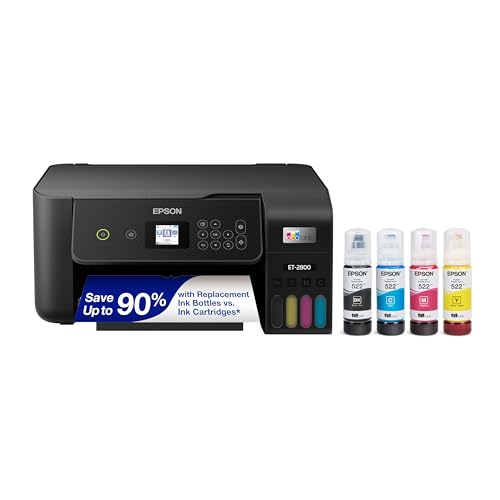
The Epson EcoTank ET-2800 Wireless Printer stands out for home users who print envelopes regularly and want long-term savings without sacrificing print quality. I rely on its Micro Piezo Heat-Free Technology for sharp, consistent envelope printing, and it handles up to 10 pages per minute, making batch jobs manageable. Its cartridge-free design uses refillable tanks, with each ink set lasting up to 4,500 black or 7,500 color pages-cutting costs by up to 90% versus cartridge printers. I appreciate having up to two years of ink included, reducing waste and interruptions. Just note: it’s compact and basic, so heavy office use may overwhelm it.
Best For: Home users who print envelopes regularly and want long-term ink savings without compromising print quality.
Pros:
- Cartridge-free design with high-yield ink tanks saves up to 90% on printing costs
- Micro Piezo Heat-Free Technology delivers sharp, consistent prints including on envelopes
- Comes with up to two years of ink, reducing waste and minimizing refill interruptions
Cons:
- Basic functionality limits suitability for heavy office or high-volume printing
- Compact design may restrict paper capacity and handling of specialty media
- Slower print speed at 10 pages per minute compared to higher-end models
Factors to Consider When Choosing a Printer for Envelopes
You’ll want a printer that reliably handles envelopes without jams, and checking paper size compatibility upfront saves hassle down the line. Look for models with a straight-edge manual feed slot and solid media weight support-many handle up to 40 lb. bond, but always confirm your envelope thickness matches the specs. Print quality varies, so test a sample run; even sharp printers can smudge if the envelope coating doesn’t align with ink or toner type.
Paper Size Compatibility
How do you guarantee your printer handles envelopes without trouble? Choose a model with a dedicated manual feed slot-it reliably supports sizes like #10, DL, and A2 that standard trays can’t. You’ll get the most flexibility if you pick a printer rated for envelopes up to 9.5″ x 12″, with extended feed options for larger formats. Make sure the printer handles envelope weights between 20 lb and 40 lb; going beyond that risks jams. A straight or adjustable paper path improves success with stiff or uneven stock. Some models offer borderless printing, enabling full-coverage designs, but others require margins to avoid smudging. Don’t assume all manual feeds fit all envelopes-check specs carefully. Your best results come from matching envelope size and weight precisely to the printer’s tested capabilities.
Envelope Feed Type
While printing on envelopes might seem straightforward, the feed type makes or breaks your results-manual feed slots give you direct control over thickness and size, letting you confidently run a single #10 or A7 envelope without stress. If you mail regularly, look for a printer with a dedicated envelope tray; it automatically feeds multiples, saving time. Dual-path paper handling routes envelopes straight through, reducing jams you’d often get with curved paths. You’ll want adjustable guides to align each piece, which helps prevent skewing and guarantees crisp positioning. Feed rollers with enhanced grip handle slick or uneven surfaces better than standard ones, boosting reliability. But don’t assume automatic is always better-manual feeding still delivers more precision for thicker or oddly sized envelopes. Weigh your volume needs, but expect to compromise somewhere: speed versus control, convenience versus consistency.
Print Quality Clarity
A high-resolution printer makes a clear difference when printing on envelopes, with models offering 1200 DPI or higher delivering sharp text and clean graphics essential for professional-looking mail. You’ll get the crispest results with a laser printer, as toner adheres precisely and handles textured surfaces better than ink. Inkjets can match quality on coated or premium envelopes, especially when using pigment-based ink that dries quickly and resists smudging. But texture matters-rough or matte finishes often cause ink to feather, reducing clarity. You need to adjust media settings for thickness and material, or risk blurry output. Don’t assume high DPI alone guarantees quality; alignment, toner fusion, and print head precision also play key roles. Test different envelope types to see how well your printer maintains edge definition and consistent density.
Manual Feed Support
If you’re serious about printing on envelopes, you’ll want a printer with a dedicated manual feed slot-this feature gives you direct control over the paper path, substantially reducing the chance of jams that can ruin both your envelope and your print job. The manual feed lets you bypass the main tray, feeding envelopes straight into the printer with minimal roller contact, which helps prevent misalignment and smudging. You’ll get better results on textured or rigid stocks since they don’t have to twist through tight internal curves. Most manual feeds support a wide range of sizes, from #10s to large A7s, often with alignment guides for consistent placement. While it’s slower than auto-feeding, especially for bulk jobs, the trade-off is precision. Just make sure you’re comfortable loading each sheet by hand-this isn’t a set-it-and-forget-it process.
Media Weight Handling
You’ll get the most reliable results when your printer matches the envelope’s weight to its supported range, typically between 74 gsm and 105 gsm-going beyond these limits increases the risk of jams, misfeeds, or even internal damage. Heavier envelopes, like those above 105 gsm, often require manual feeding through a straight paper path to prevent curling or binding. Look for models with a dedicated envelope feed slot or adjustable paper guides, as they improve alignment and reduce feeding issues. Using thicker or textured envelopes outside the recommended range can also degrade print quality due to poor ink or toner adhesion. While some printers handle heavy media well, exceeding specs voids warranties and strains internal components. Always check manufacturer specs for exact gsm limits and test a few envelopes first. Matching weight to capability guarantees sharp prints and smooth operation without unnecessary wear.
Borderless Printing Option
Why settle for trimmed designs when your envelopes can feature full-coverage, edge-to-edge printing? A borderless option lets you print right to the edges, giving your mailings a sharp, professional look with no unsightly margins. You’ll want a printer that supports borderless output on envelopes up to 8.5 x 11 inches, which most inkjets can handle using precise feed mechanisms. These systems keep thick or textured envelopes aligned during printing, reducing smudging and misfeeds. High print resolution is maintained across the entire surface, so graphics and text stay crisp. But be careful-borderless needs careful loading, and some models struggle with heavier stocks. Always test with sample envelopes first. While the results can be striking, not every office printer delivers reliable edge-to-edge quality, so check user reviews and real-world performance before deciding.
Frequently Asked Questions
Can I Print Colored Envelopes Without Smudging?
Yes, you can print on colored envelopes without smudging if you use the right printer and settings. Laser printers handle colored envelopes better than inkjets because they fuse toner instantly, reducing smudge risk. Load envelopes manually, use smooth-finish stock, and avoid heavy ink coverage. Always run a test print. Feed them straight to prevent jams. Even the best models struggle with dark or textured envelopes, so stick to light-to-medium shades for clean, reliable results.
Do These Printers Handle Thick Cardstock Envelopes?
Yes, you can print on thick cardstock envelopes without issues if the printer has a straight paper path and adjustable media thickness settings. Look for models supporting up to 120 lb. cardstock-this prevents jams. Always feed envelopes one at a time and use manual bypass trays when available. Avoid humid environments, as moisture increases smudging and feeding problems. Test with sample stock first. Not all printers handle heavy envelopes well, so check real-world user reports before buying.
How Often Do I Need to Replace Ink?
You’ll replace ink every 2–3 months with regular envelope printing, depending on print density and envelope finish. Pigment inks last longer-about 30% more than dye-especially on thick cardstock, which uses more ink per pass. High-yield cartridges cut costs but aren’t always available for compact models. Monitor ink levels via printer software; running dry risks printhead damage. Always use genuine cartridges to avoid clogs. Check warranty terms-some brands void coverage if third-party ink causes issues.
Are Refillable Ink Tanks Worth the Investment?
Yes, refillable ink tanks are worth it if you print often. You’ll save notably over time-some models cost under five cents per page. They’re ideal for high-volume home offices, reducing how often you replace cartridges. But you must print regularly to prevent clogs, and upfront costs are higher. Look for brands like Epson EcoTank or HP Smart Tank-they offer solid warranties and consistent output, but test them with your envelope stock to avoid smudging.
Do Wireless Printers Work With Mobile Apps?
Yes, wireless printers work with mobile apps, and you can print straight from your phone or tablet. Most use AirPrint or Mopria, so they connect reliably to iOS and Android. You’ll need the manufacturer’s app for full features like scanning or ink checks. Wi-Fi strength matters-weak signals cause delays. Some models lag during big jobs. Always check app ratings; a few have clunky interfaces. For best results, pick printers with strong firmware and regular updates-tested brands like HP, Brother, and Epson deliver consistency.