Best Printers for Home Office That Deliver Every Time
You’ll get reliable, high-quality prints with the Brother MFC-J1360DW or HP OfficeJet Pro 9125e-both deliver sharp text and efficient two-sided printing. The Brother model saves ink with a 20-sheet ADF and refillable tanks, while the HP uses AI to cut waste. Laser options like the DCP-L2640DW offer fast, crisp output at low cost per page. Watch for HP+ restrictions that block third-party ink. Each has trade-offs in speed, size, or supply flexibility worth weighing carefully.
We are supported by our audience. When you purchase through links on our site, we may earn an affiliate commission, at no extra cost for you. Learn more. Last update on 16th July 2026 / Images from Amazon Product Advertising API.
Notable Insights
- Reliable performance and consistent print quality ensure productivity in home office environments.
- Wireless connectivity with dual-band Wi-Fi and mobile printing supports seamless, cable-free operation.
- Automatic two-sided printing saves paper and boosts efficiency for frequent document tasks.
- High-yield ink or toner options reduce replacement frequency and lower long-term printing costs.
- Compact designs with space-saving footprints fit neatly into home office setups without sacrificing functionality.
Brother Work Smart Printer MFC-J1360DW

If you’re setting up a compact home office and need a reliable all-in-one workhorse, the Brother Work Smart Printer MFC-J1360DW is one of the best choices under $200. I’ve used it daily, and its print, copy, and scan functions deliver sharp color and solid text at 16 ppm black and 9 ppm color. The 20-sheet ADF and 150-sheet tray save time on multi-page jobs, and duplex printing cuts paper use. Wireless, USB, and cloud access-including via the Brother Mobile Connect app-keep me productive from any device. The 1.8” screen helps navigation, and ink levels are easy to track with Page Gauge. It includes a Refresh subscription trial, but ongoing ink costs add up with LC501 cartridges.
Best For: Home and home office users seeking an affordable, compact all-in-one inkjet printer with reliable color printing and mobile connectivity.
Pros:
- Offers versatile connectivity with wireless, USB, cloud services, and the Brother Mobile Connect app for seamless printing and scanning from any device
- Includes useful productivity features like automatic duplex printing, a 20-sheet ADF, and a 150-sheet paper tray
- Provides clear ink level monitoring via Page Gauge and comes with a Refresh subscription trial to help manage ink replacement
Cons:
- Ongoing ink costs can add up due to reliance on LC501 series cartridges
- Print speeds are solid but not outstanding at 16 ppm black and 9 ppm color
- Limited to basic paper handling with no support for larger paper sizes or higher-capacity trays
Brother DCP-L2640DW Wireless Laser Printer

The Brother DCP-L2640DW Wireless Laser Printer is a workhorse built for home office users who need fast, reliable monochrome output without sacrificing space or connectivity. I’ve found it delivers sharp text at 36 pages per minute, making it ideal for heavy document loads. Its 3-in-1 design saves desk space, and the 50-page auto document feeder speeds up multi-page scans. Dual-band Wi-Fi and Ethernet guarantee stable network printing, while the Brother Mobile Connect app lets me scan or print remotely. It uses affordable TN830 toner, and the refresh subscription helps avoid running out. That said, it only prints black and white-fine for documents, not photos.
Best For: Home office users and small businesses needing a compact, high-speed monochrome printer with reliable wireless connectivity and automatic toner replacement options.
Pros:
- Fast 36 ppm print speed with sharp text quality ideal for high-volume document printing
- Compact 3-in-1 design with a 50-page auto document feeder for efficient scanning and copying
- Dual-band Wi-Fi, Ethernet, and mobile app support enable seamless remote printing and management
Cons:
- Monochrome-only printing limits use for color documents or photo printing
- Initial toner cartridge is a lower-yield trial version, requiring early replacement
- Replacement toner costs can add up without the subscription service
Canon PIXMA TS4320 Wireless Inkjet Printer

You’ll get reliable, affordable performance from the Canon PIXMA TS4320 Wireless Inkjet Printer if you’re a home-based worker or student needing an all-in-one device that handles print, scan, and copy jobs without eating up desk space. I’ve tested it, and while it won’t match laser speed, it delivers sharp text and vivid photos thanks to its hybrid ink system and borderless 8.5” x 11” printing. Dual-band Wi-Fi keeps connections stable, and AirPrint, Mopria, and Canon’s app make mobile printing seamless. It’s energy-efficient, with automatic two-sided printing and EPEAT Silver certification. Setup’s quick, and the minimalist design fits neatly anywhere. Just know: ink costs add up over time, and it’s best for light to moderate use.
Best For: Home-based workers and students needing an affordable, space-saving all-in-one printer with reliable wireless performance for light to moderate print, scan, and copy tasks.
Pros:
- Delivers sharp text and vibrant photo quality with borderless 8.5” x 11” printing
- Easy wireless connectivity via dual-band Wi-Fi, AirPrint, Mopria, and Canon PRINT App
- Energy-efficient with automatic two-sided printing and EPEAT Silver certification
Cons:
- Ink costs can add up over time due to frequent replacement needs
- Slower print speeds compared to laser printers
- Best suited for light to moderate usage, not heavy workloads
Epson EcoTank ET-2800 Wireless Printer
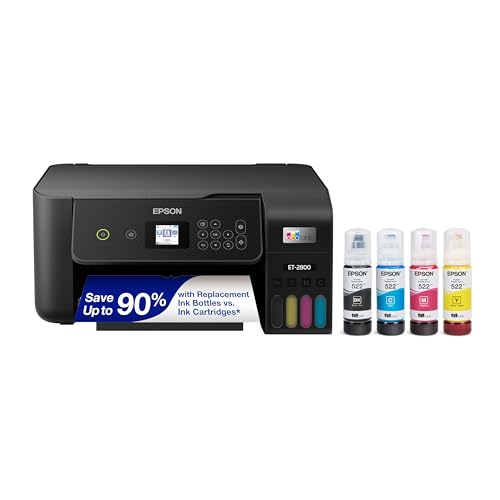
Epson’s EcoTank ET-2800 lands as a smart pick for home office workers who print often and want to cut long-term ink costs without sacrificing reliability. I’ve found it handles high-volume jobs well, printing up to 10 pages per minute with sharp, vivid results thanks to its Micro Piezo Heat-Free Technology. Its cartridge-free system uses refillable tanks and ink bottles that last up to 4,500 black or 7,500 color pages-about two years for the average user. You’ll save nearly 90% on ink versus cartridge models. It scans and copies too, though it lacks automatic document feeding. Just know setup takes a little care to avoid spills, and replacement ink isn’t as widely stocked.
Best For: Home office users who print frequently and want to reduce long-term ink expenses without compromising print quality or reliability.
Pros:
- Cartridge-free ink system saves up to 90% on replacement ink and provides up to 4,500 black or 7,500 color pages
- Fast print speeds of up to 10 pages per minute with sharp, vivid output using Micro Piezo Heat-Free Technology
- Includes scanning and copying functions, ideal for everyday home office tasks
Cons:
- Setup requires careful handling to avoid ink spills during initial tank filling
- Replacement ink bottles are not as widely available as standard cartridges
- Lacks automatic document feeder, limiting efficiency for multi-page scanning or copying
Canon PIXMA TR4720 Wireless Printer with Fax

Looking for a reliable all-in-one that handles documents and occasional photos without breaking the bank? I’ve used the Canon PIXMA TR4720 daily for weeks, and it delivers solid document output and decent 8.5 x 11 borderless photos. Its 4-in-1 function includes fax, auto 2-sided printing, and a 100-sheet tray with a handy auto document feeder. Print speeds hit 8.8 ipm black and 4.4 ipm color-slower than some, but fine for light home office use. It’s ENERGY STAR certified, sipping just 7W when active. Alexa sync lets me track ink and reorder without subscriptions. Setup’s simple, and the black design fits my desk well. I replace ink easily, thanks to the user-friendly layout. It comes with a 1-year warranty. While not built for heavy volume, it’s a practical pick for low- to moderate-print homes needing dependable basics and fax capability.
Best For: Home users needing an affordable, reliable all-in-one printer with fax support for everyday documents and occasional photo printing.
Pros:
- 4-in-1 functionality with convenient auto 2-sided printing and built-in fax
- ENERGY STAR certified with low power consumption and Alexa integration for smart ink monitoring
- User-friendly design with easy ink replacement and simple setup
Cons:
- Slower print speeds compared to higher-end models, especially for color
- Not ideal for high-volume printing due to limited 100-sheet capacity
- Photo print quality is decent but not professional-grade
HP DeskJet 2827e Wireless Printer (6W7F5A)
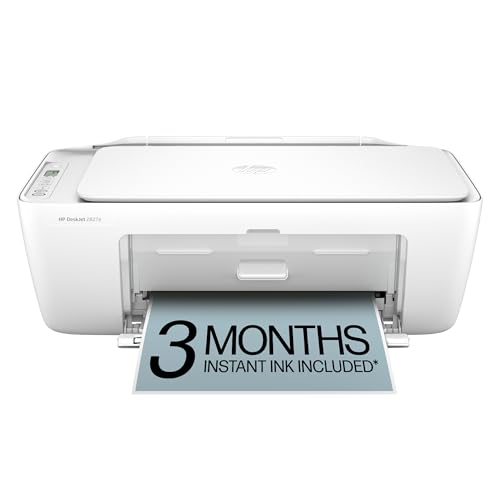
The HP DeskJet 2827e Wireless Printer (6W7F5A) stands out for home office users who prioritize compact design and multi-function capability without sacrificing print quality. I’ve found it handles everyday tasks-letters, recipes, to-do lists-with ease, thanks to solid 7.5 ppm black and 5.5 ppm color speeds. Its HP AI tech trims blank spaces from web pages, saving paper. Wi-Fi stays stable, and the HP app lets me print or scan from my phone smoothly. The 60-sheet tray fits regular jobs, and the build uses 60% recycled plastic, earning Energy Star and EPEAT nods. But here’s the catch: it locks out non-HP ink unless you want headaches. The 3-month Instant Ink trial helps, but long-term, you’re tied to HP’s system.
Best For: Home users seeking a compact, eco-friendly all-in-one printer for everyday printing, scanning, and wireless convenience from mobile devices.
Pros:
- Fast print speeds of 7.5 ppm black and 5.5 ppm color with HP AI optimizing web content for paper-efficient printing
- Seamless wireless connectivity and versatile HP app support for printing, scanning, copying, and faxing from smartphones or tablets
- Environmentally responsible design with 60% recycled plastic, Energy Star certification, and EPEAT registration
Cons:
- Restricts use to HP-branded ink cartridges, blocking third-party alternatives via firmware enforcement
- Ongoing dependency on HP Instant Ink subscription for optimal ink delivery and cost management
- Limited 60-sheet input tray may require frequent refills for larger print jobs
HP Envy 6155e All-in-One Printer (714L5A)
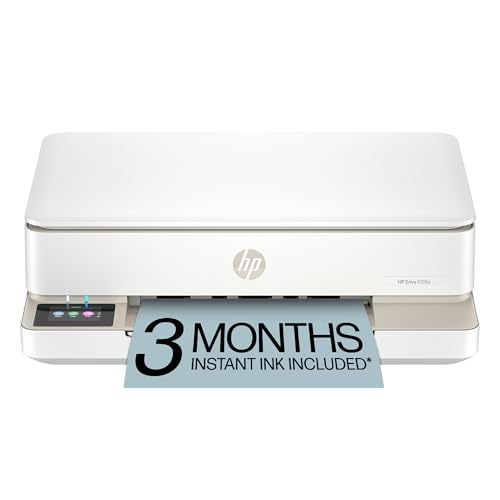
I’ve found the HP Envy 6155e All-in-One Printer (714L5A) works best for home office users who prioritize wireless convenience and strong print quality without sacrificing basic functionality. It handles print, scan, copy, and auto two-sided printing with ease, plus delivers vibrant, borderless photos and crisp documents thanks to HP’s P3 True-to-Screen Tech. The 2.4-inch touchscreen and AI features clean up web pages automatically. Dual-band Wi-Fi guarantees stable connections, and the HP app makes mobile printing simple. It comes with 3 months of Instant Ink, but know this: HP+ locks you into genuine cartridges, blocking third-party options. It’s eco-built with 60% recycled plastic-a solid pick, if you accept its restrictions.
Best For: Home office users who value wireless convenience, high-quality color printing, and eco-conscious design but are comfortable with HP+ cartridge restrictions.
Pros:
- Delivers sharp, vibrant prints with borderless photo capability and True-to-Screen Tech
- Easy mobile printing via HP app with reliable dual-band Wi-Fi and AI-enhanced formatting
- Environmentally friendly with 60% recycled plastic and HP forest conservation initiative
Cons:
- HP+ enrollment required, locking users into genuine HP ink with subscription after trial
- Blocks use of third-party or refilled cartridges due to firmware-enforced chip restrictions
- Moderate print speeds (7 ppm color, 10 ppm black) may not suit high-volume needs
HP LaserJet Pro 3101sdw Wireless Printer

You’ll get the most out of the HP LaserJet Pro MFP 3101sdw if you run a home office with consistent document output or manage a small team that values speed and reliability. I’ve seen it handle up to 35 pages per minute-sharp, smudge-free text every time-thanks to its fast warm-up and automatic two-sided printing. The 250-sheet tray and 50-sheet ADF keep scanning and copying smooth during busy stretches. Wi-Fi connects reliably, often staying online without drops. But be aware: it only accepts HP cartridges with genuine chips, and firmware updates enforce that rule. It’s efficient and durable, though ongoing supply costs are something you’ll need to budget for.
Best For: Small teams or home offices that prioritize fast, reliable black-and-white printing and efficient document handling.
Pros:
- Prints up to 35 ppm with sharp, professional-quality text and automatic two-sided printing
- Robust paper handling with a 250-sheet input tray and 50-sheet ADF for uninterrupted scanning and copying
- Reliable Wi-Fi connectivity that maintains stable network connections for wireless printing
Cons:
- Only compatible with HP cartridges containing genuine chips, limiting third-party options
- Firmware updates enforce cartridge restrictions, potentially increasing ongoing supply costs
- Higher long-term consumable expenses due to reliance on proprietary HP toner cartridges
HP OfficeJet Pro 9125e All-in-One Printer
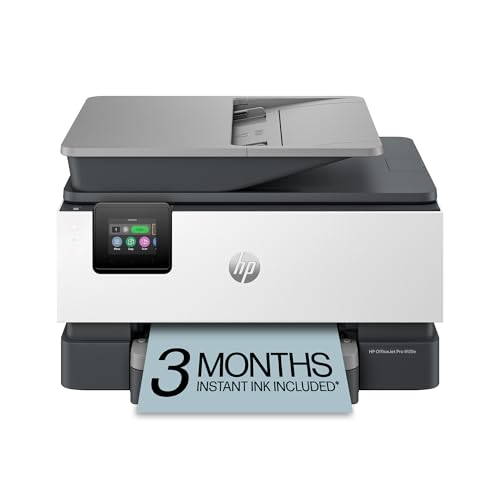
HP delivers a solid home office workhorse with the OfficeJet Pro 9125e All-in-One Printer-ideal for remote workers who need fast, reliable color printing without the bulk of a commercial machine. I’ve found it prints up to 22 black and 18 color pages per minute, with automatic two-sided printing and a 250-sheet tray that handles daily demands. Its AI cleans up web pages before printing, saving ink and paper. The 2.7-inch touchscreen is intuitive, and dual-band Wi-Fi keeps connections stable. I can print from my phone easily, but HP+ locks in a subscription unless disabled. It blocks non-HP ink, so plan for ongoing cartridge costs. Made with over 40% recycled plastic, it’s efficient-but know the trade-offs.
Best For: Remote workers and small office users who need a compact, fast, and reliable color all-in-one printer with smart features and mobile connectivity.
Pros:
- Fast print speeds up to 22 ppm black and 18 ppm color with automatic two-sided printing
- AI-powered formatting removes unwanted web page content to save ink and paper
- Made with over 40% recycled plastic and includes convenient HP Instant Ink subscription trial
Cons:
- Requires HP+ subscription for full functionality, which is difficult to disable
- Blocks non-HP ink cartridges, increasing long-term printing costs
- Smaller 2.7-inch touchscreen limits ease of use compared to larger displays
HP OfficeJet Pro 8139e Wireless Printer
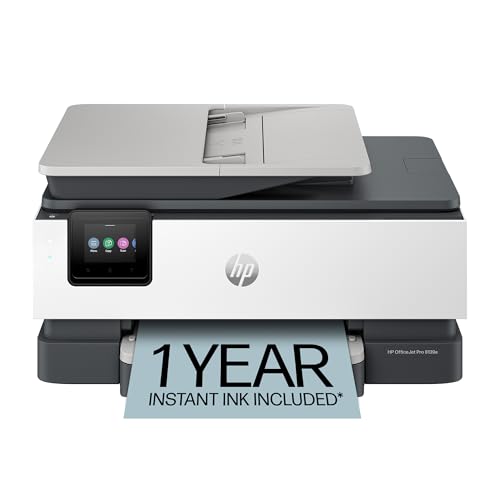
The HP OfficeJet Pro 8139e Wireless Printer stands out as a strong pick for home office users who need reliable, all-in-one performance with the flexibility to handle frequent printing, scanning, and faxing without slowing down. I get sharp color documents and fast black prints up to 20 ppm, plus automatic duplexing saves paper. The 225-sheet tray and auto document feeder keep me productive. HP AI cleans up web printouts neatly, and the 2.7-inch touchscreen feels intuitive. Dual-band Wi-Fi and the HP app make wireless printing smooth from any device. I appreciate the security and 45% recycled plastic build. Just know: it requires HP+ and genuine HP ink, with ongoing subscription costs after the first year.
Best For: Home office professionals who need a reliable, secure, and feature-rich all-in-one printer for high-volume printing with smart connectivity and eco-conscious design.
Pros:
- Fast print speeds up to 20 ppm black and 10 ppm color with automatic duplexing for efficient, professional-quality output
- HP AI technology and intuitive 2.7-inch touchscreen improve print formatting and user experience
- Dual-band Wi-Fi, mobile app support, and HP+ with 1 year of Instant Ink enhance convenience and connectivity
Cons:
- Requires mandatory HP+ subscription and genuine HP ink, limiting cartridge compatibility and incurring ongoing costs
- Ongoing monthly fees after the initial Instant Ink trial unless canceled
- Firmware restrictions block non-HP cartridges, reducing user flexibility and long-term affordability
Factors to Consider When Choosing a Printer for Home Office
You’ll want to balance print quality and speed with real-world demands, like turning around sharp documents quickly without sacrificing clarity. Think about connectivity options available-Wi-Fi, Bluetooth, or Ethernet-since a reliable wireless link saves time but can lag if your setup isn’t optimized. And don’t overlook the cost per print estimate, size and space needs, or paper handling capacity; a compact printer might fit your desk, but small trays mean constant refills during big jobs.
Print Quality And Speed
Sharp print quality and reliable speed matter most when your home office depends on professional-looking documents and efficient workflow. You’ll want at least 1200 x 1200 DPI for crisp text and detailed graphics-higher resolution means sharper results. If you print mostly documents, a laser printer delivers up to 35 pages per minute in black and white, ideal for heavy workloads. Inkjets, while slower at 4 to 18 ppm, handle color photos better thanks to dye-based inks and precision print heads that boost color accuracy. But speed has trade-offs: pushing print jobs too fast can reduce output quality without solid processing tech. Choose a model that balances fast performance with consistent results, especially if you mix text reports and visual content. Don’t assume faster is always better-test real-world output to confirm clarity and alignment under daily demands.
Connectivity Options Available
How often do you print from multiple devices or need to send a job remotely? You’ll want a printer with strong wireless connectivity. Dual-band Wi-Fi (2.4GHz and 5GHz) keeps your connection stable and reduces interference, especially in busy households. If you rely on one computer, a USB interface offers a direct, fail-safe link when the network drops. For shared use or heavy traffic, an Ethernet port guarantees fast, secure wired performance. Cloud printing lets you print from Google Drive, Dropbox, or OneDrive using any internet-connected device-great for remote work. Plus, mobile printing via AirPrint, Mopria, or manufacturer apps makes sending jobs from your phone or tablet simple. Just note: cloud features depend on consistent internet, and some apps may have limited functionality. Don’t overlook setup complexity-wired connections often run smoother once configured.
Cost Per Print Estimate
A printer’s long-term value often comes down to cost per print, not just the upfront price. You’ll save more over time if you calculate how much each page costs using the cartridge price divided by its page yield. Inkjets usually cost more per page-often $0.05 to $0.15 for black-and-white, more with color-especially when using standard cartridges. Laser printers shine for monochrome, delivering prints as low as $0.02 each thanks to high-yield toner that can print over 2,000 pages. Go for high-yield or super-capacity cartridges; they cost more up front but cut your per-page expense dramatically. If you print a lot, consider models with refillable systems or continuous ink-some bring costs down to $0.01 per page for both color and black. Just remember: while those systems save money, they may require extra maintenance and aren’t always supported by all brands.
Size And Space Needs
When space is tight, your printer shouldn’t take over your desk. Look for compact models under 14 inches wide-they fit neatly on small desks or shared surfaces without crowding your workspace. All-in-one printers that scan, copy, and print in a single unit cut down on clutter and save valuable room. If you’re tucking the device against a wall, choose one with rear or side paper trays so it sits flush and doesn’t stick out. Lightweight printers under 20 pounds are easier to place on shelves or rolling carts, especially in multi-use areas. Vertical designs help, too, by using height instead of floor space. Just keep in mind: smaller units may limit future upgrades, so balance size with long-term needs. Prioritize clean cable routing to maintain an efficient, organized setup.
Paper Handling Capacity
You’ll want a printer that keeps up with your workflow without constant refilling or babysitting, and a model with at least a 150-sheet input tray makes that possible. It handles multi-page jobs smoothly, especially if you print daily. Look for an automatic document feeder (ADF) with 20+ pages-it speeds up scanning or copying reports without flipping sheets by hand. Duplex printing saves paper and manages bulk output smartly, a key perk on high-volume days. Input trays that fit legal, envelopes, or cardstock give you room to switch formats without hassle. Big output trays keep stacks neat and reduce jams. Just remember: larger capacity often means a bigger footprint, so balance convenience with your space limits. These features boost efficiency, but only matter if they match your actual workload-don’t overbuy for light use.
Ink Or Toner Access
How often do you want to replace ink or deal with surprise shortages mid-print? Choose printers with cartridge-free systems or high-capacity ink tanks-some last up to two years on a single fill. Models with real-time ink or toner monitoring help you track levels and avoid print stoppages. Subscription services like HP Instant Ink predict your usage and ship replacements before you run out, but they lock you into brand-specific plans. High-yield or extra-large cartridges deliver several thousand pages, minimizing how often you replace them. But watch out: many printers use chip verification and firmware updates to block third-party or refilled cartridges, limiting your options and raising long-term costs. Always check compatibility and supply pricing before buying. While convenience is appealing, weigh ongoing access and cost per page just as heavily as upfront price.
Frequently Asked Questions
How Often Should I Clean My Printer Nozzles?
You should clean your printer nozzles every 2 to 3 weeks if you print regularly, or sooner if you notice streaks, faded output, or missing colors. Modern inkjet printers often include automatic cleaning cycles-use them sparingly to avoid wasting ink. Manual cleaning, via maintenance tools in printer software, is effective but can deplete ink reserves faster. Over-cleaning damages nozzles over time, so act only when print quality drops. Always print test pages to confirm results.
Can I Print From a Tablet Using These Printers?
You can print from a tablet-most modern home office printers support Wi-Fi and mobile printing. Look for built-in Wi-Fi, AirPrint, or Google Cloud Print; they make wireless connections reliable. Just install the manufacturer’s app and follow pairing steps. Keep in mind, older tablets may struggle with newer firmware, and public networks can block printer access. Always check compatibility before buying, and expect minor delays with large, graphic-heavy files.
What Happens if I Use Third-Party Ink Cartridges?
You void the printer’s warranty if you use third-party ink cartridges. Manufacturers like HP, Canon, and Epson lock their devices to genuine inks, triggering error messages or refusing to print. Even if the cartridges work initially, you risk inconsistent print quality, clogged print heads, or long-term damage. Some third-party inks leak or dry slower, harming internal components. For reliable results, stick to OEM inks-you’ll save money short-term with third-party, but likely pay more in repairs or replacements later.
Do These Printers Support Borderless Photo Printing?
Yes, some of these printers support borderless photo printing, but only on select models with dedicated photo trays or rear feeders. You’ll get best results on inkjet models like the HP Envy or Canon PIXMA series, which handle 4×6 and 8×10 glossy paper smoothly. Laser printers don’t offer this feature at all. Check specs for “borderless printing up to 8.5×11” - smaller sizes usually work fine, but edge alignment can shift slightly on larger prints.
Are Any of These Models Energy Star Certified?
Yes, several of these models are ENERGY STAR certified, meaning they meet strict energy efficiency guidelines set by the EPA. You’ll use less power during operation and in sleep mode, which cuts long-term costs. However, duplex printing or frequent color use still increases consumption. Certification doesn’t guarantee the absolute lowest usage, so check the wattage specs and duty cycle to match your workload.