Maximizing Data Transfer Speeds Through USB Protocols: An Essential Guide for Efficient Work Practices in Distributed Environments
You’ll get the fastest transfers by matching USB4 or Thunderbolt devices with certified 40 Gbps cables and powered hubs, but real speed depends on your ports, cables, and device limits. Even one worn cable or mismatched port can cut speeds in half. Use short, undamaged cables under 1 meter to reduce interference, and check that all parts support the same protocol-fallback to USB 2.0 hurts performance. Older systems can upgrade via Thunderbolt PCIe cards, but verify compatibility. There’s more to optimize beyond just plugging in.
Notable Insights
- Match USB protocols across devices, cables, and ports to avoid unintended fallback to slower speeds.
- Use USB-IF certified cables with full bandwidth support to ensure signal integrity and maximum throughput.
- Prefer shorter cables under 1 meter to reduce interference and maintain stable high-speed connections.
- Upgrade host systems with Thunderbolt 3/4 or USB4 ports and compatible expansion cards for 40 Gbps performance.
- Employ powered hubs and check device power ratings to prevent bandwidth throttling from power limitations.
Know the USB Speed Tiers: From 2.0 to USB4
You’ll want to get familiar with the USB speed tiers-ranging from the old USB 2.0 standard all the way up to the latest USB4-because choosing the right one can make a real difference in how fast your devices transfer files and charge. Each of the USB generations brings a jump in data throughput, with USB 2.0 offering just 480 Mbps while USB4 can hit 40 Gbps. That means newer peripherals like SSDs or docking stations work best when paired with matching ports. But faster speeds aren’t automatic-cables and host devices must support the same standard. You won’t get full performance from a USB4 drive plugged into a USB 3.0 port. Always check both ends of the connection. Real-world transfers often fall short of theoretical max speeds due to device limitations, so consider your gear as a system, not just specs.
Find What’s Slowing Down Your Transfers
Just knowing the USB speed tiers isn’t enough if your transfers are still dragging-something in your setup is likely holding things back. Cable wear is a common culprit; frayed or bent connectors degrade signal quality, especially over long use. Even minor damage can cause a drop from USB 3.0 to 2.0 speeds without warning. Connection interference from nearby power cables, monitors, or poorly shielded hubs also disrupts data flow, creating slowdowns in real-world tasks. You might be plugged into a fast port, but if the cable or environment compromises the signal, performance suffers. Always test with a known-good cable and shorten cable runs when possible. While shielded, shorter cables (under 1 meter) reduce interference, they’re less flexible in larger setups. Inspect gear regularly-don’t assume new devices fix old physical issues.
Match Devices to Maximize Transfer Speeds
While your USB cable and port might support high-speed data transfer, the actual performance hinges on matching the capabilities of both connected devices. You can’t reach top speeds if one device lags-say, pairing a USB 3.2 flash drive with an older USB 2.0 hub. Effective device pairing guarantees both ends support the same transfer rates. Protocol matching is just as critical; both devices must speak the same USB language, like USB 3.2 Gen 2 or USB 3.1, to avoid fallback to slower modes. Real-world tests show mismatched setups often run at half or less of expected throughput. Always check specs: look for matching bandwidth ratings and supported protocols. Don’t assume newer-looking ports are faster. Even with ideal conditions, heat and power limits can throttle speeds over time. Matching gear maximizes performance, but it’s not a magic fix-balance expectations with actual device limits.
Use USB4 and Thunderbolt for Blazing-Fast Performance
When speed is critical, USB4 and Thunderbolt 3 or 4 are your best options for cutting transfer times dramatically, with real-world speeds reaching up to 40 Gbps on compatible systems. You get full USB4 bandwidth only when both your device and cable support it, so check specs carefully. Thunderbolt compatibility guarantees even better performance, especially if you’re connecting docks, external drives, or monitors. These protocols are backward compatible, but you won’t see peak speeds unless everything in the chain meets the standard. While USB4 offers strong performance at a lower cost, Thunderbolt gives you added features like daisy-chaining and faster device recognition. Keep in mind, achieving max speeds depends on your hardware-older laptops or ports may limit what you can actually use. Invest in capable gear, but don’t expect miracles from mismatched setups. For reliable high-speed connections, consider using certified Thunderbolt 4 cables.
Choose Certified Cables and Powered Hubs
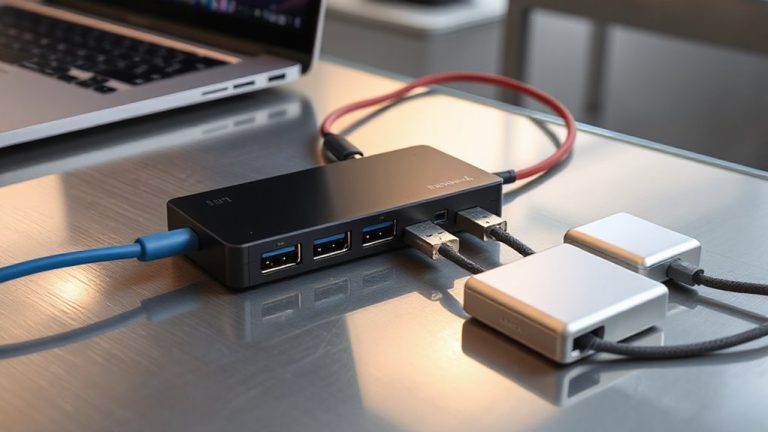
If you’re pushing data at high speeds, using certified cables is non-negotiable-look for USB-IF certification labels to guarantee your cable meets the full performance standards for USB4 or Thunderbolt. Cable quality directly impacts signal integrity and transfer consistency; uncertified cables often fail under load, leading to dropped connections or throttled speeds. Always pair these cables with powered hubs that deliver stable Hub power, especially when connecting multiple high-draw devices like external SSDs or 4K webcams. A powered hub draws from an external adapter, preventing bus overload and maintaining full bandwidth across ports. However, not all hubs are equal-check for individual port power output (at least 7.5W per USB 3.2 Gen 2 port) and robust thermal design. Poor builds may overheat during sustained transfers. Invest in models with 3-year warranties and real-world throughput testing data to guarantee reliability in demanding workflows. For reliable performance, consider top-rated USB-C cables that support the latest USB protocols and are built to handle high-speed data and power delivery.
Upgrade Old Systems Without Losing Compatibility
Though your older system lacks native USB4 support, you can still achieve near-maximum transfer speeds by adding a certified Thunderbolt 3 or 4 expansion card-provided your motherboard has a compatible PCIe slot and supports Thunderbolt through firmware. This upgrade delivers up to 40 Gbps, enabling high-speed external SSD access and multi-display setups. Significantly, these cards maintain backward compatibility with USB 3.2, 3.1, and even 2.0 devices, so your existing peripherals keep working. That guarantees smooth legacy integration without requiring full system replacement. Look for cards with robust heatsinks and at least a 3-year warranty to handle sustained workloads. But note: some older BIOS versions may need updates to enable Thunderbolt, and not all PCIe slots support it-even if they fit. Verify compatibility through your motherboard manufacturer’s documentation before buying.
Keep USB Speeds High Across Remote Teams
A solid connection starts with the right cable-and for remote teams relying on USB speeds, that means investing in certified USB4 or Thunderbolt 4 cables from the start. These support up to 40Gbps, which keeps remote collaboration smooth when sharing large files or streaming high-res video. But speed isn’t guaranteed; poor shielding increases signal interference, especially in busy WiFi environments or near power cables. You’ll want fully shielded, braided cables with E-markers to verify performance. Active cables help over longer distances-up to 2 meters without drop-off. However, they cost more and need compatible host devices. Always check device specs; not all USB-C ports support full USB4 speeds. Real-world testing shows some laptops throttle bandwidth under load. Stick to cables with 5-year warranties and USB-IF certification to avoid bottlenecks. Your team’s efficiency depends on consistent, high-speed connections-don’t sacrifice quality for savings.
On a final note
You’ll get the fastest transfers by matching USB4 or Thunderbolt devices with certified cables and powered hubs, especially when sharing large files across remote teams. Real-world speeds vary-USB4 hits up to 40 Gbps, but older gear caps out at 480 Mbps on USB 2.0. Upgrading helps, yet keep legacy ports in mind. Always verify cable ratings and sync standards across devices to avoid bottlenecks, since one weak link slows everything down.