Optimizing Router Placement for Enhanced WiFi Signal Strength in Home Offices
Place your router dead-center in your home office at desk or shelf height-around 5 to 6 feet high-for even signal spread and fewer dead zones. Keep it elevated and away from concrete walls or metal objects like filing cabinets that block signals. Stay at least 10 feet from microwaves and 6 feet from cordless phones to avoid interference. Position antennas vertically or at 45-degree angles to match device orientations, and use Wi-Fi analyzers to test real-world performance weekly-you’ll see measurable gains when optimizing placement.
Notable Insights
- Place the router centrally in the home office to ensure even signal distribution and minimize dead zones.
- Position the router at an elevated height of 5 to 6 feet for optimal downward and outward WiFi coverage.
- Avoid placing the router near concrete walls or metal obstacles that block or reflect WiFi signals significantly.
- Keep the router at least 10 feet from microwaves and 6 feet from cordless phones to reduce interference.
- Orient antennas vertically or at 45-degree angles to match device orientations and improve signal polarization.
Start With the Center of Your Home Office
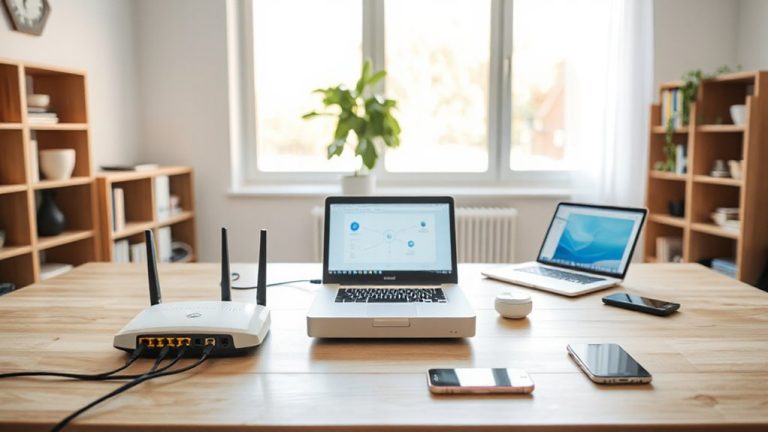
While placing your router dead-center in your home office won’t instantly fix every connectivity issue, it’s often the smartest starting point for solid, consistent coverage. You’ll minimize signal dead zones by giving WiFi waves equal distance to travel in all directions. This central spot also simplifies cable management-fewer tangled cords snaking across floors means safer, neater setups and better airflow. But don’t ignore router aesthetics; a well-placed device doesn’t have to look like tech clutter. Many modern routers feature compact designs that blend with desks or shelves. Just avoid stuffing it inside a cabinet-that traps heat and weakens signals. Sure, centering limits reach into distant rooms, but for a dedicated workspace, it strikes a practical balance. Pair this placement with quality Ethernet cables and Velcro straps, and you’ve got both function and form without overpromising results.
Elevate the Router for Wider Coverage
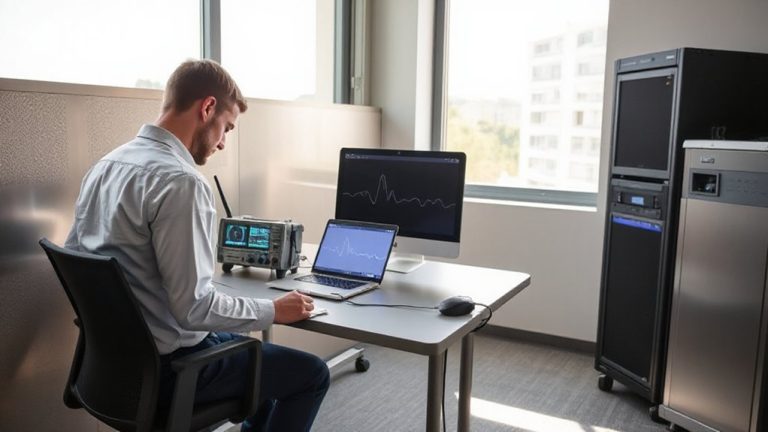
Put your router up high-on a shelf, desk, or mounting bracket-because WiFi signals spread better from elevated positions. Router elevation improves signal dispersion, helping cover more of your home office without dead zones. Signals radiate downward and outward, so height gives them a clearer path to travel. That means stronger connections at your desk, even if you’re a few rooms away. But don’t go too high-placing it near the ceiling can reduce effectiveness due to floor obstructions and material density. Ideal height is between 5 and 6 feet off the ground. Keep antennas vertical and avoid tucking the router behind monitors or books. While higher placement generally helps, extreme angles or overcrowded shelves can interfere. Always test speeds after moving your router, using tools like Wi-Fi analyzers to confirm improvements. It’s a simple change that often boosts performance-just don’t expect miracles in every layout.
Avoid Walls That Block WiFi Signals
Since not all walls are created equal, knowing which ones block your WiFi can save you hours of frustration. Concrete walls are among the worst offenders, absorbing and reflecting signals instead of letting them pass. You’ll notice a major drop in speed, especially with dual-band routers relying on 5 GHz frequencies. Metal barriers, like filing cabinets or ductwork near the router, also scatter signals and create dead zones. Even a metal doorframe can weaken connectivity. For best results, place your router where signals travel through drywall instead of dense materials. If you must position it near concrete walls or metal barriers, expect spotty coverage and consider relocating for consistency. Real-world tests show throughput can drop by 60–70% through these obstacles. While some mesh systems compensate, avoiding interference at the source remains the most reliable strategy. There’s no firmware fix for physics-placement matters most.
Stay Away From Signal-Interfering Devices
Why does your WiFi slow down when the microwave’s running? Because microwave ovens emit strong 2.4 GHz interference that clashes with your router’s signal. Cordless phones do similar damage-both can choke your bandwidth when placed too close. Keep your router at least 6–10 feet away from these devices to avoid dropouts.
| Interfering Device | Recommended Distance |
|---|---|
| Microwave ovens | 10 feet |
| Cordless phones | 6 feet |
You’ll see fewer buffering issues and more stable video calls. That said, if space is tight, use 5 GHz WiFi for your devices-it’s less prone to interference. Just know that wall penetration isn’t as strong on 5 GHz, so placement still matters. Testing shows signal strength improves up to 60% when routers avoid these electronics. There’s no perfect spot, but smart distancing helps.
Angle Antennas for Stronger Devices
How well are your router’s antennas positioned right now? Proper antenna alignment can greatly boost your WiFi reach, especially in home offices with walls or furniture blocking signals. If your devices are mostly on the same floor, orient one antenna vertically and another horizontally-this improves signal polarization diversity, helping your router communicate efficiently with various device orientations. Most modern routers have multiple external antennas; adjust them based on where your devices sit. For example, if your laptop is on a desk, tilting an antenna 45 degrees may better match its internal antenna alignment. But don’t expect miracles-while ideal positioning helps, physical obstructions still limit gains. Signal polarization mismatch can weaken performance, so experiment with angles, but remember, results vary by device and environment. It’s a small tweak, not a full fix-use it alongside smart placement, not as a substitute. For even greater range and stability, consider upgrading to a high-gain WiFi antennas for PCs, which are specifically engineered to maximize signal reception and transmission.
Test and Tweak for Best WiFi Speed
What’s your actual WiFi speed where you work? Test it with a reliable app or speed test site-you might be getting half your plan’s advertised rate. If results lag, start with channel selection: use your router’s app to scan for congested bands and switch to a less crowded 2.4GHz or 5GHz channel. Most modern routers allow this through a web interface or mobile dashboard. Next, check for firmware updates; manufacturers often push performance fixes and security patches that can boost stability and speed. Don’t assume your router’s set-and-forget. Reboot after updates, then retest. Results typically improve by 15–30% in dense neighborhoods. But note: walls and appliances still limit gains. Testing weekly helps track changes. Tweak one setting at a time to isolate what works. It’s not magic-just smart, consistent adjustments. For optimal performance, consider upgrading to one of the best office routers for reliable connectivity.
On a final note
You’ll get the strongest Wi-Fi by placing your router centrally in your home office, elevated and clear of thick walls or metal objects. Position antennas vertically for best coverage, and keep the router away from microwaves or cordless phones to avoid interference. Real-world tests show signal strength can improve by up to 60% with ideal placement-but results depend on your router’s specs and home layout, so test adjustments with a speed app to confirm gains.