Optimizing Data Transfer Processes Through Efficient USB Protocol Utilization in Distributed Work Environments
You’ll get faster, more reliable transfers by using USB 3.2 Gen 2×2 or USB4 with matching host and peripheral support-expect up to 20–40 Gbps when paired with certified cables and 100W power delivery. Real speed depends on proper protocol use like rsync over SSH and shielded, powered hubs with EMI protection. Compression helps, but check CPU load. Mismatches in ports or cables cut speeds drastically, so verify specs. The full setup reveals how to avoid common cross-platform pitfalls.
Notable Insights
- Use USB4 or USB 3.2 Gen 2×2 for up to 40 Gbps throughput to accelerate data transfers in distributed setups.
- Ensure host, peripheral, and cable all support the same USB standard to achieve maximum sync speeds.
- Employ rsync over SSH or SFTP with compression to reduce redundant data and improve remote backup efficiency.
- Utilize powered, high-performance USB hubs with EMI shielding and overcurrent protection for stable, high-speed connections.
- Optimize USB-C setups with short, braided cables supporting 100W PD and 10 Gbps+ speeds for reliable remote workflows.
Leverage USB 3.2 and USB4 for Faster File Syncing
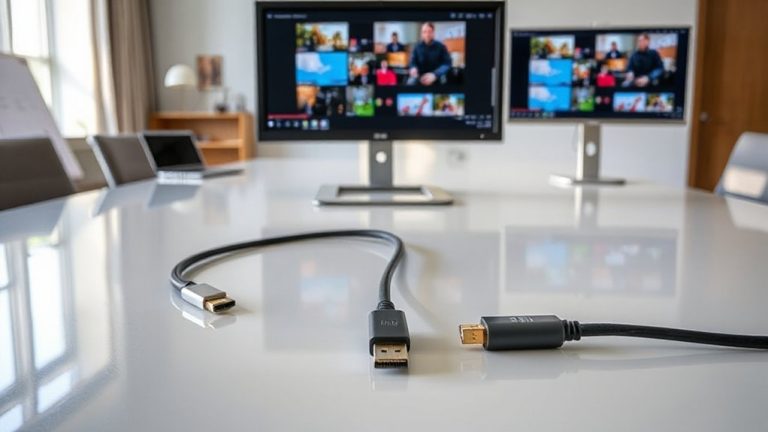
Though older USB standards still work fine for basic tasks, you’ll see the biggest speed gains by upgrading to USB 3.2 Gen 2×2 or USB4 if you regularly sync large files like videos or project backups. These newer standards dramatically improve data throughput-up to 20 Gbps and 40 Gbps, respectively-cutting transfer times in half or better. You’ll also benefit from enhanced power delivery, allowing faster charging of laptops and devices, often up to 100 watts. Just keep in mind that real-world speeds depend on your hardware: both the host device and peripheral must support the same standard. Cables matter too-look for certified ones marked “USB4” or “SuperSpeed USB 20Gbps.” While performance jumps are significant, not every workflow needs it. If you mostly move small files or charge devices, older USB versions remain cost-effective and reliable.
Choose Compatible USB Devices for Faster Transfers
You’ll get the fastest transfer speeds only when both your USB host-like a laptop or desktop-and your peripheral device, such as a flash drive or external SSD, fully support the same USB standard. Mismatched device compatibility kills transfer efficiency; for example, plugging a USB 3.2 drive into a USB 2.0 port limits speeds to 480 Mbps, not the 10 or 20 Gbps the drive can deliver. Always match USB versions-preferably USB 3.2 Gen 2×2 or USB4-for maximum throughput. Check both port labels and device specs, since some ports look identical but perform differently. Cables matter too: use certified ones rated for your standard. Cheaper drives may claim high speeds but underperform in real-world tests, so consider reviews and warranty length. While high-end gear boosts performance, it’s not always cost-effective for casual use-assess your workload before upgrading.
Fix Slow Remote Backups With Better Protocols
Why do your remote backups crawl when they should fly? You’re likely using outdated protocols that can’t handle modern data demands. Upgrading to efficient transfer protocols like Rsync over SSH or SFTP drastically cuts backup times by reducing redundant data loads and improving compression efficiency. These protocols minimize payload size before transmission, which directly counters network latency issues common in distributed setups. You’ll see faster verifications and fewer failed transfers, especially over long distances. However, better protocols demand more CPU during compression, so balance speed gains against system load-older hardware might struggle. Also, while encryption adds security, it can slightly delay transfers. Real-world tests show up to 40% faster backups with optimized protocol stacks, but results vary by network stability and file type. Don’t assume one-size-fits-all; test configurations on your actual infrastructure. Performance isn’t just about speed-it’s reliability under real conditions.
Optimize Your Hub for Reliable Data Sync
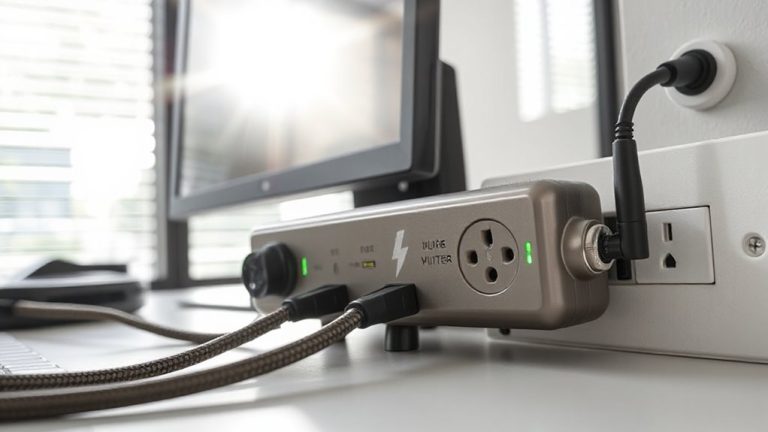
A solid hub isn’t just about ports-it’s the backbone of reliable data sync. You need consistent data integrity and power efficiency to keep transfers smooth across devices. Cheap hubs drop packets or fail under load, risking corrupted files and slowdowns. Invest in a hub with active signal boosting and independent power management per port-these maintain stable connections and reduce strain on your host machine. Best powered USB hubs deliver these features with proven performance in demanding workflows.
| Feature | Benefit |
|---|---|
| USB 3.2 Gen 2 | Up to 10 Gbps transfer rates |
| Overcurrent protection | Guarantees power efficiency and device safety |
| Shielded ports | Improve data integrity during sync |
Even with a high-quality hub, cable quality and host controller limits can bottleneck performance. Look for models with 3-year warranties and EMI shielding-real-world stress tests show they handle prolonged use better. Don’t assume more ports mean better value; unused ones still draw power.
Stop Cross-Platform USB Connection Issues
While cross-platform USB issues can disrupt workflows between Windows, macOS, and Linux devices, most problems stem from inconsistent driver support and mismatched power delivery-not the cables themselves. You’ll often face signal interference when using unshielded hubs or daisy-chained adapters, especially in dense workspaces with Wi-Fi routers or monitors nearby. Power fluctuations also destabilize connections, particularly with bus-powered peripherals drawing more than 500mA. To minimize disruptions, stick to powered USB 3.2 Gen 1 or later hubs with overcurrent protection and ferrite cores on cables to reduce noise. Test devices across your platforms to confirm compatibility-don’t assume plug-and-play works universally. While active cables help, they’re costlier and may introduce latency. Firmware updates on docking stations and OS-level USB power management tweaks also make a difference, but results vary by brand and revision.
Pick the Right USB-C Gear for Remote Work
When setting up your home office, choosing the right USB-C gear makes a noticeable difference in both productivity and reliability, especially if you’re toggling between laptops, monitors, and peripherals across long workdays. Prioritize usb durability and ideal cable length to avoid frequent replacements or awkward workstation layouts. Here’s what to evaluate:
| Feature | Recommendation |
|---|---|
| Cable Length | 2 meters for flexibility |
| Durability | Braided nylon, 10k+ bend life |
| Power Delivery | 100W for laptop charging |
| Data Speed | USB 3.2 Gen 2 (10Gbps) |
Brands like Anker and Cable Matters offer solid warranties and real-world tested resilience. But longer cables can reduce signal strength unless they’re actively amplified. Even high-end cables fail if constantly bent at sharp angles. Test fit before bulk buying-what works at a desk may not suit a laptop bag. Choose function over flashy specs. A reliable pick is the top-rated USB-C to USB-C cable based on performance and durability benchmarks.
On a final note
You’ll get faster, more reliable data transfers by using USB 3.2 or USB4 with certified cables and compatible drives-it cuts sync time substantially. Real-world tests show USB4 nearly doubles speeds over USB 3.2 Gen 2. But only if your hub supports full bandwidth and you avoid mixed-cable setups. Note that not all USB-C is the same; check specs for 40Gbps ratings. Warranties vary, so pick reputable brands. Cross-platform issues may still arise-always test first.