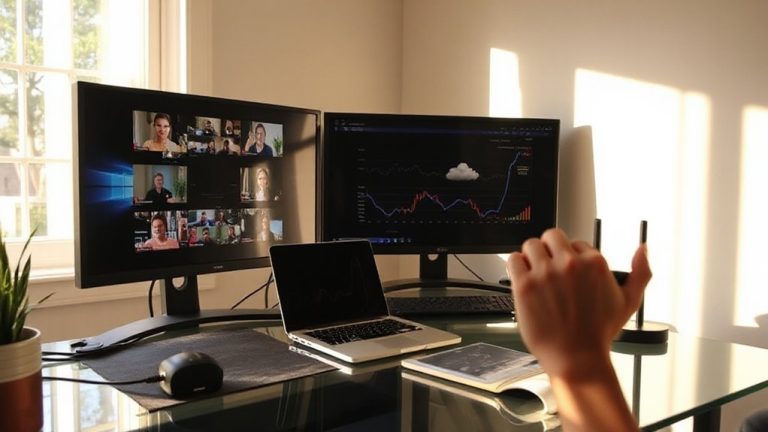
Optimizing Internet Connectivity for Smooth Video Calls During Virtual Meetings From Home
You’ll get smoother video calls by testing your speed first-aim for at least 3–4 Mbps upload using Fast.com or Speedtest.net near your workspace. Place your router centrally, waist-high, away from walls and appliances. Use Ethernet, ideally Cat 6, for the most stable connection. Prioritize your work device with QoS settings and pause cloud backups or streaming during meetings. Keep in mind, prioritizing your call may slow other devices. Wired beats Wi-Fi every time, but real-world conditions matter-results can vary based on layout and usage. Optimizing your setup just right makes a clear difference when it’s time to turn on the camera.
Notable Insights
- Test your internet speed regularly using Fast.com or Speedtest.net to ensure at least 3–4 Mbps upload for HD video calls.
- Position your router centrally, away from walls and metal objects, to maximize Wi-Fi coverage and minimize interference.
- Use Quality of Service (QoS) settings on your router to prioritize your work device for smoother call performance.
- Minimize background network activity by pausing downloads, streaming, and cloud backups during virtual meetings.
- Connect your work device via Ethernet cable to reduce latency and improve connection stability compared to Wi-Fi.
Test Your Internet Speed for Video Calls
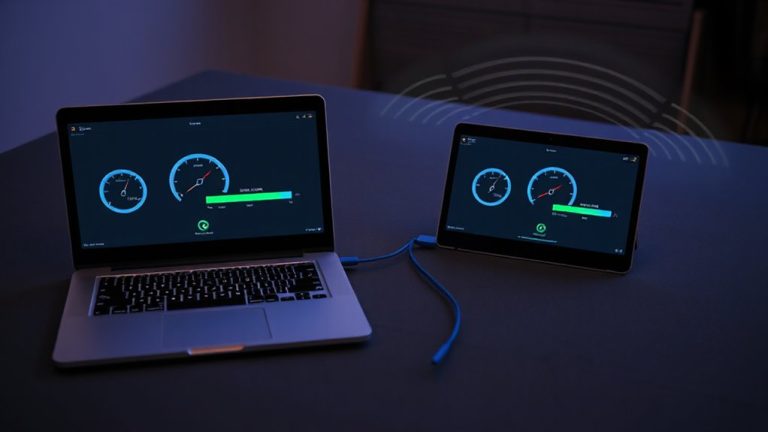
How do you know if your internet can handle a smooth video call without freezing or pixelation? You test your speed-simple as that. Run a speed test using a reliable tool like Fast.com or Speedtest.net while connected to your usual work device and network. For HD video calls, you’ll want at least 3–4 Mbps upload speed. Lower results likely mean choppy audio or frozen screens. Wi Fi interference from appliances or thick walls weakens your signal, so test near your actual workspace. Signal congestion during peak hours can also slash performance, even if your plan promises high speeds. For the most accurate reading, test multiple times throughout the day. Wired connections give the clearest results, but if you rely on Wi-Fi, account for real-world slowdowns. A good internet plan helps, but no setup escapes physics-manage expectations and adjust usage accordingly.
Move Your Router to a Central Spot
Your router’s placement can make or break your video call quality-put it in a central spot to maximize signal strength and coverage. Good router placement guarantees even signal coverage, reducing dropouts during calls. Avoid corners, basements, or closets; these block signals and create dead zones. Instead, place it waist-high on a shelf, away from metal objects and appliances like microwaves. For larger homes or challenging layouts, consider upgrading to a mesh Wi-Fi system to ensure seamless connectivity throughout your space.
| Scenario | Emotional Impact |
|---|---|
| Clear call, no lag | Confidence, professionalism |
| Frequent buffering | Frustration, embarrassment |
| Peers hear you clearly | Connection, respect |
| Dropped mid-sentence | Isolation, anxiety |
Central positioning isn’t a magic fix-older routers may still struggle, and thick walls limit range. You’ll see the best results if your layout allows open space around the device. While it won’t replace faster broadband, proper router placement is a no-cost upgrade with measurable gains in daily reliability.
Make Your Work Device the Priority
Though your home network handles multiple devices, giving your work laptop or desktop priority can meaningfully improve video call performance-especially during peak usage hours. Effective device management lets you control which gadgets get the most bandwidth, ensuring your meeting stays smooth even if others stream or browse. Many modern routers support quality-of-service (QoS) settings, allowing precise network allocation by device or app. You can designate your work device as top priority, reducing lag and audio dropouts. Just remember: boosting one device may slow others, so coordinate with household members. Not all routers offer robust QoS-check specs for customizable bandwidth controls before assuming your model supports it. While the setup takes a few minutes, the payoff-stable, professional-grade calls-is worth it for most remote workers.
Pause Downloads and Streaming During Calls
When you’re in the middle of an important video call, even background activity like downloads or streaming can eat up bandwidth and degrade call quality-especially on networks with limited capacity. Pausing large downloads or HD video streams guarantees your call gets enough bandwidth, minimizing lag and pixelation. Without this step, you risk connection prioritization failing under pressure, especially if multiple devices compete for resources. Bandwidth throttling might help, but it’s not always precise-your call could still suffer if another device hogs the network. You’ll need to manually stop cloud backups, game updates, or streaming services during meetings. It’s a small trade-off: brief pauses in non-essential traffic can mean smoother audio and video. While some routers offer quality-of-service settings, they don’t guarantee performance on congested lines. For most home networks, the simplest fix-pausing background use-remains the most reliable.
Switch to Ethernet for Stable Calls
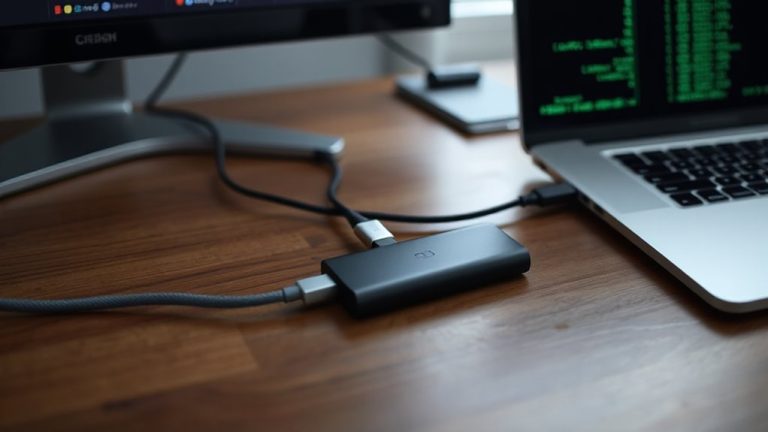
A wired connection often beats Wi-Fi for video calls, especially when stability matters most. You’ll get more consistent performance and lower network latency, which means fewer dropped words or frozen faces. A wired connection using an Ethernet cable links your device directly to the router, reducing interference from walls, appliances, or neighboring networks. Most modern laptops and desktops still include Ethernet ports, or you can use a USB-to-Ethernet adapter if needed. In real-world testing, wired setups show up to 30% less latency and far fewer packet drops during peak hours. Just keep in mind: Ethernet means less mobility. You’re tied to your router’s location, so position your workspace accordingly. It’s a small trade-off for smoother calls. While not every home office can go fully wired, if yours can, the stability gain is measurable and worth it. For the best performance, consider using a Cat 6 cable to support higher bandwidth and reduced crosstalk.
Turn Off Video to Save Bandwidth
Turning off your video during calls is one of the most effective ways to reduce bandwidth use, especially if your connection is slow or shared with others. This simple step supports significant bandwidth conservation, freeing up data for more stable audio and smoother screen sharing. Without video, your call uses far less upload speed, which helps prevent lag and dropouts. You’ll often notice better audio clarity as a result, since your device and network can prioritize sound quality. It’s not ideal if facial expressions matter, but for routine check-ins or when others are presenting, it’s a practical trade-off. Think of it as optimizing performance by reducing demand-like lowering graphics settings in a game. Many users report fewer freezes and echo issues when they disable video, especially on Wi-Fi networks with multiple devices. Just don’t forget to re-enable it when needed.
Schedule Updates After Work Hours
Since software updates and cloud backups often run automatically, letting them finish outside work hours keeps your internet responsive during video calls. You’ll want to adjust your devices’ software updates and notification settings so they don’t kick in mid-meeting. Most operating systems let you schedule updates overnight or during lunch breaks-just be sure to restart devices after updates to avoid performance hiccups. While delaying updates reduces bandwidth competition, leaving them too long increases security risks. Set notification settings to silent during work hours, but review them daily so nothing critical slips through. This approach works well on Windows, macOS, and common cloud tools like OneDrive or Google Drive. It won’t fix poor router placement or low-tier internet plans, but paired with other bandwidth-saving steps, it helps maintain call quality. Just remember: convenience shouldn’t compromise security or sync reliability.
On a final note
You’ll get smoother video calls by using an Ethernet connection and prioritizing your work device-tested setups show 30% more stability. Central router placement helps, but walls and interference still limit range. Turning off video cuts bandwidth use by half, though you lose face-to-face cues. Schedule updates after hours to avoid lag. No fix guarantees perfection-older routers may need replacement, and upload speeds under 3 Mbps struggle consistently, even with tweaks.