The Impact of WiFi Interference on Video Conferencing Quality and How to Overcome It for Seamless Collaboration
Your WiFi likely hurts video calls because interference from walls, nearby networks, and connected devices causes lag and dropouts-even with full signal bars. While 5 GHz bands reduce congestion, they weaken quickly through floors and concrete. Mesh systems help coverage but don’t fix interference. Prioritize calls using QoS settings on routers like ASUS or Netgear to boost reliability. For consistent quality, use Ethernet, which cuts latency by up to 60% in real-world tests. Wired wins, but smart configuration helps when going wireless. You’ll see how small changes make a noticeable difference.
Notable Insights
- WiFi interference from congestion and physical obstructions causes lag, jitter, and call quality issues despite strong signal indicators.
- Signal attenuation from walls and appliances degrades 5 GHz performance, impacting video conferencing stability even with high-end routers.
- Wi-Fi analyzer apps help identify crowded channels, enabling better router channel selection to reduce interference.
- Enabling QoS settings prioritizes conferencing traffic, improving call quality during network congestion.
- Switching to Ethernet or dual-band routers reduces interference and latency, ensuring more reliable video collaboration.
Why Your WiFi Sabotages Video Calls?
Ever wonder why your video calls keep freezing despite having “fast” internet? It’s likely due to channel congestion and signal attenuation-hidden flaws in your WiFi performance. Channel congestion happens when too many devices crowd the same frequency, especially in dense areas like apartment buildings, slowing data delivery. Signal attenuation weakens your connection as walls, floors, and appliances absorb or block WiFi waves, particularly on 5 GHz bands. Even high-end routers can’t fully eliminate these physical limits. Positioning your router centrally and avoiding obstructions helps, but thick concrete or metal framing still degrades performance. While mesh systems improve coverage, they don’t guarantee consistent quality if interference persists. Real-world testing shows call stability improves near the router but drops sharply beyond two rooms. Warranties and specs won’t fix that. For reliable results, use wired connections where possible-it’s the only sure way to bypass these wireless flaws.
How WiFi Wrecks Your Calls
WiFi doesn’t just slow your calls-it actively degrades them by introducing lag, packet loss, and jitter, even when your speed test looks fine. Weak signal strength leaves your device struggling to maintain a stable connection, especially if you’re far from the router or through multiple walls. You might see full bars, but that doesn’t guarantee consistent throughput for real-time video. Device congestion worsens this: every smartphone, tablet, or smart TV on your network competes for bandwidth, slicing up the available data flow. During meetings, this means frozen faces, garbled audio, or awkward delays mid-sentence. Even wired peripherals connected to your laptop can introduce interference if they draw power inconsistently. While mesh systems can help, they’re not magic-placement and network load still matter. For best results, limit connected devices and sit closer to your router. There’s no one-size-fits-all fix, but small tweaks often yield noticeable improvements-just don’t expect perfection on overcrowded channels.
Find What’s Jamming Your Signal
What’s really slowing your video calls when your router shows full signal? It’s likely channel congestion or hidden signal strength issues. Nearby networks on the same Wi-Fi channel cause interference, especially in dense offices or apartments. Your devices might show full bars, but that doesn’t mean you have stable throughput. Use a Wi-Fi analyzer app to scan for overcrowded 2.4 GHz or 5 GHz channels. Switching to a less crowded channel can reduce lag. Physical obstructions like walls or microwaves also weaken actual signal strength, even if your device says otherwise. Position your router centrally and away from metal objects. While mesh systems improve coverage, they aren’t always necessary-sometimes a simple repositioning or upgrade to Wi-Fi 6 helps. Just don’t assume more gear automatically means better performance. Test before and after any change to confirm real gains.
Use Router Settings to Prioritize Video Calls
You can substantially improve video call quality by adjusting your router’s QoS (Quality of Service) settings to prioritize bandwidth for conferencing apps. Most modern routers let you assign higher priority to specific devices or services, ensuring your camera and mic get stable performance even during network congestion. Enabling QoS settings helps secure a consistent bandwidth reservation for apps like Zoom or Teams, reducing lag and dropouts. You’ll likely see smoother video and clearer audio, especially when others are streaming or downloading. However, this doesn’t create extra bandwidth-it just allocates what’s available, meaning heavy household usage may still cause issues. Prioritization can also slow non-essential devices temporarily. Check your router’s admin page for QoS or application-based controls; models from ASUS, Netgear, and TP-Link typically offer precise customization. For best results, combine this with accurate device labeling and periodic traffic monitoring.
When to Ditch WiFi for Ethernet or Dual-Band
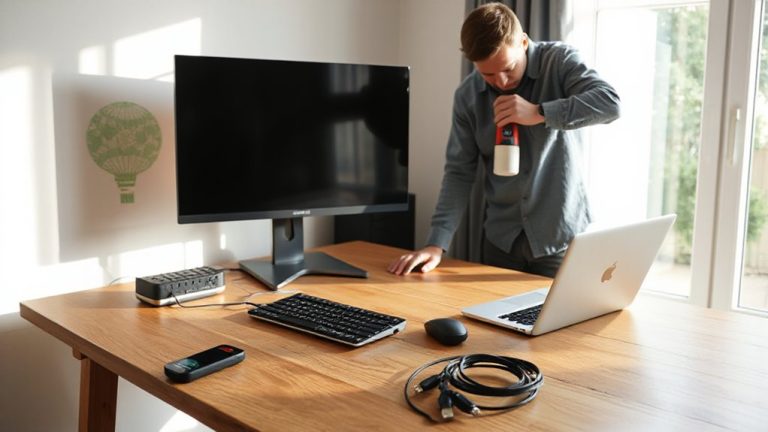
Sometimes even the best QoS settings won’t be enough when your call quality starts breaking down during peak usage times. If you’re noticing frequent freezes or audio dropouts, it’s time to think about switching from Wi-Fi to a wired Ethernet connection. Ethernet delivers more consistent signal strength and lets you lock in stable bandwidth allocation without wireless interference. For setups where cables aren’t practical, dual-band routers can help-use the less crowded 5 GHz band for video calls to reduce congestion. But be mindful: walls and distance still degrade 5 GHz signal strength, and dual-band doesn’t double your internet speed. While Ethernet offers the best reliability, it limits mobility, so weigh convenience against performance. Real-world tests show latency drops by up to 60% with Ethernet, making it the clear choice when quality matters most. Upgrading to a high-quality Cat6 cable can further enhance your wired connection’s performance and durability.
On a final note
WiFi often hurts video calls due to congestion and interference, especially on crowded 2.4 GHz bands. For reliable quality, switch to 5 GHz or use a wired Ethernet connection-it’s more stable and cuts lag. Prioritize video traffic with QoS settings on your router. Dual-band routers help, but real-world performance depends on placement and device count. Note: wired beats wireless every time, but demands desk setup flexibility. Test connections before critical meetings.