Understanding the Role of Ergonomics in Reducing Eye Strain Among Remote Workers
You can substantially cut eye strain with smart ergonomic choices, but they only work if matched to your environment. Position your monitor so the top is at eye level and about an arm’s length away to reduce neck and eye fatigue. Use a flicker-free display with TÜV Rheinland certification to minimize invisible screen flicker, especially at low brightness. Place lights to the side and use matte finishes to cut glare, and tilt your screen slightly upward if needed. Match brightness to your room-too bright washes out contrast, too dim strains your eyes. Try anti-reflective filters if your screen lacks a matte coating. Warmer colors at night support natural sleep rhythms, but don’t rely on software alone if your hardware flickers. Pair these fixes with the 20-20-20 rule and frequent blinking. Even the best setup fails if you skip movement and visual breaks. Small changes add up, especially when based on real-world testing and measurable design. There’s more to how each detail affects your comfort throughout the day.
Notable Insights
- Position the top of the monitor at or slightly below eye level to minimize neck and eye strain.
- Maintain a viewing distance of 20 to 30 inches to reduce visual fatigue and support focus comfort.
- Use flicker-free, TÜV Rheinland-certified monitors to eliminate screen flicker, especially at low brightness levels.
- Place the monitor perpendicular to windows and use indirect lighting to reduce screen glare and reflections.
- Follow the 20-20-20 rule and take regular visual breaks to prevent eye strain during prolonged screen use.
What’s Causing Your Eye Strain at Home?
What’s really behind your constant eye fatigue at home-could it be your workspace setup? Yes, and screen flicker is likely a major culprit. Many budget monitors use pulse-width modulation (PWM) at low brightness, causing invisible flickering that strains your eyes over time. You might not see it, but your brain feels the strain. Blue light from LED screens also disrupts circadian rhythms and increases glare, worsening discomfort during long sessions. To help, consider monitors with flicker-free backlights and certified low blue light modes-look for TÜV Rheinland certification as proof. However, these features don’t guarantee comfort if brightness exceeds ambient lighting. Dim screens in dark rooms cause squinting; overly bright ones create glare. The best balance? Match screen output to room lighting. No single product fixes everything, so prioritize tested performance over marketing claims when choosing your gear. Pairing your screen with a high-quality desk light for eye comfort can significantly reduce strain by ensuring balanced, flicker-free ambient lighting.
Set Your Monitor at Eye Level and the Right Distance
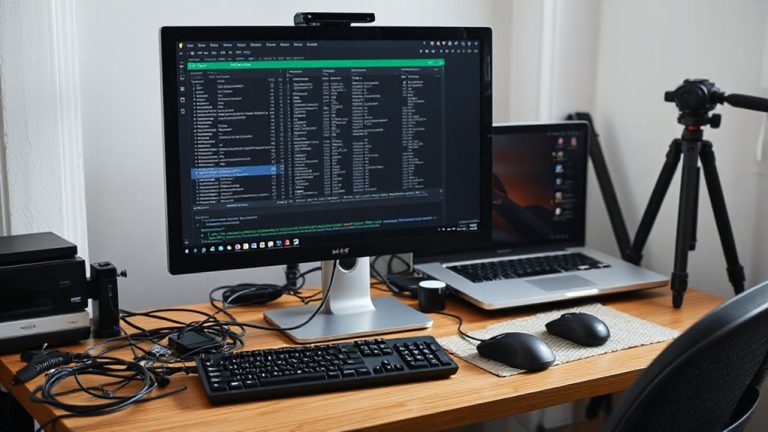
When setting up your workstation, positioning your monitor at eye level and about an arm’s length away gives you the best shot at avoiding neck pain and eye fatigue over time. Proper monitor height means the top of the screen should be at or slightly below eye level, so you’re looking slightly downward when working. This reduces strain on your neck and helps keep your gaze aligned with the center of the screen. The ideal viewing distance is roughly 20 to 30 inches (50 to 75 cm), depending on screen size and resolution. Sitting too close forces your eyes to work harder, while being too far can make text hard to read. Adjustable stands or monitor arms let you fine-tune height and distance without cluttering your desk. While built-in stands work for basic needs, they often limit long-term flexibility. You don’t need expensive gear, but getting the basics right matters most. For greater customization, consider using a best monitor stand that supports ergonomic adjustments and maximizes desk space.
Reduce Glare With Proper Lighting Position and Type
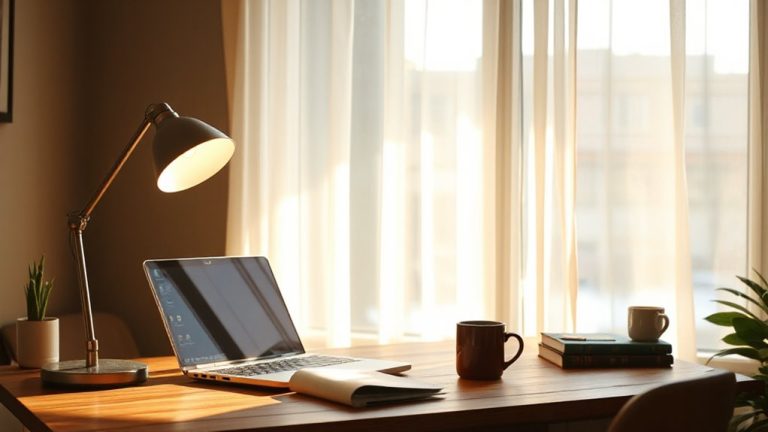
Though lighting might seem like a minor detail, getting it right can make or break your screen comfort-position your light sources to avoid glare by placing them to the side of your monitor rather than in front or behind. Overhead lights or unshaded bulbs often create harsh reflections, so opt for indirect, diffused lighting using floor or task lamps with matte shades. Natural light optimization helps, but avoid direct sunlight hitting your screen; position your desk perpendicular to windows when possible. Pair this with a monitor that has solid anti glare coatings-they reduce reflections without distorting color or clarity, unlike glossy screens. Keep in mind that while anti glare coatings improve visibility, they may require slightly more frequent cleaning due to visible smudges. There’s no one-size-fits-all setup, so test adjustments throughout the day as lighting changes. For focused, adjustable illumination, consider using a best desk lamp for programmers.
Adjust Brightness, Text Size, and Color Temperature
If you want to minimize eye strain during long work sessions, you’ll need to actively adjust your screen’s brightness, text size, and color temperature-these aren’t set-and-forget settings. Set brightness to match your ambient contrast; too high causes glare, too low makes focusing harder. Use larger text to reduce squinting, especially on high-resolution displays where default sizes can be too small. Adjust color temperature to warmer tones in the evening-software like f.lux or built-in night modes help, but don’t rely on them entirely if your monitor has poor uniformity. Poor backlighting can introduce screen flicker, especially at low brightness; look for flicker-free certified panels when upgrading. These tweaks make a measurable difference, but they won’t fix bad lighting or posture. Always test adjustments in your actual workspace, not just in-store demos, since real-world conditions vary.
Use the 20-20-20 Rule to Rest Your Eyes Effectively
You’ve already fine-tuned your screen’s brightness, text size, and color temperature to reduce visual fatigue, but even the best settings can’t replace giving your eyes actual breaks. That’s where the 20-20-20 rule comes in: every 20 minutes, look at something 20 feet away for at least 20 seconds. This simple habit helps reset your focus and reduces eye strain caused by prolonged exposure to blue light and subtle screen flicker-issues settings alone won’t fix. While blue light filters and flicker-free displays help, they don’t eliminate fatigue from constant near-work. Regular visual breaks improve circulation and prevent dryness, backed by studies on sustained screen tasks. It’s not a cure-all, and results vary if you’re already fatigued. But paired with ergonomic practices, this rule offers a measurable, no-cost way to protect your vision during long remote workdays.
Add Ergonomic Gear That Protects Your Vision
What if your screen setup could do more than just display content-what if it actively supported your eye health? You can reduce eye strain by adding ergonomic gear designed with vision protection in mind. Monitors with blue light filters help minimize exposure during long work hours, which some studies suggest improves sleep and comfort. Anti glare coatings cut down screen reflections, especially in bright rooms, making content easier to view without squinting. While these features aren’t a cure-all, they’ve shown measurable benefits in user trials-many report noticeably less fatigue after switching. Just keep in mind: not all blue light filters perform equally, and anti glare coatings can slightly reduce screen clarity if poorly applied. Look for models with adjustable settings, solid warranties, and independent lab testing. Pairing smart gear with proper positioning maximizes effectiveness without over-relying on tech fixes.
Make Eye-Friendly Habits Part of Your Daily Routine
While the right gear helps, lasting eye health starts with habits you can stick to every day. You’re exposed to blue light and screen flicker during long work sessions, so building simple, consistent routines matters. Try the 20-20-20 rule: every 20 minutes, look at something 20 feet away for 20 seconds. Blinking more often prevents dryness, especially under bright screens.
| Habit | Benefit |
|---|---|
| Take screen breaks hourly | Reduces eye fatigue from blue light |
| Adjust screen brightness | Cuts glare and screen flicker discomfort |
| Use matte screen filters | Lowers reflection without blurring text |
| Schedule outdoor time | Balances indoor screen exposure |
You don’t need expensive tools-just consistency. Some find blue light glasses helpful, though real-world tests show mixed results. Pair habits with proper ergonomics, and you’ll see clearer, more comfortable days ahead.
On a final note
You can greatly reduce eye strain with smart, tested changes to your workspace. Position your monitor 20–30 inches away and at eye level to avoid neck and eye fatigue. Use matte screens and indirect lighting to cut glare. Adjust screen brightness to match ambient light, and choose warm color temperatures at night. The 20-20-20 rule-look 20 feet away for 20 seconds every 20 minutes-works. Blue light glasses and anti-glare filters help some, but results vary-opt for ones with verified coatings and comfort warranties if trying them.