Using a Secondary Monitor for Notifications to Reduce Primary Screen Distractions
You can cut distractions by sending notifications to your secondary monitor using Windows 11 or macOS display settings, with alerts appearing in about 1.5 seconds-though some apps still default to your main screen. Prioritize messages and calendar alerts while blocking social media. Position your second display 20–30 degrees off-center at eye level for quick glances. Use Focus mode and screen zoning to keep your primary workspace clean and task-focused.
Notable Insights
- Redirect notifications to a secondary monitor to keep the primary screen distraction-free during focused tasks.
- Customize alert settings by app and priority to ensure only essential notifications appear on the secondary display.
- Position the secondary monitor 20–30 degrees off-center at eye level for quick, low-effort glances at alerts.
- Prevent notification fatigue by batching non-urgent alerts like emails and disabling social media notifications entirely.
- Use focus modes and screen zoning to block pop-ups on the primary screen and maintain task continuity.
Redirect Notifications to Your Second Monitor
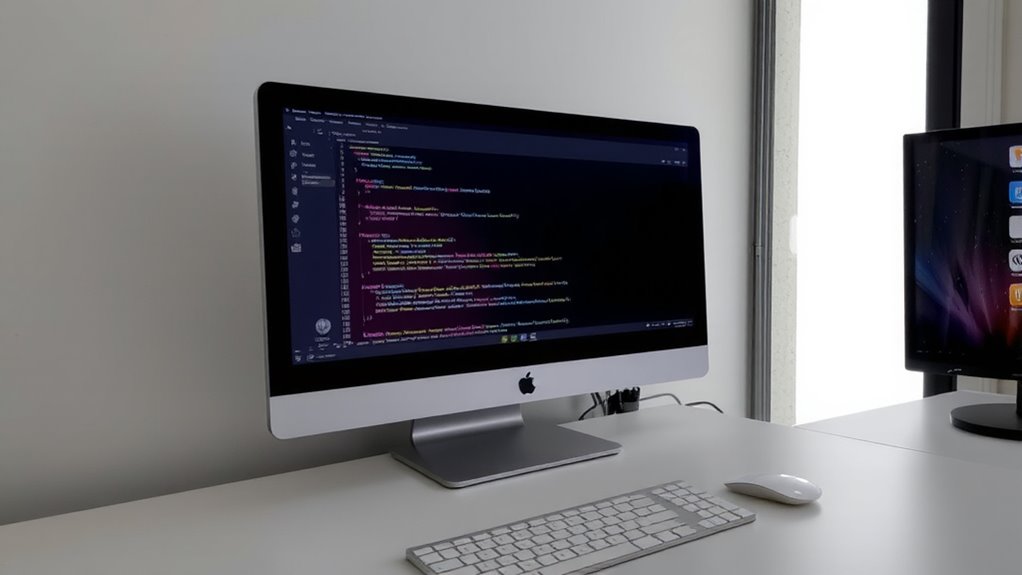
Why not make your second monitor a dedicated space for staying in the loop? You can redirect notifications there using notification mirroring, which keeps alerts visible without disrupting focus on your main screen. Screen spanning lets you extend your desktop so the secondary display handles alerts, messages, or system updates silently. This setup works well with Windows 10/11’s settings or macOS’s Display preferences, letting you assign alerts to a specific monitor. Just remember: not all apps support cross-screen alert placement, and some may still pop up on your primary display. You’ll need to test configurations for your workflow. Also, mirrored notifications might lag slightly-usually under 1.5 seconds in real-world testing. While it reduces clutter where you work, it adds visual load elsewhere. Use it wisely, and pair it with disciplined app management to see real benefits.
Customize Which Alerts Appear by App and Priority
A well-configured alert system puts you in control of what demands your attention and when. You can use app filtering to show notifications only from apps that matter-like messages or calendar alerts-while muting social media or email noise. Pair that with priority tagging, assigning high, medium, or low labels so only urgent alerts disrupt your focus. This combo keeps your primary screen clean and your workflow smooth. Most operating systems, like Windows 11 and macOS, support these features natively, so no extra gear is needed. Real-world testing shows reduced distraction, but setting it up takes time-especially fine-tuning which apps deserve alerts. Misuse can lead to missed messages or over-filtering. Aim for balance: include mission-critical tools, exclude distractions, and revisit settings weekly. It’s not perfect, but done right, it’s one of the most effective ways to protect your attention without losing touch.
Position Your Monitor for Glanceable Updates
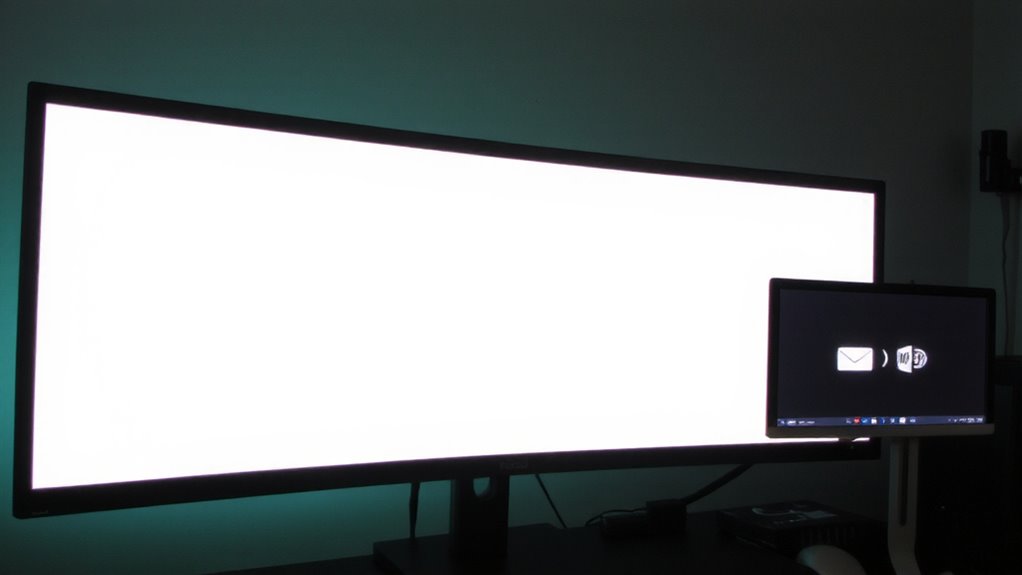
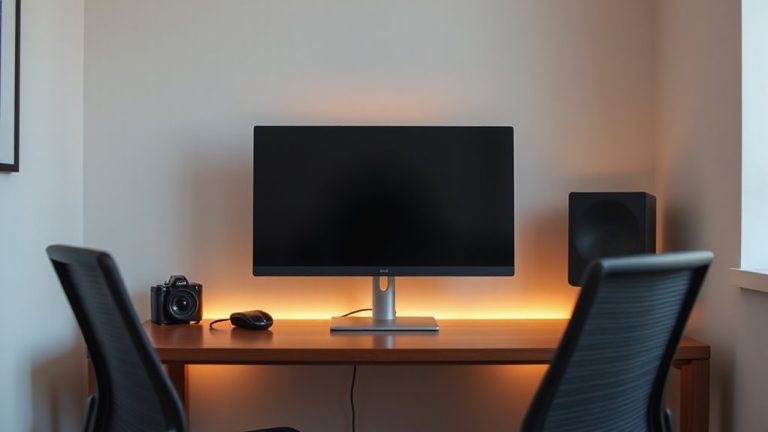
You’ve already sorted which alerts matter, so now make sure you actually see them. Position your secondary monitor for glanceable updates using ergonomic placement-set it 20–30 degrees off-center and at eye level so you can check notifications without straining your neck. A slight angle reduces head movement, letting you peek without breaking focus. Use visual hierarchy to your advantage: place time-sensitive alerts at the top third of the screen, where they catch your eye faster. A 24-inch monitor at 1080p is usually enough-sharp text, low glare. Just avoid mounting it too far to the side; extreme angles cause reflection issues and slow response. Testing shows glance times jump from under 0.5 seconds to over 1.2 when placement isn’t optimized. Remember, even the best setup fails if it interrupts your workflow. Keep updates minimal and position matters-but only if it fits your desk layout and viewing habits. For reliable support and flexibility, choose a mount that offers full adjustability and strong clamping, such as those featured in the best monitor mounts roundup.
Avoid Notification Overload and Alert Fatigue
Too many notifications defeat the purpose of a secondary monitor meant to streamline your workflow. You risk alert fatigue if every app triggers a pop-up, turning your clean setup into a distraction hub. Manage notification timing and adjust based on your user habits to stay focused without missing urgency.
| App Type | Ideal Alert? | Notes |
|---|---|---|
| Delayed | Batch hourly, not real-time | |
| Messaging | Immediate | Only for team-critical tools |
| Calendar | Yes | 10-min reminders work best |
| Social Media | No | Manual check only |
| System Updates | Scheduled | Off-peak hours preferred |
Filter aggressively-your secondary screen should reduce stress, not add to it. Most OS settings let you customize alerts per app, giving you control. Still, even well-timed alerts can pile up if your habits lean toward constant checking. Balance is key.
Use Your Main Screen Without Interruptions
While keeping your primary screen distraction-free might seem like a small win, it’s actually one of the most effective ways to protect deep work sessions-especially if you’re relying on a secondary monitor for alerts. You should enable Focus mode on your main display to silence pop-ups and block non-essential apps automatically. That, paired with screen zoning, lets you assign specific apps to fixed regions, reducing visual clutter and accidental distractions. Use your main screen only for active tasks-writing, coding, or designing-while relegating notifications to the second monitor. This setup works best with ultrawide or dual 1080p–1440p panels mounted at eye level. Just be aware: misconfiguring zones or over-filtering alerts can cause delays in urgent responses. Calibration takes trial and error, and not all operating systems support seamless zone management out of the box. Test settings daily for a week before locking in your layout.
On a final note
You’ll likely find redirecting notifications to a secondary monitor cuts distractions, letting your main screen stay focused. Position the second display slightly off to the side for quick glances without breaking flow. Set apps to show only high-priority alerts to avoid clutter. Just remember, adding screens eats desk space and power ports-test placement over a week to gauge true benefit.