Using Monitor Calibration Tools to Maintain Consistency in Design Work
You need monitor calibration tools to keep your design work consistent across devices, since even premium monitors drift over time and factory settings don’t guarantee color accuracy. Tools like the X-Rite i1Display Pro deliver reliable results, with real-world delta E values under 2 and support for custom white point, brightness, and gamma settings. They work on both Windows and macOS, though they don’t cover advanced HDR. For best results, calibrate every few weeks, use a hooded sensor, and match ambient lighting-skip this and you risk costly revisions. High-end sensors catch subtle shifts, but you still must manage environmental factors and screen aging. Consistency hinges on routine checks, not just the tool.
Notable Insights
- Regular calibration with tools like X-Rite i1Display Pro ensures consistent color accuracy across design projects and devices.
- Use standardized settings such as 6500K white point and 120 cd/m² brightness for reliable, repeatable results.
- Recalibrate every two to four weeks to counteract color drift from screen aging and usage.
- Always warm up the monitor and control ambient lighting to avoid environmental bias during calibration.
- Save and apply custom ICC profiles to maintain hardware-level color consistency across operating systems and workflows.
Why Monitor Calibration Matters for Designers
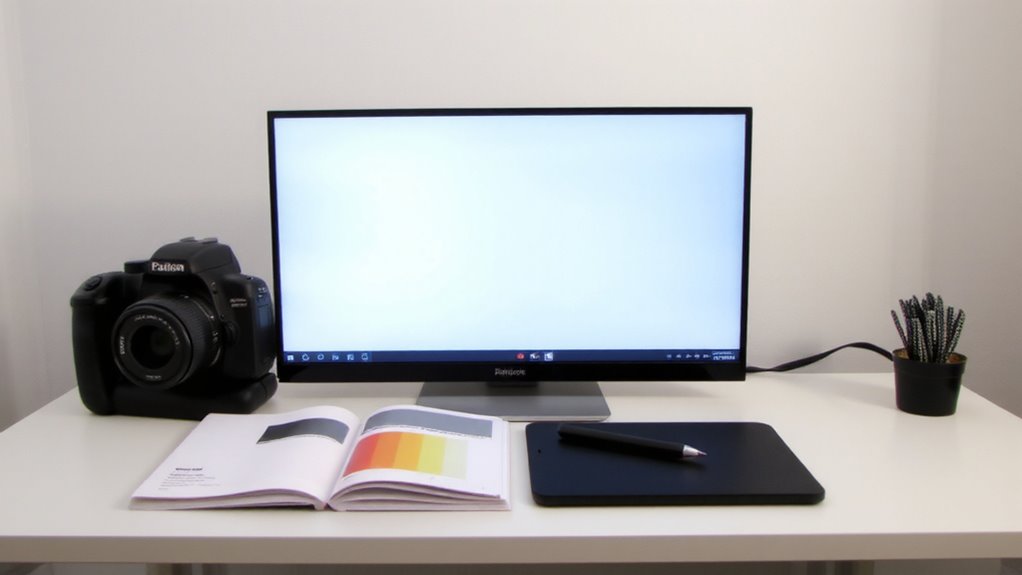
Color accuracy isn’t just a nice-to-have-it’s essential when your work depends on precise visuals. If your screen shows colors differently than they truly are, your designs won’t translate accurately across devices. This directly affects color accuracy and skews visual perception, leading to mistakes that only show up later in print or on clients’ screens. You’re aiming for consistency, not guesswork. A poorly calibrated monitor can shift hues, alter contrast, and misrepresent brightness, even if it looks fine to your eye. That’s why calibration matters: it guarantees what you see matches industry standards. But don’t assume high-end monitors eliminate the need-most still require adjustment. Built-in presets aren’t enough, and factory settings vary. Calibration takes effort, but skipping it risks costly revisions. It’s not a fix-all, but it’s one of the most effective steps you can take for reliable, professional results.
Best Monitor Calibration Tools for Designers in 2024
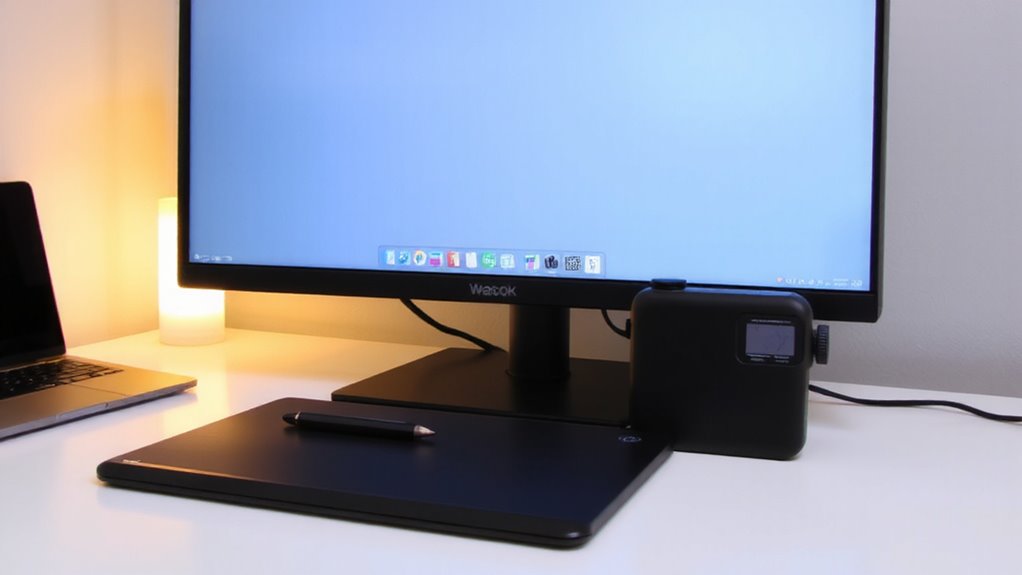
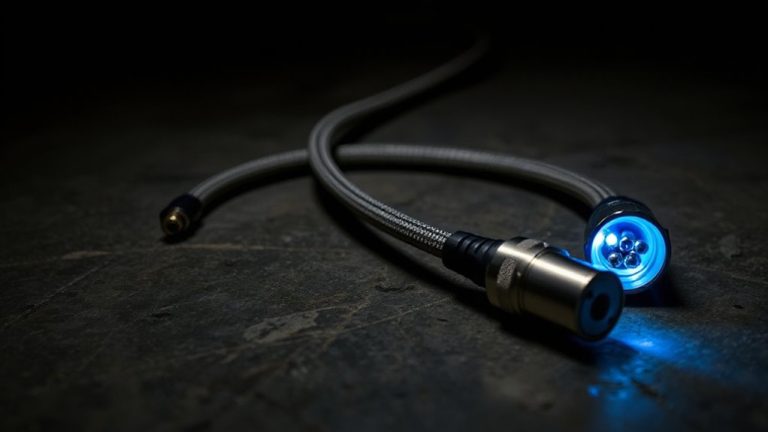
While no single tool fits every workflow perfectly, the X-Rite i1Display Pro remains a top pick for designers who need reliable, repeatable calibration across multiple monitors. You’ll appreciate its hardware accuracy, consistently delivering delta E values under 2 in real-world tests, which guarantees colors look true across screens. It pairs with calibration software that offers solid software compatibility, working seamlessly with both Windows and macOS, including the latest releases. The included software lets you customize white point, brightness, and gamma targets, giving you control without complexity. Though it’s pricier than entry-level options, its durable build and three-year warranty justify the cost for serious work. Just note that while it’s accurate, it doesn’t support advanced HDR calibration, so if you’re deep in HDR workflows, you might need more later.
How to Calibrate Your Monitor: Step-by-Step
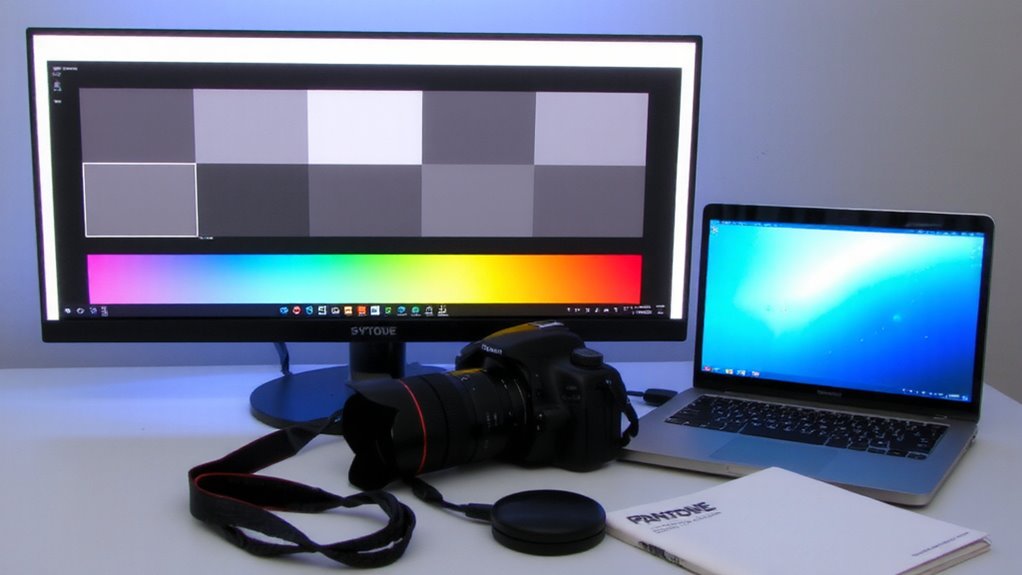
You’ve picked a reliable tool like the X-Rite i1Display Pro-now it’s time to use it effectively. For solid color accuracy, start by letting your monitor warm up for 30 minutes. Attach the sensor and follow the software prompts, choosing standard settings like 6500K white point and 120 cd/m² brightness. The calibration software adjusts your hardware settings automatically, ensuring consistent results across sessions.
| Step | Action | Purpose |
|---|---|---|
| 1 | Warm up monitor | Stabilizes color output |
| 2 | Set ambient lighting | Reduces glare and bias |
| 3 | Run calibration | Matches color accuracy to standards |
| 4 | Save profile | Applies correct hardware settings |
You’ll see improved precision, but remember: calibration doesn’t fix poor panel quality. Recalibrate monthly for best results.
Avoid These 5 Monitor Calibration Mistakes
Ever wonder why your designs look different on other screens even after calibration? You might be making common mistakes. First, skipping regular recalibration leads to color drift, especially with LED and OLED displays that shift over time. Second, ignoring ambient lighting during setup distorts results-always calibrate in your typical working environment. Third, trusting default presets instead of custom ICC profiles invites gamma errors, messing up contrast and tonal balance. Fourth, using outdated calibration tools without firmware updates reduces accuracy; modern sensors need current software for reliable readings. Finally, neglecting to verify calibration across multiple devices means inconsistencies slip through. Even with proper steps, no calibration is perfect-expect minor variances. For best results, recalibrate monthly, use hooded sensors to block glare, and keep display usage hours logged. These practices minimize issues but won’t eliminate all real-world differences.
Keep Colors Consistent on Every Screen
Getting accurate colors on your screen doesn’t stop at calibration-you’ve got to make sure those colors look consistent everywhere they’re viewed. True color matching across devices hinges on both hardware accuracy and display uniformity. Without them, your designs may shift tone on different screens, undermining your intent. To help, here’s a quick comparison:
| Monitor Model | Uniformity Score (Delta E) | Color Gamut Coverage |
|---|---|---|
| Dell UltraSharp | <2.0 | 100% sRGB, 98% Adobe RGB |
| BenQ PD Series | <1.8 | 100% sRGB, 95% DCI-P3 |
| LG UltraFine | ~2.5 | 100% sRGB, 85% Adobe RGB |
While high-end models offer superior uniformity, even mid-tier displays can achieve solid results with proper calibration. Keep in mind that ambient lighting and screen age affect long-term consistency. You’ll want measurable performance-not just brand promises-when matching colors across workflows.
How Often Should Designers Recalibrate?
Ideally, designers should recalibrate their monitors every two to four weeks for reliable color accuracy, especially if working on client-driven or print-based projects where precision matters. Over time, screens suffer from color fatigue, shifting in temperature and brightness even if you don’t notice. Regular calibration resets these drifts, keeping your work consistent. Ambient light plays a big role, too-natural or artificial lighting changes throughout the day can skew how colors appear, so recalibrating helps offset those shifts. If you’re in a studio with controlled lighting, you might stretch to four weeks, but in variable environments, closer to two is safer. High-end sensors like those in the X-Rite i1Display Pro detect subtle changes other tools miss, but even mid-range options like the Datacolor SpyderX deliver solid results. Just remember-no calibration stays accurate forever, and screen aging affects long-term consistency.
How Calibration Saves Time and Reduces Revisions
You save more time by calibrating your monitor regularly than you might think, especially when revisions pile up from mismatched colors. With solid color accuracy, what you see on-screen matches final outputs, minimizing costly re-dos in print or web. That consistency boosts workflow efficiency, letting you trust your edits without constant client back-and-forth. Tools like the X-Rite i1Display Pro or Datacolor SpyderX deliver reliable results through measured white balance and gamma settings, tested across real-world conditions. Most pros see a return in under ten projects. Still, calibration takes 10–15 minutes per session, and entry-level devices may lack long-term stability. Annual recalibration of the sensor itself is recommended. Built-in monitor LUTs help, but not all panels support 10-bit color. You’ll need to balance time investment against your output needs-freelancers on tight deadlines benefit most, while casual users might find it overkill.
On a final note
You should calibrate your monitor regularly-it guarantees accurate colors and saves hours in revisions. Tools like the X-Rite i1Display Pro or Datacolor SpyderX deliver reliable results with simple workflows. They’re precise, backed by solid warranties, and tested across real design environments. But they cost money and need time to use right. Skip shortcuts like software-only fixes; they don’t measure actual screen output. For serious work, hardware calibrators are worth it-but only if you commit to using them consistently.