The Complete Guide to Testing Your Audio Setup Before Joining a Video Call
Test your mic and speakers first-speak naturally to check clarity and watch for cutouts or background noise. Pick a wired headset like the Jabra Evolve2 30 for reliability, or a wireless option like the Logitech Zone Vibe 100 if you value mobility but accept minor lag. Always set your preferred input and output in system settings to avoid echo. Confirm device selection in your video app, not just the OS. Run a full test call with a friend to catch dropouts and noise issues you might miss alone. You’ll want to know how to fine-tune noise suppression and positioning for your specific environment.
Notable Insights
- Test your microphone and speakers with a familiar audio clip to ensure clear input and output.
- Choose a compatible audio device, preferring wired headsets for stability or wireless with reliable connectivity.
- Manually set your preferred microphone and speaker in system settings to avoid default device issues.
- Verify audio settings within your video call app, ensuring correct device selection and proper input levels.
- Run a full test call with a friend to catch dropouts, background noise, and audio lag over time.
Test Your Mic And Speakers
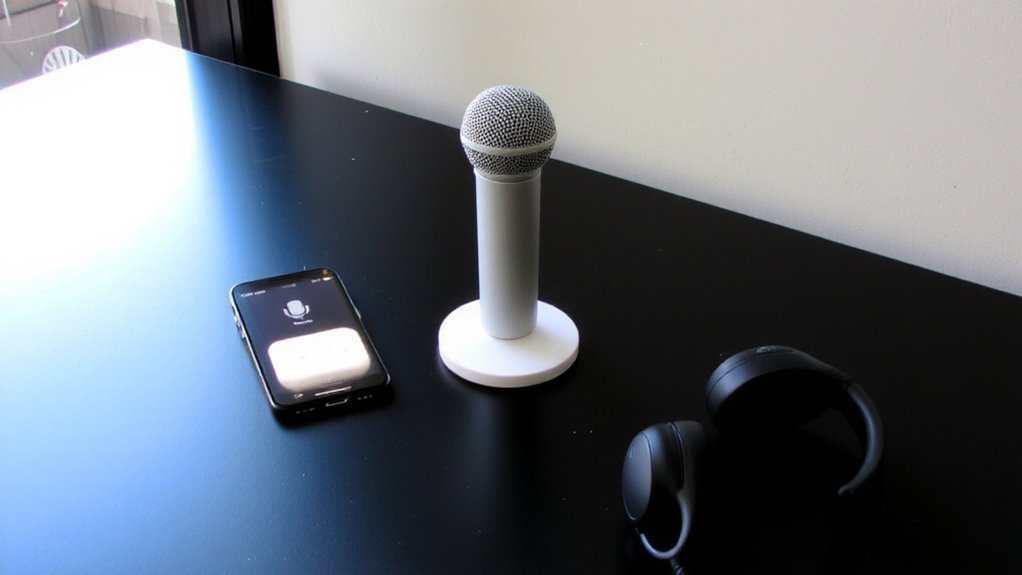
How do you know if your mic and speakers are up to the task? You test them *before* the call. Start by speaking naturally and checking mic sensitivity-if your voice sounds muffled or cuts out, the mic isn’t capturing clearly. Background noise should stay low, especially in shared spaces. Too much sensitivity picks up keyboard taps or fans, which distracts. Play a familiar audio clip to assess speaker clarity. Can you easily distinguish words, or does speech sound tinny or flat? Built-in laptop speakers often lack depth, while external ones vary widely. Test at typical volume levels to mimic real use. If voices lack definition, speaker clarity is insufficient. Don’t rely on specs alone-real-world performance matters. Even mid-tier gear can outperform premium models in practical tests. Keep expectations realistic: small devices have physical limits. Always verify both output and input-balanced performance beats isolated excellence.
Select Your Audio Device
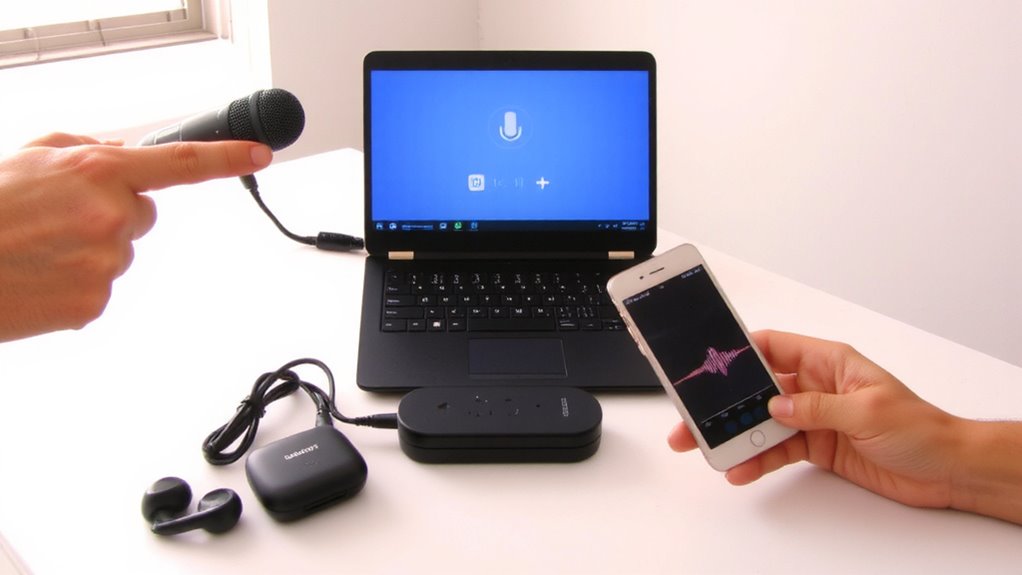
You’ve confirmed your mic picks up your voice clearly and your speakers deliver recognizable audio-now it’s time to make sure you’re using the right devices for consistent performance. Selecting the correct audio device matters for both audio quality and device compatibility. Wired headsets like the Jabra Evolve2 30 offer stable, plug-and-play performance with minimal interference, ideal for daily use. Wireless models, such as the Logitech Zone Vibe 100, provide freedom of movement but require charging and may introduce latency. USB-C and Bluetooth devices must be compatible with your computer’s ports and operating system to avoid dropouts or failed connections. Built-in laptop mics and speakers often compromise audio quality in shared spaces. External devices give you control, but always verify that your OS recognizes them. Using the wrong device-even a high-end one-can undermine your setup. Choose wisely based on your hardware and environment. For optimal results, consider top office headsets that match your work setup and connectivity needs.
Set Input And Output In Your System
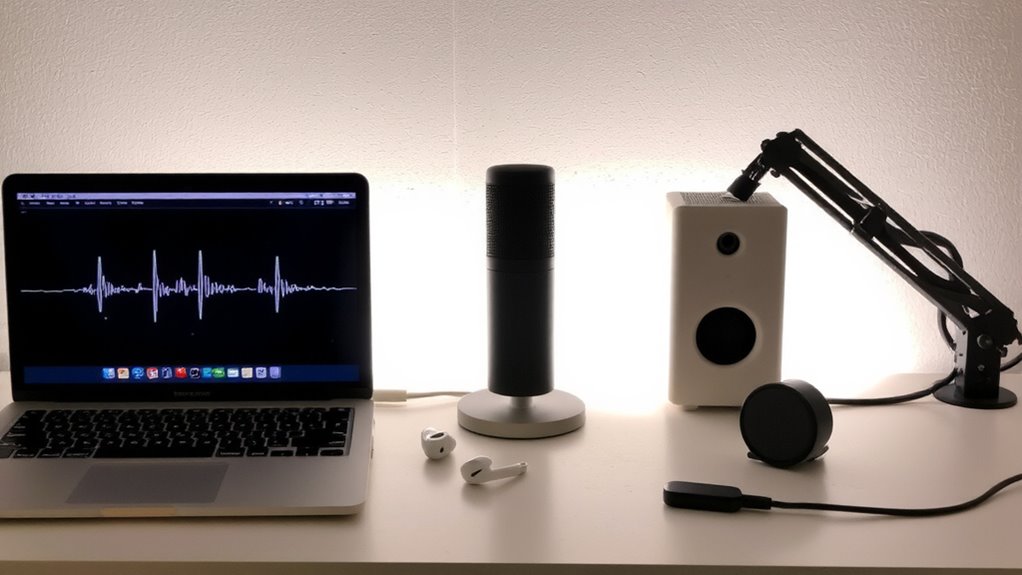
While your hardware choice sets the foundation, getting clear audio starts with properly assigning input and output devices in your system settings-otherwise, even a premium headset like the Jabra Evolve2 30 won’t perform as intended. You’ve got to manually select your preferred mic and speaker to avoid audio balance issues or frustrating system latency. Most OS platforms default to built-in audio, which can introduce echo or delay.
| Device Type | Input Setting | Output Setting |
|---|---|---|
| USB Headset | Select mic | Choose speaker |
| Bluetooth | Pair & set mic | Set audio sink |
| 3.5mm Jack | Plug in mic | Assign output |
| Speakers | Test clarity | Adjust left/right balance |
Misconfigurations cause delays and imbalanced sound. Always verify settings per device-especially after switching gear. Built-in tools help, but they don’t fix incorrect routing. Take 60 seconds to confirm; it prevents call disruptions and guarantees consistent performance across meetings.
Test Audio In Your Video Call App
Once you’ve confirmed your system’s input and output settings, the next critical step is testing audio directly within your video call app, since app-level configurations can override system defaults and affect call quality. Open your app’s audio settings and speak naturally to check if your microphone picks up your voice clearly. Watch the input level meter-it should rise when you talk but not clip. Play a short audio clip or use a built-in test feature if available. Listen for distortion or muffled tones, which hurt audio quality. Pay attention to background noise-if your fan or keyboard clicks are loud, adjust mic sensitivity or use noise suppression if the app offers it. Some apps let you switch between microphones or headsets here, so verify the right device is selected. Even with perfect system settings, poor app-specific tuning can introduce echo or drop volume, so this step’s essential.
Run A Full Test Call With A Friend
How does your audio setup hold up in a real conversation? A full test call with a friend gives you real-world feedback on both your mic and speakers. Aim for a call duration of at least five minutes to catch issues that short tests miss, like distortion or dropouts. Ask your friend to note any background noise-like fan hum or keyboard clicks-since those can distract in meetings. Try speaking at your normal volume and tone, then move around your space to check consistency. Wired headsets often deliver reliable clarity, while wireless options offer freedom but can occasionally lag. Remember, even high-end gear can underperform in noisy rooms. This test isn’t perfect, but it’s the best way to see how your entire system works together. Fix issues now, so you’re ready when it’s time to go live.
On a final note
You should test your audio setup every time before a call-it prevents awkward misunderstandings and tech hiccups. Check your mic sensitivity and speaker volume using built-in OS tools, then confirm settings in your app. Use headphones to avoid echo; wired ones cut latency. A quick test call with a colleague catches issues apps miss. No gear fixes everything: even high-end mics struggle in noisy rooms, and software delays vary by system. Know your tools, but stay realistic.