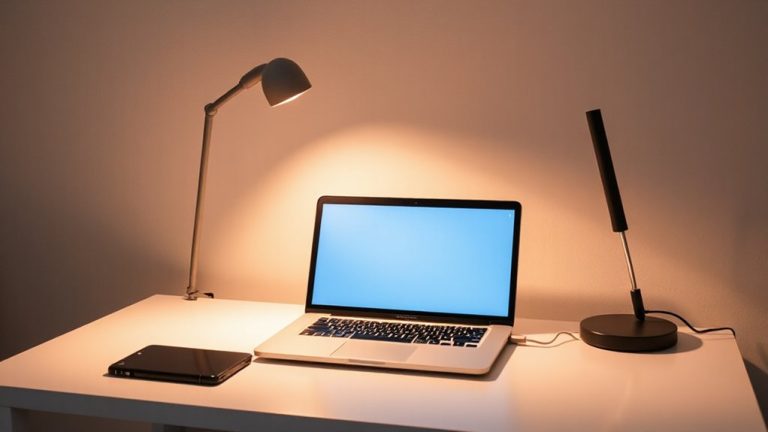
Positioning Monitors to Support a Central Wrist Rest and Ergonomic Keyboard
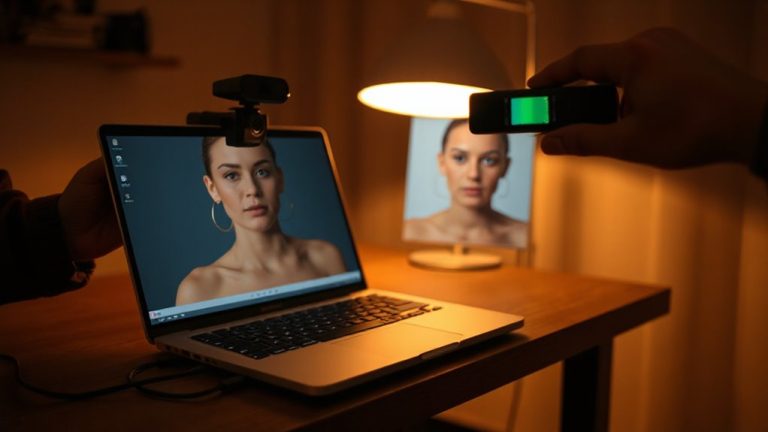
Position your monitor directly in front of your ergonomic keyboard, center to center within two inches, so your wrists stay supported on the central rest without twisting. Set the top of the screen at or slightly below eye level to keep your neck neutral. Keep it an arm’s length away-20 to 40 inches-and tilt it forward 10 to 20 degrees to cut glare. Use a stable mount or riser to avoid wobble, and route cables cleanly. Small alignment errors add up over time, leading to strain, so fine-tune your setup now to prevent fatigue later-there’s more to optimizing your station than just screen height.
Notable Insights
- Center the monitor directly above or aligned with the ergonomic keyboard to maintain symmetrical wrist and arm positioning.
- Position the monitor at arm’s length (20–40 inches) to support a neutral posture while using a central wrist rest.
- Set the top of the screen at or slightly below eye level to prevent neck strain during prolonged typing.
- Ensure keyboard and monitor are both centered to minimize lateral wrist deviation and shoulder tension.
- Use a stable monitor arm or riser to achieve correct height without interfering with wrist rest or keyboard placement.
Set Your Monitor at Eye Level for Neutral Posture
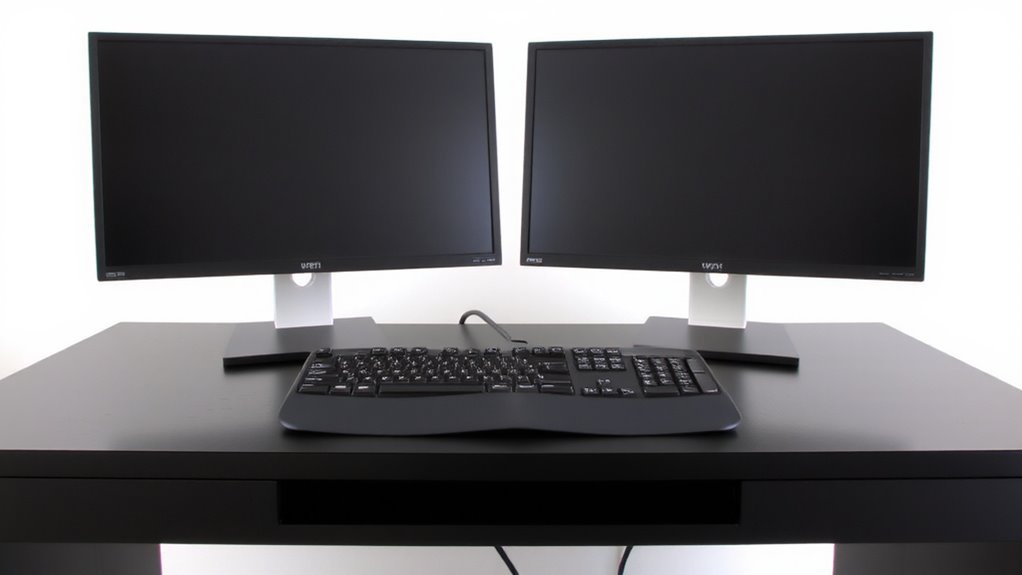
While getting your monitor height just right might seem minor, it’s one of the most important moves you can make for lasting comfort at your desk. Proper monitor height helps maintain neutral posture, reducing neck and shoulder strain over time. Your top line of text should align just below eye level so your eyes look slightly downward-this mimics natural gaze and supports healthy eye alignment. If your screen’s too low, you’ll crane forward; too high, and you’ll tilt your head back, both leading to fatigue. Most people need a monitor arm or stack of books under a stand to hit the sweet spot. Laptops often fail here unless paired with an external keyboard and riser. Built-in stands on budget monitors rarely offer enough adjustment. Test positions over a full workday-discomfort may take hours to show. Some adjustments require trade-offs in desk space or cable reach. A well-chosen desk can make achieving this setup easier, especially with models designed for ergonomics and cable management, such as those featured in the best home office desks guide.
Center Your Monitor Over Your Keyboard
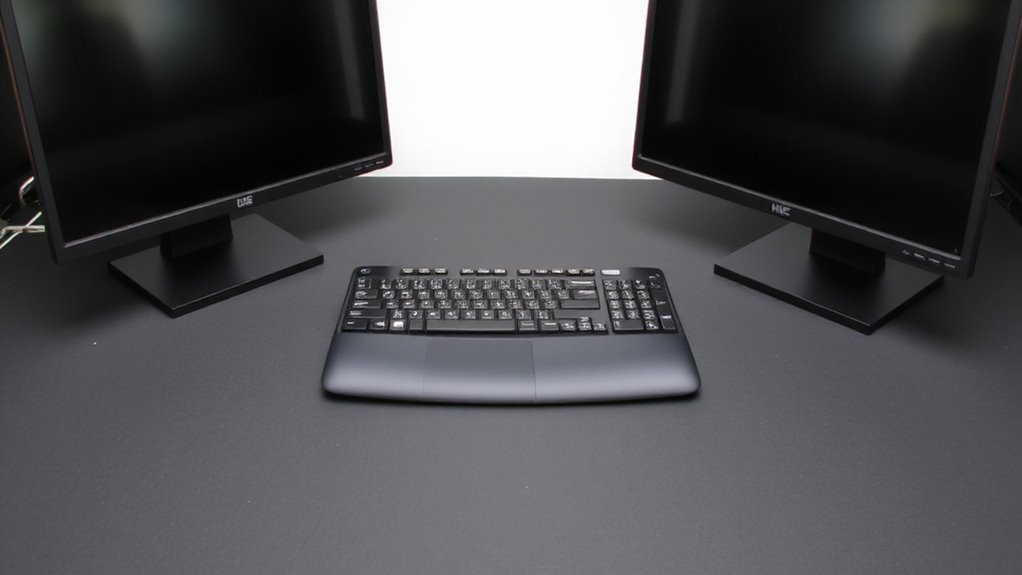
Center your monitor directly over your keyboard to keep your body aligned and reduce strain on your neck and eyes. Proper monitor symmetry and keyboard alignment promote a neutral posture, especially when using a central wrist rest. Misalignment forces twisting, leading to discomfort over time. Below is a quick-reference table for ideal setup cues:
| Feature | Target |
|---|---|
| Monitor center | Aligned with keyboard center |
| Center-to-center distance | ≤2 inches offset |
| Primary display area | Directly in front of you |
| Keyboard alignment | Perpendicular to your body |
Even small offsets add up, so check alignment weekly. If using dual monitors, center the primary screen over the keyboard and angle the secondary inward. Monitor arms help maintain symmetry, but test stability first-some flex under long-term use. While perfect centering isn’t always possible, aim within a 2-inch tolerance for best results.
Position Screens an Arm’s Length Away
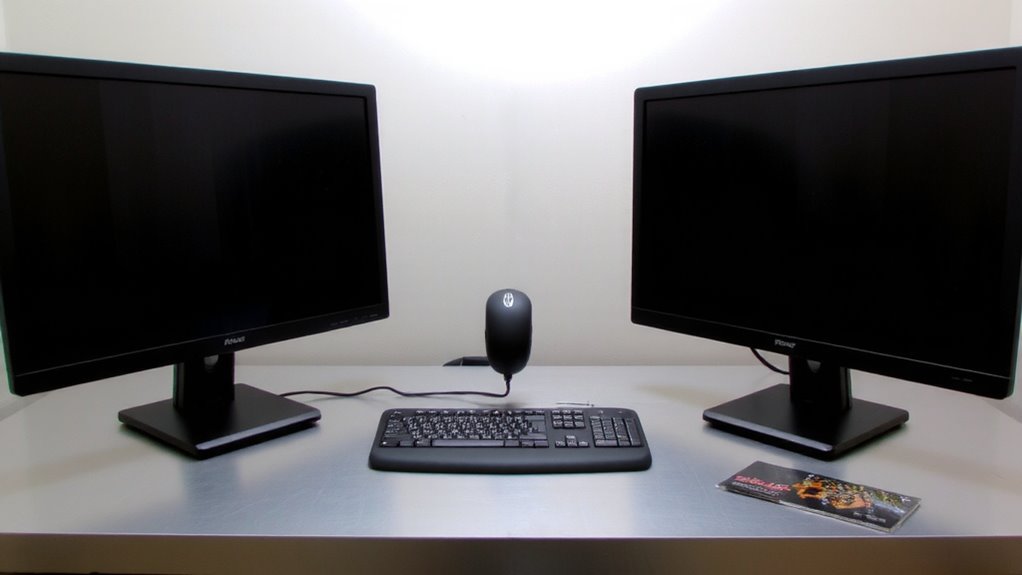
Keeping your screen about an arm’s length away gives you the best balance between visibility and comfort, reducing eye strain and helping you maintain a relaxed posture. That ideal screen distance is roughly 20 to 40 inches, depending on your arm reach and screen size. If you’re squinting or leaning forward, it’s too far; if your eyes dart across the display too quickly, it’s likely too close. A proper arm reach guarantees your body stays neutral, minimizing neck and shoulder tension. Most ergonomic guidelines support this range, and real-world testing confirms it reduces fatigue during long work sessions. Just don’t assume one size fits all-adjust slightly based on your eyesight or use zoom features. Larger monitors may need fine-tuning within that arm’s length range to avoid excessive head movement. Screen distance isn’t just about comfort-it’s about sustaining focus without trade-offs.
Tilt Your Monitor to Reduce Glare and Strain
Position your monitor so the top is at or slightly below eye level, then tilt the screen forward about 10 to 20 degrees to cut down on glare and keep your neck relaxed. Tilting helps block overhead and window light, reducing eye strain, especially if your monitor lacks anti glare coatings. You’ll often need to lower screen brightness in dimmer spaces to match ambient light, which improves comfort during long sessions. While anti glare coatings minimize reflections effectively, they can slightly reduce color accuracy or contrast-something to weigh if you edit photos or videos. Tilt adjustments work best with monitors that have stable stands or arms offering smooth, secure angle changes. Don’t over-tilt; angles beyond 20 degrees may distort the image or force awkward posture. This small change delivers measurable comfort, but only when paired with proper desk lighting and positioning. Test the tilt with your usual screen brightness to find your personal sweet spot. A well-designed monitor stand can provide the necessary adjustability for precise tilt and height control.
Avoid Common Monitor Placement Mistakes
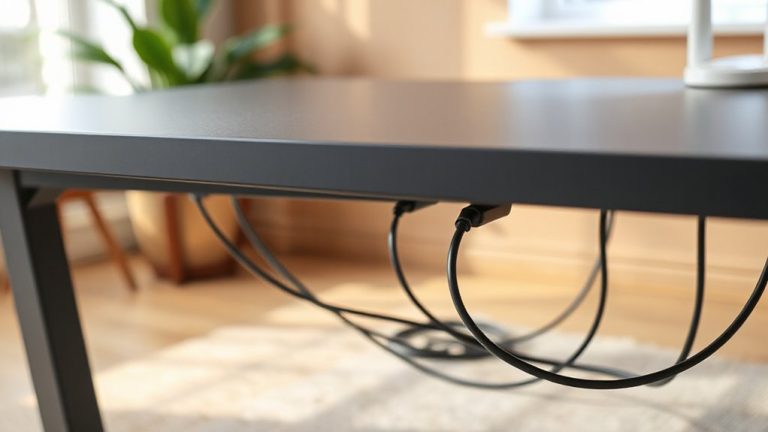
If you’ve ever left your desk with a sore neck or tired eyes, chances are your monitor’s placement is part of the problem. Placing your screen too high, too low, or too far away forces poor posture. Avoid these issues by centering the monitor directly in front of your keyboard and positioning the top at or slightly below eye level. Uneven surface stability can cause wobbling, distracting you and risking long-term joint strain. Combine this with improper cable management, and you’re inviting clutter that disrupts focus and safety. A well-chosen monitor mount can provide the adjustability and stability needed for optimal ergonomic alignment.
| Mistake | Emotional Effect | Real-World Impact |
|---|---|---|
| Slanted too high | Neck pain | Reduced concentration |
| On an unstable surface | Anxiety | Sudden shifts or falls |
| Cables tangled | Frustration | Tripping, connection loss |
Use mounts or risers with secure bases and route cables through sleeves or clips for a cleaner, safer space.
On a final note
You’re better off centering your monitor directly over your keyboard, just an arm’s away, so your neck stays neutral and wrists stay supported. Tilting the screen slightly up or down helps cut glare, especially on matte displays. Just don’t raise it too high-overdoing it strains your eyes. Most tested models work, but only if adjusted right; even premium arms need proper setup. Warranty won’t fix poor habits.