Strategies for Maintaining Eye Contact Through Your Webcam Lens
Position your webcam at eye level using a riser or books to avoid unflattering angles-too high or low distorts your gaze. Place the other person’s video feed within six inches of the lens to simulate real eye contact. Use a Logitech C920 for better alignment control, but test placements first. Face a window or 5000K front light to stay well-lit without shadows. Alternate your gaze every few seconds between lens and screen, and consider EyeHeight for feedback. Small adjustments make a noticeable difference in connection quality.
Notable Insights
- Position your webcam at or slightly below eye level to create natural eye contact during video calls.
- Place the other person’s video feed near the webcam lens to maintain the illusion of direct eye contact.
- Elevate your laptop using a stand or books to align the built-in camera with your eye level.
- Use front-facing, soft lighting from a window or lamp to illuminate your face and reduce shadows.
- Alternate gaze between the webcam lens and screen to balance eye contact and visual awareness.
Position Your Camera at Eye Level
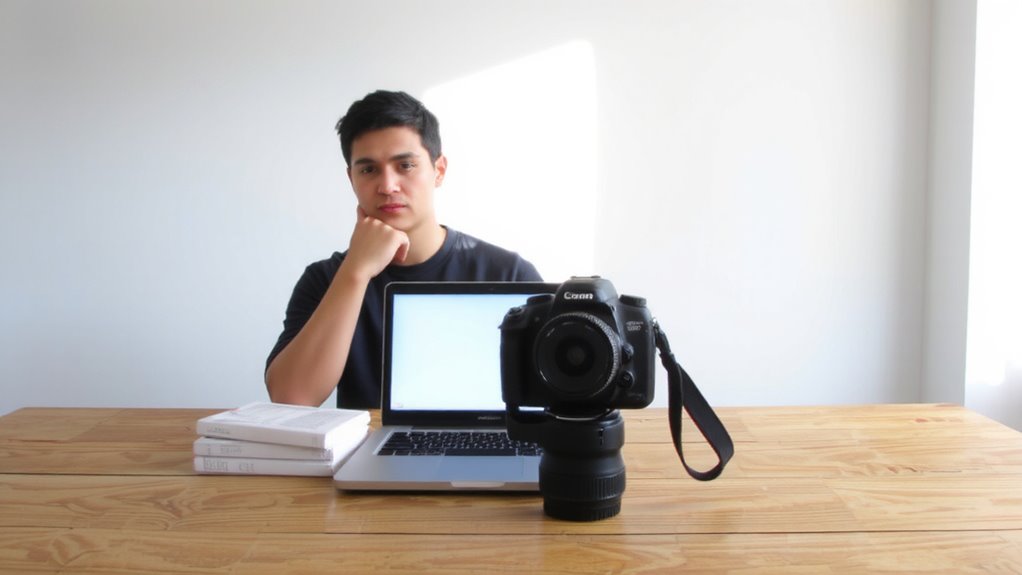
Eye contact starts with alignment-position your webcam so the lens sits at or just below eye level. Proper camera alignment guarantees you’re looking slightly upward into the lens, mimicking natural face-to-face contact. If your laptop rests on a desk, the built-in camera is usually too low, forcing you to gaze down and appear disengaged. Elevate the device with a stand or stack of books until the lens positioning matches your eyes. Avoid tilting the screen upward, as this distorts your face and creates unflattering angles. External webcams offer more flexibility; models like the Logitech C920 let you adjust height and angle precisely. Most perform reliably over Wi-Fi, though 1080p streaming demands stable bandwidth. Mounting options vary-some clip on, others need arms or tripods. Remember, even perfect gear won’t fix poor placement, so prioritize lens positioning before upgrading hardware. Test different heights during a call recording to confirm the best result. A well-positioned laptop stand can make a significant difference in achieving optimal eye-level alignment, and choosing the best laptop stands ensures both comfort and consistent camera positioning.
Place Their Video Near the Camera Lens
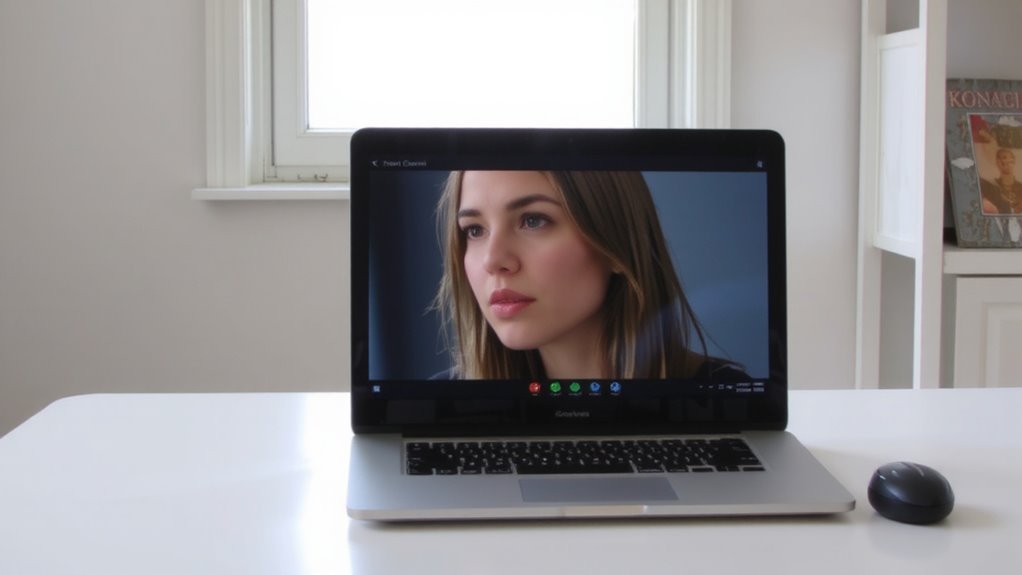
You’ll get the most natural connection when you position the other person’s video feed close to your webcam lens. Camera proximity helps mimic real face-to-face eye contact, as glancing at their image means you’re still looking almost directly into the camera. This improves visual focus and makes conversations feel more engaged. Try dragging their video window into a corner right next to or slightly beneath the lens if using an external monitor. Avoid placing it too far off-axis-more than six inches away can break the illusion. Some video apps let you pin or spotlight participants, which keeps their feed visible and near the lens area. While this doesn’t fix poor camera placement, it works when paired with eye-level setups. You’ll need to adjust layout settings regularly, especially during group calls with multiple speakers. The trade-off? Constant repositioning, but the payoff in perceived attention is worth it. For optimal results, consider using one of the top webcams that offer high-resolution video and wide dynamic range for clearer, more lifelike visuals.
Use Your Laptop’s Camera Effectively
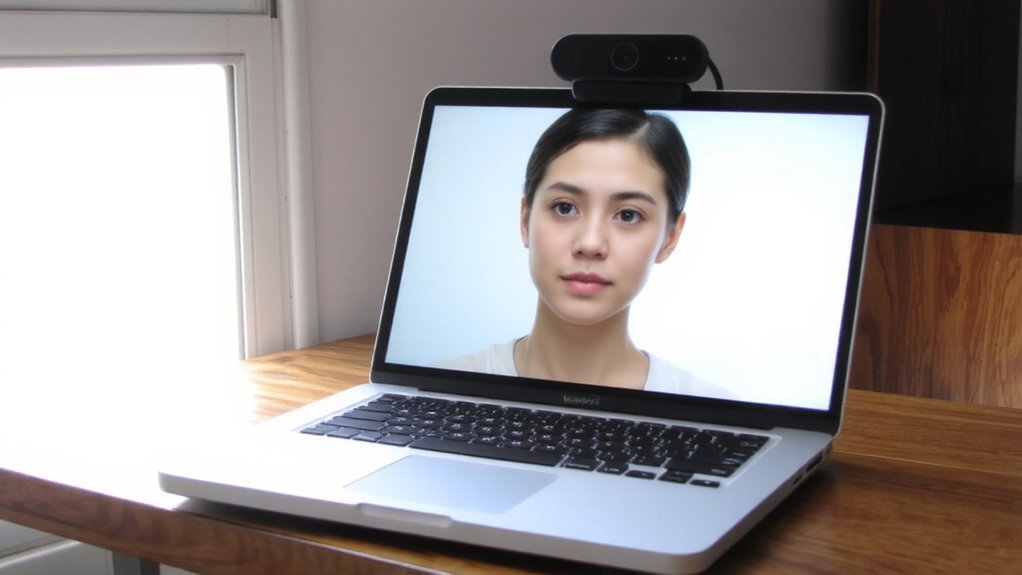
The laptop camera’s convenience comes with real limits, but with smart adjustments, it can deliver solid performance for daily calls. Proper camera placement is key-raise your laptop so the lens sits at or just above eye level, avoiding unflattering low angles. This improves visual alignment, making your face appear centered and engaged. Use a sturdy stand or stack of books to achieve the right height without blocking vents. Most built-in cameras perform best in well-lit environments, so face a window or lamp to enhance image clarity. While these sensors lack the dynamic range of external webcams, they’re reliable for consistent, indoor use. Just remember: built-in mics often pick up keyboard noise, so consider headphones with a mic. Don’t expect studio quality, but with good lighting and correct setup, your laptop camera can handle professional demands effectively.
Align Screen and Camera for Natural Eye Contact
Positioning your screen and camera at eye level isn’t just about comfort-it’s the simplest way to create the illusion of natural eye contact during video calls. Proper camera alignment keeps the lens level with your eyes, so you’re not looking up or down, which distorts angles and breaks connection. Pair this with correct screen positioning: place your monitor so the top is at or slightly below eye level, about an arm’s length away. Use a stack of books or a simple monitor riser-no need for expensive stands. Built-in laptop cameras work fine if elevated with a dock or stand. Avoid propping laptops on cluttered surfaces; uneven heights ruin alignment. Webcams mounted too high or too low force unnatural head tilts, making you seem disengaged. While tripod mounts offer flexibility, most users get reliable results with minimal gear. Just guarantee stability and consistent positioning. For optimal alignment, consider using an ergonomic laptop stand to maintain proper posture and camera level.
Balance Gaze Between Screen and Lens
How do you stay present on camera without constantly shifting your gaze between screen and lens? The key is balancing eye contact with authenticity. You need to check your audience’s reactions, so frequent blinking helps maintain natural expression while reducing eye strain during long sessions. Use subtle glances downward or sideways to read prompts, then return your focus to the lens. Avoid staring fixedly-it feels robotic. Instead, alternate between looking into the camera and glancing at the screen.
| Focus Target | Recommended Duration |
|---|---|
| Webcam lens | 3–5 seconds |
| Screen (audience/notes) | 2–3 seconds |
| Lens (after blinking) | Resume naturally |
| Subtle glances to screen | Keep under 1 second |
This rhythm supports engagement without losing connection. You’ll seem attentive, not distracted. Practice builds consistency, but don’t expect perfection overnight.
Boost Eye Contact With Better Lighting
A well-lit face makes eye contact feel natural and compelling, even through a screen. Position yourself facing a window to take advantage of natural light-it’s flattering and reduces harsh shadows. Avoid having the light behind you, as that creates a silhouette and weakens connection. If natural light isn’t possible, use soft, front-facing ambient lighting. A simple LED panel or desk lamp with diffused brightness works well-around 1,500 to 2,000 lumens is enough for most spaces. Keep lighting consistent to prevent your camera from adjusting brightness during calls. Overhead or warm-toned lights can cast unflattering shadows, so aim for cooler tones (5000K color temperature) at eye level. While ring lights are popular, they can look overly dramatic if not diffused. Good lighting doesn’t need expensive gear-just thoughtful placement and balance.
Practice the Right Gaze With Feedback Tools
Why does eye contact feel so off on video calls, even when you’re looking right at the camera? Because your eyes are likely drawn to faces on screen, not the lens. To fix this, practice with tools that offer gaze calibration and feedback integration. Apps like EyeHeight or built-in webcam software can guide your视线 to align with the camera, training muscle memory over time. These tools work by highlighting where you’re looking versus where you should look, giving real-time prompts. Most require just minutes daily, and results show noticeable improvement in perceived engagement. However, don’t expect perfection-monitor positioning, camera height, and screen size all affect accuracy. Built-in feedback isn’t flawless, especially on lower-resolution webcams. Use it as a guide, not a guarantee. For best results, pair software with proper setup: position the camera at eye level and minimize distractions. With consistent practice, you’ll nail the right gaze-naturally.
On a final note
You’ll look more engaged if you position your webcam at eye level and place their video feed close to the lens. Natural eye contact depends on alignment-tilt your screen or use a stand to match angles. Good lighting helps, but avoid backlighting. While external webcams offer flexibility, built-in laptop cameras work fine if adjusted properly. Practice with recording tools to refine your gaze. No gear guarantees perfect eye contact, but these steps make a measurable difference in clarity and connection.