Why Your External Camera Freezes Mid-Meeting and How to Prevent It
Your external camera freezes mid-meeting because USB 2.0 ports max out at 480 Mbps, often choking under HD video demands-especially if you’re using a hub or have other devices drawing bandwidth. Outdated drivers can’t manage data flow properly, causing disconnects, while background apps like cloud sync tools steal system resources. Overheating from poor ventilation or direct sunlight stresses the sensor, and weak Wi-Fi compounds lag. Use a direct USB 3.0+ connection, close unused programs, and guarantee drivers and firmware are current-results vary by setup, but upgrades often smooth performance markedly. You’ll see better outcomes when matching gear to your specific workflow demands.
Notable Insights
- Use a USB 3.0+ port to ensure sufficient bandwidth and prevent video throttling during calls.
- Update camera drivers regularly to maintain stable communication between the camera and your system.
- Close bandwidth-heavy background apps to free up system and network resources for smooth camera performance.
- Avoid direct sunlight and overhead lighting to reduce sensor strain and prevent image distortion.
- Restart the camera and check for firmware updates to resolve temporary glitches and improve reliability.
Why Your USB Port Is Freezing Your Camera
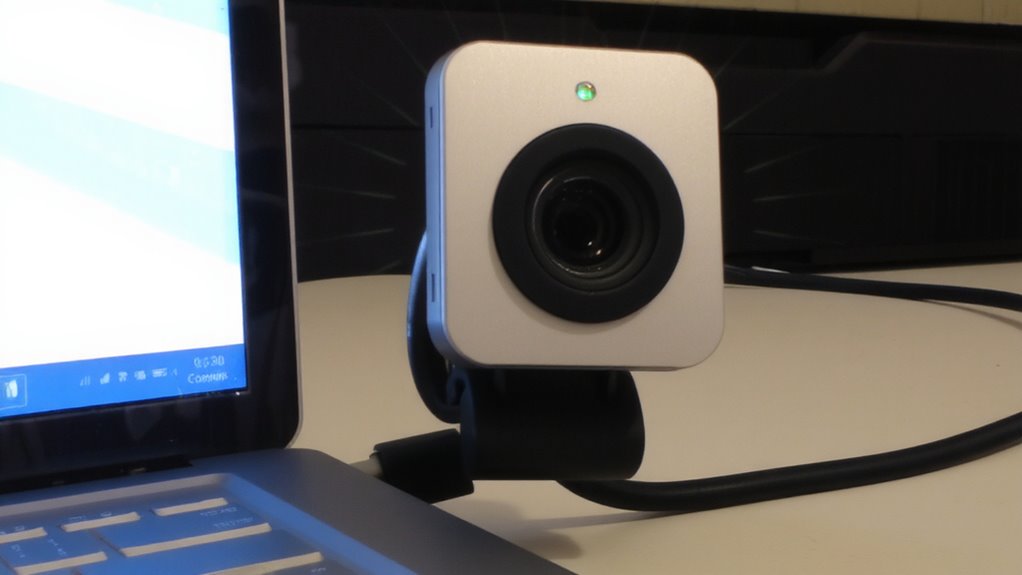
While you might blame your camera for freezing during important calls, the real culprit could be your USB port-especially if it’s an older USB 2.0 version struggling to handle the data load. USB 2.0 maxes out at 480 Mbps, which often leads to bandwidth throttling when streaming HD video, especially if other devices share the controller. You’re more likely to encounter port conflicts when multiple high-demand peripherals-like external drives or audio interfaces-run simultaneously, starving your camera of needed resources. USB 3.0 or later ports, identifiable by their blue inserts or SS labeling, offer ten times the bandwidth and handle data surges better. For reliable performance, plug your camera directly into a dedicated USB 3.0+ port, avoiding hubs. Keep in mind, though, even fast ports can fail if internal wiring or motherboard design cuts corners-common in budget laptops. Test different ports and monitor for stuttering. Upgrading to one of the best webcams can also reduce strain on your system by optimizing video processing.
How Outdated Drivers Break Your External Camera
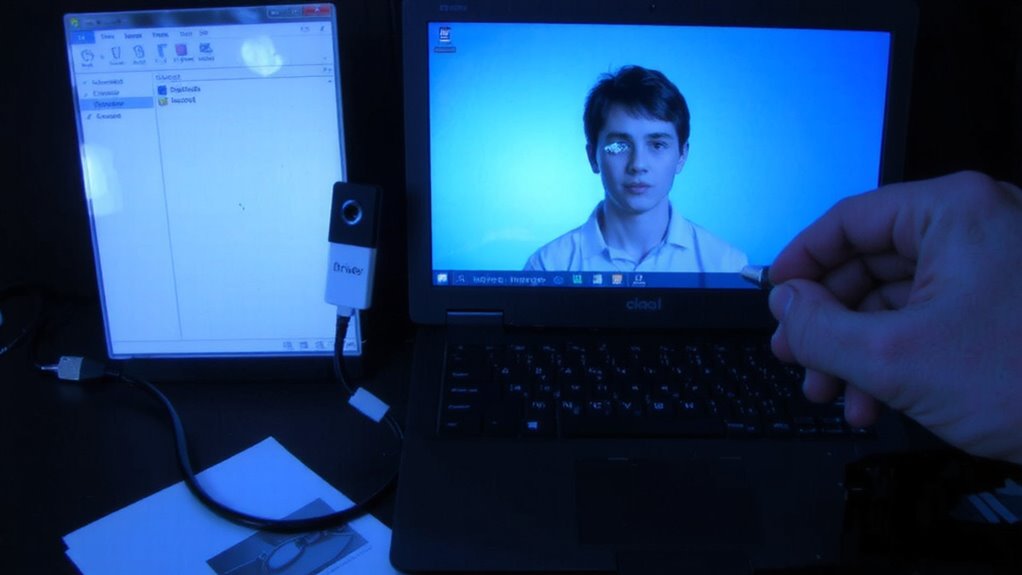
Even when your hardware meets the basics, outdated drivers can still sabotage your external camera’s performance by failing to manage data flow or power delivery efficiently. You might notice freezes or abrupt disconnects mid-call, all because your system can’t communicate properly with the camera. Outdated drivers often lead to driver conflicts, especially when multiple peripherals compete for resources, causing lags or complete feed drops. Worse, they increase the risk of firmware corruption, permanently impairing function even after updates. While updating drivers is a low-effort fix, it’s not foolproof-some manufacturers offer limited support or poorly tested patches. Always get drivers from official sources and check version history. There’s no universal guarantee, but staying current minimizes instability. Weigh the effort: minutes spent updating could prevent repeated meeting disruptions, but don’t assume it’ll fix deeper hardware flaws.
Which Apps Are Slowing Down Your Camera Feed
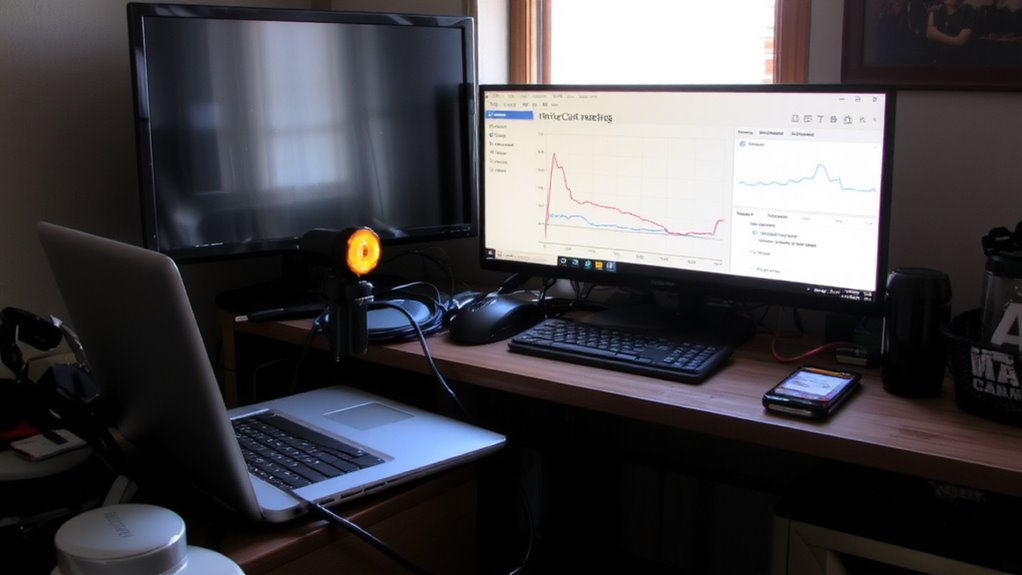
What’s really eating up your bandwidth when your camera stutters mid-call? Background apps are likely the culprits, quietly hogging the resources your external camera needs. Streaming services, cloud sync tools, or video game clients running in the background can act as bandwidth hogs, reducing the data available for real-time video. Even if they’re not actively open, many apps keep syncing or updating, competing with your camera feed. You might not notice them, but your camera does-especially on Wi-Fi networks with limited throughput. Close nonessential programs before meetings to free up system resources. Monitor CPU and network use via Task Manager or Activity Monitor to identify which ones are consuming the most. While wired connections help, they can’t fix system-level bottlenecks. The trade-off? Constantly managing apps isn’t convenient, but it’s often necessary for smooth, professional-quality video.
When Heat and Light Can Crash Your Video?
Ever wonder why your external camera feed cuts out during long calls in a sunlit room? Heat and bright light aren’t just annoying-they can trigger thermal throttling and glare interference, both of which degrade performance fast. When your camera overheats, internal sensors throttle processing power to cool down, causing frozen frames or disconnects. Direct sunlight worsens this by increasing sensor workload and creating glare interference that disrupts image clarity.
| Risk Factor | Effect on Camera |
|---|---|
| Direct sunlight | Causes glare interference |
| Poor ventilation | Promotes thermal throttling |
| Long call duration | Increases internal temperature |
| Bright overheads | Creates image distortion |
| Enclosed space | Traps heat around device |
Position your camera away from windows and guarantee airflow. While some models claim heat resistance, real-world testing shows most still struggle past 80°F (27°C). A cool, shaded setup prevents crashes-no matter the cam’s specs.
5 Quick Fixes for a Frozen External Camera
If your external camera freezes during a call, a quick restart usually resolves the issue-unplug the camera for 15 seconds, then reconnect it, which resets the USB connection and clears temporary sensor errors. This improves connection stability and often restores function immediately. Check your camera firmware too; outdated versions can cause lag or lockups, especially after system updates. manufacturers regularly release patches to fix known bugs affecting performance. While a simple reboot helps in most cases, repeated freezing may point to deeper issues like USB port power limits or incompatible drivers. Don’t assume a newer model will solve it-some high-res models strain older ports. Use a powered USB hub if your laptop struggles with bandwidth. These fixes are low-cost and fast, but they’re temporary if the root cause isn’t addressed. Test across calls to confirm lasting improvement.
On a final note
Your external camera shouldn’t freeze mid-call, but it often does due to USB bandwidth limits, outdated drivers, or app conflicts. While upgrading to a USB 3.0 port or updating firmware can stabilize performance, results vary by device model and system load. Cooling matters-overheating sensors in bright rooms may throttle video. Test changes one at a time, and prefer wired connections over wireless peripherals. Even high-end webcams fail without proper maintenance, so check drivers monthly.