Creating a Regular Maintenance Schedule for Video Conferencing Equipment
You should create a regular maintenance schedule for your video conferencing gear to prevent dropouts and audio lag. Reboot your router weekly, clean lenses monthly with a microfiber cloth, and calibrate audio to avoid voice overlaps. Check camera alignment and mic levels after every call to maintain professional quality. Inspect HDMI and USB cables monthly for damage, replacing frayed ones before they fail. Firmware updates and license reviews every quarter help avoid compatibility issues-consistency keeps meetings smooth.
Notable Insights
- Perform weekly checks on cameras, microphones, and speakers to prevent audio lag and mid-call failures.
- Schedule monthly cleaning and calibration of lenses, audio sync, and camera alignment for optimal performance.
- Conduct quarterly audits of equipment inventory and software licenses to ensure functionality and compliance.
- Reboot routers weekly and inspect cables monthly to minimize signal interference and connectivity issues.
- Verify camera framing and mic levels post-call to maintain professional audiovisual quality and device longevity.
Prevent Glitches With Weekly Video Conferencing Maintenance
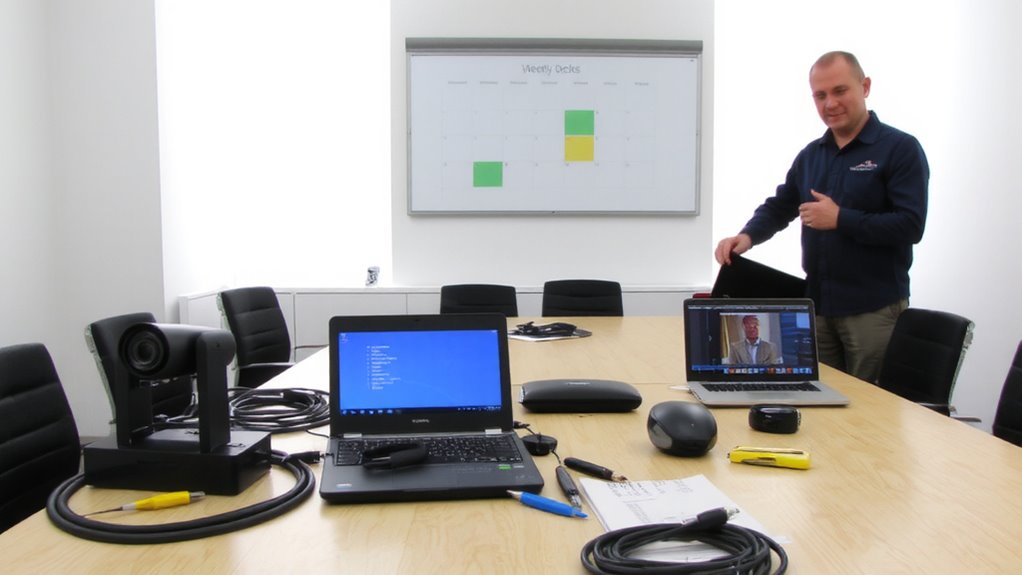
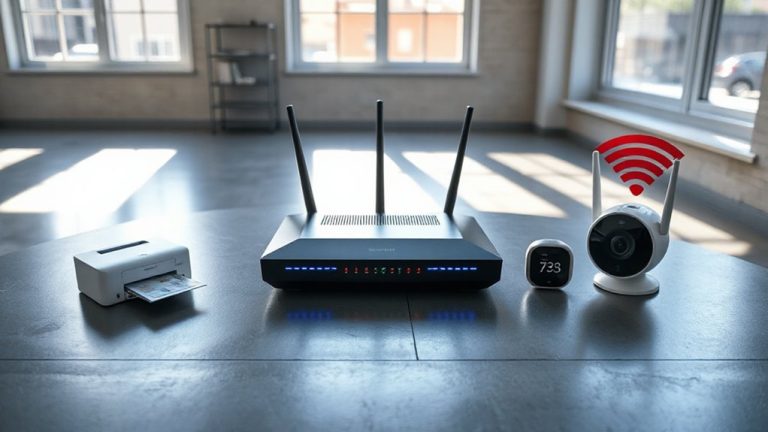
One weekly check can save you from mid-call dropouts or audio lag that disrupts important meetings. You’re relying on stable hardware and network conditions, but signal interference from nearby devices or poor router placement can degrade performance. Bandwidth fluctuations during peak hours may also compress video quality or mute audio unexpectedly. Inspect cables, clean camera lenses, and reboot your router to reset connections. Test built-in mics and speakers using your conferencing platform’s settings-many include calibration tools. Confirm firmware updates are applied; outdated drivers often cause compatibility issues. While this routine reduces failures, it won’t fix underlying network limits or aging equipment. High-end headsets and dedicated webcams help, but only if your internet speed supports 720p or higher. Balance expectations: consistent maintenance improves reliability, but it complements-doesn’t replace-adequate infrastructure.
Pick Your Maintenance Schedule
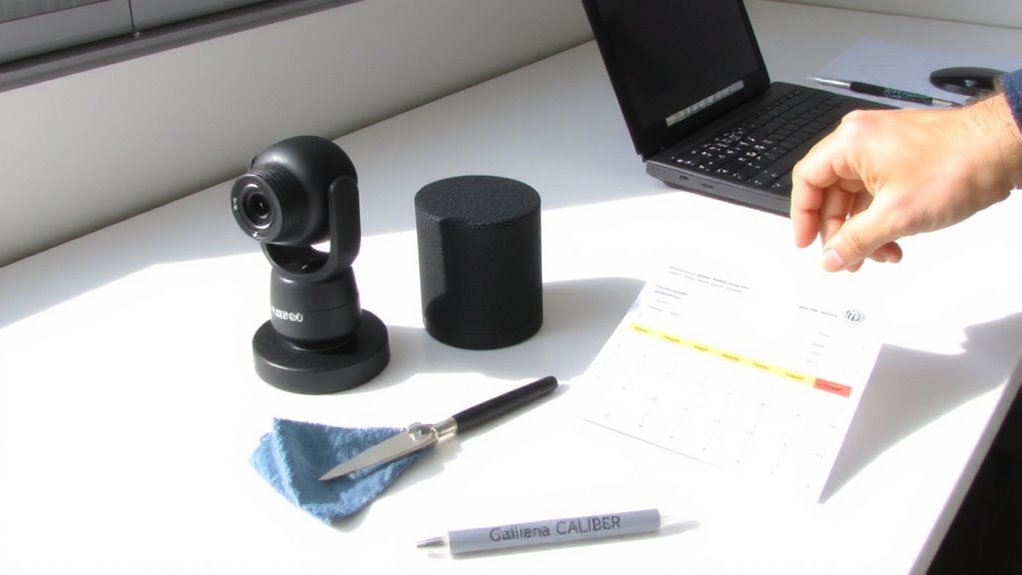
How often should you really be checking your video conferencing setup? For most offices, a quarterly review strikes the right balance between reliability and workload. You’ll want to audit your equipment inventory each cycle-confirm devices are functioning, accounted for, and matched to room needs. Missing or outdated units can disrupt meetings and inflate costs. Don’t overlook software licensing, either. Expired or under-provisioned licenses can disable critical features like screen sharing or cloud recording. Review renewal dates and user counts well in advance. While monthly checks catch minor issues, they’re often overkill unless you run high-stakes, back-to-back calls. Quarterly timing spreads effort evenly and aligns with most warranty service windows. Just make sure someone owns the process-consistency matters more than frequency. Skip it, and glitches won’t just happen. They’ll multiply.
Clean and Calibrate Your Gear Monthly
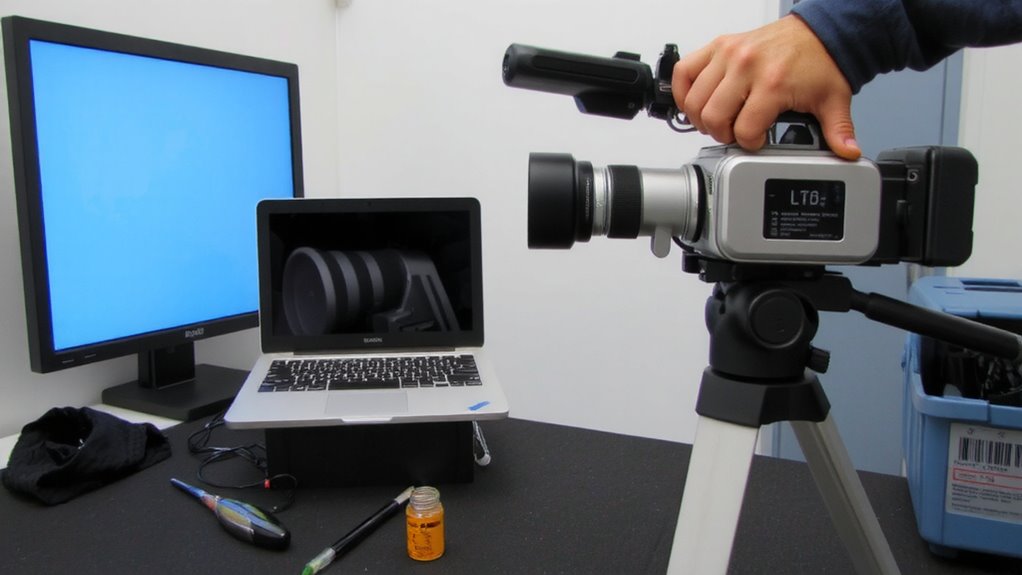
You’ll likely get the best results by cleaning and calibrating your video conferencing gear every month-this routine keeps image and audio quality sharp without overburdening your IT staff. Proper lens alignment guarantees everyone stays in frame, while consistent audio syncing prevents awkward overlaps during conversations. Dust on lenses or microphones can degrade performance, so use lint-free cloths and approved cleaners. Calibration also checks signal latency and pixel accuracy across devices.
| Task | Frequency | Tools Needed |
|---|---|---|
| Lens cleaning | Monthly | Microfiber cloth, cleaner |
| Audio syncing | Monthly | Test software, headphones |
| Lens alignment | Monthly | Grid test pattern, tripod |
Skipping monthly maintenance may save time short-term but often leads to compounded issues. Older systems especially benefit from this consistency. Don’t rely on auto-correction features alone-they can’t fix physical grime or major sync drift.
Fix Camera and Mic Issues After Every Call
Why wait for small glitches to become big problems? After every call, take two minutes to fix camera and mic issues before stepping away. Check your camera alignment-tilt or shift from accidental bumps can cut off your face or show the ceiling. A centered frame keeps you visible and professional. Then test microphone sensitivity: if your voice sounds muffled or too loud, adjust input levels in your OS settings or the conferencing app. Some mics pick up background noise when set too high, others miss quiet speech when too low. These quick checks prevent awkward tech fails during important meetings. Yes, it’s a habit, not a fix-all-hardware wear still happens. But consistent tweaks catch issues early, extend device life, and maintain communication quality without replacing gear too soon. No special tools needed, just attention. Upgrading to a high-quality webcam can significantly improve video clarity and lighting adaptation, especially in varying environments-consider checking the best webcams when replacing aging equipment.
Update and Inspect Cables for Reliable Connections
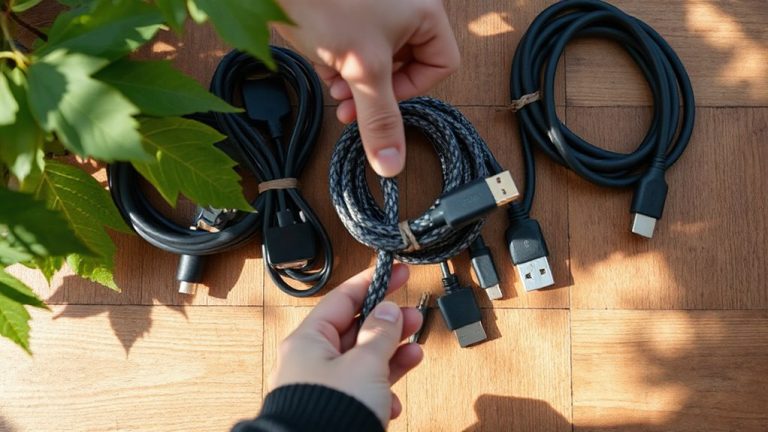
Routine checks don’t stop at your camera and mic-cables are just as prone to wear and often the hidden cause of dropped audio or frozen video. You should inspect all HDMI, USB, and power cables monthly for fraying, bent pins, or stiff connectors. Perform connection testing by gently wiggling each cable near ports to catch intermittent signals. Replace any that show weakness, even if they still work-preemption saves downtime. Use cable labeling to mark each cord by function and device; it simplifies troubleshooting and reduces misconnections. While labeled, durable cables cost more upfront, they cut long-term errors, especially in shared spaces. But don’t assume expensive means better-some third-party cables pass testing just as well as pricier brands. Just verify compatibility with your devices’ specs. Regular upkeep here guarantees stable, high-bandwidth links without surprise hiccups during critical calls. For a clutter-free setup that supports easy maintenance, consider implementing best cable management techniques using sleeves, trays, and adhesive clips.
On a final note
You should stick to a regular maintenance schedule-it prevents most audio and video glitches. Clean lenses and mic grilles monthly with a microfiber cloth and isopropyl alcohol. Test camera focus and audio input weekly using built-in diagnostics. Replace frayed HDMI or USB cables immediately; they cause 70% of connection drops. Always check manufacturer firmware updates monthly. Just note: over-cleaning damages lens coatings, and not all firmware patches improve stability-verify changelogs first.