Setting Up Pre-Boot Authentication for Encrypted Laptops in a Home Office
You should enable pre-boot authentication on your home office laptop using BitLocker with a PIN or FileVault password-it blocks offline attacks by requiring access before Windows or macOS loads. This step strengthens full-disk encryption, but setup adds a few seconds to boot time. Always store your recovery key in a fireproof safe or locked drawer, never digitally. Mistyped PINs, USB issues, or BIOS glitches can cause lockouts, so double-check connections and keyboard layout. You’ll want to get these details right the first time.
Notable Insights
- Enable BitLocker with a pre-boot PIN on Windows to block offline attacks and enhance home office laptop security.
- Set up FileVault with a startup password on Mac to prevent unauthorized access via external boot or SSD removal.
- Store your encryption recovery key in a physical safe or locked drawer to ensure access without risking digital exposure.
- Prevent authentication failures by checking keyboard connections, layout settings, and avoiding typos during PIN entry.
- Use strong, unique passwords or PINs for pre-boot authentication to fully leverage encryption and protect sensitive home office data.
Enable BitLocker With a Pre-Boot PIN on Windows

While BitLocker can protect your Windows laptop’s data without extra steps, you’ll get much stronger security by adding a pre-boot PIN-especially if your device is ever lost or stolen. Enabling a BitLocker PIN means anyone needing access must enter the code before Windows even starts, blocking offline attacks. Your device uses Device Encryption by default if you’re on a modern Windows version with a Microsoft account, but that’s not as secure without the PIN. To turn it on, go to “Manage BitLocker,” select “Change how drive is secured,” then enable PIN at startup. You’ll set a 6–20 digit code. Remember: if you forget it, recovery keys are your only backup-store them safely. While the setup adds a few seconds to boot time, the protection is worth it for home office use where physical security isn’t guaranteed.
Set Up FileVault Pre-Boot Authentication on Mac
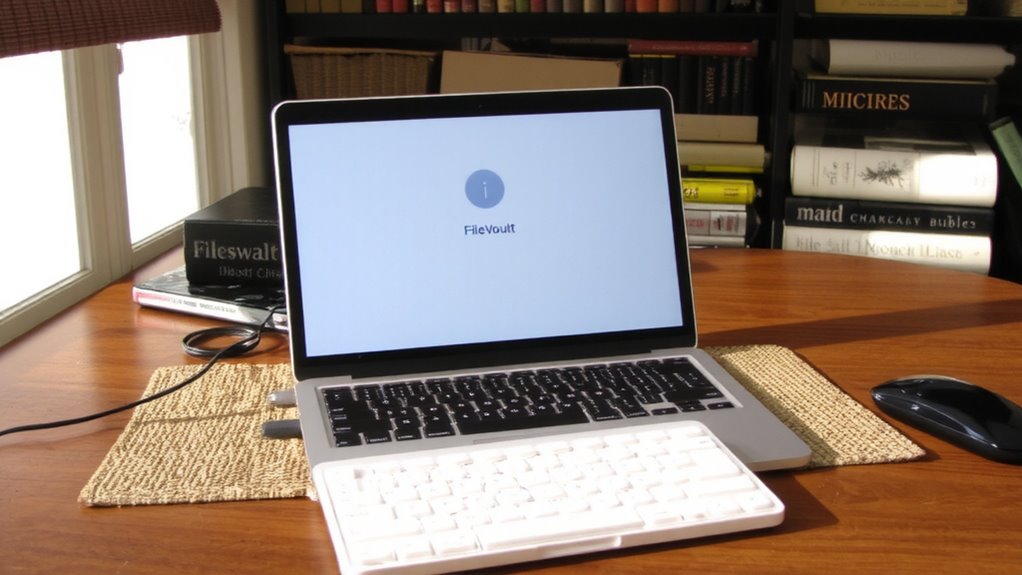
You get strong protection out of the box with FileVault on your Mac, but turning on pre-boot authentication takes your data security further-especially if your laptop ever leaves your sight. Enabling FileVault encryption with a startup password boosts your pre boot security by requiring a 0 before the system even loads. Without it, someone could access your drive by booting from another device or removing the SSD.
| Feature | With Startup Password | Without |
|---|---|---|
| Pre boot security | High | Moderate |
| FileVault encryption control | You manage access | Relies on Apple ID |
| Unauthorized access risk | greatly reduced | Higher if device is lost |
The trade-off? You must enter the password every time the Mac starts-no exceptions. If you forget it, recovery gets complicated fast.
Store Your Recovery Key Safely at Home
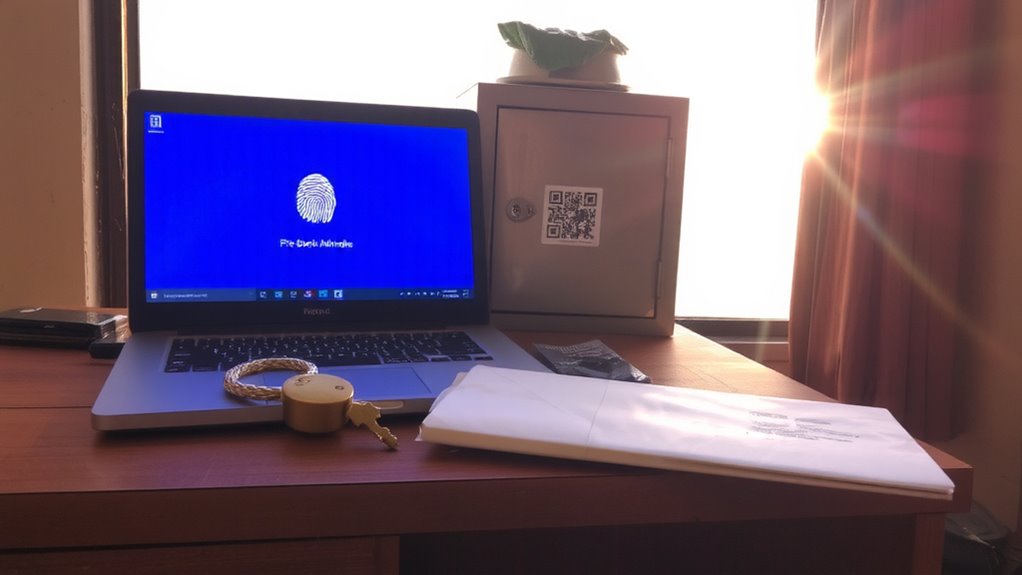
Your recovery key is the lifeline to your encrypted data if you ever forget your startup password, and treating it with the same care as a spare house key makes sense-because losing it leaves you locked out for good. Recovery key storage isn’t something to improvise; a printed copy in a locked drawer or fireproof home safe gives reliable physical security. Avoid digital copies on devices or cloud storage, since those can be compromised or lost in crashes. A sealed envelope adds tamper resistance and keeps the paper clean. While a safe offers strong protection, remember that fire or flood might still destroy it-so consider durability alongside accessibility. You’ll want fast access during emergencies but full protection during daily risks. There’s no perfect solution, only trade-offs between convenience and security. Prioritize physical security, stay consistent, and treat that key like the critical backup it is.
Fix Common Pre-Boot Authentication Failures
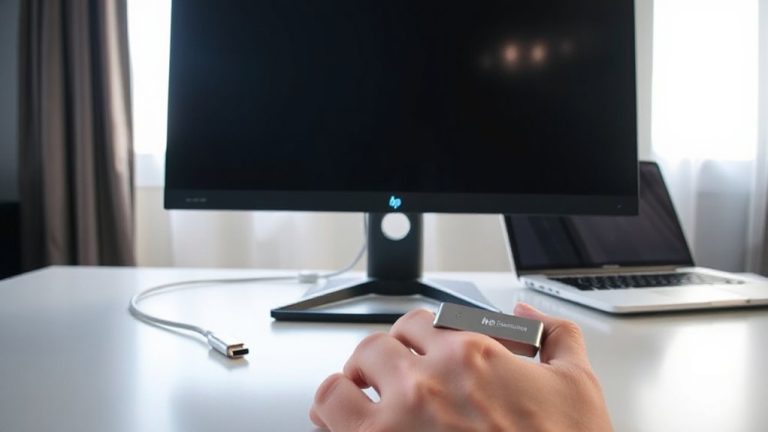
What happens when you power up your encrypted laptop and the pre-boot authentication screen won’t accept your password, even though you’re certain it’s correct? Failed authentication like this often stems from simple typos, Caps Lock, or a disconnected keyboard. Check USB connections or try an integrated laptop keyboard if using an external one. Boot errors can also arise from corrupted BIOS settings-resetting CMOS might help. If you’ve entered the password wrong too many times, the system may temporarily lock, so wait before retrying. When troubleshooting, avoid repeated attempts that could trigger lockout. Use your recovery key only as a last resort, as it bypasses security. Some systems log failed authentication attempts, which can help identify patterns. Always verify your keyboard layout-especially after updates. These steps reduce downtime without compromising protection.
Why Home Office Laptops Need Pre-Boot Login
While working from home offers flexibility, leaving your laptop unattended even for a short break can expose sensitive data if the device isn’t properly secured-making pre-boot login a non-negotiable layer of protection. You’re at real risk of data theft if someone gains physical access to your machine, especially if full-disk encryption isn’t paired with pre-boot authentication. Without it, unauthorized access becomes alarmingly easy-anyone could reboot, bypass Windows, and extract files directly from the drive. Pre-boot login stops that cold by requiring credentials before the OS loads. It’s effective, but not foolproof; weak passwords or unsecured recovery keys can undermine it. Also, some systems may lock you out after failed attempts, so keep backups. For home offices handling personal, financial, or work-related data, this added security step is worth the minor setup effort.
On a final note
You should set up pre-boot authentication-it locks your laptop before Windows or macOS loads, blocking unauthorized access. A BitLocker PIN or FileVault password adds real security, but you must store recovery keys safely, like on a USB drive in a lockbox. Without it, a forgotten PIN can permanently lock you out. It’s effective but demands careful backup. Test the setup once to confirm it works, and remember: convenience trades off for protection.