Ergonomic Desk Setup: Maximizing Comfort and Productivity at Home
An ergonomic desk setup keeps you comfortable and focused by aligning your body and gear. Use a chair with adjustable lumbar support and seat depth (2–4 inches from knees) for posture. Position the monitor at eye level with a stable arm, and keep keyboard and mouse at elbow height to flat wrists. Opt for 4000K–5000K lighting with dimmable, adjustable fixtures. Manage cables with velcro straps and under-desk trays to reduce clutter and tripping. Test stability on adjustable mounts and check weight limits. A clean, balanced layout reduces strain-but small tweaks often make the biggest difference.
Notable Insights
- Choose an ergonomic chair with adjustable lumbar support and seat depth to maintain natural spine alignment and comfort.
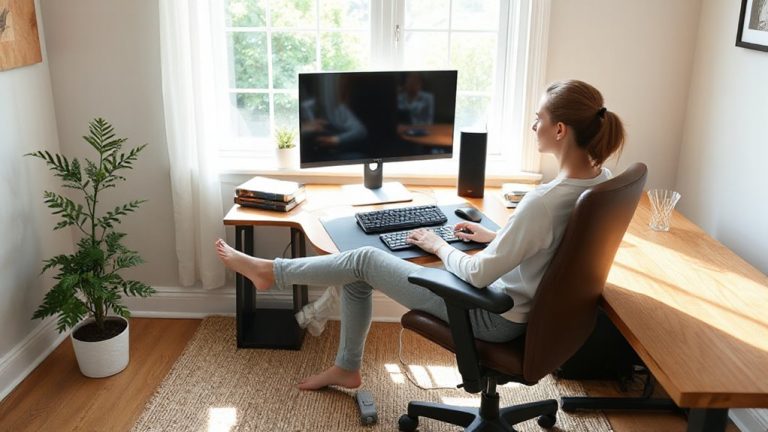
- Position the top of your monitor at or slightly below eye level to prevent neck strain and improve posture.
- Keep your keyboard and mouse at elbow height to maintain a 90-degree arm angle and neutral wrist position.
- Use lighting with a 4000K–5000K color temperature to reduce eye strain and enhance focus during daytime work.
- Organize cables with velcro straps and desk grommets to minimize clutter, improve safety, and maintain a distraction-free workspace.
Pick an Ergonomic Chair for Better Posture
An ergonomic chair isn’t a luxury-it’s the foundation of a healthy desk setup. You need proper lumbar support to maintain your spine’s natural curve and reduce lower back strain over time. Look for adjustable lumbar padding that aligns with your mid-back, not just a fixed bump. Seat depth matters just as much-your chair should let you sit with 2–4 inches between the edge and the back of your knees, allowing proper circulation. Too deep and you’ll slouch; too shallow and support suffers. Adjustable seats let you fine-tune this. Most quality models offer at least a 2½-inch range. Pair these features with a breathable backrest and 3–5 year warranty for longevity. While high-end chairs cost more, many mid-range options deliver tested durability and real posture benefits-just verify return policies and real-world comfort before committing. Top-rated models often feature adjustable armrests to support shoulder and neck alignment.
Set Your Monitor at Eye Level to Stop Neck Pain
While it might seem minor, propping your monitor too low can quietly wreck your neck over time-so keep the top of your screen at or slightly below eye level when you’re sitting upright. This reduces strain and keeps your spine aligned. If your laptop or monitor sits too low, use monitor arms to raise it securely; they’re adjustable, space-saving, and often support tilt and rotation for ideal positioning. Avoid stacking items that wobble or block ventilation. Most arms come with built-in cable clips, which help organize cords and prevent tangling-keeping your setup clean and functional. Still, not all arms fit every desk: check clamp thickness and weight limits before buying. Cheap models may lack durability, so look for ones with at least a 3-year warranty and solid customer feedback. Cable clips alone won’t fix poor posture, but paired with proper monitor placement, they support a safer, more efficient workspace. For even greater adjustability and comfort, consider pairing your monitor arm with a top desk riser pick to create a fully customizable standing workstation.
Place Keyboard and Mouse So Wrists Stay Flat
You’ll want to position your keyboard and mouse close enough so your elbows stay at a 90-degree angle and your wrists remain flat and neutral-not resting on sharp edges or bent upward. Proper hand alignment reduces strain during long typing sessions and helps prevent long-term injury. Use a simple wrist support only if it keeps your hands level with your forearms; avoid padded rests that push your wrists up. Ideally, your keyboard should sit at elbow height, with keys aligned so your fingers strike them at a relaxed angle. Mice should be close to the keyboard to prevent overreaching. Adjustable trays or ergonomic stands can help, but test them for stability and range. Some models limit legroom or feel wobbly under pressure. A well-aligned setup improves comfort, though results vary by body size and desk depth. For added support, consider using one of the best wrist rests designed for ergonomic comfort.
Use Warm or Natural Light to Reduce Eye Strain
Lighting plays just as big a role in your comfort as wrist alignment, especially when you’re staring at a screen for hours. You’ll want to prioritize natural brightness during the day-position your desk near a window if possible. When that’s not an option, aim for a light temperature between 4000K and 5000K, which mimics daylight without harshness. Avoid cool blue tones above 5000K, as they can increase eye strain over time. Use adjustable lamps to control direction and intensity.
| Light Type | Best For |
|---|---|
| Natural daylight | Reading, detailed tasks |
| 4000K–5000K | General screen work |
| Below 4000K | Evening use, relaxation |
| Above 5000K | Rarely recommended |
While full-spectrum bulbs help, they can’t fully replace natural brightness. Dimmable fixtures add flexibility.
Tame Cables for a Cleaner, Safer Desk
Keeping your desk functional and hazard-free often comes down to managing what’s behind it just as much as what’s in front. Good cable management isn’t just tidy-it reduces tripping risks and makes troubleshooting easier. Use reusable velcro straps or cable sleeves to bundle cords neatly, labeling each for quick identification. Cord organization tools like under-desk trays or clamp-on grommets keep connections accessible but out of sight. Avoid overtightening, which can damage insulation over time, and don’t daisy-chain power strips-it’s a fire hazard. Adhesive clips work well for lightweight cords but fail under tension or heat. Metal raceways offer durability but require drilling. Most warranties don’t cover damage from poor setup, so invest time, not just money. While a clean back end looks great, prioritize safety and serviceability. A few minutes of setup now prevents frustration and risk later.
Keep Your Work Surface Organized for Focus
A clean desk isn’t just calming-it’s a direct line to sharper focus and fewer distractions. Embracing a minimalist design helps you keep only what’s essential: monitor, keyboard, mouse, and one notebook. Everything else belongs in drawers or trays to reduce visual clutter. Good cable management is key-use sleeves or clips to bundle cords, securing them under the desk to prevent tangles and tripping hazards. A power strip with surge protection keeps plugs organized and accessible. While going minimalist boosts efficiency, don’t sacrifice necessary tools just for aesthetics; comfort and function still come first. Some accessories promise neatness but add complexity-test them briefly before committing. Real-world use shows that desks with clear surfaces and routed cables cut downtime and mental fatigue. The payoff? Less time cleaning, more time doing.
On a final note
You’ll work better and feel better with the right setup. An ergonomic chair with lumbar support cuts back pain, but check the warranty-cheap models sag fast. Position your monitor top at eye level to avoid neck strain. Keep wrists flat using a keyboard tray or riser. Use warm-white LED lights to reduce glare. Cable clips tidy cords safely. A clean desk helps focus, though storage solutions cost extra and need reconfiguring as needs change.