Ergonomic Tips for Reducing Physical Discomfort While Working From Home
Set your desk so the top aligns with your elbows when bent at 90 degrees-this keeps wrists neutral and shoulders relaxed. Use a height-adjustable frame with a solid warranty if possible, or measure carefully for fixed desks. Position your monitor’s top at eye level, ideally on a stable stand, and place windows to the side to cut glare. Choose a chair with adjustable lumbar support that matches your lower back curve and test its padding-1 to 2 inches above the belt line works best. Make sure armrests let you keep elbows at 90 degrees and place your keyboard and mouse close, at the same height, to avoid reaching. Use a footrest with tilt (10°–20°) if your feet don’t rest flat, and take a quick break every hour to stretch your back and neck. Matte screen filters help reduce eye strain, but physical positioning beats software fixes. If your chair lacks support, add a 6–8 inch lumbar cushion, and look for models with at least a 30-day trial and 5-year warranty to verify durability. Small tweaks make a big difference-there’s more to get right for long-term comfort.
Notable Insights
- Adjust desk height so elbows rest at 90 degrees to reduce shoulder and wrist strain.
- Position monitor top at eye level and avoid glare with side-facing windows or matte protectors.
- Use a chair with adjustable lumbar support to maintain natural spine alignment and reduce back pain.
- Keep keyboard and mouse at elbow height, within easy reach to prevent arm extension.
- Take hourly breaks to stretch and use a footrest or lumbar cushion to support posture.
Set Your Desk at Elbow Height
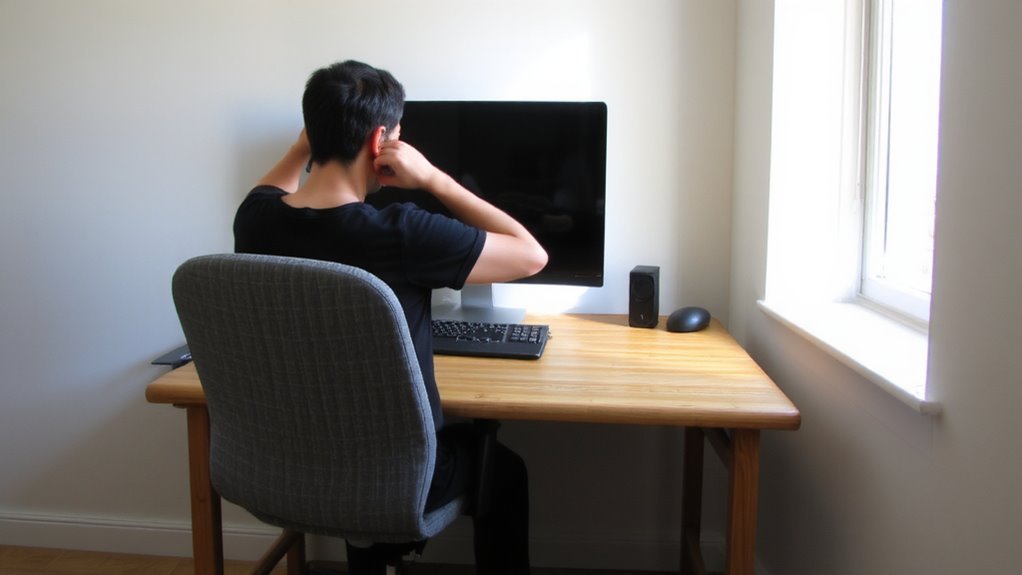
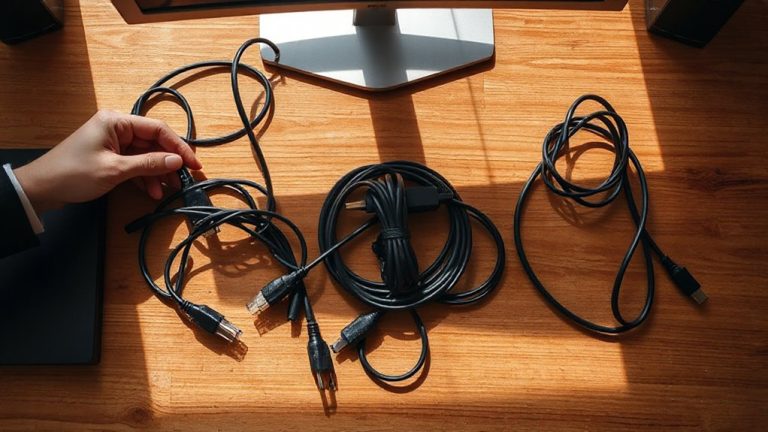
While it might seem minor, setting your desk at the right height can make a real difference in how you feel after hours of work-so aim to have the top of your desk align with your elbow when your arms are bent at 90 degrees. This position reduces shoulder strain and helps maintain a neutral wrist posture, especially when typing. You’ll get the best results with solid desk stability-wobble or flex under load can undo good posture, so check for sturdy frames and secure leg mounts. Good cable management also matters; tangled cords limit adjustability and create clutter that disrupts workflow. Use built-in grommets or under-desk trays to keep connections tidy and accessible. Fixed-height desks require careful measurement, while height-adjustable models offer flexibility but need reliable motors and a solid warranty. Test stability in person if possible, and measure twice before committing. Small inaccuracies add up over time. For long-term comfort and adaptability, consider investing in one of the best adjustable desks designed specifically for ergonomic workspaces.
Position Your Monitor at Eye Level
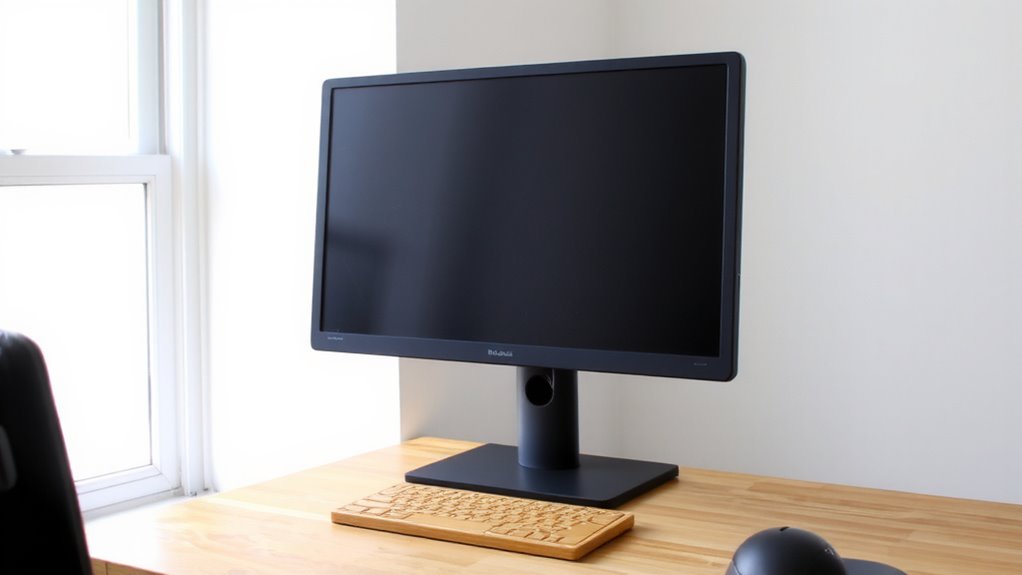
You’ll want to position the top of your monitor at or just below eye level so you can maintain a neutral neck posture, reducing strain during long work sessions. A monitor stand can help lift your screen if your desk is too low, but make sure it’s stable and doesn’t wobble. Poor cable management may lead to clutter, which makes adjustments harder and can create tripping hazards. Here’s how to assess common setups:
| Setup | Recommendation |
|---|---|
| Laptop on desk | Use a stand and external keyboard |
| Monitor on books | Replace with a durable monitor stand |
| Dual monitors | Align primary screen center with your face |
| Cable tangle | Use clips or sleeves for clean cable management |
Stands with tilt and height adjustment offer flexibility, but always check weight limits. Even the best stand won’t fix poor desk layout-plan placement before buying. Adding a high-quality office coffee maker can also contribute to a more comfortable and productive work environment.
Choose a Chair That Supports Your Lower Back
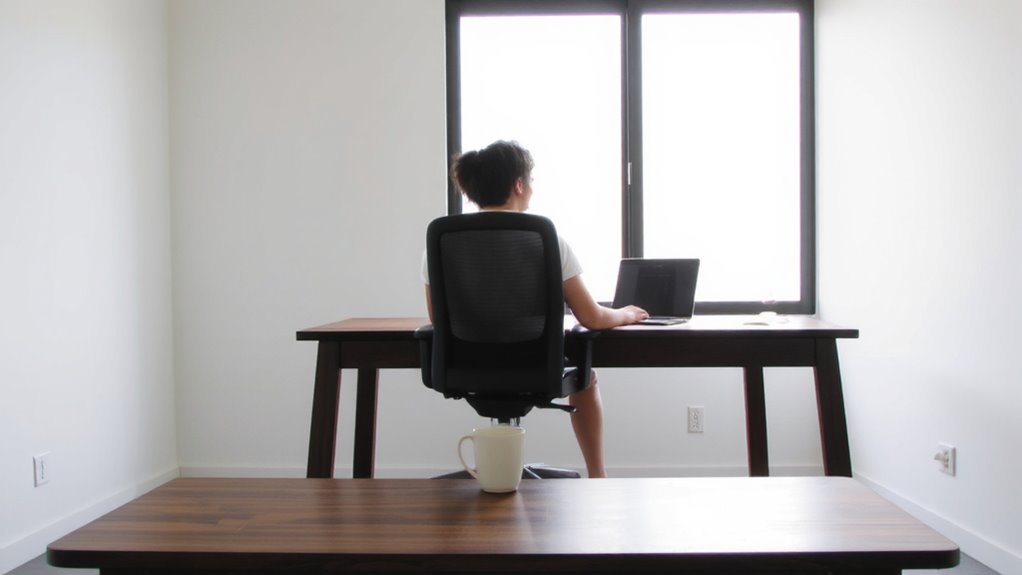
A supportive chair can make a real difference in reducing lower back pain during long workdays, especially when you’re sitting for hours at a time. Proper back support helps maintain natural posture alignment, reducing strain on your spine. Look for a chair with an adjustable lumbar feature that fits the curve of your lower back-ideally 1 to 2 inches of firm padding between your belt line and chair top. A rigid or too-soft backrest won’t provide lasting support, so test firmness before buying. Chairs with breathable mesh may offer comfort but sometimes lack depth in lumbar contouring. While high-end models often include multi-adjustable backs, even mid-tier options under $200 can deliver solid support if properly designed. Always check return policies and warranties-30-day trials and 5-year coverage are signs of tested durability. Your sitting posture depends heavily on this foundation, so don’t settle for style over function. Top-rated ergonomic chairs often feature adjustable lumbar support to enhance spinal alignment and user comfort.
Place Keyboard and Mouse to Avoid Shoulder Strain
Your keyboard and mouse placement plays a crucial role in preventing shoulder strain during extended typing sessions. Keep your arms close to your sides with elbows bent at 90 degrees to maintain proper arm alignment-this reduces tension in your shoulders and upper back. Position the keyboard directly in front of you so your wrists stay straight and neutral, minimizing awkward wrist angle stress. Your mouse should sit at the same height and within easy reach, no more than a hand’s width away. Avoid extending your arm or hunching your shoulders to reach either device. Use an adjustable tray or desk if needed, especially if your laptop is your main setup. While some ergonomic devices claim to help, not all deliver measurable benefits-choose based on fit, not marketing. Small adjustments often do more than costly gear.
Take Every-Hour Breaks to Prevent Stiffness
Often, taking a break every hour can considerably reduce stiffness caused by prolonged sitting. You don’t need special gear-just consistent habits. Stand up, move around, and do simple stretch exercises to keep joints and muscles flexible. Pairing movement with hydration breaks guarantees circulation stays strong and mental focus sharp. Below are key actions and benefits:
| Action | Benefit |
|---|---|
| 2-minute stretch exercises | Reduces muscle tension in neck, shoulders, and lower back |
| Quick hydration breaks | Supports spinal disc hydration and concentration |
| Standing or walking briefly | Lowers risk of stiffness and improves posture alignment |
These breaks work best when timed consistently, not just when discomfort hits. While setting reminders might feel disruptive, studies show they improve comfort and productivity over time. No equipment needed-just intention. Some find timers or smart watches helpful, though they’re not essential. Trade-offs include short-term interruption for long-term prevention.
Reduce Glare to Protect Your Eyes and Posture
How much glare are you really letting hit your screen-and what’s it costing you in eye strain and poor posture? Too much glare forces you to lean forward or tilt your screen, hurting your neck and shoulders over time. To fix this, check your natural lighting positioning first-avoid sitting with a window directly in front or behind your monitor. Instead, place it to the side for softer, indirect light. Pair this with matte screen protectors or built-in blue light filters to reduce harshness without distorting color. While blue light filters help reduce eye fatigue, they’re no substitute for proper lighting. In real-world testing, users report clearer focus within two days of adjusting positioning. Just don’t rely on software alone; even the best filters won’t fix a sunlit screen. Make physical adjustments first-they’re free and more effective.
Add Lumbar Support and a Footrest for Comfort
A well-supported back and properly positioned feet make a bigger difference than most expect, especially after hours of sitting. You need lumbar support that matches the natural curve of your spine-either built into your chair or added with a contoured cushion (6–8 inches tall works for most). This helps maintain healthy back alignment and reduces lower back strain. A footrest isn’t just for comfort; it aids foot elevation, keeping your knees at or slightly below hip level. That reduces pressure on your lower spine and improves posture. Look for adjustable footrests with nonslip surfaces and tilt options (10°–20°) to shift positions. However, not everyone needs both-test sitting with and without to see what works. Cheap supports can collapse or shift, so check durability and stability. Used right, these tools help prevent fatigue, but they can’t fix a poorly sized chair.
On a final note
You’ll feel better with a properly set-up workspace, but small changes matter more than buying new gear. Set your desk and chair so elbows stay at 90 degrees and eyes align with the top of the monitor. Use a lumbar pillow or footrest if needed, but test adjustments over a few days. Even the best ergonomic chair won’t fix bad habits-take hourly breaks to stand or stretch. Glare reduction and proper posture help, but comfort is personal, so tweak settings as you go.