Maximizing Network Efficiency Through Proper Router Placement: A Key Strategy for Seamless Connectivity in Remote Work Environments
Place your router at waist or desk height in a central, open area-it boosts speeds by 30–50% compared to closets or corners, where signals drop over 60% due to walls and metal. Keep it upright, antennas up, and away from appliances or thick concrete. While extenders cut speeds up to half, mesh systems offer full coverage for larger spaces. You’ll get the best results by optimizing placement first-then considering upgrades if gaps persist. Strong, stable Wi-Fi starts with smart positioning.
Notable Insights
- Position your router at waist or desk height for optimal signal distribution and minimal obstructions.
- Place the router centrally in your home to maximize coverage and reduce dead zones.
- Keep the router upright with antennas vertical to align with device orientation and improve horizontal signal spread.
- Avoid placing the router near metal objects, thick walls, or appliances to minimize interference and signal degradation.
- Upgrade to a mesh Wi-Fi system if dead zones persist after optimizing placement, especially in large or multi-level homes.
How Router Placement Affects Your Workday
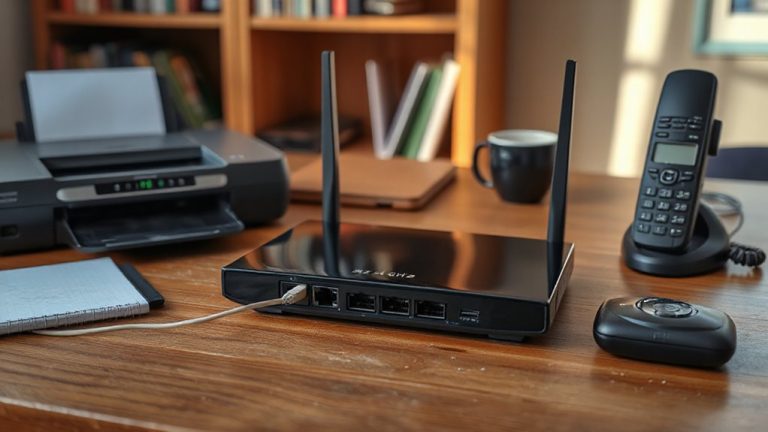
Ever wonder why your video calls freeze at the worst moments? Poor router placement could be the culprit. If your router sits too low-like on the floor-router height limits signal reach and encourages dead zones. Elevating it to at least waist or desk level improves coverage by reducing obstructions. Signal interference from microwaves, cordless phones, or thick walls also degrades performance, especially on 2.4 GHz bands. Placing the router away from large metal objects and electronics helps minimize this. While ideal positioning boosts speed and reliability, it won’t fix slow internet plans or outdated hardware. Even with perfect placement, older routers may lack beamforming or dual-band support needed for smooth multitasking. Real-world tests show 30–50% speed gains from proper height and reduced interference-but results depend on your home’s layout. Balance placement with cable length and power access, since stretching Ethernet or power cords creates hazards. For offices requiring consistent connectivity, investing in one of the best office routers ensures robust performance and advanced features like best office routers.
Best Places to Put Your Router for Full Coverage
Position your router in a central, elevated location like a shelf or desk for the best chance at full coverage. This setup helps minimize signal reflection from floors and walls, allowing Wi-Fi to spread more evenly. Pay attention to router orientation-most models perform best when placed upright, as antennas are often aligned vertically to maximize horizontal signal distribution. Avoid flat positioning unless the manual specifies otherwise. Keep the router away from large metal objects and appliances, which can distort signals. While higher placement improves reach, don’t mount it too high-ideally no more than five to seven feet off the ground. You’ll also get more consistent speeds if you face antennas properly, usually straight up. Remember, every home’s layout differs, so test signal strength in key work areas after placement. Even ideal positioning has limits with thick walls or large homes.
Don’t Hide Your Router in a Closet or Corner
While it might seem neat to tuck your router away in a closet or tuck it into a dim corner, doing so can seriously weaken your Wi-Fi performance. Enclosed spaces create signal interference and worsen space constraints, limiting coverage. Routers need open air to broadcast effectively-walls and doors block signals, and metal furniture or appliances nearby can further disrupt connectivity. For strong, consistent results, place your router in an open, central area.
| Placement | Impact on Signal |
|---|---|
| Open living room | Strong, full coverage |
| Closet | Poor, due to interference |
| Corner | Limited by constraints |
| High shelf | Best reach |
Avoid tight spaces. While hiding the router might look tidy, you sacrifice speed and reliability. Real-world tests show throughput drops up to 60% in enclosed spots. Elevate it instead-on a shelf or stand-and enjoy better performance without extra gear. Upgrading to a mesh Wi-Fi system can further enhance coverage in larger or multi-level workspaces.
What Objects Block Your Wi-Fi Signal
Since Wi-Fi signals travel as radio waves, certain materials in your home can absorb or reflect them, greatly reducing coverage and speed. You’ll want to keep your router away from metal objects-like filing cabinets, refrigerators, or mirrored surfaces-because they reflect signals, creating dead zones. Thick walls, especially those made of concrete, brick, or stone, also weaken signal strength considerably, often cutting performance by half or more. Even plaster with metal lath can cause interference. Placing your router near these materials limits reach, so central, open placement is best. While you can’t always avoid structural obstacles, repositioning the router even a few feet can help. Avoid basements or enclosed shelves. Remember, Wi-Fi isn’t one-size-fits-all-your layout demands trade-offs between convenience and connectivity. Test signal strength in key areas with a simple speed test app to confirm improvements and adjust as needed.
Boost Wi-Fi for Video Calls and Multiple Devices
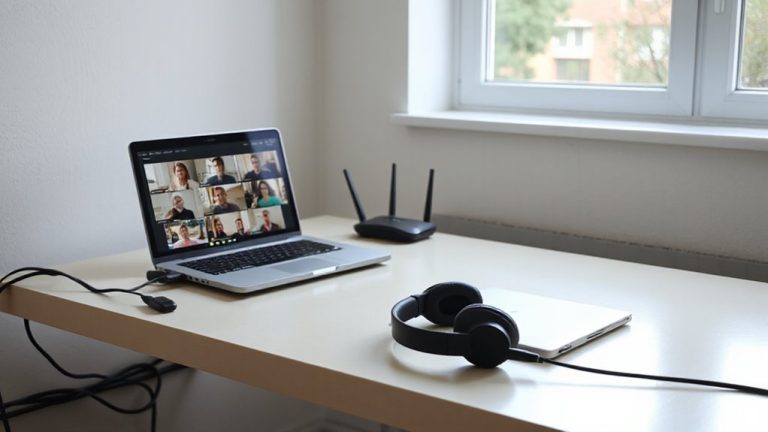
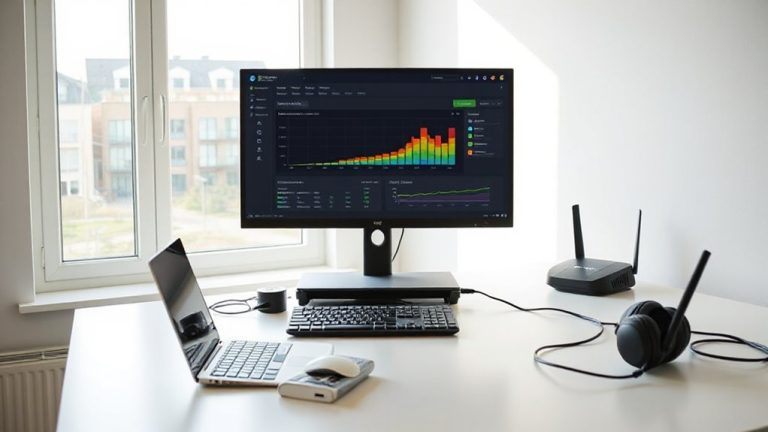
How well is your router handling back-to-back video calls while everyone else streams or downloads in the house? If you’re noticing lag or dropped connections, Wi Fi interference and signal congestion are likely culprits. Modern homes packed with smart devices strain routers, especially on crowded 2.4 GHz bands. You’ll get better performance by placing your router centrally, away from thick walls and metal objects. Use the 5 GHz band when possible-it’s faster and less prone to interference, though it doesn’t travel as far. Limit high-bandwidth activities during critical calls. While a mesh system can help, that’s not the fix we’re discussing here. Simply optimizing placement and band selection often boosts reliability. Keep devices updated and prioritize wired connections for stationary gadgets. These steps reduce congestion and improve call quality-without buying new gear.
When to Use an Extender or Upgrade Your Router
You should consider a Wi-Fi extender only if you’ve already optimized your router’s placement and still have dead zones, because extenders are affordable and easy to set up but come with clear trade-offs. They repeat your existing signal, which can cause signal degradation-cutting speed by up to 50%-since data must travel from router to extender to device. While useful for basic browsing in far corners, they’re less reliable for video calls or large file transfers. For better interference reduction and whole-home coverage, upgrading to a mesh Wi-Fi system is often worth the investment. Mesh networks use multiple nodes to create a single, seamless network, minimizing drop-offs and maintaining stronger speeds. Modern systems like eero or Google Nest Wi-Fi support Wi-Fi 6, offer parental controls, and include multi-year warranties. Test coverage with a free app like Wi-Fi Analyzer before deciding-real-world performance matters more than specs. Top ASUS models available during Black Friday deals can offer significant savings when upgrading your home network.
On a final note
You’ll get the best results by placing your router centrally, elevated, and away from walls or metal objects. This boosts coverage and stabilizes video calls, even with multiple devices connected. Avoid closets-they block signals. If dead zones persist, consider a Wi-Fi extender or mesh system, but test placement first. Routers wear out; models over three years old may need upgrading. Look for Wi-Fi 5 or 6 support, and check manufacturer range specs under real-world conditions.