Measuring Real-Time Jitter Levels to Improve Call Quality Over Home Office Wi-Fi
You can measure real-time jitter on your home office Wi-Fi using free tools like PingPlotter or SmokePing-they send small, frequent packets to detect delays as low as 30 ms, which start to distort audio. Results depend on your router setup and nearby interference from microwaves or neighbors’ networks. A stable Ethernet connection reduces jitter more reliably than 5 GHz Wi-Fi, though both help. Keep in mind, these tools show problems but don’t fix them-knowing the source of spikes is the first step toward clearer calls.
Notable Insights
- Use tools like PingPlotter or SmokePing to measure real-time jitter with minimal impact on your network.
- Test jitter during typical work hours to capture accurate performance under real usage conditions.
- Switch to the 5 GHz Wi-Fi band to reduce interference and lower jitter on congested home networks.
- Connect via Ethernet instead of Wi-Fi for a more stable connection and significantly reduced packet delay variation.
- Enable QoS settings on your router to prioritize voice traffic and maintain smoother call quality.
Understand Jitter and How It Breaks Video Calls
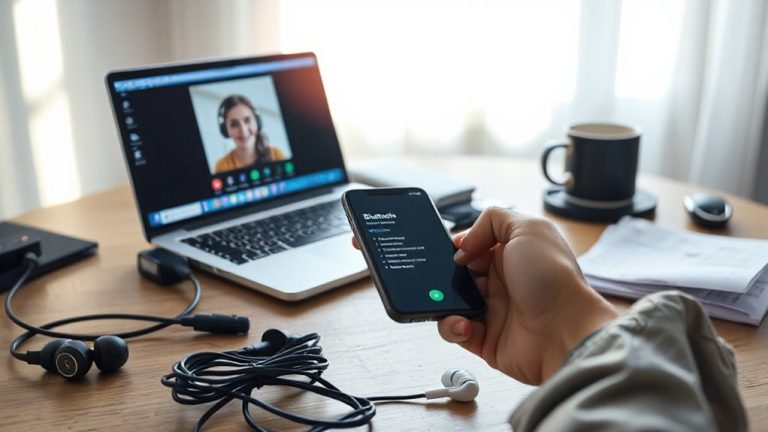
Jitter-those unpredictable delays between data packets traveling across your network-can wreck a video call faster than you can say “Can you hear me now?” It happens when packets arrive out of order or with inconsistent timing, forcing your call software to either wait and lag or play out of sequence, which leads to choppy audio, frozen frames, or jittery video. You’ll often notice audio distortion, where voices sound muffled or robotic, especially if jitter exceeds 30 ms. When combined with packet loss-even as low as 1%-the effect worsens, cutting off words or creating eerie silences. While some routers advertise “jitter mitigation,” most consumer models offer limited help under real load. Wired Ethernet usually beats Wi-Fi for stability, but unless you’re using a QoS-enabled router, background traffic can still interfere. Results vary, so don’t assume a pricey setup guarantees clarity.
Measure Real-Time Jitter on Home Wi-Fi
You can actually measure jitter on your home Wi-Fi using tools you likely already have, but knowing what numbers to trust-and when they matter-keeps you from chasing false fixes. Your network topology plays a big role; signals bouncing through multiple routers or extenders often introduce delays that inflate jitter readings. If you’re working from a basement or far room, signal interference from microwaves or neighboring Wi-Fi networks can spike jitter during calls. Real-time measurements only help if taken under typical use-like when you’re on a video conference with email syncing and a smart TV streaming. Spot-checks during low traffic can mislead you. Watch for consistent spikes over 30ms; that’s where voice starts breaking up. Don’t fixate on perfect numbers-context matters more. Your layout, device placement, and daily usage patterns shape what “good” really means.
Use Lightweight Tools to Monitor Jitter
A lightweight network tool can give you a clear picture of jitter without overhauling your setup or slowing down your system. You can run tools like PingPlotter or SmokePing in the background while working, enabling continuous packet tracking with minimal CPU use. These apps measure signal fluctuation by sending small, regular data packets and recording return times, helping spot trends before calls degrade. Since they don’t buffer large amounts of data, you get near real-time feedback without lag or excessive bandwidth use. Most work on common OS platforms and don’t require admin rights or special hardware. However, they won’t correct network issues-just expose them. Accuracy varies with tool settings, so adjust packet intervals carefully. Free versions offer solid baseline monitoring, though paid tiers add logging and alerts. Use them to validate changes, not replace deeper diagnostics.
What Jitter Levels Break Call Quality
You’ll want to keep jitter under 30 ms for smooth, clear voice calls-anything above that starts to disrupt the flow of conversation. Higher jitter often ties to network congestion or packet loss, both of which degrade real-time communication. When jitter exceeds 50 ms, you’ll likely hear choppy audio or delayed responses, especially on platforms like Zoom or Teams. Sustained levels above 100 ms make most calls nearly unusable.
| Jitter Level (ms) | Expected Call Quality |
|---|---|
| < 30 | Clear, natural conversation |
| 30–50 | Slight delays, minor glitches |
| > 50 | Noticeable distortion, packet loss risks |
While some apps tolerate moderate jitter, consistent spikes suggest underlying network congestion or poor Wi-Fi placement. You can’t ignore packet loss-even at low jitter, losing packets breaks audio coherence. Real-world testing shows call quality drops sharply when both issues coincide.
Fix High Jitter in Minutes
High jitter doesn’t have to kill your call quality-most issues can be resolved quickly with a few targeted fixes. Start by switching to a 5 GHz Wi-Fi band, which reduces interference and cuts network congestion from other devices. If possible, use an Ethernet cable for a direct, stable connection-this alone often achieves real jitter mitigation. Close bandwidth-heavy apps like video streams or cloud backups during calls. Prioritize VoIP traffic using QoS settings on your router if available. Power cycle your modem and router; a simple reboot clears temporary glitches. Results vary: some see jitter drop under 10 ms, others notice minimal change, especially in dense housing with persistent congestion. Wired setups outperform wireless, but aren’t always practical. There’s no universal fix-the best approach combines measurement, testing, and trade-offs based on your space and gear. Upgrading to a high-performance best PCIe Wi-Fi cards can significantly improve signal stability and reduce latency in congested environments.
On a final note
You can fix jitter and boost call quality in minutes using simple tools like ping tests or free apps such as Wireshark or PingPlotter. Most find smooth calls below 30ms jitter; above 50ms causes noticeable lag. Prioritize wired Ethernet over Wi-Fi, and limit device congestion. While powerline adapters help, results vary by home wiring. Real improvement depends on your router and network load-test during actual call times for accurate fixes.