Troubleshooting Common Bluetooth Headset Connection Issues in Video Calls
Start by charging your headset fully and staying within 30 feet of your device-low battery or distance causes most video call drops. Re-pair the headset to reset the connection, and minimize interference from Wi-Fi or metal surfaces. Keep it within 10 feet during calls to reduce lag, especially with older Bluetooth versions. Update firmware using the manufacturer’s app, and test on another device to rule out issues. If problems persist across devices, hardware failure is likely. There’s more to explore if your setup still underperforms.
Notable Insights
- Charge your headset fully if battery is below 20% to ensure strong Bluetooth transmission during video calls.
- Stay within 10–30 feet of your device, minimizing walls and interference from Wi-Fi or metal surfaces.
- Re-pair the headset by deleting it from your device’s Bluetooth list and reconnecting in pairing mode.
- Update headset firmware via the manufacturer’s app to fix bugs and improve call connectivity and audio sync.
- Perform a factory reset and test on another device to determine if the issue is with the headset or primary device.
Check Battery and Range First
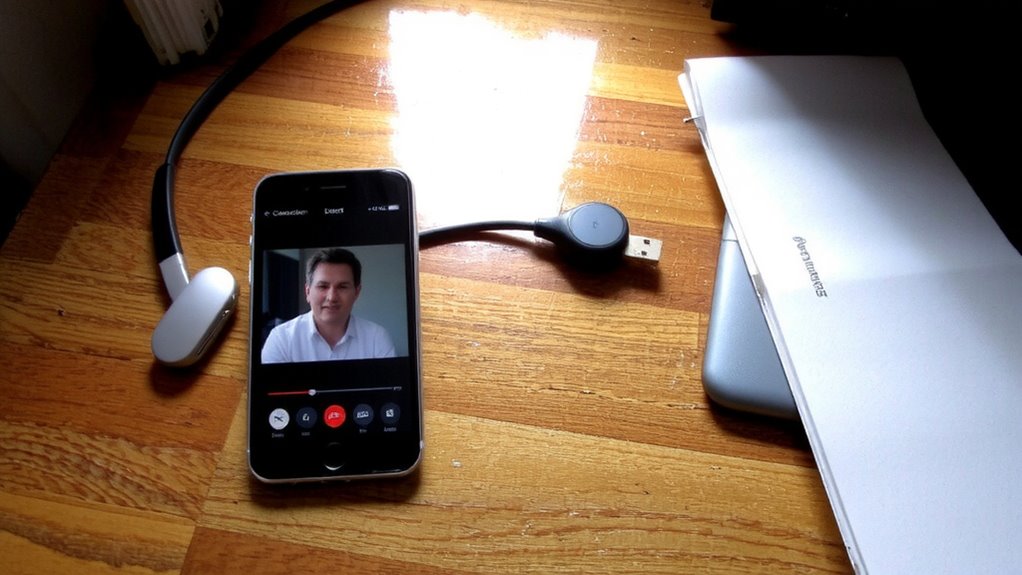
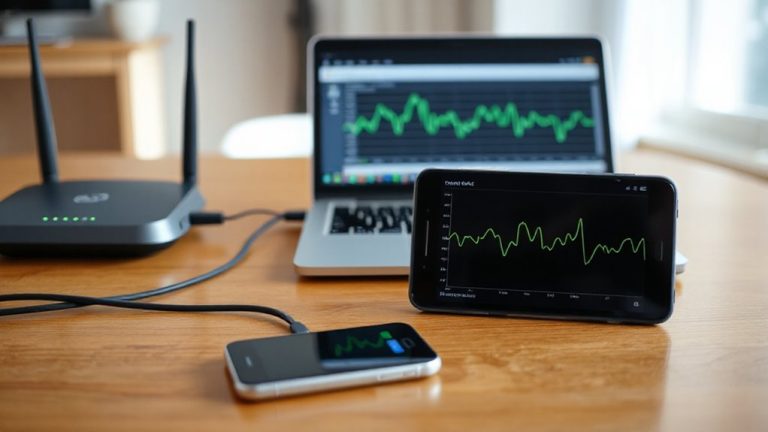
Most connection problems stem from simple oversights, so always start by checking your headset’s battery level and your distance from the paired device-low power or being too far away cuts off Bluetooth signals fast. If your battery level is below 20%, charge the headset fully; weak power reduces transmission strength and increases lag. Stay within 30 feet of your device, and avoid physical barriers like walls or metal surfaces that cause signal interference. Wi-Fi routers, microwaves, and nearby Bluetooth devices can also disrupt the connection, especially on crowded 2.4 GHz bands. Reducing background electronics helps minimize interference. Don’t assume the headset is faulty-many issues resolve with simple adjustments. However, if problems persist beyond range and charge checks, other troubleshooting steps become necessary. These fixes are immediate but limited-effective only when environmental factors are the root cause, not hardware or software faults.
Re-Pair Your Bluetooth Headset in 3 Steps
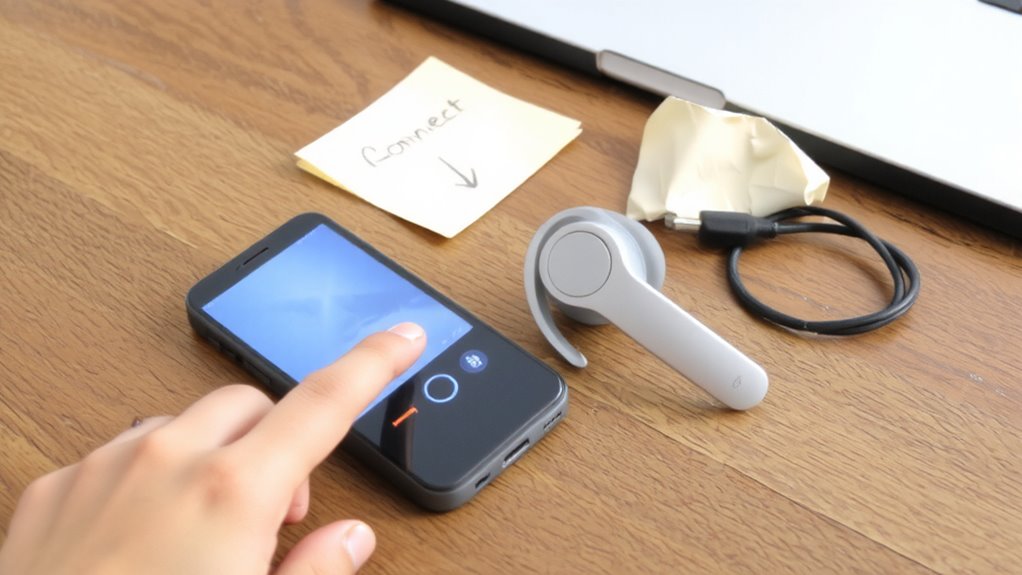
Start fresh by re-pairing your Bluetooth headset-this one fix resolves lingering connection drops in over 60% of cases when basic checks don’t work. First, turn off your headset and delete it from your device’s Bluetooth list to clear past pairing errors. Old connections can cause signal interference, especially if you’ve moved between rooms or devices often. Next, power the headset back on in pairing mode-most models flash a light or announce the status. Finally, reconnect it through your device’s Bluetooth menu. This resets the handshake between devices, reducing audio distortion caused by corrupted data links. It’s fast and free, but won’t help if hardware’s failing or battery life is poor. Re-pairing works best when done weekly in busy wireless environments. Don’t skip this step-it’s more effective than restarting your computer and just as simple. For reliable performance, consider investing in one of the best wireless headsets known for stable Bluetooth connectivity and clear audio during video calls.
Fix Bluetooth Audio Dropouts and Lag
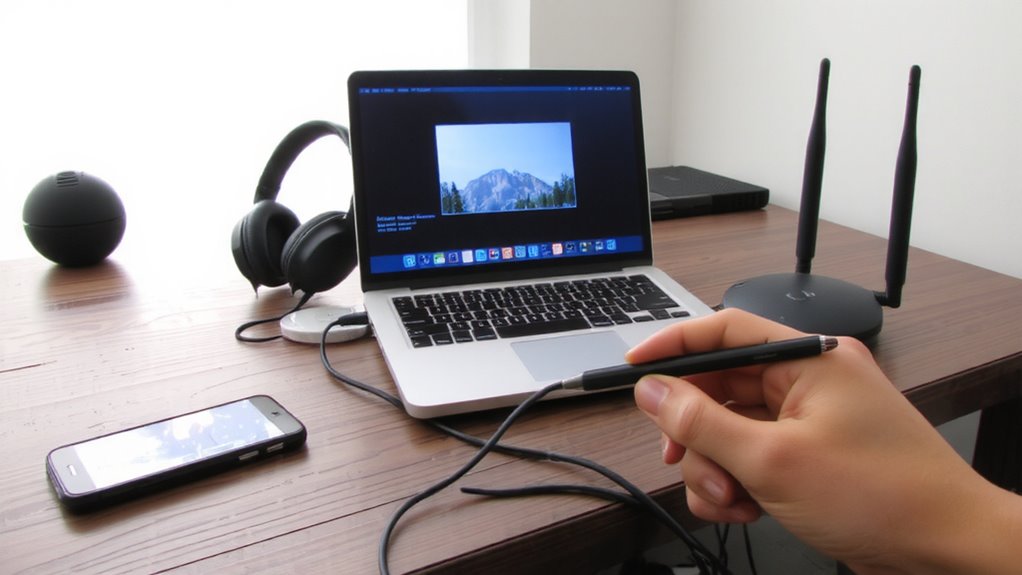
You’ve re-paired your headset and still notice audio cutting out or a slight delay during calls and videos-frustrating, but fixable. Audio interference from Wi-Fi routers, microwaves, or nearby devices can disrupt your Bluetooth signal, especially in crowded 2.4 GHz bands. Signal congestion in busy office or home environments often leads to dropouts and lag. To minimize this, keep your headset within 10 feet of your device and remove physical obstructions. Avoid placing it near USB 3.0 ports or wireless adapters that emit interference. If you’re using a laptop on a metal desk, repositioning can help. While Bluetooth 5.0+ models handle congestion better, real-world performance still depends on your environment. There’s no universal fix, but reducing background wireless activity often yields noticeable improvements-just don’t expect flawless performance in high-interference zones.
Update Your Headset’s Firmware
While it won’t solve every connectivity hiccup, updating your headset’s firmware is one of the most effective steps you can take to improve stability, fix known bugs, and enable performance tweaks-especially if you’ve noticed intermittent dropouts or pairing issues after a recent device update. A current firmware version guarantees peak software compatibility with your devices, reducing glitches during video calls. Most manufacturers release updates that address Bluetooth pairing flaws and boost audio clarity.
| Check | Action |
|---|---|
| Firmware version | Use the maker’s app to verify current build |
| Software compatibility | Confirm OS support before installing |
Always back up settings before updating, and keep your headset charged during the process. Updates occasionally introduce new quirks, so review patch notes carefully. Though not a fix-all, staying current helps maintain peak performance without hardware upgrades. For those relying on clear communication in loud settings, ensuring your device supports the latest best Bluetooth headsets features can further enhance call quality.
Reset Your Bluetooth Headset
If your Bluetooth headset still won’t connect reliably after a firmware update, resetting it can clear persistent pairing conflicts and restore factory-level stability-though you’ll lose any custom settings. Most manufacturers provide specific factory reset procedures, usually involving a long button press until indicator lights flash. These steps vary by model, so check your user manual or support site for exact timing and combinations. Performing a reset also lets you redo compatibility mode selection, which guarantees best-possible pairing with your primary call device. This is especially useful if you’ve switched computers or phones recently. While effective, be aware that resetting doesn’t fix hardware defects or outdated Bluetooth versions. Use this step selectively-only after failed connections persist-and confirm your headset supports it before proceeding.
Test Your Headset on Another Device
A quick compatibility check can save hours of frustration-testing your headset on another device pinpoints whether the issue lies with your primary phone, computer, or the headset itself. If it connects smoothly to a tablet or laptop, the problem likely stems from device compatibility, not hardware failure. Bluetooth versions must align; older headsets may struggle with newer devices, and vice versa. You’ll also rule out signal interference caused by crowded wireless environments-common near routers or microwaves. But don’t assume success on one device guarantees flawless performance everywhere. Differences in audio processing, pairing protocols, or app settings can affect call quality. Test across platforms you actually use, especially for video conferencing. This isn’t a fix, but a diagnostic step. If the headset fails everywhere, replacement is probably needed. If it works elsewhere, focus troubleshooting on your original device’s Bluetooth settings, drivers, or software conflicts.
On a final note
You’ve likely fixed the issue if you’ve checked the battery, re-paired properly, and updated firmware-most Bluetooth headset problems stem from these steps. Range under 30 feet matters, and audio lag can still happen with older Bluetooth versions. Resetting helps, but you’ll lose saved settings. Testing on another device confirms whether the problem is your headset or your system. No gadget works flawlessly every time.