How to Recycle Old Printers and Scanners Without Exposing Stored Data
Your printer or scanner may store sensitive documents on internal memory or a hard drive, so don’t just toss it. Perform a factory reset to clear basic data, but know it might not erase everything-especially on older models. Remove any SD or USB memory cards first. Use the device’s built-in security erase tool if available. For true peace of mind, pair digital cleanup with physical destruction or certified e-waste recycling. There’s more to get right.
Notable Insights
- Printers and scanners often store sensitive data on internal hard drives or memory, requiring secure erasure before recycling.
- Perform a factory reset through the device settings to clear cached documents, user preferences, and network configurations.
- Use manufacturer-approved data wiping tools to ensure complete removal of stored files from internal storage.
- Remove and destroy any removable memory cards, as they may retain data separately from internal memory.
- For maximum security, physically destroy the internal hard drive or use certified e-waste recyclers who follow R2 and EPA standards.
Why Printers and Scanners Keep Your Data
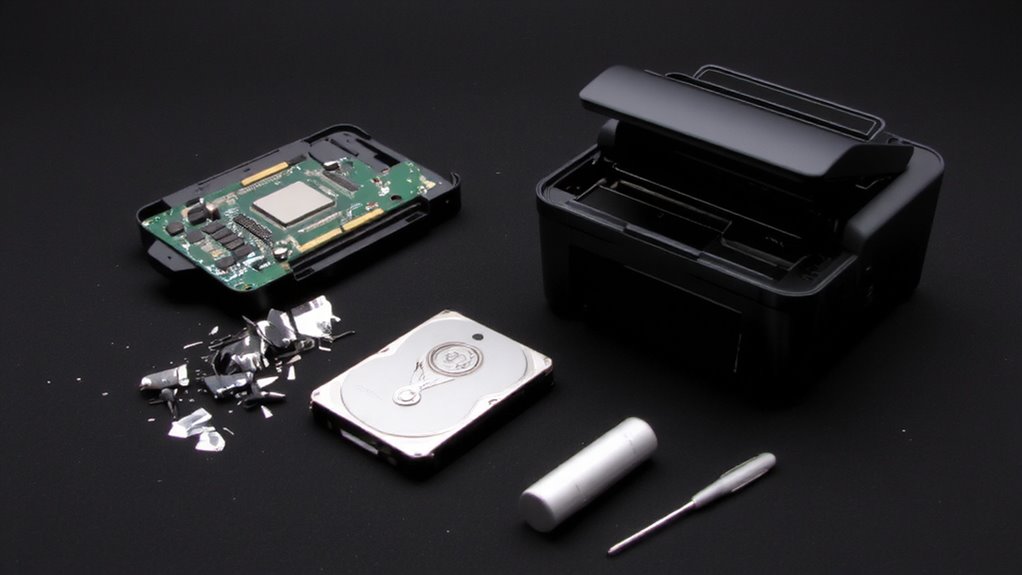
That hard drive in your printer isn’t just for show-it stores every document you’ve ever scanned, copied, or printed, just like a computer does. This built-in data retention exists to speed up tasks and manage complex jobs, especially in office models with high workloads. But here’s the catch: when you recycle or resell the device, that data stays put unless you wipe it. That creates serious security risks, especially if sensitive financial records, personal IDs, or business documents are still accessible. Even a factory reset might not fully erase everything-some older models don’t encrypt files at all. You can’t assume convenience beats caution. Before disposal, always verify whether your model stores data and use manufacturer-approved tools to erase it. Ignoring this step turns a routine upgrade into a potential breach.
Find Hidden Storage in Your Device
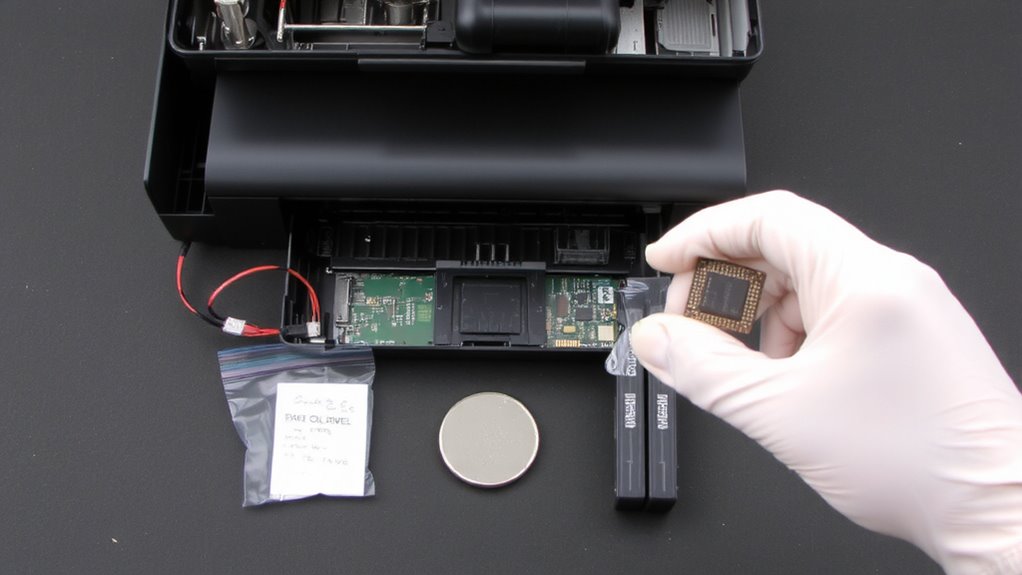
While most people assume printers and scanners only handle documents as they’re processed, many devices actually come with built-in memory or even internal hard drives that store copies of every job-often without any obvious indication. You might not realize your device retains internal memory capable of holding sensitive files long after printing. Check the user manual or manufacturer’s website to confirm if your model includes storage or maintains firmware logs. Older or high-end office models are especially likely to save data. Even basic functions like scanning to email or network printing can leave traces. Don’t assume no screen means no storage-some units log activity silently. Identifying hidden storage is critical before disposal. If you skip this, you risk exposing personal or financial records. Always verify storage presence first-you can’t protect data you don’t know exists. Consider using a best rocking stools for comfort if you spend long hours at a desk managing device security.
Wipe Data With Factory Reset
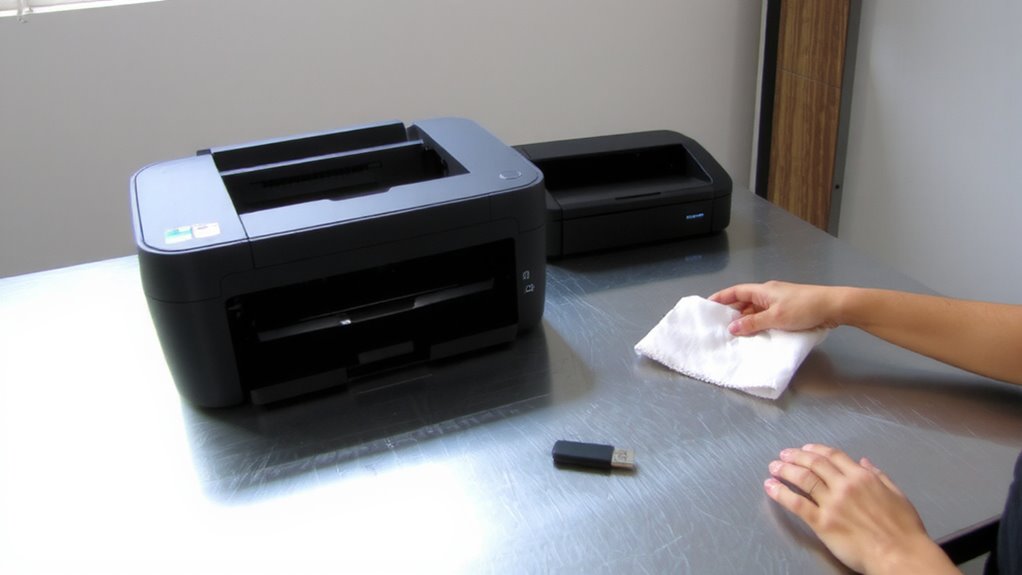
How much of your personal data is still lurking in that old printer? A factory reset is your best step toward secure disposal, but it’s not foolproof. You’re wiping cached documents, network settings, and user preferences-most models clear internal memory this way. Still, if your printer lacks data encryption, remnants could persist on the hard drive. Check your manual: high-end office models often store sensitive jobs longer. Perform the reset through the settings menu, not just power cycling. This resets firmware to default, reducing recovery risks. But remember, a factory reset doesn’t guarantee full erasure like specialized software might. For true peace of mind, especially with corporate data, combine reset with physical drive destruction. Always confirm the process in your device’s “Maintenance” or “Security” menu. While effective for basic needs, it’s one layer-not the final one-in secure disposal.
Remove Memory Cards Immediately
Don’t assume your factory reset cleared everything-many printers store files on removable memory cards separate from internal storage. You could be leaving sensitive documents behind. Removing these cards immediately cuts the risk of memory card theft and shields you from data recovery risks. Even a wiped device isn’t fully secure if the card remains. Always check slots for SD or USB cards before recycling.
| Consequence | Likelihood | Emotional Impact |
|---|---|---|
| Identity theft | High | Fear, anxiety |
| Privacy leak | Moderate | Embarrassment |
| Financial loss | Low | Stress, regret |
Pull the card, keep it, or destroy it. If you reuse it, format it securely later. Just don’t leave it in the machine. This step won’t fix a bad reset, but skipping it makes everything worse. Be thorough-your data’s worth it.
Use Your Device’s Data Erase Tool
Your printer’s built-in data erase tool is your best bet for clearing internal memory without special equipment. It’s designed for secure deletion, wiping logs, print queues, and network settings in one go. Many modern devices use data encryption to protect stored info, but encryption alone isn’t enough-you still need to initiate the erase process. Run the tool through the control panel under security or maintenance settings; the full reset can take several minutes. This method works well for multifunction printers with hard drives or flash storage. But beware: some budget models offer only partial clearing, leaving traces behind. Check your manual to confirm what the tool actually deletes. It’s fast and free, yet effectiveness varies by brand and model. Always verify deletion was completed successfully before moving on.
Recycle Your Printer or Scanner Safely
Once you’ve wiped the internal memory using your device’s built-in erase tool, it’s time to get the printer or scanner out of your home or office in a responsible way. First, consider donation alternatives-working models can go to schools, nonprofits, or community centers, extending their life while helping others. Just make sure the device still functions reliably and includes essential accessories like power cords or USB cables. If it’s outdated or damaged, choose secure disposal through certified e-waste recyclers who follow EPA and R2 standards. These facilities dismantle devices safely, preventing data leaks and environmental harm. Don’t toss it in the trash-printers contain heavy metals and plastics that shouldn’t land in landfills. Check your manufacturer’s take-back program, too; some offer free recycling with proof of purchase. While donation saves money for others, secure disposal protects your data and the planet-both matter.
On a final note
You should recycle your old printer or scanner only after fully wiping its data. These devices often store documents, network settings, and scan history in internal memory or memory cards. Use the built-in data erase tool if available, then perform a factory reset. Remove any SD or USB storage first. Recycling securely prevents data leaks, but remember: resetting doesn’t always erase all memory chips. Check your model’s specs-some require professional data destruction.