Cable Management Solutions for Multi-Device Users With Wireless and Wired Peripherals
You’ll cut cable chaos by over 30% with under-desk trays, multi-port hubs, and labeled, grouped connections. Use woven sleeves or metal clips (with at least a one-year warranty) to keep cords tidy and tangle-free. Group devices by connection type-like USB-C or micro-USB-and match voltage to avoid damage. Set up a central charging station with surge protection and a ventilated dock. Route cables under your desk using 2-inch-wide trays with rubber lining, securing them with adhesive clips to prevent snags. Color-code and label each cable for quick ID. A daily 30-second check keeps everything secure and organized. Better habits mean fewer headaches-there’s a smarter way to manage every cord.
Notable Insights
- Use cable sleeves and under-desk trays to reduce clutter and improve accessibility for both wired and wireless device charging cables.
- Group devices by connection type, like USB-C or micro-USB, to streamline charging and prevent cable tangling.
- Set up a central charging station with a multi-port, surge-protected hub to safely power multiple devices at once.
- Route cables efficiently using adhesive clips and under-desk trays with rubber linings to prevent snagging and damage.
- Label and color-code cables by function or device to quickly identify and manage wired and wireless peripheral connections.
Stop Letting Cable Clutter Kill Your Focus
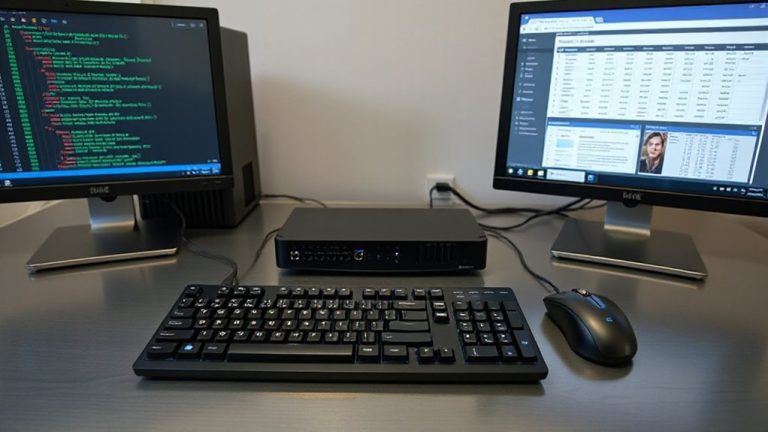
Cable chaos isn’t just an eyesore-it’s a productivity leak. You lose seconds each day untangling cords or fumbling for the right connection, and those add up. Cleaning up cable aesthetics isn’t about looks alone-it sharpens focus and supports better device ergonomics. A clutter-free workspace reduces visual noise, helping you stay on task. Route cables through sleeves or under-desk trays to create clean lines and free up surface space. Use adhesive clips or velcro ties for quick adjustments without residue. Stiff power bricks and thick USB cables can strain ports, so position them to minimize leverage on your devices. Remember, even wireless peripherals need charging, so plan access. Most cable management products under $25 lack long-term durability-opt for woven sleeves or metal clips with at least a one-year warranty. Test layouts before permanent setup. A top-rated solution includes product roundup based on performance and user feedback.
Group Devices by Charging and Connection Type
Many of your devices fall into just a few charging and connection categories, so grouping them smartly can cut downtime and streamline your setup. Effective device categorization-like separating USB-C laptops from micro-USB accessories-makes cable sorting faster and reduces wear from constant unplugging. You’ll save time when you need to locate a specific charger or swap out a faulty cable. Grouping also reveals redundancies, so you’re less likely to buy duplicates. But don’t over-optimize: some devices share cables across types, so rigid categories might backfire. Use labeled bins or dividers to keep clusters organized, but allow flexibility for shared cables. While this system demands a few minutes weekly for upkeep, it pays off during busy work sessions. Just remember, compatibility isn’t always obvious-check voltage and amperage ratings, even within the same connection type, or risk slower charging or port damage.
Set Up a Charging Station for Wireless Gear
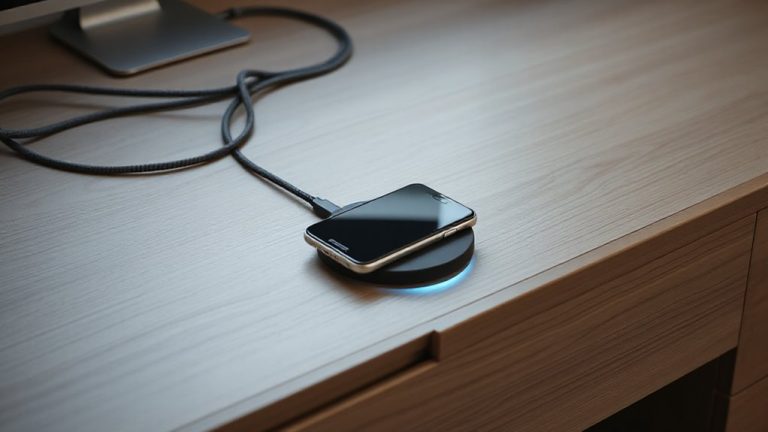
How often do you scramble to find a lost earbud charger or juggle multiple cords for your wireless devices? Setting up a dedicated charging station simplifies your routine and protects your gear. Use a multi-port USB hub with power surge protection to safely charge phones, earbuds, and tablets at once. This reduces outlet strain and guards against voltage spikes that harm battery health. Choose a durable, ventilated dock or tray that keeps devices upright and cables organized. Place it in a central, easily accessible spot-like your desk or nightstand. While convenient, overcrowding the station may lead to slower charging, so avoid daisy-chaining power strips. Check that your hub provides appropriate wattage per port to match device needs. Always unplug during storms, even with surge protection, to maximize longevity. A well-built station saves time, reduces clutter, and helps maintain battery health with consistent, reliable power. For top-performing options, consider one of the best desktop charging stations available to enhance desktop charging stations with ultimate organization.
Route Cables Under Your Desk With Trays and Clips
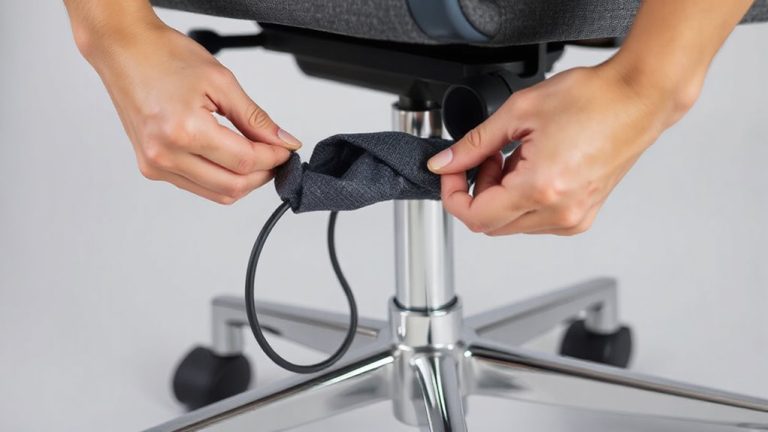
You’ve got your charging station set up and running, keeping your daily devices powered and protected, so now it’s time to tackle the mess beneath your desk where cords often spiral into chaos. Underdesk routing with cable trays and clips offers a clean, lasting fix. These trays mount underneath most desks, giving you a dedicated channel to guide power and data cables along the desk frame. They reduce visible clutter and prevent snagging. Clips secure cords in place, but don’t over-tighten-plastic ones can crack, and metal may abrade insulation. Look for trays with rubber lining and a width of at least 2 inches for ease of access. Most kits include screws and basic tools, but check weight ratings before loading them with thick cords. Some users report limited space with dual-monitor setups, so plan your layout first. For users connecting laptops to external displays, a reliable USB-C to HDMI adapter can streamline both performance and cable organization.
Label and Group Cables for Instant Recognition
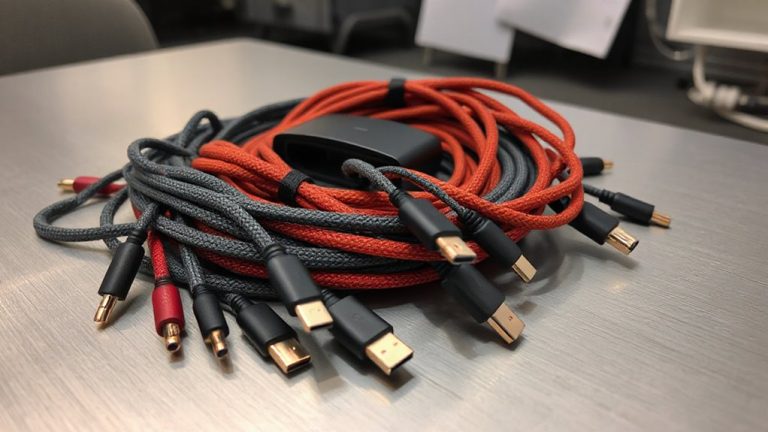
A smart labeling and grouping system cuts through cable confusion with minimal effort, letting you identify and unplug the right cord every time. Use color coding to assign specific hues to device types-blue for monitors, red for power, green for data-so you can trace connections at a glance. Tag labeling with adhesive labels or flag tags adds another layer, especially when cables run behind furniture or merge in bundles. Group like devices using Velcro ties or labeled sleeves to maintain consistency. While color coding speeds recognition, it’s not foolproof if you rely on memory alone-always pair it with physical tags. Over time, ink may fade or colors wash out under desk lighting, so use UV-resistant labels and test readability in your workspace. It’s a small investment that prevents costly mistakes during setup changes or troubleshooting.
Optimize Layout for Wired Keyboards and Drives
Cable clutter isn’t just unsightly-it’s a productivity drag when you’re constantly untangling or stretching for your keyboard and external drives. You’ll boost efficiency by optimizing device placement with cable length matching-choose 1.8m to 2m cables for wall outlets or rear desk hubs, and 0.9m to 1.2m for front-access ports. This reduces slack and keeps connections taut without strain. Prioritize port accessibility optimization: position frequently used drives on hubs within arm’s reach, while anchoring keyboards closer to your primary workstation to minimize wrist extension. Use right-angle USB connectors if tight spaces limit plug clearance. Avoid over-tightening velcro ties near joints to prevent wire damage over time. Though shorter cables reduce clutter, they limit flexibility if you rearrange your setup. Test placements before finalizing ties or adhesive mounts. A well-mapped layout saves seconds every day-seconds that add up.
Build a Daily Routine to Maintain Cable Control
Regularly checking your cables takes just seconds but prevents the slow creep of tangles and strain. Building cable mindfulness into your day guarantees ports stay accessible and connectors remain undamaged from constant tugging. Spend 30 seconds each morning routing charging cables properly and verifying devices are seated securely. This routine auditing helps catch fraying or kinking early, especially on high-use cords like USB-C and Ethernet. Labeling each cable during setup makes troubleshooting faster and reduces blind unplugging. While wireless peripherals reduce clutter, they still need occasional charging, so dedicate a small tray for coiling those cables neatly. Overhead hooks or under-desk trays work well for storage, but avoid tight loops that stress internal wires. No setup is maintenance-free-daily habits beat monthly rewiring marathons. You’ll extend cable life and keep your workspace efficient, but only if you stay consistent.
On a final note
You’ll cut clutter and boost focus with the right cable management, but success depends on your setup. Use under-desk trays to route HDMI and USB-C cables cleanly, and group wireless peripherals at a dedicated charging station. Label cords with printed tags to avoid confusion. While Velcro ties are reusable and quick, metal desk clips stay put over time. Most systems last 2+ years, but check warranty length-some brands cover only 12 months.