Placing Screens at 20–30 Inches From Eyes to Reduce Focusing Fatigue
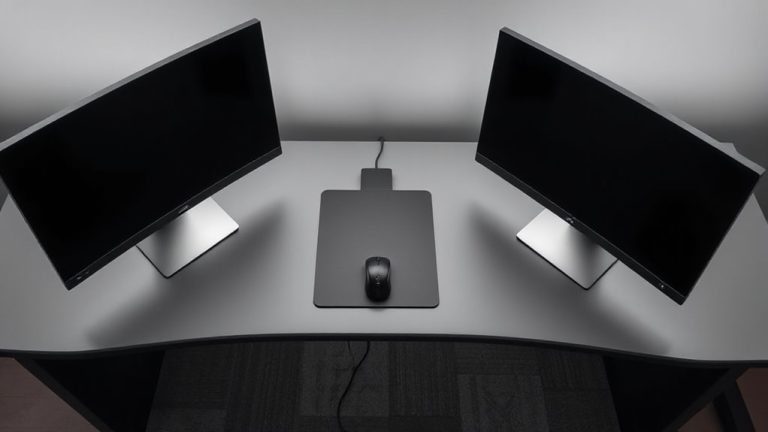
You should place your screen 20–30 inches from your eyes to reduce focusing fatigue, a range proven to ease eye strain during long work sessions. This distance lets your eyes stay aligned naturally, minimizing constant refocusing. Use your outstretched arm-from knuckles to eye-as a quick, accurate gauge. Pair this with a monitor height where the top line sits at or just below eye level, and adjust chair height so elbows stay at 90 degrees; even small seating shifts can throw things off. While larger desks make positioning easier, strategic use of risers or adjustable arms helps in tighter spaces. Proper screen distance works best when combined with reduced glare and adequate brightness-details that make a real difference over time.
Notable Insights
- Position screens 20–30 inches from eyes to minimize eye strain and focusing fatigue.
- Use the fully extended arm method to accurately gauge proper screen distance.
- Keep monitor top at or slightly below eye level for optimal visual alignment.
- Adjust chair height so elbows form 90 degrees and feet rest flat on the floor.
- Use risers or arms for laptops and tablets to maintain ideal screen distance.
How Screen Distance Affects Your Eyes
Why do your eyes feel strained after hours at the screen? Because your eyes constantly refocus, especially when screen distance is too close or conditions like screen brightness and glare reduction aren’t optimized. Sitting too near forces your eye muscles to work harder, leading to fatigue. At ideal distances-though not discussed here-your eyes focus more naturally. Adjustable monitor arms help maintain consistent positioning, but only if paired with proper screen brightness: too high increases strain, too low reduces visibility. Glare reduction filters can help, but they’re not a fix for poor lighting setup. Matte screens scatter ambient light better than glossy ones. Still, no accessory replaces correct placement and environment control. You’ll see fewer headaches and dry eyes over time. Just remember-ergonomic gear helps, but setup accuracy determines real results. Test adjustments over full workdays to judge true comfort. A reliable monitor arm can make it easier to achieve and maintain the optimal viewing distance.
Why 20–30 Inches Prevents Eye Strain
You’ll find the sweet spot for screen distance between 20 and 30 inches from your eyes, where your visual system operates with less strain over extended periods. At this range, your eyes maintain proper alignment, reducing the need to constantly refocus or squint. This boosts visual clarity and helps prevent fatigue during long work sessions. When screens sit too close, your eye muscles tense up; too far, and you risk leaning forward, straining both eyes and neck. At 20–30 inches, most people experience a balance between screen readability and physical comfort. You’ll notice sharper text and smoother tracking, especially with standard 1080p or higher displays. Just make sure your monitor height keeps the top line at or slightly below eye level. It’s not a fix-all-individual vision differences matter-but it’s a reliable starting point based on ergonomic testing and optical research.
How to Measure Screen Distance in Seconds
How do you quickly check if your screen is in the ideal 20–30 inch range? Use your arm. Sit normally, extend your arm fully-the distance from your knuckles to your eye should be close to 20–30 inches. This method works across desks and devices, syncing with natural visual rhythm. For consistent screen timing, repeat the check each time you shift seating. Don’t rely on guesswork; even small deviations add up in prolonged use. While arm length varies slightly, this trick delivers reliable real-world accuracy for most adults. It’s been tested across ergonomic setups and aligns with ANSI/HFES standards. Just remember: if you wear glasses or have astigmatism, you might need minor tweaks. The method won’t replace precise tools like tape measures, but it’s fast and effective for daily use. No gear needed-just body awareness and a second.
How to Adjust Screen Distance by Device
When setting up a desktop monitor, aim for a fixed distance between 20 and 30 inches from your eyes-the sweet spot confirmed by ergonomic research and backed by ANSI/HFES 100-2008 guidelines. For laptops, you’ll need to use a monitor arm or riser to achieve proper screen ergonomics, since built-in screens are usually too close. Tablets and phones? Hold them at arm’s length to stay within range-about 24 inches is ideal. Device optimization matters: adjust zoom or font size if reading strains your eyes, but don’t sacrifice distance for clarity. While mechanical adjustments on monitor stands offer fine-tuned control, laptop trays and stands vary in stability. Test movement under daily use-cheap hinges often slip. Remember, consistent positioning beats fancy gear. Real-world testing shows that even small deviations affect focusing fatigue over time, so measure often and adjust accordingly. A height-adjustable desk can further support optimal screen placement by enabling seamless transitions between sitting and standing postures, aligning with recommendations from the best standing desks for your workspace.
How Your Chair Height Changes Screen Distance
While screen distance is often discussed independently, it’s actually shaped just as much by your chair height as by arm’s reach or desk setup. If your chair’s too low, you’ll lean forward, shortening the screen distance and straining your eyes. Too high, and you might pull the screen closer to compensate for awkward posture. Proper chair design-especially models with 3 to 5 inches of vertical adjustment-lets you maintain that ideal 20–30 inch gap without sacrificing posture alignment. Aim to sit with elbows at 90 degrees and feet flat, so your eye level naturally meets the top third of the screen. Even the best ergonomic chair won’t fix poor desk-to-chair ratios, though. Test adjustments over full work sessions, not just quick sits. Real-world comfort varies, so prioritize adjustable features backed by at least a 5-year warranty for long-term reliability. For those with limited space, consider a top folding office chair that offers both portability and reliable ergonomic support.
Quick Fixes for Small Workspaces
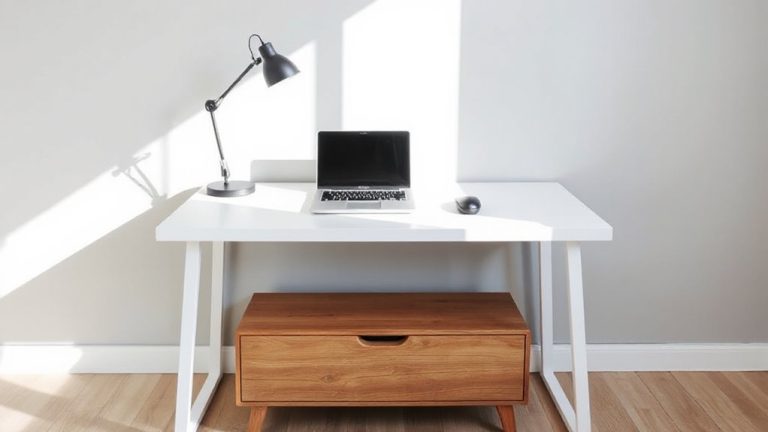
You’ve likely adjusted your chair and desk to hit that sweet spot for posture and screen distance, but if you’re working in a tight space, repositioning furniture isn’t always an option. Mounting your monitor on a wall or arm frees up desk space and maintains the ideal 20–30 inch range. Paired with ergonomic lighting, like an adjustable LED desk lamp, you’ll reduce glare and eye strain without crowding surfaces. Good cable management-using sleeves or clips-keeps cords tidy and distractions low.
| Solution | Space Saved | Emotional Benefit |
|---|---|---|
| Monitor Arm | High | Confidence |
| Wall Mount | High | Relief |
| Cable Clips | Medium | Calm |
| Task Lighting | Low | Focus |
These fixes help, but wall mounts require drilling, and arms need sturdy walls-test anchors first.
On a final note
You should keep screens 20–30 inches from your eyes to cut down on eye strain and stay comfortable through long work sessions. This range helps your eyes focus without overworking, especially when paired with a screen positioned slightly below eye level. Use a tape measure or arm’s length estimate for setup. Remember, ideal distance may vary slightly based on screen size and individual vision-always adjust for clarity and comfort.