Proper Palm Pronation Technique While Typing on Flat Keyboards at Home Offices
You can’t fully fix palm pronation on a flat keyboard, but you can reduce harm by positioning it at elbow height with your arms parallel to the floor. Keep wrists straight, hands floating slightly, and fingers gently arched to avoid overgripping. Use an adjustable chair and sit-stand desk to maintain neutral forearm alignment, though even small height mismatches will increase strain over time-consistent setup matters more than gear alone. Real relief often requires a tented or split keyboard, which most flat models don’t offer. What actually works in practice involves more than just posture.
Notable Insights
- Position your keyboard at elbow height to keep forearms parallel to the floor and reduce palm pronation.
- Maintain a neutral wrist posture by keeping wrists straight and hands slightly inward, not twisted.
- Avoid resting wrists on hard surfaces to prevent locking palms in a pronated position during typing.
- Type with a light touch to minimize grip tension and reduce forearm muscle strain.
- Use hand exercises like wrist curls and stress ball squeezes to strengthen forearms and support neutral alignment.
What Is Palm Pronation and Why It Causes Typing Pain
While you might not think about it while typing, improper palm pronation-rotating your palms inward toward the keyboard-can put steady pressure on your wrists and forearms, raising your risk of strain over time. This misalignment disrupts your anatomical alignment, forcing muscles and tendons to work in inefficient positions. When maintained for hours, it can lead to cumulative stress and nerve compression, particularly in the carpal tunnel, increasing chances of pain or numbness in the fingers. Your body functions best when joints stay near neutral postures, and your forearms roughly parallel the floor. You don’t need an expensive ergonomic setup to improve this-simple awareness helps. But if you type daily, consider whether your current position supports long-term comfort. There’s no one-size-fits-all fix, and some solutions may feel awkward at first. Results vary, and consistency matters more than gear. A well-designed standing desk stool can promote better forearm alignment by encouraging a neutral seated posture.
How Flat Keyboards Force Unhealthy Palm Pronation
Though they’re common on most desks, flat keyboards often push your palms into excessive pronation by forcing your hands to rotate inward when typing, especially if your arms hang naturally from your shoulders. This unnatural position increases hand tension over time, contributing to fatigue and discomfort. Even with ergonomic chairs that support proper posture, your arm alignment can still suffer if the keyboard doesn’t match your shoulder width or height. Flat layouts keep wrists flat and palms turned down, which strains forearm muscles not designed for prolonged rotation. While some adapt, long-term use frequently leads to soreness. Adjustable desks help, but without a tented or split keyboard, pronation stays elevated. There’s no perfect fix, but raising forearms to 90 degrees and using external pads may reduce strain. Real relief often requires changing hardware-not just habits. Upgrading to one of the best ergonomic keyboards can significantly improve palm alignment and reduce strain.
Common Typing Habits That Worsen Forearm Pronation
Flat keyboards aren’t the only problem-you might be making forearm pronation worse without realizing it. Pressing keys too hard increases grip tension, forcing your forearms to twist unnaturally over time. You’re likely overgripping the keyboard, especially during fast typing, which strains the muscles that control finger curvature. Keep your fingers gently arched, not flat or clawed, to reduce strain. Avoid resting wrists heavily while typing; it locks your palms in a pronated position. Your hands should float slightly, aligning with forearm angles. Poor finger curvature misaligns joints, amplifying stress on tendons with prolonged use. Typing just a few degrees off-neutral adds up. While split or tented keyboards help, they’re not magic fixes-habit matters more. Even with ergonomic gear, high grip tension undoes benefits. Focus first on soft keystrokes and relaxed posture. Small changes in finger control yield real results, but consistency is key. There’s no instant fix, only sustainable adjustment. Investing in an ergonomic office setup can further support neutral wrist and forearm alignment when combined with proper technique.
Best Chair and Desk Setup for Neutral Palm Position
Getting your chair and desk set up right makes a bigger difference than most people expect, especially when it comes to keeping your palms in a neutral position while typing. You’ll want your elbows at 90 degrees, arms parallel to the floor, and wrists straight-this improves posture alignment and reduces forearm strain. Use an adjustable chair with lumbar support and pair it with a desk that allows your keyboard to sit at elbow height. Sit about an arm’s length from the screen. Proper ergonomic lighting helps reduce glare, which prevents you from leaning forward and compromising your form. While sit-stand desks offer flexibility, they’re not essential; consistent height matters more. Most tested models provide at least a five-year warranty, but durability depends on build quality. Avoid setups that force upward or downward wrist tilting-they defeat the purpose no matter how premium they seem.
How to Position Your Hands for Healthy Pronation While Typing
Your hands should rest in a near-neutral posture-palms facing each other or slightly inward, not rolled far inward (pronated) or outward (supinated)-to support long-term wrist and forearm health while typing. Aim for hand symmetry, meaning both hands mirror each other in height, angle, and alignment, reducing uneven strain. Maintain finger balance by letting your fingers rest gently on the keys with slight bends, avoiding clawing or flattening. This improves control and reduces fatigue over time. Keep your thumbs relaxed and slightly elevated, hovering near the spacebar. Don’t force your wrists down or up-let your arms support the movement. While some split keyboards advertise better alignment, proper hand positioning matters more than gear. Even on flat boards, you can achieve healthy pronation with consistent form. Discomfort means adjust early. Small tweaks now prevent long-term issues, especially during extended typing sessions.
Keyboard Placement Tips for Proper Wrist and Forearm Alignment
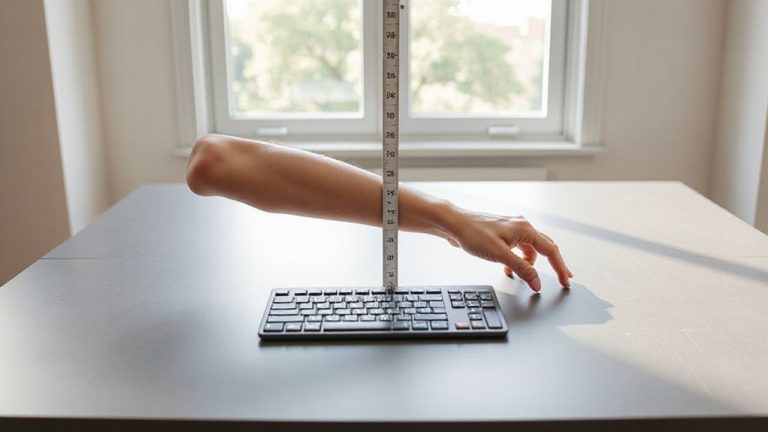
Keyboard height and angle directly influence how well your wrists and forearms maintain neutral alignment while typing, building on the hand posture you’ve already set. Position your keyboard so your elbows stay at 90°, with hands level or slightly below forearm height to avoid strain. Don’t overlook ergonomic lighting-position your lamp to reduce glare on the keys without casting shadows. Poor cable management can also pull your keyboard out of alignment over time. Secure cords with clips or sleeves to maintain consistent placement.
| Placement Factor | Ideal Setup | Common Pitfall |
|---|---|---|
| Keyboard Height | Level with elbows | Too high, causing wrist extension |
| Tilt Angle | 0–5° negative tilt | Excessive backward tilt |
| Desk Clearance | Plenty of space, clean cables | Clutter from poor cable management |
Strengthen Your Forearms: 3 Exercises for Better Typing Posture
Strong forearm muscles play a key role in maintaining proper palm pronation and reducing fatigue during long typing sessions, but they’re often overlooked in typical desk ergonomics advice. You need both forearm flexibility and muscle endurance to support neutral wrist alignment, especially when using flat keyboards. Try three simple exercises: wrist curls with light dumbbells (1–2 lbs), reverse wrist curls, and squeezing a stress ball for 30-second intervals. Do these daily to build endurance without straining tendons. While these movements help, they won’t fix poor setup-pair them with correct keyboard height and chair positioning. Overdoing resistance can lead to stiffness, so progress slowly. Stretching post-exercise improves flexibility and reduces tightness. These routines take under 10 minutes, require minimal gear, and fit easily into a daily schedule. Results vary, but consistent effort typically brings noticeable improvement in 4–6 weeks.
On a final note
You’ll reduce strain by keeping your palms in a neutral, slightly supinated position-about 10–20 degrees from flat-while typing. A negative-tilt keyboard tray or feet-down keyboard placement helps, but only if your elbows stay at 90–110 degrees. Forearm strength matters too, so do the exercises consistently. Just remember: no setup fixes poor posture alone. Test adjustments over weeks, not days, and prioritize comfort over trends.