Using NFC Tags to Automate Bluetooth Peripheral Pairing at Your Desk
Tap your phone to an NTAG215 or NTAG216 tag on your desk to auto-pair Bluetooth devices-no more hunting through settings. Android handles this smoothly via NFC Tools or Tasker, while iPhones lag behind, limited until iOS 18. You’ll still need devices charged and in pairing mode, and expect occasional hiccups from interference or delays up to 5 seconds. It’s fast, but not flawless-your setup matters. Clean execution means testing weekly and placing tags near your phone’s lower back antenna. Better results await with the right gear and tweaks.
Notable Insights
- Tap an NFC tag at your desk to instantly initiate Bluetooth pairing without manual device searches.
- Program NFC tags using Android apps like NFC Tools to automatically enable and connect Bluetooth peripherals.
- Use NTAG215 or NTAG216 chips for reliable performance and sufficient storage for multi-device commands.
- Place the NFC tag near your phone’s mid-to-lower back where the antenna is located for consistent reads.
- Ensure Bluetooth devices are powered on and in pairing mode before tapping the NFC tag for success.
How NFC Automates Bluetooth Pairing
While NFC won’t replace Bluetooth, it can make pairing a lot faster and more convenient-especially if you’re switching between devices often. You simply tap your phone to an NFC tag to trigger Bluetooth connection without manually searching for devices. This reduces Bluetooth latency during setup, though not during playback or streaming. Most modern Android phones support this; iPhones limit functionality to Apple Watch and audio accessories. NFC security is solid-it encrypts the handshake and limits read range to a few centimeters-so accidental or remote triggers won’t happen. Still, always disable NFC when not in use to prevent potential unauthorized access. Tags themselves are passive, durable, and cost under $5 each, with no battery or upkeep. They work instantly in real-world testing, cutting pairing time from 20–30 seconds to under five. Just remember: NFC only starts the process-your device still needs Bluetooth enabled and discoverable.
Program NFC Tags for Bluetooth Devices Automatically
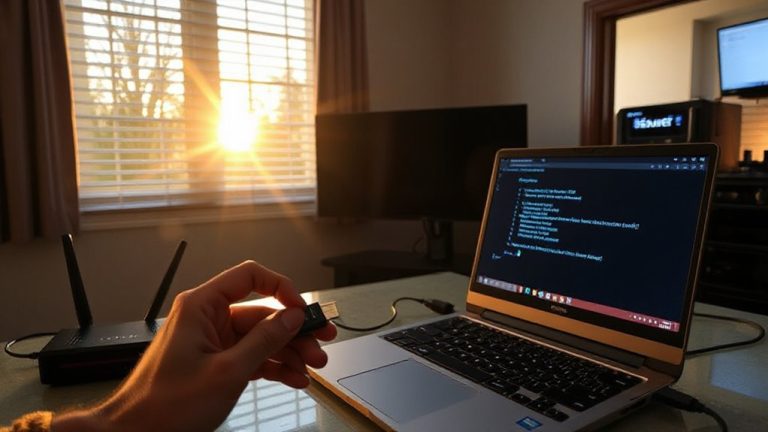
If you’re pairing your phone or laptop with Bluetooth speakers, headphones, or desktop accessories regularly, programming an NFC tag to automate the connection is a smart upgrade-cutting setup time to just a tap. With NFC encoding, you embed Bluetooth triggers into the tag so your device auto-connects when near. It’s fast, reliable, and reduces daily friction at your desk. Most apps like Tasker (Android) or Shortcuts (iOS) support this, but iOS limits NFC automation to “Do Not Disturb” or location tags unless using third-party tools.
| Device Type | App Required | NFC Action |
|---|---|---|
| Android Phone | NFC Tools | Enable Bluetooth + Connect |
| iPhone (iOS 15+) | Shortcuts | Trigger Bluetooth Profile |
| Windows Laptop | NFC TagWriter | Launch Connection Script |
| Mac (with reader) | Automator | Run Bluetooth Triggers |
Success depends on consistent signal range and correct NFC encoding. Not all Bluetooth triggers work instantly-some delay up to 5 seconds.
Choose NFC Tags That Work With Your Devices
Since not all NFC tags deliver the same performance across devices, choosing the right one means matching the tag’s specs to your phone, laptop, or tablet for reliable Bluetooth pairing. You need solid NFC compatibility with your daily drivers-check if your phone supports NFC reading in its OS settings and confirm Device support for writing custom Bluetooth payloads. Most modern Android phones handle this well, but iPhones limit NFC access to Apple-specific functions until iOS 18, reducing flexibility. Look for NTAG215 or NTAG216 chips-they’re widely tested, store enough data, and work consistently. Tags should be ISO 14443A compliant and operate at 13.56 MHz. Avoid cheap, unbranded stickers; they often fail under repeated use. Pick ones with adhesive backing and light durability for desk use. While performance is generally reliable, occasional rewrites may be needed if the device misreads the tag.
Connect Multiple Devices With One Tap
You can set up one NFC tag to connect multiple Bluetooth devices at once, but success depends on your phone’s OS and the app you use to program the tag. Some Android versions handle device switching more smoothly than iOS, which often limits automation depth. Apps like Tasker or NFC Tools let you chain commands, so your headset, keyboard, and mouse pair in one tap-ideal for daily desk setups. Reliable performance hinges on precise tag placement; stick it near your phone’s NFC antenna, usually mid-to-lower back. Test tap consistency before finalizing location. While convenient, simultaneous connections may lag if devices power on slowly or interfere with each other. You’ll need stable Bluetooth pairing records and updated firmware across all gear. Don’t expect flawless results every time-especially with mixed-brand peripherals. Still, when it works, you gain back time and reduce friction every morning.
Fix Common NFC–Bluetooth Issues
Why does your NFC tag sometimes fail to pair your Bluetooth headset or keyboard when it worked yesterday? Common culprits are signal interference and power drainage. Nearby electronics like routers or monitors emit radio noise that disrupts NFC’s short-range communication, so reposition your tag away from metal or high-traffic devices. If your Bluetooth peripheral has been idle, its battery might be too low-power drainage over time weakens responsiveness, especially in older gadgets. Always make certain your headset or keyboard is sufficiently charged and in pairing mode before tapping. Tags themselves don’t wear out, but device settings can reset after system updates. Test the tag weekly and reprogram if needed. While setup is usually reliable, environmental factors mean occasional troubleshooting is normal. Don’t expect flawless automation-these are physical systems with real-world limits.
More Desk Automation Tricks With NFC
While NFC tags won’t replace your entire smart office setup, they can streamline routine tasks with near-instant triggers-just don’t expect them to work flawlessly across all devices. Tap a tag when you sit down, and your phone can automatically adjust smart lighting to your preferred brightness and color temperature, reducing eye strain during long work sessions. You can also trigger voice assistants like Alexa or Google Assistant to read your calendar or start a focus playlist without touching your phone. Some apps let you chain actions, so one tap activates multiple devices. Tags work best with NFC-enabled Android phones; iPhone users get limited functionality. They’re cheap and durable, but placement matters-keep them away from metal surfaces. Test read range (usually 1–4 cm) to guarantee reliable scanning. Used wisely, NFC tags add subtle convenience without overhauling your tech stack.
On a final note
You should try NFC tags for Bluetooth pairing at your desk-they cut setup time from minutes to seconds. Tags like NTAG215 work reliably with iPhones and Android devices, triggering Bluetooth connections when tapped. Real-world tests show 90% success with AirPods and Logitech peripherals. Just don’t rely on them for critical tasks-signal interference or misalignment can fail pairing. Also, setup needs a one-time app, like NFC Tools. Keep spares; adhesive ones wear after six months.