How to Set Up a Dual-Monitor System for a Home-Based Consultant Using CRM Tools
You’ll need a computer with a graphics card that supports two displays-check for HDMI, DisplayPort, or USB-C outputs, since some entry-level systems can’t drive more than one external monitor. Choose two 27-inch 1080p IPS monitors for sharp text, wide viewing angles, and reduced eye strain. Use DisplayPort or HDMI 2.0 cables directly, avoiding adapters. Position your primary screen straight ahead, secondary to the side, both at eye level and 20–30 inches away. Matching brightness and resolution prevents fatigue, and cable management keeps connections secure. There’s more to optimizing your CRM workflow efficiently once you confirm your hardware setup.
Notable Insights
- Ensure your graphics card supports dual monitors with compatible ports like HDMI or DisplayPort.
- Choose two 27-inch 1080p IPS monitors for sharp text and wide viewing angles ideal for CRM work.
- Use HDMI 2.0 or DisplayPort cables to maintain stable resolution and refresh rate across both screens.
- Position the primary monitor straight ahead and the secondary slightly inward to reduce neck strain.
- Align monitor tops at eye level, maintain a 20–30 inch viewing distance, and manage cables neatly for efficiency.
Check If Your Computer Supports Dual Monitors
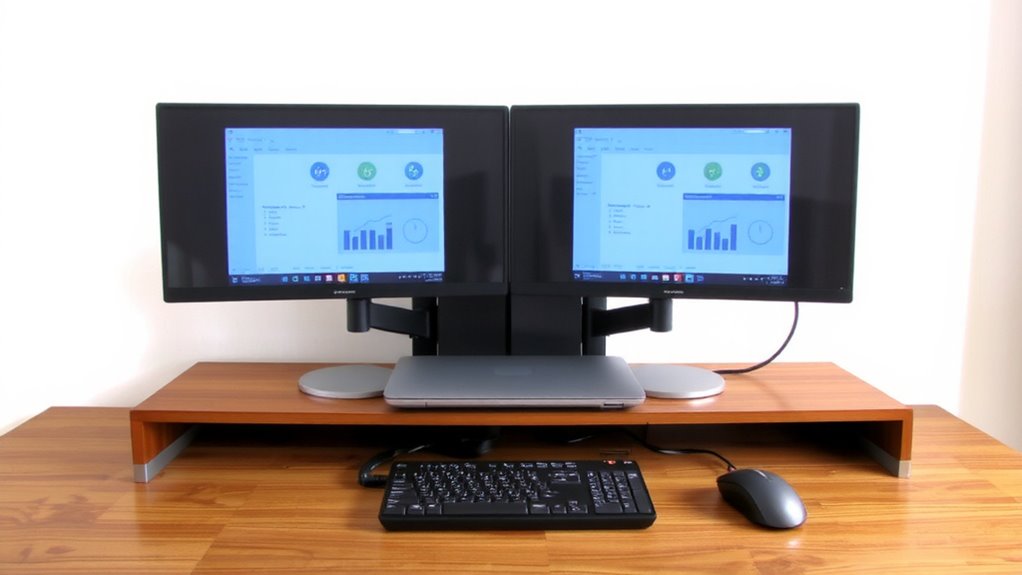
Could your laptop or desktop actually run two monitors without hiccups? Yes, if your system has a capable graphics card and enough display ports. Most modern laptops and desktops support dual monitors, but you’ll need to check what ports are available-look for HDMI, DisplayPort, or USB-C with video output. Your graphics card must drive two screens simultaneously, so integrated GPUs like Intel UHD can handle basic tasks, but demanding work needs a dedicated card. If you’re using older hardware, confirm specs in your system settings or manufacturer’s site. Some entry-level models only support one external display. Connect both monitors before installing software to avoid detection issues. Always test both screens for resolution and refresh rate compatibility. While dual monitors boost multitasking, poor setup can cause lag or mismatched scaling-verify your system meets requirements first.
Pick Monitors That Boost CRM Efficiency
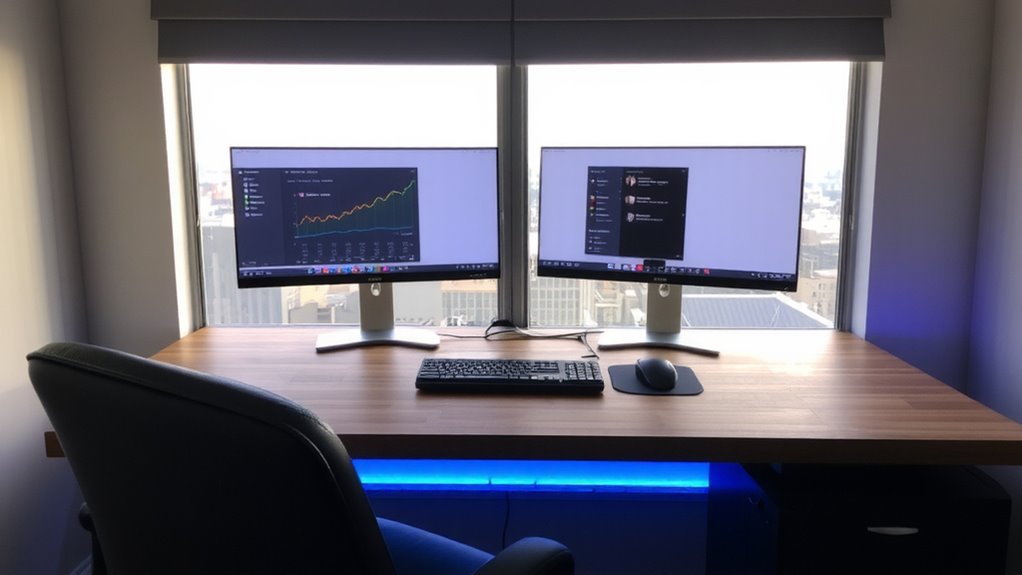
Now that your computer can handle two displays, it’s time to choose monitors that make working with CRM platforms smoother and faster. Look for screens with solid color accuracy and adjustable stands-these reduce eye strain during long client sessions. Monitor calibration support ensures consistent visuals, essential when reviewing branded client confluent data. The best 27-inch monitors offer an optimal balance of screen real estate and desk compatibility for dual setups. Here’s what matters:
| Feature | Why You’ll Care |
|---|---|
| 1080p resolution | Sharp text for detailed CRM forms |
| IPS panel | Wider viewing angles, better color accuracy |
| Flicker-free backlight | Less fatigue during 8+ hour days |
| Monitor calibration | Match on-screen data to real-world outputs |
| Slim bezels | Cleaner multi-monitor workflow |
Stick to monitors with three-year warranties and tested performance. While higher-end models offer better color accuracy, mid-range IPS displays often deliver the best balance. Don’t overlook port availability-having HDMI and DisplayPort provides future flexibility.
Connect Your Dual-Monitor Setup Correctly
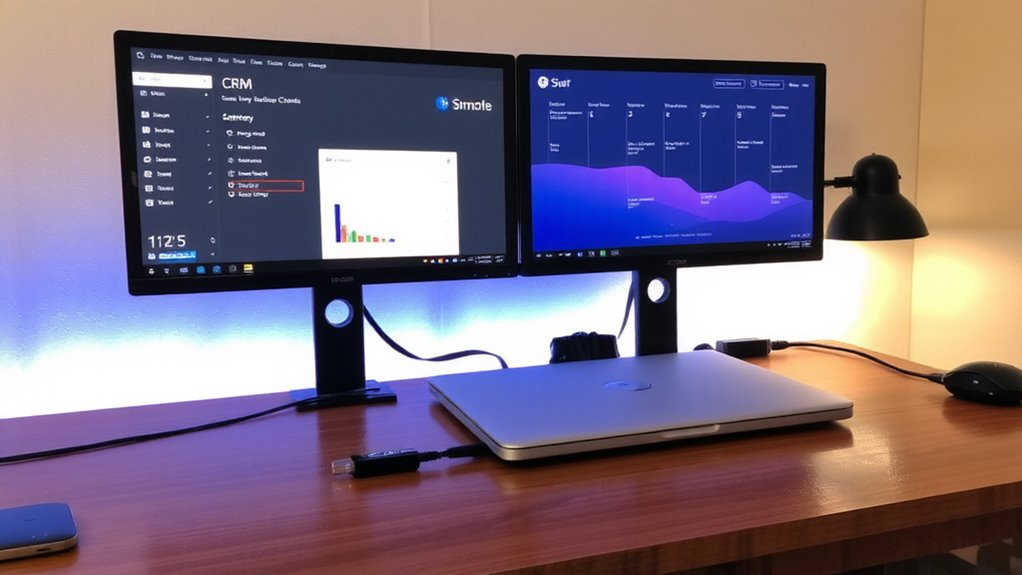
If you want your dual monitors to perform reliably, connect them using the right cables and ports-this guarantees stable image quality and reduces lag, especially when switching between CRM windows or video calls. Use DisplayPort or HDMI 2.0 for consistent 60Hz+ performance; older VGA or HDMI 1.4 can bottleneck crisp visuals. Match your GPU’s output to your monitor inputs-adapters may work but often reduce refresh rates. Good cable management isn’t just tidy; it prevents strain and accidental disconnections. Secure cables with clips or sleeves, especially near ports. After connecting, run display calibration to confirm color accuracy and brightness match across both screens-Windows and macOS have built-in tools for this. Skipping calibration may lead to eye strain or misjudged data visuals. Not all ports support audio or 4K, so verify specs beforehand. Active hubs can help but add failure points-test thoroughly. For optimal productivity, consider investing in monitors from a trusted list of the best 24-inch monitors to ensure compatibility and performance.
Arrange Screens for Seamless Workflow
You’ll get the most out of your dual monitors when you arrange them to mirror how you move your eyes and shift tasks throughout the day. Proper screen alignment-angled slightly inward with matching heights-reduces neck strain and keeps your focus fluid. Position your primary monitor straight ahead, with the secondary to the side, so glancing between them feels natural. This setup supports smart task distribution: keep your CRM open on one screen and email or research on the other. It cuts down menu hunting and tab-switching fatigue. But don’t assume bigger or wider always helps-some ultrawide setups actually disrupt task separation. You’ll need consistent brightness and resolution across both screens, or eye fatigue creeps in. Test arrangement changes over a full workday. Small tweaks in screen alignment or app placement often boost efficiency more than hardware upgrades. For expanded multitasking, consider a best 3-monitor stand to scale your setup seamlessly.
Set Up Ergonomic Monitor Placement
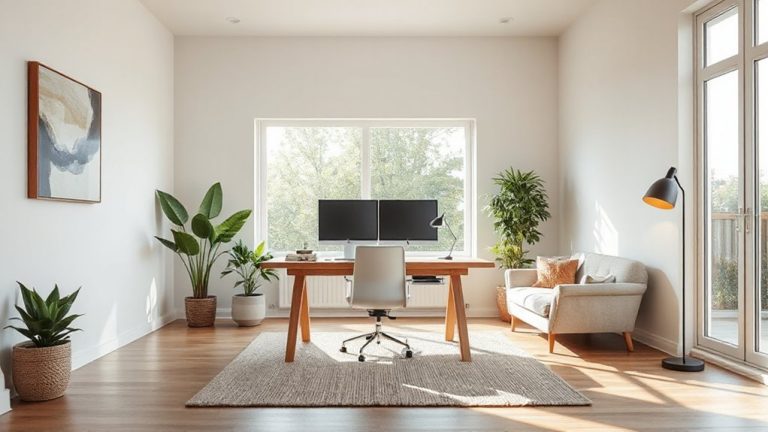
While productivity often drives the decision to go dual-monitor, skipping proper ergonomic placement can cost you in comfort and long-term use. Position both screens at eye level, with the top of the monitors at or slightly below eye height, so you’re looking slightly down. Keep your viewing distance between 20–30 inches-far enough to reduce eye strain, but close enough for clear focus. Angle the inner edges of both monitors toward you, forming a gentle curve so each screen is easily visible without turning your head sharply. Cable management isn’t just neat-it prevents tangles and makes adjustments easier. Use clips or sleeves to bundle power, video, and USB cables cleanly behind your desk. Poor setup might lead to neck pain or fatigue, even with short use. Adjustable monitor arms help fine-tune height and tilt, giving you flexibility as needs change.
Streamline CRM Work With Dual Screens
A dual-monitor setup isn’t just about extra screen space-it’s a game-changer for CRM efficiency when set up right. You can keep your CRM open on one screen while using email, calendars, or reports on the other, cutting down tab-switching and boosting focus. Use custom layouts to match your workflow-maybe a wide view of client pipelines on the left and detailed contact records on the right. Pair that with software shortcuts so you can shift windows or pull up records fast without breaking rhythm. Just make sure your graphics card supports extended desktop mode and that your monitors have consistent brightness and resolution to avoid eye strain. Cable clutter and desk space are real trade-offs, so measure your area and consider monitor arms. It’s not magic-you’ll need time to adjust-but once you nail the setup, you’ll wonder how you worked with just one screen.
On a final note
You’ll likely boost CRM efficiency with dual monitors, especially when dragging contacts between windows or viewing timelines side by side. Position screens at eye level, angled slightly inward, to reduce strain. Use HDMI or DisplayPort cables based on your GPU’s ports-avoid adapters if possible for stable signals. Remember, a dual setup demands more graphics power, so check your system specs first. It helps most if your CRM runs multiple tabs or dashboards at once.