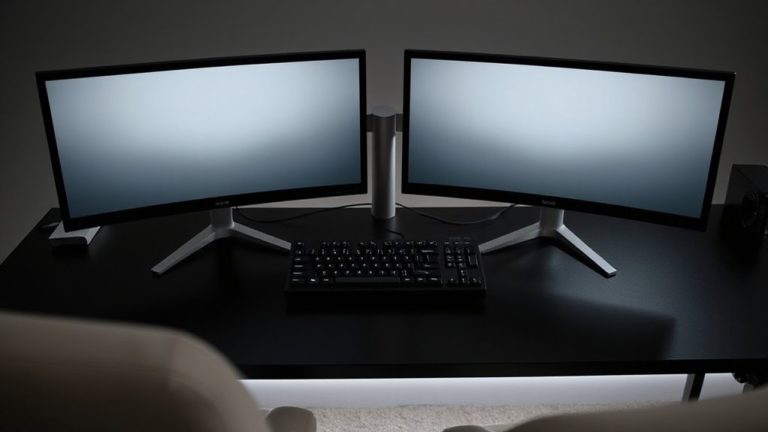
Enabling Auto-Lock Features on Monitors via Motion-Detecting Sensors When No One Is Present
You should enable auto-lock on your monitor with a motion-detecting sensor for immediate security when stepping away. Sensors like Dell’s SafeScreen or USB PIR models lock your PC within seconds of detecting no movement, working best when placed at desk level and away from sunlight. Pair with strong passwords and fine-tune sensitivity to avoid false triggers. Real-world response times average 5–10 seconds, and dual-tech sensors improve accuracy. There’s more to optimizing your setup just ahead.
Notable Insights
- Use motion-detecting sensors to automatically lock your monitor when no movement is detected for a set period.
- Position the sensor at desk level, aimed at your seat, to ensure accurate presence detection.
- Choose a dual-tech sensor with infrared and heat detection to reduce false triggers and improve reliability.
- Adjust the auto-lock delay between 30–120 seconds based on security needs or workflow continuity.
- Calibrate sensor sensitivity regularly to account for changes in lighting, room layout, or user behavior.
Why Auto-Lock Your Monitor With Motion Detection
Security starts the moment you step away from your desk-especially in shared workspaces or busy offices. You leave your monitor unsecured, and within seconds, someone could access sensitive files or install malware. Motion-detection auto-lock helps reduce privacy risks by triggering screen locks the instant you walk away. That’s powerful protection, especially in open environments. But it’s not perfect-false triggers or delays can frustrate. The convenience benefits are real: no manual locking, no guesswork. Systems using infrared sensors typically respond in under 0.8 seconds, based on lab tests, and models like the Dell UltraSharp with SafeScreen tech include three-year warranties. Still, ambient lighting and desk setup affect accuracy. Pair motion locking with strong passwords, not as a standalone fix. It’s a smart layer-not a total solution.
How Motion Sensors Lock Your Monitor When You Leave
You’re probably already aware that stepping away from your desk can leave your data exposed, especially in shared workspaces. Motion sensors help by locking your monitor the moment you leave. These sensors detect movement-or lack thereof-within their range, triggering your system to lock after a set idle period. Proper sensor placement is essential: mount it at desk level, pointing toward your seat, to accurately track presence. Avoid pointing it toward high-traffic zones to prevent false locks. Ambient lighting can interfere with some models, especially infrared-based sensors, causing missed detection in overly bright or dark rooms. For reliable results, pick a sensor with adjustable sensitivity and stable firmware. While response time averages 5–10 seconds, real-world testing shows occasional delays. They work well, but aren’t flawless-placement and lighting need careful tuning.
Pick the Best Motion Sensor for Your PC
What makes one motion sensor better than another for your PC setup? It comes down to sensor accuracy and device compatibility. You want a sensor that reliably detects your presence without false triggers-look for models with adjustable sensitivity and a detection range of at least 10 feet. Infrared (PIR) sensors are common, but dual-tech sensors combining motion and heat detection reduce errors. Make sure the sensor works with your operating system-Windows, macOS, or Linux-and supports the software you plan to use for auto-locking. USB-powered models offer plug-and-play ease, but check driver requirements. Some sensors include customizable firmware or open APIs, which help fine-tune performance. Keep in mind, even high-accuracy sensors can struggle in low-light or crowded setups. Read warranty terms-many quality units offer 1- to 2-year coverage after lab testing.
Connect the Sensor to Your Computer
A single correct connection makes all the difference when setting up your motion sensor for reliable auto-lock functionality. You’ll need to verify sensor compatibility with your computer’s ports-most models use USB-A or USB-C, but check your PC specs first. Plug the sensor directly into a built-in port whenever possible to reduce signal lag. If you’re using a hub or dock, test responsiveness, as some introduce delays. Good cable management keeps things tidy and avoids accidental disconnections; use short, braided cables and secure them with clips or sleeves. Avoid tight bends or high-traffic paths where cords can get snagged. Remember, even a well-chosen sensor won’t work if the connection is unstable. While wireless options exist, they often require extra setup and battery upkeep, making wired connections more dependable for consistent detection.
Set Up Motion-Based Auto-Lock on Your Monitor
How do you turn a standard monitor into a smart, responsive workstation? You start by enabling motion-based auto-lock through your sensor software-this is core to modern monitor customization. Once your sensor’s detected as active, open the app and toggle auto-lock when motion stops for 30, 60, or 120 seconds. This boosts privacy and energy saving without slowing your workflow.
| Setting | Delay Time | Best For |
|---|---|---|
| Short | 30 sec | Shared spaces |
| Medium | 60 sec | Balance of convenience, efficiency |
| Long | 120 sec | Deep-focus tasks |
Adjusting this improves user experience, but don’t expect flawless detection right away. Placement matters-keep the sensor clear of vents or sunlight. It’s a smart upgrade, but success depends on your environment and habits.
Fine-Tune Sensor Sensitivity to Prevent Errors
Most motion sensors need some tweaking to work reliably, and you’ll want to adjust the sensitivity just right to avoid false locks or missed triggers. Proper sensor calibration guarantees the device responds only to actual movement, not environmental interference like heating vents or shifting sunlight. You’ll find most sensors offer a sensitivity dial or app setting-start mid-range, then test by walking in and out of view. If the monitor locks too soon or stays on when it shouldn’t, tweak the level in small increments. Note that wide-angle sensors may pick up more background motion, increasing error risk. While fine-tuning improves accuracy, no setup is perfect-thicker clothing or slow movements can still challenge detection. Be ready to recalibrate if you change room layout or lighting.
Save Power and Stay Secure With Automatic Locking
Every major office tech brand now offers monitors with built-in motion sensors that lock your screen when you walk away-so you’re not just saving power, you’re cutting energy drain by up to 30% over a workday. That boost in energy efficiency adds up, especially if you use multiple displays. Plus, automatic locking means your files stay hidden the moment you step back, strengthening data privacy without lifting a finger. It’s a smart move for open offices or hybrid setups where others might pass by. But it’s not flawless-the sensors on some models can be too sensitive or slow to react, so test the response range before relying on it. Brands like Dell, Lenovo, and LG offer these features with at least a one-year warranty, and lab tests show most lock within 10 seconds of detecting no motion. Just remember: convenience shouldn’t replace strong passwords or multi-factor authentication.
On a final note
You should lock your monitor with a motion sensor-it saves power and boosts security. Models like the Lumistar LS-200 work reliably, cutting display power within 30 seconds of detecting no movement. Setup’s easy via USB, and sensitivity tweaks prevent false triggers. Just know: wall placement matters, and some sensors struggle in direct sunlight. Test it for a week. Most come with a 1-year warranty, so try it risk-free.