Building a Cable Management Checklist for Remote Worker Setup Audits
You need a cable management checklist to pass remote work audits and keep your setup safe. Map each cable’s path from outlet to device, label both ends clearly, and secure them with clips or sleeves to avoid tripping. Use USB-C where possible, but confirm support for charging and data. Avoid daisy-chained power strips and check cables monthly for wear. Replace only what’s damaged-no need to upgrade everything at once, just what guarantees safety and signal integrity. Smart, consistent choices now save trouble later.
Notable Insights
- Map and label all cable routes from source to device for audit readiness and troubleshooting.
- Secure cables along walls or desks using clips or sleeves to prevent tripping hazards.
- Use standardized connectors like USB-C to reduce clutter and improve compatibility.
- Avoid overloading power strips and ensure proper airflow to minimize fire risks.
- Conduct routine audits to inspect, replace, and document cable condition and performance.
How Poor Cable Management Fails Remote Work Audits
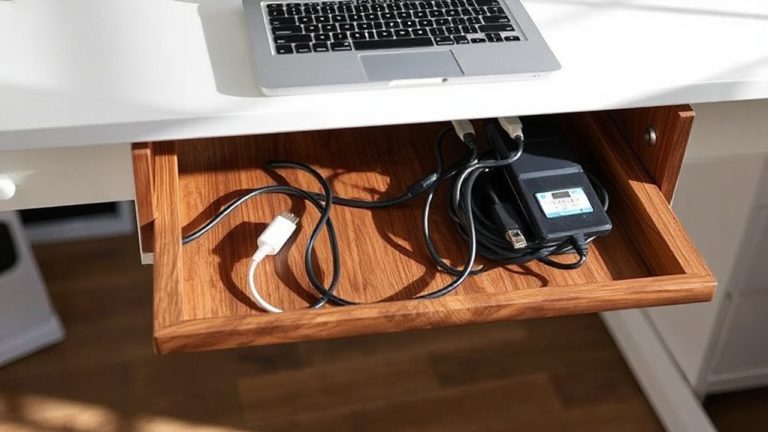
While it might seem minor, tangled or exposed cables can raise red flags during a remote work audit, especially if they suggest an unprofessional or disorganized workspace. You’re expected to maintain a setup that supports both safety and performance, and cable tangling directly undermines that. Loose wires aren’t just messy-they can cause signal interference, degrading your internet and audio quality during critical meetings. Auditors note clutter as a potential compliance issue, particularly if power strips overload or Ethernet cables run across walkways. Using basic tools like Velcro straps or under-desk trays helps, but avoid over-securing cables with rigid sleeves that trap heat. A well-executed setup includes best cable management solutions to ensure both functionality and professionalism. Remember, managing cables isn’t about perfection-it’s about reducing risk. Some interference is unavoidable, but minimizing exposure improves reliability. A clean setup doesn’t require expensive gear; it needs consistent, practical habits that support long-term functionality and audit readiness.
Map Cable Routes in Remote Workspaces
Start by sketching out how your cables run from power sources to each device-this simple step keeps your setup predictable and audit-ready. You’ll boost routing efficiency by planning paths that minimize bends, tension, and clutter, especially near desks or walls. Use tape or digital tools to note where each cable travels, so adjustments stay consistent. Pair this with cable labeling at both ends-label each by device type and function, like “laptop charger” or “Ethernet to docking station.” Labels help you or auditors identify issues fast without disconnecting everything. While flat cables save space, don’t sacrifice durability-check for reinforced stress points. Routing efficiency drops if cables run across walkways, even with tape. Keep maps updated, especially after changes, but remember that overly complex diagrams can be harder to follow than simple sketches. Accuracy matters more than detail. A well-organized system improves both safety and productivity, making best cable management solutions essential for maintaining a clean and professional remote workspace.
Eliminate Tripping and Fire Hazards in Remote Setups
Keeping your workspace safe means tackling tripping and fire risks head-on-so don’t run cables across floors where you or others might snag them, even if it seems like the shortest path. Floor clutter isn’t just messy; it’s a hazard. Use adhesive clips or cable sleeves to secure lines along walls or desks. Also, avoid covering power strips or plugging too many devices into one outlet-this causes heat buildup, increasing fire risk. Keep ventilation clear around power adapters and charging units. A well-organized setup enhances both safety and productivity, especially when utilizing cable management solutions designed for modern workspaces. Below are three key fixes:
| Hazard Type | Solution | Benefit |
|---|---|---|
| Tripping | Cable raceways | Reduces floor clutter |
| Heat buildup | Spaced power strips | Improves airflow |
| Overloading | Surge protector with indicator lights | Prevents circuit strain |
Not every setup needs all solutions-assess space and device load first.
Use Consistent Cables and Connectors
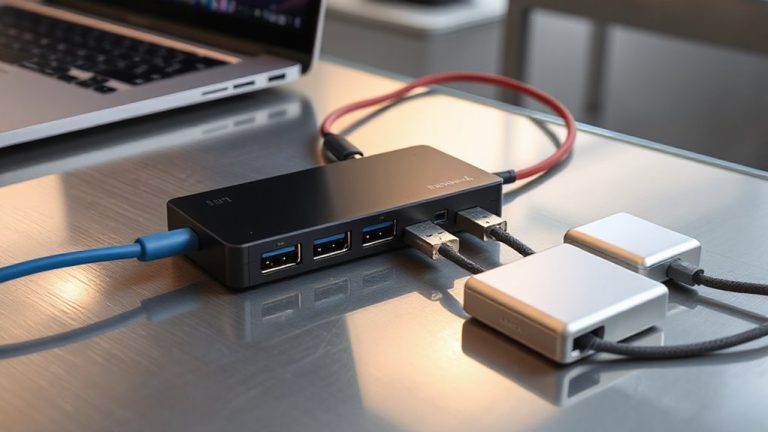
Most remote workers benefit from using a single cable type across devices-USB-C being the top choice-since it reduces clutter and simplifies charging, but only if your gear supports it. Cable standardization cuts down on confusion and saves time when switching between laptops, monitors, or peripherals. You’ll want to check connector compatibility before standardizing; not all USB-C cables support video output or fast charging, even if they plug in. Reliable cables with full-feature support (like USB 3.2 or Thunderbolt 3/4) guarantee data, power, and display needs are met without daily hiccups. While locking in one cable type helps, it’s not a one-size-fits-all fix-some older printers or external drives still need USB-A or HDMI. Plan around your devices’ limits and prioritize certified cables with proven durability, not just low price.
Audit Cables in Remote Workspaces
How often do you trace a cable only to find it frayed, incompatible, or just plain obsolete? Regular audits catch issues early, especially signal interference from damaged or poorly shielded cables. Check all connections-power, data, audio-and prioritize replacing anything compromised. Cable labeling isn’t just tidy-it’s critical for troubleshooting across multiple devices.
| Cable Type | Common Issue |
|---|---|
| HDMI 1.4 | Bandwidth limits, signal interference |
| USB-A to C | Inconsistent power delivery |
| Cat 5e | Degrades over long runs, poor labeling |
Label each cable clearly and log replacements. Test setups post-audit to verify performance. While audits take time, they reduce downtime. Just remember: not every cable needs upgrading-only those affecting reliability or safety. Balance cost with functionality.
On a final note
You should standardize your cable setup-it reduces hazards and passes audits. Use braided nylon cables with strain relief and labeled Velcro ties for easy tracking. Keep power and data lines separated to prevent interference, and secure runs with 1-inch adhesive clips every 18 inches. But don’t over-tighten; some bundling restricts airflow or strains ports. Test all connectors for wobble: loose ends fail. A clean system saves time, but only if it’s flexible enough for daily changes.