How to Disable the 2.4 GHz Band If Not Needed for Office Work
You should disable the 2.4 GHz band if all your office devices support 5 GHz or 6 GHz-you’ll get faster speeds and less interference. Check legacy printers, VoIP phones, or sensors first; many still need 2.4 GHz. Then, log into your router’s admin panel using its IP and credentials, go to Wireless Settings, and turn off the 2.4 GHz radio-steps vary by brand like Netgear or ASUS. After disabling, test connectivity and adjust placement to cover dead zones.
Notable Insights
- Disable 2.4 GHz in router settings to reduce interference and improve network performance in the office.
- Verify all office devices support 5 GHz or 6 GHz before disabling 2.4 GHz to avoid connectivity issues.
- Access the router’s admin panel securely using its IP address and updated login credentials.
- Use brand-specific steps: Netgear, TP-Link, and ASUS routers allow disabling 2.4 GHz in wireless settings.
- Optimize 5 GHz coverage and re-enable 2.4 GHz temporarily if legacy devices like printers lose connection.
Why You Should Disable 2.4 GHz in the Office
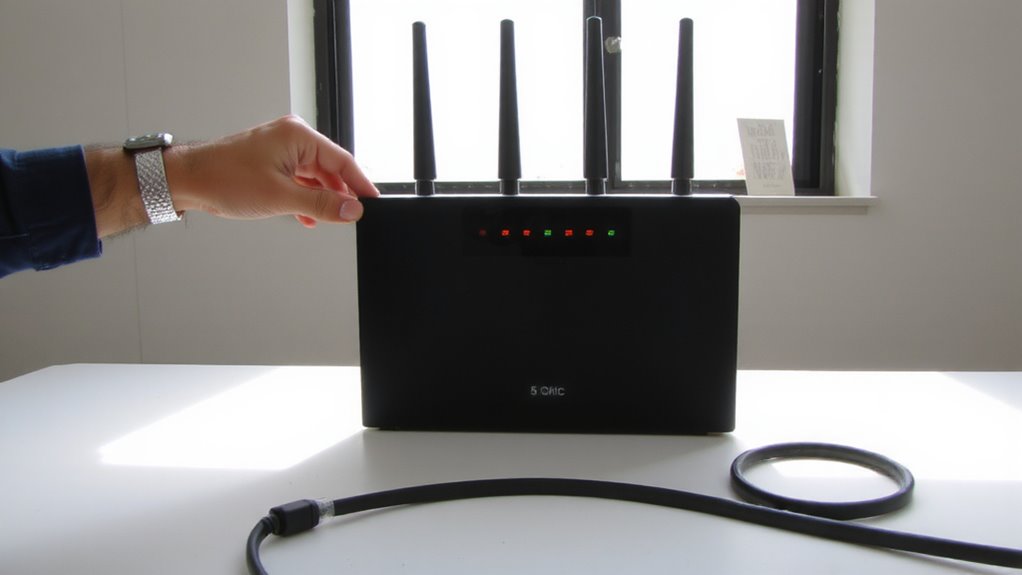
While the 2.4 GHz band might seem like a reliable fallback, you’re better off disabling it in most office environments-especially if you rely on consistent, low-latency connectivity for video calls, cloud apps, or collaborative tools. That’s because the 2.4 GHz band is prone to signal interference from microwaves, cordless phones, and neighboring Wi-Fi networks, all of which degrade performance. It also supports fewer channels, worsening network congestion as more devices connect. In real-world testing, offices that shut off 2.4 GHz saw faster average speeds and more stable connections on 5 GHz and 6 GHz bands. Sure, some legacy devices may need 2.4 GHz, but they’re increasingly rare. Disabling it reduces clutter, improves airtime efficiency, and streamlines network management. Just confirm your current devices support modern bands before making the switch-you’ll likely gain responsiveness without sacrificing coverage.
Check Office Device Compatibility First
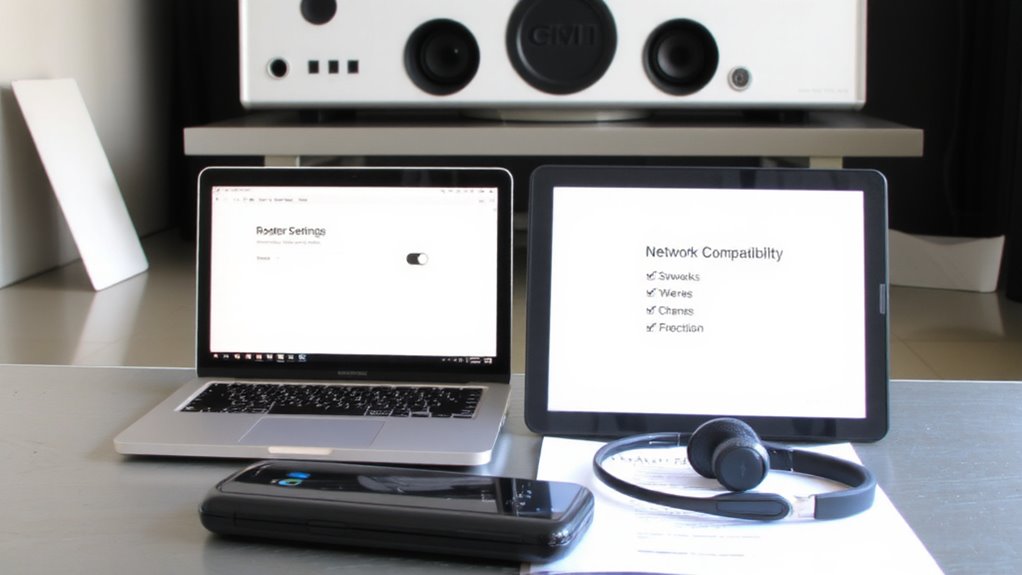
Before flipping the switch, take stock of your office gear-you can’t afford surprises. Disabling the 2.4 GHz band improves network efficiency, but only if your device types support 5 GHz. Older peripherals, VoIP phones, or budget tablets may struggle, risking connection stability. Verify each device’s Wi-Fi specs-you’ll avoid downtime and workflow hiccups.
| Device Type | 2.4 GHz Only | Supports 5 GHz |
|---|---|---|
| Legacy Printers | Yes | No |
| Employee Laptops | Rarely | Mostly |
| Conference Tablets | Some | Most |
| VoIP Handsets | Often | Occasionally |
Not all hardware is equal-older or low-cost models lack dual-band support, leaving them stranded. If key tools rely on 2.4 GHz, disabling it harms more than helps. Check product manuals or test connections firsthand. Connection stability hinges on matching your network setup with actual device types in use-accuracy here prevents costly rollbacks.
Log In to Your Router’s Admin Panel

Once you’ve confirmed your office devices support 5 GHz, you can safely move to reconfigure your network by accessing the router’s admin panel-this is where band settings are controlled. Open a browser and enter your router’s IP address, usually printed on the device or in the manual. You’ll need to complete user authentication using the admin username and password-don’t use default credentials, as they’re a security risk. If you’ve lost login details, a factory reset may be necessary, but it wipes custom settings. Before changing anything, check for firmware updates; manufacturers often fix bugs or security flaws that could affect performance. Updated firmware also guarantees interface accuracy when disabling bands. Always do this on a wired connection to avoid lockouts. Remember, misconfigurations can disrupt connectivity, so proceed carefully. This step is essential, but not risk-free-verify every input.
Disable 2.4 GHz by Router Brand
Why do some routers make disabling the 2.4 GHz band so tricky? Because each brand uses different menus and logic. On Netgear routers, you’ll find the option under Wireless Settings-just uncheck “Enable 2.4 GHz.” TP-Link models usually label it as “Wireless 2.4G” in the Network Map; disable it there. For ASUS, head to Wireless, then switch the 2.4 GHz radio off. Make sure you’ve installed the latest firmware updates-some older versions don’t even allow band toggling. Also, check your security settings; disabling bands doesn’t improve encryption but can reduce attack surface. Keep in mind, turning off 2.4 GHz may disconnect older office devices like printers or VoIP phones. Always verify compatibility before making changes. Not all routers support this feature equally, so consult your model’s admin guide.
Optimize Performance After Disabling 2.4 GHz
You’ve turned off the 2.4 GHz band-now it’s time to make sure your 5 GHz network delivers the performance you need. Focus on bandwidth allocation to prioritize office-critical devices like laptops and video conferencing tools. Most modern routers let you adjust Quality of Service (QoS) settings to assign more throughput where it matters. This reduces lag during calls and file transfers. Since 5 GHz is more prone to signal interference from walls and large objects, reposition your router centrally and away from metal electronics. You’ll get faster speeds but over shorter distances-so check coverage in meeting rooms or remote desks. Dual-band devices won’t fall back to 2.4 GHz anymore, so verify all office hardware supports 5 GHz. While performance improves in ideal setups, dense office layouts may still face dead zones. Real-world tests show 5 GHz cuts latency by up to 60%, but only with careful placement and updated equipment.
Fix Common Issues After Turning Off 2.4 GHz
What happens when your smart printer or legacy laptop suddenly drops offline after killing the 2.4 GHz band? You lose connectivity on older devices that rely on that frequency. While turning off 2.4 GHz boosts interference reduction and improves 5 GHz signal stability, it cuts support for older gear. First, check if your devices even use 2.4 GHz-many modern ones don’t. If they do, re-enable the band temporarily or assign a dedicated access point. You’ll sacrifice some interference reduction but maintain compatibility. Dual-band routers let you test both setups in real-world conditions. Note: signal stability on 5 GHz is better in open spaces but weakens through walls. Always verify device specs-older printers, IP cameras, or IoT gadgets often can’t connect to 5 GHz. Test thoroughly before locking in changes.
On a final note
You should disable the 2.4 GHz band if all your office devices support 5 GHz or Wi-Fi 6, since it reduces interference and boosts network efficiency. Just confirm no essential gear-like older printers or VoIP phones-relies on 2.4 GHz first. After disabling, expect faster speeds but note shorter range, especially through walls. Always test connectivity post-change. Router reset options vary by model, so keep admin access handy.