How to Fix Flickering on High-Refresh-Rate Monitors in Windows Gaming Mode
Set your monitor’s refresh rate to match your GPU output-like 1920×1080 at 144Hz-to stop flickering in Windows Gaming Mode. Update your graphics drivers from NVIDIA, AMD, or Intel, and disable Gaming Mode if dark-screen flicker persists. Turn off VSync when using G-Sync or FreeSync, use a certified DisplayPort 1.4 cable, and switch to High Performance power mode. Just remember, disabling enhancements may reduce input responsiveness while improving display stability-there’s more to think about for lasting results.
Notable Insights
- Match your monitor’s refresh rate to GPU output in Gaming Mode to prevent flickering.
- Enable adaptive sync and confirm it’s active via the monitor’s OSD for smooth gameplay.
- Use identical resolution and refresh rate settings, like 1920×1080 at 144Hz, across desktop and game.
- Update graphics drivers from NVIDIA, AMD, or Intel to fix flickering caused by outdated software.
- Disable Windows Gaming Mode if it causes backlight flicker, especially during dark or fast-moving scenes.
Set the Right Refresh Rate for Gaming Mode
While your monitor’s default settings might seem fine at first glance, you’ll want to manually set the refresh rate to match your GPU’s output when using Gaming Mode-otherwise, flickering could persist despite having a high-refresh-rate panel. For smooth motion and reduced tearing, enable adaptive sync and guarantee it’s active within your monitor’s OSD. You’ll also need precise resolution matching-any mismatch between your desktop resolution and the game’s output can trigger flicker or stutter. Set both to the same value, like 1920×1080 at 144Hz, for best results. Most modern gaming monitors support FreeSync or G-Sync, but they require frame rate alignment with the panel’s range. If your GPU pushes 60 FPS on a 120Hz display without adaptive sync, flickering’s likely. Manual setup takes effort, but it’s essential for stability and visual clarity during fast-paced gameplay.
Update Your Graphics Drivers
If you’re still seeing flicker after adjusting your refresh rate and enabling adaptive sync, outdated or corrupted graphics drivers could be to blame-so updating them is a quick fix that often makes a real difference. You’ll want to grab the latest version directly from NVIDIA, AMD, or Intel, depending on your GPU. Fresh drivers improve driver compatibility with new games and Windows updates, which can reduce display instability. Some also include firmware updates for your GPU itself, enhancing performance and stability. Use the manufacturer’s tool to scan your system-it’s reliable and built for your hardware. While updates usually help, occasionally a new driver can introduce hiccups, so note your current version before upgrading. If flickering starts after an update, roll back immediately. Don’t rely on Windows Update for these-it often lags behind and lacks key optimizations for high-refresh-rate monitors.
Fix Windows Gaming Mode Settings Causing Flicker
You’ve updated your graphics drivers, and yet the screen still flickers during fast-paced scenes-don’t overlook Windows Gaming Mode as a possible culprit. Gaming Mode can boost performance, but it sometimes triggers backlight flicker on high-refresh-rate monitors by prioritizing speed over display stability. You might notice this during dark scenes or quick shifts, where the flicker becomes distracting. Worse, aggressive enhancements in Gaming Mode can reduce color accuracy, making visuals look washed out or oversaturated. To fix it, go to Settings > Gaming > Gaming Mode and toggle it off. Test gameplay afterward-you’ll likely see smoother visuals and less eye strain. While disabling it may slightly reduce input optimization, the trade-off in visual comfort and accurate colors is often worth it. Always validate changes in real-world use, especially if you rely on precise image reproduction.
Turn Off Conflicting GPU and Power Settings
Even when your monitor supports high refresh rates, hidden GPU and power settings can clash and cause persistent flickering-turning off conflicting options often resolves the issue. You’re likely dealing with VSync conflicts or overclock instability, both of which disrupt smooth display output. Disable VSync in your GPU control panel if you’re using adaptive sync technologies like G-Sync or FreeSync, since dual sync methods can interfere. Also, reset any GPU overclocks-you might gain performance, but the instability often shows as screen flicker. Check your power plan too; switch from a power-saving mode to “High Performance” to prevent voltage fluctuations that affect GPU output. While these changes improve stability, you may notice slightly higher power use or heat. It’s a fair tradeoff for eliminating flicker, especially during extended gaming.
Check Your Cable and Monitor for Gaming Mode Flicker
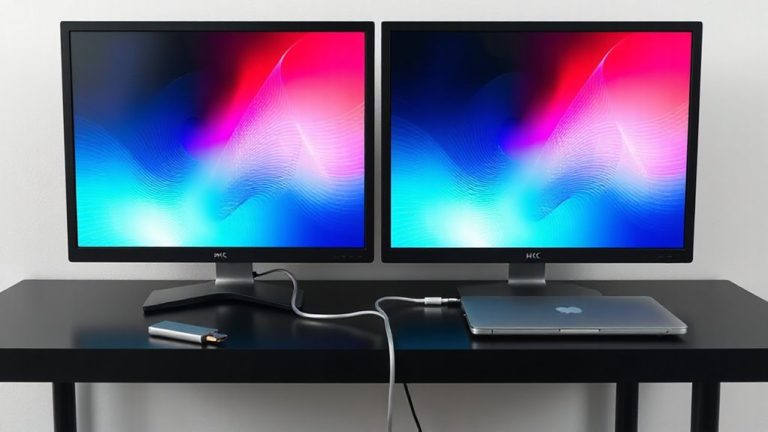
Why does flickering still happen when settings are optimized? Because even perfect software can’t fix bad hardware links. Your cable quality might be the weak point-older HDMI or low-tier DisplayPort cables can’t reliably handle high-refresh-rate signals, especially above 120Hz. You need a certified DisplayPort 1.4 or HDMI 2.1 cable built for bandwidth-heavy gaming. Also, check your monitor compatibility: not all monitors fully support Windows Gaming Mode, even if they claim high refresh rates. Some models flicker under specific signal loads due to firmware limits or timing mismatches. Always test with the cable that came with your monitor first-OEM cables are tuned for your display. If flickering persists, try a different port or update your monitor’s firmware. Don’t assume premium brands are immune-compatibility issues appear across brands, so verify real-world performance before buying. For Ethernet connections that may affect overall system stability in gaming setups, consider using one of the best Ethernet cables for reliable wired performance.
On a final note
You’ll likely eliminate flickering by setting your monitor’s native refresh rate and updating GPU drivers-these fixes work in most cases. Still, disabling power-saving options like adaptive sync or low-power modes may be necessary. Check DisplayPort cables; older versions can cause instability at high refresh rates. Results vary by model and setup, so test changes one at a time. A one-size-fits-all fix doesn’t exist, but methodical troubleshooting delivers reliable performance.