How to Separate Your Home Office Devices on a Dedicated VLAN for Maximum Protection
You should set up a dedicated VLAN to isolate your home office devices and boost both security and performance. By separating work laptops and storage from smart TVs and phones, you reduce the risk of malware spreading and protect sensitive data. Use a VLAN-capable router like UniFi or OpenWRT, assign a unique subnet (e.g., 192.168.10.0/24), and tag devices via 802.1Q or MAC address. Connect through a managed switch and VLAN-aware access point for reliable segmentation. Test isolation by pinging between networks-it should fail. Keep firmware updated and monitor logs regularly to maintain protection. Strong configuration matters, since weak rules can still leave gaps. Doing this right means you’re several steps ahead in network control.
Notable Insights
- Use a VLAN-capable router to create a dedicated network segment for home office devices.
- Assign work devices to a unique VLAN ID with a separate subnet for traffic isolation.
- Connect devices via managed switch ports tagged with the correct VLAN for secure access.
- Set up a dedicated SSID on a VLAN-aware access point for wireless office device connectivity.
- Test segmentation by verifying devices on different VLANs cannot communicate directly.
Why You Need a VLAN for Your Home Office
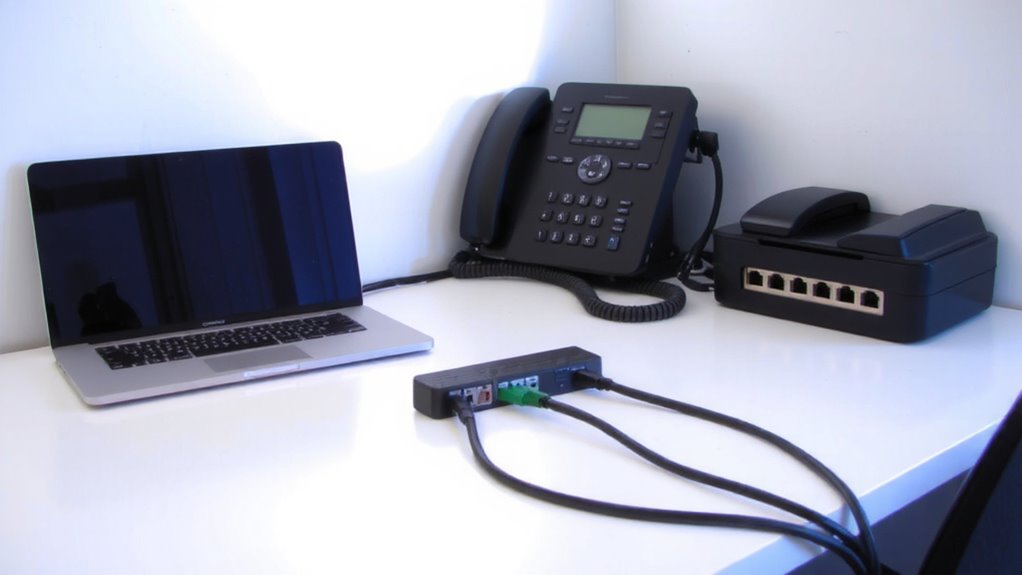
While you might think your home office gear is safe on the same network as your smart TV and kids’ tablets, isolating those devices on a dedicated VLAN is one of the most effective steps you can take to tighten security and improve performance. Network segmentation keeps work devices separate from high-risk consumer gadgets, reducing attack surfaces. That means if a child’s tablet picks up malware, it won’t spread to your laptop handling client files-critical for maintaining data privacy. You’ll also see smoother video calls and faster file transfers, since VLANs reduce network congestion. But this isn’t magic: you’ll need a capable router-like a business-grade UniFi or OpenWRT-compatible model-and some comfort with settings like subnets and DHCP pools. Setup takes time, and missteps can cut you off from devices. Still, for remote workers handling sensitive info, the trade-off is worth it. Just don’t skip testing each device after configuration.
How VLANs Protect Your Work Devices
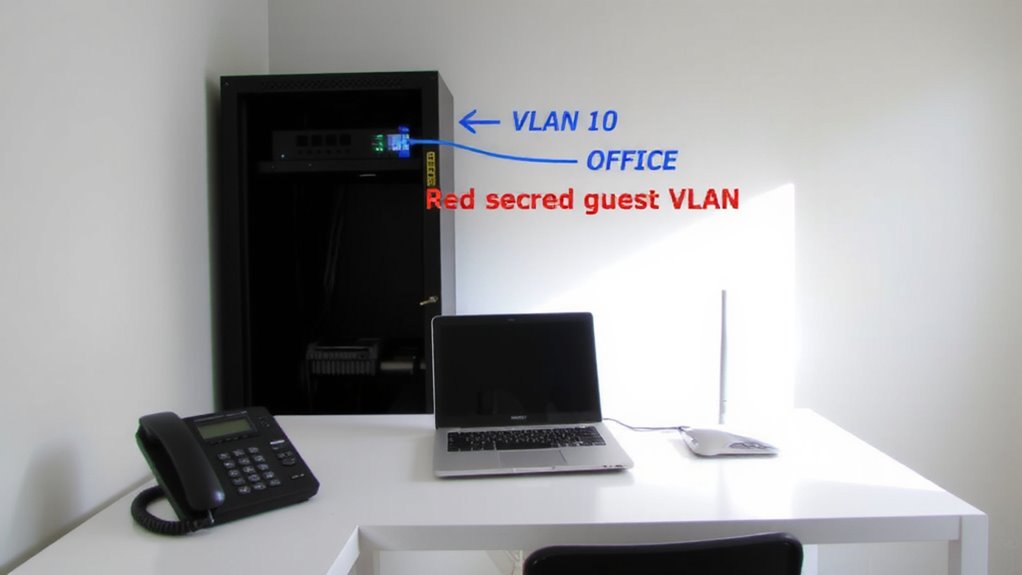
Because your work devices handle sensitive emails, client data, and financial records, putting them on a dedicated VLAN isn’t just a good idea-it’s a necessary layer of protection. VLANs use network segmentation to isolate your work traffic from personal devices, reducing exposure to malware or snooping from less secure gadgets like smart TVs or guest phones. This separation makes it much harder for threats to spread across your network. While VLANs themselves don’t provide data encryption, they work well with WPA3 or VPNs that do, ensuring transmitted data stays private. You’ll still need to manage firewall rules and Wi-Fi access carefully-misconfigurations can weaken security. Plus, not all consumer routers handle VLANs reliably, so check firmware support. It’s effective, but not a magic fix. Done right, you gain real security; done poorly, you get a false sense of safety.
What Equipment You Need to Get Started
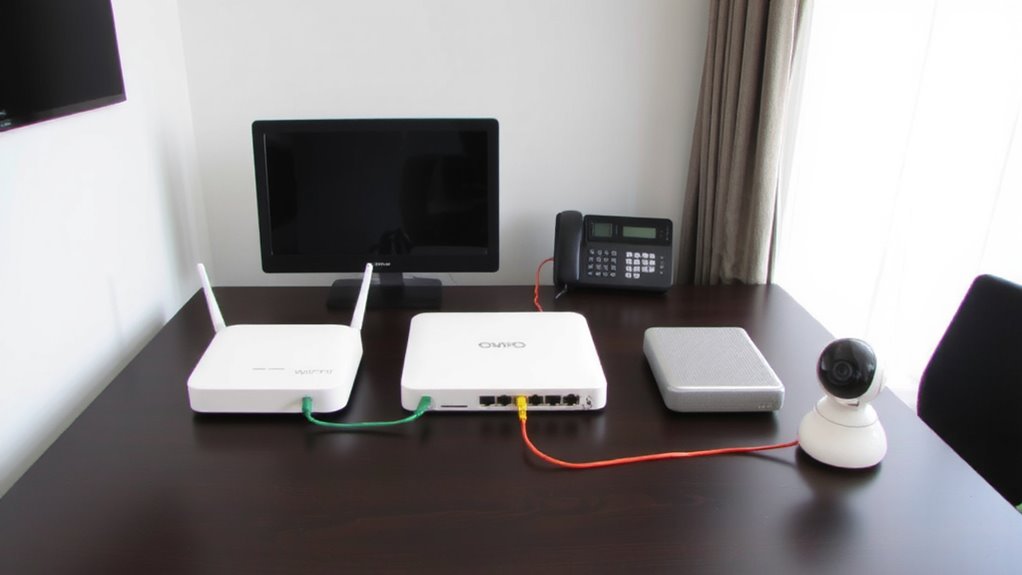
How do you actually set up a secure home office VLAN? You’ll need a few key components to enable VLAN tagging and effective network segmentation. First, a managed switch supports VLAN tagging, letting you assign devices to specific network segments. Your router must also support VLANs-many high-end models do, but double-check before buying. You’ll likely use Ethernet cables (Cat 6 or better) for reliable wired connections. For wireless, a business-grade access point that handles VLANs is ideal.
| Equipment | Purpose |
|---|---|
| Managed Switch | Enables VLAN tagging and device control |
| VLAN-Capable Router | Forms the network backbone with segmentation |
| Cat 6+ Cables | Guarantees fast, stable wired links |
| VLAN-Aware AP | Extends segmented Wi-Fi securely |
While powerful, misconfigurations can disrupt connectivity-proceed with care.
How to Configure Your Router for a VLAN
Where do you start when configuring your router for a VLAN? First, log into your router’s admin interface using its IP address-usually 192.168.1.1 or similar. Make sure it supports VLAN tagging; many consumer routers don’t, so check your model’s specs. Create a new VLAN and assign it a unique ID. Use VLAN tagging to guarantee only traffic marked with that ID gets routed correctly. Then, set up subnet masking: assign a separate IP range (like 192.168.10.0/24) so your VLAN stays isolated. This keeps traffic from blending with your main network. Be precise-mistakes in subnet masking can cause connectivity issues. Remember, even with correct settings, some routers struggle under multiple VLANs, so performance may vary. Firmware stability matters just as much as features, so update it before proceeding. Test thoroughly after setup.
Connect and Isolate Your Work Devices
Now that your router is set up with a dedicated VLAN, you can start connecting your work devices securely. Use device grouping to assign laptops, desktops, and VoIP phones to your work VLAN, either via MAC address tagging or 802.1Q settings in your router. This keeps personal devices like smart TVs and phones off your work network, reducing attack surface. For wired connections, plug workstations into designated VLAN-aware switch ports; for Wi-Fi, create a separate SSID tied to the VLAN. Enable traffic prioritization to give video calls and cloud backups higher QoS priority, minimizing lag during peak use. Keep in mind: improper tagging can misroute traffic, and too much prioritization may starve other devices. Confirm each device’s VLAN assignment in your router’s client list-misconfigurations happen, even with careful setup. Always double-check IP ranges and subnet masks to avoid conflicts.
Test Your VLAN and Keep It Secure
Ever wonder if your VLAN actually keeps work traffic isolated? Test it right after setup. Use a device on your main home network to ping or attempt accessing a resource in your work VLAN-you shouldn’t get through. Repeat from the VLAN side to confirm internet access works but can’t reach personal devices. Enable VLAN monitoring through your router’s dashboard to spot anomalies or unauthorized access attempts. Many business-grade routers, like those from Ubiquiti or TP-Link Omada, include logging tools that help track this. Regularly apply firmware updates, too-these patch security flaws that could expose your VLAN. Skipping updates is a common weak point, even with strong segmentation. While VLANs markedly reduce risk, they’re not foolproof; determined attacks from compromised devices can still pose threats. Combine VLAN monitoring with updated firmware and cautious device management for real protection.
On a final note
You should set up a dedicated VLAN for your home office-it keeps work devices like laptops and printers isolated from smart home gadgets, reducing security risks. Most modern routers support VLANs, but check firmware compatibility first. The setup needs basic networking knowledge, and mistakes can disrupt connectivity. While it boosts security, it’s not foolproof; combine it with strong passwords and regular updates for best results.