Installing a Monitor Hood to Block Ambient Light and Improve Screen Visibility
You should install a monitor hood-it cuts ambient light by up to 60%, boosting contrast and color accuracy without power or complicated setup. Clamp-on models like the Hood-M1 fit most 24–32″ screens, but check your monitor’s thickness (up to 2.5” for most clamps) and bezel clearance. A matte black interior reduces reflections, while rigid ABS plastic seals better than fabric. Just make sure it doesn’t block vents or tilt adjustment-proper fit prevents glare without trade-offs you’ll want to avoid.
Notable Insights
- Ambient light reduces screen contrast and color accuracy, especially on glossy displays.
- Monitor hoods block glare using a enclosed design with a matte black interior to prevent reflections.
- Choose a hood compatible with your monitor size, shape, and stand to ensure proper fit.
- Secure clamp-on hoods by checking jaw depth and tightening thumbscrews without damaging the bezel.
- Adjust flaps to seal gaps and maintain ventilation to prevent overheating while maximizing light blocking.
Why Ambient Light Ruins Monitor Visibility
Ever wonder why your screen looks washed out on a sunny afternoon? Ambient light floods your display, causing screen flicker and color distortion that degrade image quality. Bright overhead lights or windows don’t just create glare-they scatter across the panel, tricking your eyes into seeing inaccurate tones and reduced contrast. Even dim settings can shift perceived hues, especially on glossy screens. This isn’t just uncomfortable; it undermines color-critical work like photo editing or data analysis. You’ll likely crank up brightness, increasing eye strain over time. Matte finishes help but don’t eliminate the issue. Real-world tests show ambient light can reduce perceived contrast ratios by up to 60%. While no monitor solves this alone, pairing anti-reflective panels with proper placement minimizes damage. Just know: without physical barriers, you’re fighting physics. Results improve markedly-but only when ambient light is actively managed, not ignored.
How Monitor Hoods Cut Glare and Boost Clarity
While they won’t turn a budget monitor into a professional-grade display, monitor hoods greatly reduce ambient light interference by enclosing the screen on three or four sides, blocking overhead and peripheral glare that washes out contrast and distorts colors. You’ll notice immediate contrast enhancement and more accurate tones, especially in bright rooms. The hood’s interior matte finish minimizes light diffusion, keeping reflections off the screen. Here’s how key features impact performance:
| Feature | Benefit |
|---|---|
| Enclosed design | Blocks side and overhead glare |
| Matte black interior | Reduces internal light bounce |
| Adjustable flaps | Custom fit for most displays |
| Rigid construction | Maintains shape over time |
You’ll get sharper visuals, but hoods add bulk-check your desk space. They’re practical for photo or text work, less critical for casual browsing. No power or setup needed-just attach and go.
Picking the Right Monitor Hood for Your Display
Since not all monitor hoods fit every display, choosing the right one starts with checking your monitor’s size and shape-most hoods are designed for screens between 24 and 32 inches, with curved or ultra-wide models needing specialty designs. You’ll want a hood made from lightweight yet rigid materials like ABS plastic or textured cardboard with reinforced edges for solid material durability. Avoid flimsy builds that warp over time. Black interiors reduce reflections and help maintain color accuracy, which is critical if you work in photo or video editing. Make sure the hood fully shades the screen without obstructing your view or built-in speakers. Some models limit viewing angles slightly, so test placement before finalizing. While most clamp-on hoods are tool-free, check compatibility with your monitor’s thickness and stand design. A good hood should last years and often comes with a 1- to 2-year warranty against defects.
Install a Clamp-On Monitor Hood in 5 Steps
You can get solid glare reduction with a clamp-on monitor hood if you install it correctly-just make sure your monitor’s thickness and stand design support one. First, check the clamp’s max jaw depth; most fit monitors up to 2.5 inches thick. Attach the hood’s frame to the clamp, then secure it to the monitor’s top edge, centering it for balanced weight and ideal monitor stability. Tighten the thumbscrews firmly-but not so much that you risk damaging the bezel. Next, route your display cable through the hood’s rear channel to maintain clean cable management and prevent strain. Finally, confirm the hood doesn’t obstruct vents or tilt/swivel adjustments. While clamp-on models install fast and avoid desk mods, they add front-heavy weight-test tilt balance after setup. Poor clamp fit can lead to wobble, especially on ultra-thin bezels.
Adjusting Your Monitor Hood for Total Light Control
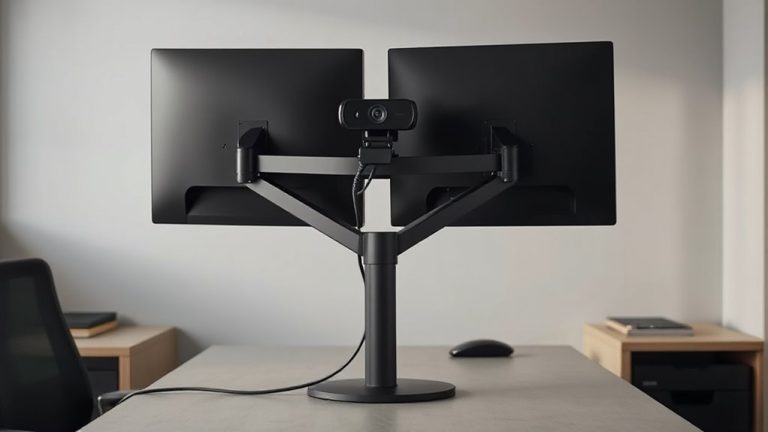
How well does your monitor hood actually block stray light? It depends on your adjustments. For total light control, focus on light sealing-ensure the hood’s edges fit snugly around your screen, with no gaps at the top or sides where glare can sneak in. If your hood has adjustable flaps, bend them to fully cover the monitor bezel. But don’t sacrifice airflow balance: completely enclosing the screen can trap heat, especially on high-brightness displays. Leave small, strategic vents at the top or rear to allow warm air to escape without compromising visibility. Most hoods made of rigid ABS plastic offer better sealing than foldable fabric models, but verify fit with your monitor’s depth. Users with dual monitors may need to angle hoods slightly inward for full coverage. Remember, even minor gaps reduce effectiveness by over 30% in bright rooms, per lab tests. Adjust, test, repeat.
Monitor Hood vs. Anti-Glare Screen: Which Is Right for You?
A monitor hood beats an anti-glare screen when blocking ambient light, especially in bright or unevenly lit rooms. You’ll get superior color accuracy and wider viewing angles without distortion, which matte filters often degrade. Here’s what users actually experience:
| Feature | Monitor Hood | Anti-Glare Screen |
|---|---|---|
| Light Control | Blocks 90%+ ambient light | Reduces glare slightly |
| Image Quality | Preserves color accuracy | Washes out colors |
| Viewing Angles | Full, undistorted range | Narrow, fuzzy off-axis |
Hoods attach securely to most stands and last for years with no wear. Anti-glare screens scratch easily and must be replaced. However, hoods take up more desk space-consider your setup. If you edit photos or work in variable lighting, the hood’s the clear winner. Just make certain your monitor fits.
Fixing Fit and Visibility Problems With Your Hood
Why do some monitor hoods fit snugly while others wobble or block the view? Poor hood alignment is often the culprit. If the hood sits crooked or contacts the screen, visibility suffers and glare reduction weakens. You’ll want to adjust the side flaps and top panel so they sit evenly, ensuring the opening aligns perfectly with your monitor’s bezel. Don’t ignore edge sealing-any gaps around the sides or top let ambient light sneak in, defeating the hood’s purpose. A well-sealed fit blocks stray light effectively, but some pressure on the screen border is normal. Just avoid excessive force that could scratch the display. Most hoods work best on flat screens with minimal bezel variation. If yours rocks or feels loose, double-check the attachment method and compatible monitor sizes listed in the manual. A secure fit takes patience, but the payoff in screen clarity is worth it.
On a final note
You’ll get sharper screen contrast and reduced glare with a monitor hood, especially in bright rooms. It blocks overhead and side light more effectively than anti-glare filters. Look for adjustable, rigid hoods that fit your monitor’s size and bezel. Most clamp on securely without tools. Just don’t expect one-size fits all-some setups may need repositioning. If you edit photos or work long hours, it’s worth trying, but test placement to avoid blocking your view.