Optimizing Wi-Fi Channel Selection to Minimize Interference in Open Offices
You should optimize Wi-Fi channels in open offices by using free tools like WiFi Analyzer or NetSpot to find least congested bands. Favor 5 GHz for faster speeds and less interference, but keep 2.4 GHz available for better range. Avoid microwave-heavy areas, as they disrupt 2.4 GHz signals. Space access points 30–60 feet apart depending on square footage, and use Wi-Fi 6 mesh systems with band steering for best results-just test legacy device compatibility. There’s more to fine-tuning performance where device density stays high.
Notable Insights
- Use Wi-Fi analyzers to identify congested channels and select the least crowded ones for optimal performance.
- Prefer 5 GHz over 2.4 GHz for high-bandwidth tasks to leverage faster speeds and reduced interference.
- Enable band steering to automatically guide devices to the least congested and most efficient frequency band.
- Space access points 40–60 feet apart depending on office size to minimize overlap and interference.
- Avoid placing access points near microwaves or Bluetooth-heavy areas to reduce 2.4 GHz spectrum interference.
Why Office Wi-Fi Channels Get Congested
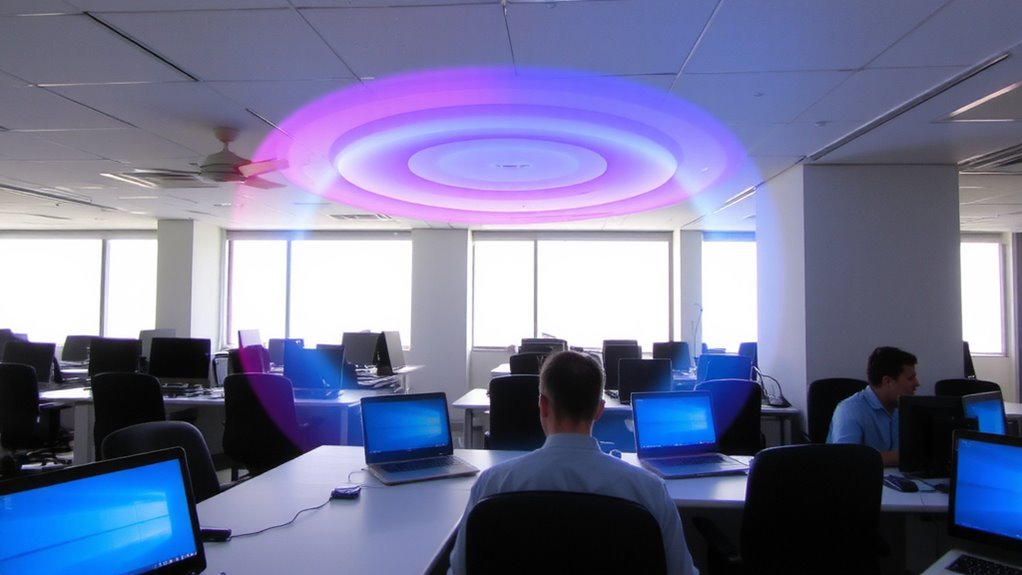
Why does your office Wi-Fi slow down every time a meeting starts? Because channel congestion spikes as dozens of devices connect at once. You’re dealing with serious device proliferation-laptops, phones, tablets-all competing for bandwidth. That flood overwhelms access points, especially when signals weaken due to signal attenuation from walls, furniture, or interference from nearby electronics. Even strong routers have limits, and open offices amplify the strain. You’ll see lag, dropped calls, and slow uploads. While upgrading to multi-band systems helps, it’s not a magic fix-especially if improper channel planning stays unaddressed. Real improvement comes from balancing load across non-overlapping channels, not just buying new gear. Test results show spacing access points strategically reduces interference more than raw power alone. Just don’t assume enterprise hardware solves everything-it doesn’t replace smart setup.
Scan for Crowded Networks With Free Tools
How well do you really know your office airwaves? Wi Fi scanning helps you see which networks are hogging bandwidth, so you can act before slowdowns hit. Free tools make it easy to perform basic network mapping without costly gear. They won’t replace enterprise systems, but they reveal congestion patterns clearly.
| Tool | Best For |
|---|---|
| WiFi Analyzer (Android) | Real-time channel heatmaps |
| NetSpot (macOS/Windows) | Site surveys and signal strength maps |
| inSSIDer (Windows) | Spotting 2.4/5 GHz overlap |
| Kismet (Linux) | Detecting stealthy or rogue networks |
You’ll get solid visuals and data-just don’t expect 24/7 monitoring or automatic fixes. Scanning weekly keeps your map accurate as new devices join. While these tools cut through guesswork, they require manual updates and some learning. For most open offices, that trade-off is worth it.
Pick the Best 2.4 GHz or 5 GHz Channel for Work
While both 2.4 GHz and 5 GHz bands are available on most office routers, you’ll get better performance by aligning each device’s needs with the right frequency. Use 5 GHz for high-bandwidth tasks like video calls-it’s faster and less crowded, especially with channel bonding enabled, which combines adjacent channels to boost speed. But remember, 5 GHz has shorter range, so devices farther from the access point may struggle. The 2.4 GHz band travels farther and penetrates walls better, making it suitable for older or low-power devices, though it’s prone to congestion. Enable band steering on your router to automatically guide devices to the ideal band based on signal strength and load. This works well in open offices, but test performance after enabling it-some legacy devices don’t respond reliably. You’ll need both bands active, with careful channel selection, to balance speed and coverage across your space.
Stop Microwave and Bluetooth Signal Interference
Even though you can’t eliminate all wireless noise in an open office, you can greatly reduce performance drops by managing interference from common sources like microwaves and Bluetooth devices. Position your access point at least 10 feet away from microwaves, as even short bursts emit strong 2.4 GHz noise. Use appliances with proper microwave shielding to reduce leakage-older or low-quality models often lack this, causing prolonged Wi-Fi jitter. For Bluetooth, modern Wi-Fi 6 routers support bluetooth coexistence, allowing both signals to share spectrum more efficiently without crashing. But keep high-use Bluetooth peripherals, like headsets and keyboards, off critical work networks when possible. While these fixes help, they won’t replace upgrading to 5 GHz channels or using wired backhauls. There’s always a trade-off between convenience and signal stability-monitor throughput during peak kitchen use to verify improvements. Test with a Wi-Fi analyzer before and after changes.
Place Access Points to Minimize Signal Overlap
You’ll get the most reliable coverage when access points are spaced to limit overlapping signals, since too much overlap causes channel congestion and slows down connection speeds across devices. Proper signal placement guarantees each access point serves its zone without interfering with neighbors. Use coverage mapping tools to visualize signal strength and adjust locations before final mounting. This reduces dead zones and prevents unnecessary interference. Consider ceiling height, walls, and large metal objects-they all affect performance.
| Area Size | Access Points Needed | Ideal Spacing |
|---|---|---|
| 1,000 sq ft | 1 | 30–40 ft apart |
| 2,500 sq ft | 2 | 40–50 ft apart |
| 5,000 sq ft | 4 | 50–60 ft apart |
Accurate spacing improves efficiency, but overextending range sacrifices speed. Always validate with real-world testing.
Use Self-Optimizing Routers to Manage Channels Automatically
When setting up Wi-Fi in an open office, letting your hardware handle channel management can save time and improve performance-especially with self-optimizing routers that automatically switch to the least congested bands. These routers use dynamic allocation to assign channels based on real-time traffic, reducing interference without manual tweaks. Through adaptive learning, they recognize usage patterns and adjust settings over days, improving consistency during peak hours. You’ll see fewer dropouts and smoother connections, particularly in dense layouts with overlapping networks. Most models support Wi-Fi 6 and multi-band operation, enhancing efficiency. But don’t assume they’re flawless-some struggle in environments with sudden, heavy interference or non-Wi-Fi devices like microwaves. They also tend to cost more and may require firmware updates to maintain performance. Test them in your specific layout, and keep monitoring tools handy to verify results. For seamless coverage in large office spaces, consider deploying a Top Mesh Wi-Fi Systems solution designed to minimize dead zones and maintain strong signal handoffs.
On a final note
You’ll get faster, more reliable Wi-Fi in open offices by switching to less crowded 5 GHz channels and using tools like Wi-Fi Analyzer to spot interference. Position access points centrally, avoid microwaves and Bluetooth devices, and consider tri-band routers with automatic channel selection. Just remember-5 GHz offers speed but shorter range, so test signal strength across your space and confirm coverage before final setup.