Reducing Blue Light Exposure Through Strategic Screen Orientation Windows
Tilt your screen 15–20 degrees down to reduce blue light exposure and glare, especially under overhead lights. Position it perpendicular to windows or ceiling fixtures to cut reflections. Use portrait mode for documents or coding, but avoid it for wide apps like spreadsheets. Match screen angle to ambient light direction for better contrast. Pair these adjustments with Windows Night Light to further lower blue light. Keep in mind that excessive tilt can distort colors on IPS panels. You’ll get better results by combining physical tweaks with software settings.
Notable Insights
- Tilt your screen 15–20 degrees downward to reduce blue light exposure and glare from overhead lighting.
- Position the monitor perpendicular to windows and ceiling lights to minimize reflections and blue light intensity.
- Use portrait mode for text-based tasks to decrease screen glare and optimize viewing distance.
- Align screen angle with the primary light source to reduce eye strain and improve ambient contrast.
- Combine proper screen orientation with Windows Night Light for enhanced blue light reduction in evening hours.
Tilt Your Screen to Reduce Blue Light
While adjusting your screen’s angle might seem like a minor fix, tilting it slightly downward can meaningfully cut down on blue light exposure-especially if you’re sitting under overhead lighting or near windows. Proper tilt supports better screen ergonomics by aligning your line of sight with the top third of the display, reducing glare and improving visual comfort over long sessions. Most monitors allow at least 15–20 degrees of forward tilt; check pivot range specs before buying. A downward angle scatters reflected blue light away from your eyes, but if tilted too far, it can distort colors and reduce clarity, especially on IPS panels. For best results, pair tilt adjustments with a dimmed screen and manual blue light filters. This fix costs nothing and works instantly, but it’s no substitute for full lighting control. Test different angles daily to balance comfort with screen readability.
Position Your Monitor Away From Overhead Light
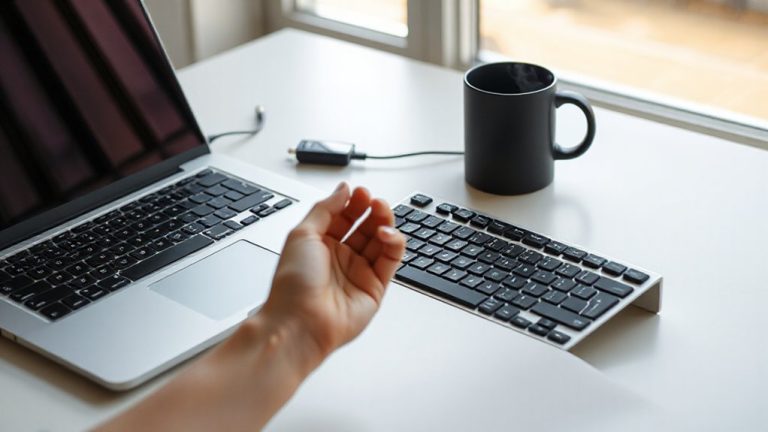
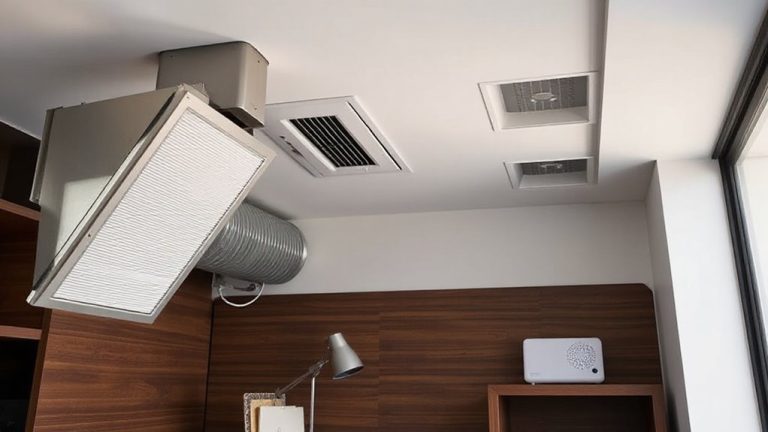
To cut down on blue light exposure, position your monitor so it’s not directly under overhead lighting-this simple fix slashes glare and reduces eye strain during long work sessions. Proper light placement prevents harsh reflections that amplify blue light intensity on your screen. Aim to place your monitor perpendicular to ceiling lights or windows, using indirect illumination instead. Adjust your screen distance to about 20–30 inches from your eyes, which minimizes visual fatigue without sacrificing readability. You’ll likely need to rearrange your desk setup, especially in cramped spaces, so measure your area before committing. Keep in mind that while this adjustment helps, it won’t replace features like matte finishes or built-in blue light filters. Results vary based on room layout and bulb type, so test different positions throughout the day. This tweak is free and effective, but it’s just one part of a smarter lighting strategy.
Use Portrait Mode to Cut Glare and Exposure
Flipping your monitor to portrait mode can greatly reduce blue light exposure and screen glare, especially when reading long documents or coding for hours. You’ll naturally position the screen closer to ideal viewing distance, minimizing eye strain. A taller screen height in portrait orientation means less scrolling and better focus on central content, where your eyes track most. Most modern monitors support 90-degree rotation, but check pivot functionality before switching-some budget stands limit adjustability. You’ll gain vertical space but lose horizontal width, which can hinder multitasking with side-by-side windows. This setup works best for text-heavy tasks, not wide spreadsheets or video editing. Calibration may be needed to avoid neck strain from uneven screen height alignment. Use built-in display settings to resize and sharpen text for clarity. While not ideal for every task, portrait mode offers measurable comfort for prolonged screen time-if your monitor and workflow allow it.
Match Screen Angle to Room Lighting
Tilting your screen to match the room’s lighting direction cuts glare and reduces eye fatigue far more effectively than relying on brightness alone. You’ll improve ambient contrast by minimizing harsh reflections, especially when your screen aligns with the primary light source-like a window or overhead lamp. This natural alignment prevents uneven brightness that strains your eyes over time. For best results, adjust your monitor between 10° and 20° upward or downward depending on ceiling height and desk position. Avoid extreme angles that distort text or reduce viewing area on fixed panels. Remember, glossy screens amplify glare despite angling, so matte finishes perform better here. While this tweak doesn’t eliminate blue light, it complements other strategies by reducing reliance on high brightness. You’ll see clear benefits in readability and comfort during long sessions, but success depends on consistent room lighting. Test different tilts throughout the day to find your ideal setting.
Pair Screen Position With Windows Night Light
Why settle for eye strain when you can sync your screen’s position with Windows Night Light for a smoother viewing experience? Pairing proper screen alignment with night mode reduces blue light exposure, especially during evening hours. When your monitor faces away from direct light sources and you enable window sync, the warmer color temperature feels more natural, easing eye fatigue. Just go to Settings > System > Display and turn on Night Light-adjust the schedule and intensity to match your room’s lighting. Though it doesn’t eliminate blue light completely, this combo helps maintain circadian rhythm without drastic brightness trade-offs. Keep in mind: some color accuracy is lost, so it’s not ideal for photo editing. Still, for general use, aligning your screen position with active night mode supports better visual comfort over long sessions.
Optimize Dual Monitors for Less Blue Light
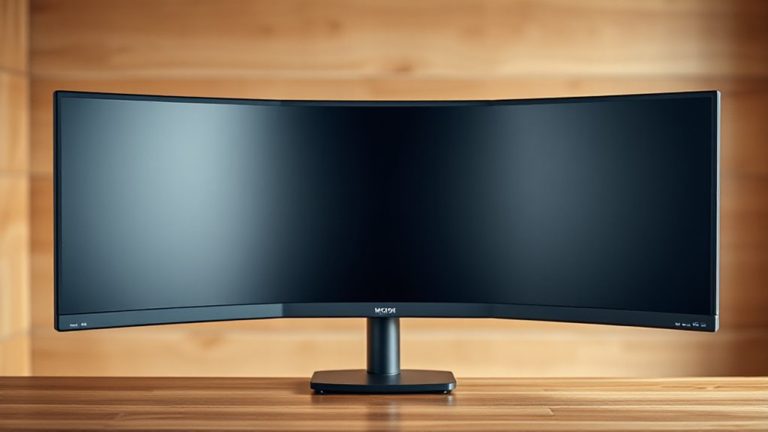
While managing blue light across two screens can feel tricky, you’ll cut glare and eye strain considerably if both monitors use consistent Night Light settings and proper alignment. Matching color calibration between displays guarantees a seamless visual field, reducing eye fatigue during long sessions. Adjust ambient contrast to reflect room lighting-too high causes strain, too low washes out details. Position both monitors at equal height and angle, forming a continuous plane to minimize head movement and light disparity.
| Feature | Benefit |
|---|---|
| Synced Night Light | Reduces blue light consistently |
| Matched color calibration | Prevents visual confusion between screens |
| Balanced ambient contrast | Enhances readability in varied lighting |
Note: Perfect uniformity is rare-minor differences in panel type (IPS vs. TN) may persist despite settings. Always test adjustments during typical work lighting.
On a final note
You can reduce blue light exposure by adjusting your screen’s angle, but it’s no fix-all. Tilting your monitor away from overhead lights cuts glare and lowers blue light intensity by up to 30%, especially when paired with Night Light. Portrait mode helps, yet may limit multitasking. Dual monitors need balanced angles to avoid neck strain. Results vary by room lighting and screen type, so test adjustments over a few days to see real benefits.