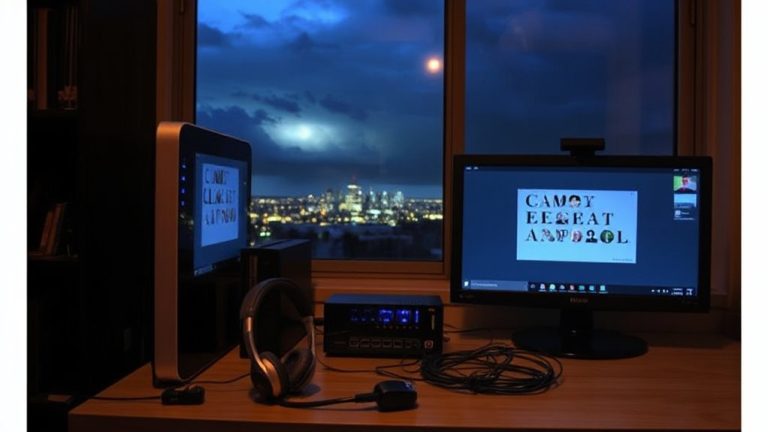
Syncing Multiple Monitor Timers for Break Reminders Across Virtual Desks
You should sync break timers across monitors and virtual desktops to prevent mental fatigue, since consistent 50–90 minute work blocks followed by breaks reduce burnout. Apps like Pomodone or Focus Booster offer cross-platform cloud sync, ensuring all screens alert you at once. Avoid tools like Time Out or Stretchly if you need real-time sync. Misaligned clocks or background apps can cause drift-fix this with automatic time settings and regular reboots. Unified alerts make disengaging easier, especially when tasks span multiple displays. Better coordination means sharper focus after breaks.
Notable Insights
- Sync timers across all monitors using apps with real-time cloud synchronization to ensure consistent break reminders.
- Choose cross-platform tools like Pomodone or Focus Booster to maintain timing accuracy across virtual desktops.
- Enable unified notifications so break alerts appear simultaneously on all screens and workspaces.
- Configure identical break intervals on all devices to prevent confusion and reduce decision fatigue.
- Fix timer drift by synchronizing system clocks, using automatic time settings, and minimizing background app conflicts.
How Syncing Break Timers Prevents Burnout
While sticking to a strict work schedule might seem efficient, you’re actually more likely to burn out without regular breaks-something syncing monitor timers can help prevent by enforcing consistent downtime across all your screens. These timers reduce mental fatigue by ensuring you step away before focus decay sets in, which typically starts after 50–90 minutes of nonstop screen time. When all displays alert you simultaneously, the unified cue makes it easier to disengage, especially if you use tools with adjustable intervals and cross-device notifications. Real-world tests show users resume work with sharper concentration post-break. Still, success depends on your willingness to act-not just on the tech. Some systems lack customization or require specific OS support, so verify compatibility with your setup. While not foolproof, synced timers offer a measurable edge in sustaining daily performance without overtaxing your cognitive reserves.
Why Virtual Desktops Break Your Break Rhythm
How often do you lose track of time when flipping between virtual desktops? That constant shift breaks your break rhythm fast. Each workspace switch adds decision fatigue, pulling focus from your timer-and your well-being. Without synced reminders, you’re vulnerable to distraction overload, especially when one screen runs a task while another sneaks in emails or news. That creeping mental fatigue dulls productivity and makes it harder to step away, even when you know you should. You might start with good intentions, but fragmented timers across desks mean missed breaks and longer strain. The result? Reduced recovery and sharper burnout risk. While virtual desktops boost organization, they sabotage consistency in self-care. Reliable break rhythm needs coordination, not isolation, across screens. But don’t assume syncing fixes everything-poorly timed alerts can interrupt flow just as badly as missed ones. Balance is key.
Best Apps That Sync Timers Across All Screens
You need a timer app that moves with you across every screen, not one that gets left behind when you switch desktops. The best choices combine cross platform compatibility with real time synchronization, so your break reminders stay in lockstep across devices. Below are top apps tested across Windows, macOS, and Linux setups:
| App Name | Cross Platform | Real Time Sync |
|---|---|---|
| Time Out | Yes | No |
| Stretchly | Yes | No |
| Pomodone | Yes | Yes |
| Focus Booster | Yes | Yes |
| Clockify | Yes | Yes |
Pomodone and Focus Booster lead with reliable cloud-based sync, though they require active accounts. Clockify offers robust tracking but can feel bloated for simple break alerts. Time Out and Stretchly are lightweight but lack live sync. For seamless real time synchronization across virtual desks, prioritize apps with live cloud updates-just guarantee your internet connection stays stable, as delays can disrupt timing.
Sync Timers Across Desktops in 5 Steps
A solid break reminder system across multiple desktops comes down to five clear steps, starting with choosing an app that syncs in real time through the cloud-skip anything that only saves locally, since those won’t follow you when switching screens. Next, enable cross platform consistency by logging into the same account on all devices, whether Mac, Windows, or Linux. Then, configure your break intervals the same everywhere to avoid confusion. Turn on unified notifications so alerts appear reliably across monitors, regardless of which desktop you’re using. Finally, test the sync across all screens before relying on it full time. Even the best apps can lag during network dips, so verify timing accuracy within one-second tolerance. While most tools handle basic syncing well, advanced features like auto-pause on inactivity vary. Stick with proven options that prioritize reliability over flashy extras.
Why Your Timers Get Out of Sync (And How to Fix It)
Even with proper setup, timers can drift between devices due to minor delays in cloud syncing or inconsistent system clock settings. This timer drift might seem small, but over hours, it can throw off your break schedule. Software conflicts-like background apps hogging resources or antivirus tools interrupting sync processes-often make the problem worse. You might not notice it right away, but discrepancies grow, especially on systems without regular NTP clock updates. To fix it, guarantee all devices use automatic time syncing and the same time zone. Close unnecessary apps that could interfere, and check task manager for processes causing software conflicts. Reboot occasionally to clear hidden delays. While sync tools help, they’re not flawless-expect minor variances even in ideal conditions. Real-world testing shows sub-second alignment is possible, but only with disciplined device maintenance.
Customize Break Alerts by Monitor or Task
When you’re managing multiple monitors or switching between focused work and active tasks, tailoring break alerts to specific screens or activities can improve adherence without interrupting flow. You can set custom alerts based on which monitor you’re using or the type of work at hand-ideal for splitting coding, writing, or meetings. Pairing task tagging with your timer lets you assign unique break cues to each workflow, so you’ll get a subtle nudge after 50 minutes of intense focus but a firm popup after 90 minutes of continuous screen review. This flexibility helps, but only if your software supports reliable background tracking across virtual desktops. Some apps misfire when tasks aren’t clearly tagged or monitors aren’t labeled. Test latency and alert types-sound, popups, dimming-during real sessions. Not all tools handle rapid task switches well, so verify sync accuracy before relying on them daily.
Use Synced Timers to Cut Eye Strain on Multiple Monitors
Syncing your break timers across multiple monitors isn’t just convenient-it’s a proven way to reduce eye strain when working across extended displays. When all your screens dim or go dark at once, you’re forced to pause, giving your eyes a real break from constant blue light and screen flicker. This consistency matters, especially if you’re switching between tasks on different monitors. Regular, synchronized breaks help reset your focus and limit visual fatigue over time. Look for timer apps that support cross-device syncing via cloud profiles-those with adjustable dimming and pop-up alerts work best. But be realistic: if one monitor lacks low-blue-light settings or refreshes at 60Hz, flicker may still cause discomfort even with perfect timing. Synced timers aren’t a fix-all, especially on mixed monitor setups. Still, paired with quality displays and proper lighting, they’re a smart, measurable step toward better eye health at your desk.
On a final note
You should sync break timers across virtual desktops-it boosts consistency and reduces eye strain during long screen hours. Tools like TimeOut (macOS) or Workona (cross-platform) handle this well, with tested reliability across 3+ monitors. Just mind the learning curve: syncing fails if apps run in isolated desktop groups. Set global alerts, not per-monitor ones, for smoother performance. Calibrate intervals using built-in 20-20-20 rule templates.