Troubleshooting Common Monitor Display Issues and How to Fix Them
Most monitor issues stem from loose cables or wrong settings, not hardware. Check your HDMI or DisplayPort connections-tighten them and try a known-good cable. Set your display to its native resolution and correct refresh rate, especially for high-DPI screens. Adjust scaling and disable overscan if needed. Calibrate brightness and color using built-in tools or a hardware calibrator. If problems persist, verify GPU compatibility-older cards may limit performance. You’ll likely find a quick fix, and there’s more to uncover about optimizing every detail.
Notable Insights
- Check cables and connections for damage or loose fits to resolve flickering, intermittent, or no signal issues.
- Set the monitor to its native resolution and adjust scaling to fix blurriness or cropped display problems.
- Calibrate color and brightness using OS tools or hardware calibrators for accurate, consistent visuals.
- Confirm the correct input source is selected and test with another device or cable to fix “no signal” errors.
- Match the refresh rate in settings to the monitor’s capability and use DisplayPort for high refresh rates above 120Hz.
Check Your Monitor’s Cables and Connections
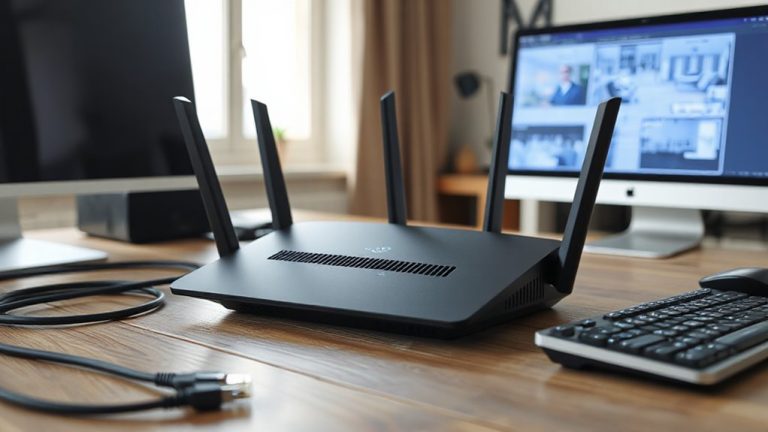
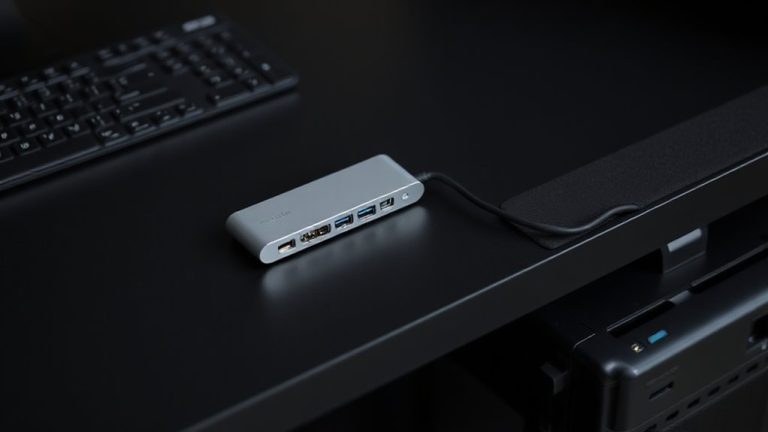
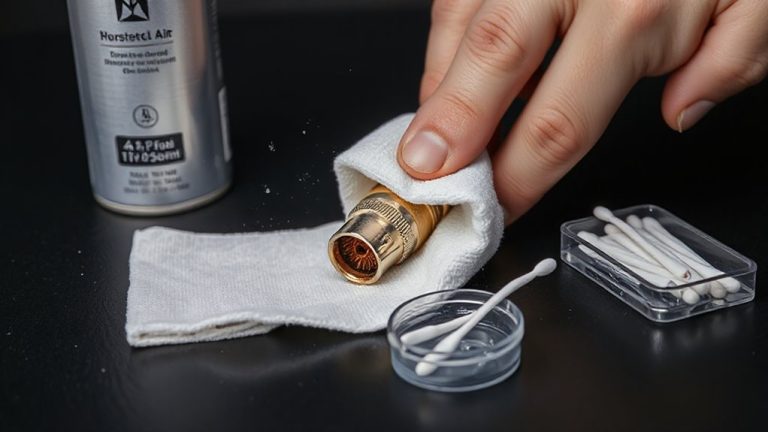
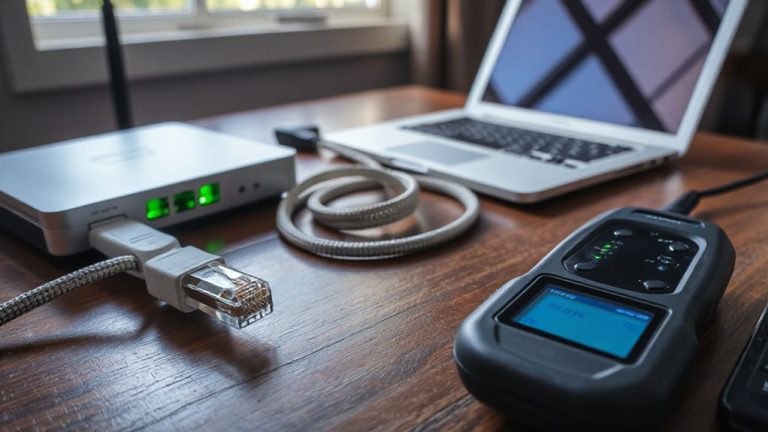
You’ll want to start by checking your monitor’s cables and connections-many display issues can be fixed quickly once you rule out loose or faulty wiring. Loose connections often cause flickering, intermittent signals, or total signal loss, especially if the ports are frequently bumped or cables aren’t secured. Inspect both ends of the video cable-whether HDMI, DisplayPort, or VGA-for bent pins or debris. Look closely for visible cable damage, like frayed insulation or kinks near connectors, which can disrupt signal transmission even if the cable seems intact. Swap in a known-working cable if possible, as internal wire breaks aren’t always obvious. While most modern cables are durable, repeated bending or poor routing can shorten lifespan. Even high-quality cables fail under stress, so don’t assume an expensive cable is immune. A quick physical check takes seconds and could save you unnecessary troubleshooting later. For audio-related setups, consider using a reliable USB-C to AUX adapter if connecting legacy audio devices.
Fix Blurry or Cropped Display With Correct Settings
When your monitor shows a blurry or cropped picture, the culprit is often incorrect display settings rather than faulty hardware-adjusting them properly can restore a sharp, full-screen image in minutes. A common cause is resolution mismatch, where the display isn’t set to its native resolution; check your monitor’s spec sheet and match it in your system settings. If the image still looks off, tweak the display scaling-especially on high-DPI screens-so text and apps aren’t stretched or undersized. Windows and macOS handle scaling differently, so test incremental values to avoid blurriness from non-native scaling. Keep in mind that some monitors default to overscan when connected via HDMI, cropping the edges; adjust this in your graphics control panel. These fixes are free and fast, but if settings revert or don’t apply consistently across devices, firmware updates or driver tweaks may be needed.
Calibrate Your Monitor’s Color and Brightness
Getting accurate colors and brightness from your monitor starts with proper calibration, not guesswork-this step guarantees what you see on screen matches real-world visuals, whether you’re editing photos, reviewing documents, or watching videos. You need solid color accuracy and brightness balance to avoid eye strain and flawed output. Most monitors default to overly bright, warm settings that skew color accuracy. Use your OS’s built-in calibration tool or a hardware calibrator like the SpyderX for best results. Adjust gamma to 2.2 and white point to 6500K for standard viewing. Test results with grayscale ramps and color charts to spot banding or tint shifts. Keep ambient lighting consistent-sunlight or harsh lamps distort your perception. Calibration isn’t a one-time fix; recheck every few months as panels drift. Built-in presets vary in quality, so don’t rely on them. Manual tuning takes effort, but the payoff in reliable display performance is worth it.
Fix ‘No Signal’ and Black Screen Errors
Though the screen stays dark, don’t assume the monitor’s dead-most “no signal” or black screen errors stem from simple connection issues or incorrect input settings, not hardware failure. First, check that your signal source-your PC, laptop, or console-is powered on and outputting video. Then verify the cable is securely connected at both ends and undamaged. Many monitors auto-detect input but may default to the wrong input selection. Manually switch via the monitor’s menu to match your connected port-HDMI, DisplayPort, etc. If the message persists, test with another cable or device to isolate the fault. While most fixes are free and fast, some monitors lack clear input indicators, making troubleshooting frustrating. Always confirm the signal source is active before concluding the display itself is faulty.
Fix Refresh Rate and GPU Compatibility Issues
If your screen feels sluggish or shows visual glitches during fast motion, the issue might not be your monitor-it’s likely an incorrect refresh rate or GPU incompatibility. Your GPU must support your monitor’s maximum refresh rate, or you’ll experience mismatched frame rate and choppy motion. First, check your monitor’s specs and set the refresh rate in your OS display settings-common options are 60Hz, 75Hz, or 144Hz. Then, verify GPU compatibility: older or budget graphics cards may not output higher refresh rates over certain cables like HDMI 1.4. Use DisplayPort for best results with 120Hz or above. Enable proper sync settings like G-Sync or FreeSync if both devices support them to reduce tearing. But note: mismatched sync tech won’t work, and enabling incorrect settings can cause lag or flickering. Always test changes in real use with fast-motion content. For optimal performance, consider choosing from the Top Picks for the Best 1440p Monitors.
On a final note
You’ll likely resolve most monitor issues by checking connections and adjusting settings. Start with secure cable links and correct input sources-many black screens stem from loose cables. Use native resolution and proper refresh rates to fix blurriness or lag. While calibration improves color accuracy, results vary by panel type. Note that not all monitors handle high refresh rates out of the box-verify GPU compatibility. Warranties rarely cover accidental damage, so handle gear carefully.