Ergonomic USB Hub Placement to Reduce Wrist Strain During Typing
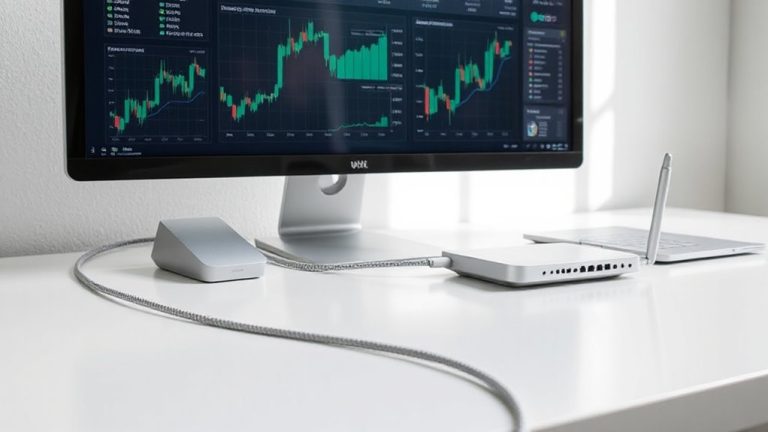
Place your USB hub right beside your keyboard, within 6 to 8 inches, so you can reach it without twisting your wrist. Match its height to your keyboard level-desk height for sitting, 2–4 inches below elbow height when standing-to keep your forearm straight and wrist neutral. Use a compact, bus-powered hub with stable mounting to avoid strain or cable drag. Test the setup with your most-used devices, and adjust if you feel tension. Small tweaks now prevent long-term discomfort.
Notable Insights
- Align the USB hub height with the keyboard to maintain a neutral wrist position and prevent extension during typing.
- Place the hub within 6 to 8 inches of the keyboard edge for easy access without overreaching.
- Position ports to face you, reducing wrist deviation when plugging in devices.
- Use short, managed cables to prevent tension that pulls the hub forward and disrupts alignment.
- Choose a compact, stable hub with secure ports and surge protection to minimize movement and strain.
Prevent Wrist Strain With Proper USB Hub Placement
While you might not think a small device like a USB hub could affect your wrists, placing it correctly can actually reduce strain over time. Positioning the hub at the same height as your keyboard prevents awkward wrist extension when plugging in devices. Good cable management matters-tangled or taut cables can pull the hub forward, forcing you to reach and compromising your posture. Use a hub with secure ports that hold devices firmly, reducing wobble during frequent insertions. Check device compatibility before buying; some hubs don’t support high-power peripherals, which may limit functionality. Opt for models with overcurrent protection and solid build quality-many tested brands offer 3-year warranties. While compact designs save space, they can crowd your desk. Balance size with accessibility. You’ll gain comfort, but only if the setup supports your specific workflow and gear.
Place Your USB Hub Just to the Side of Your Keyboard
Position your USB hub just to the side of your keyboard for easier access and better ergonomics. Keeping it within reach reduces arm extension and supports neutral wrist posture during use. Good cable management is key-use short, flexible cables to minimize clutter and tripping hazards. Guarantee device compatibility by choosing a hub with enough ports for your peripherals, like wired mice, external drives, or headsets. A well-organized workspace can also include a desk power strip to centralize power and reduce cable strain.
| Feature | Why It Matters |
|---|---|
| Compact size | Fits snug beside keyboard without crowding |
| USB-A and USB-C ports | Supports broad device compatibility |
| Short cord (1–2 ft) | Aids in clean cable management |
| Bus-powered | No extra outlet needed |
| Surge protection | Adds device safety |
Avoid hubs that overheat or lack shielding-some models fail under continuous use. Test your setup for stability.
Avoid USB Hub Placement That Forces Wrist Twisting
If your USB hub sits too far to the side or angles your devices awkwardly, you’re likely twisting your wrist every time you plug something in-and that small motion adds up over hours. Avoid placements that compromise your wrist alignment; even minor twisting can contribute to strain over time. Position the hub close enough to allow straight arm extension, with device spacing that lets you plug in without rotating your forearm. Good cable management prevents tugging, which can pull connectors out of alignment and force awkward adjustments. Use a hub with ports spaced to fit multiple plugged-in devices comfortably, especially if you regularly use thick or right-angled USB cables. Mounting options like adhesive bases or clamp designs offer stability but may limit desk layout flexibility. Test placement with your most-used devices to confirm smooth access without wrist rotation. A clutter-free workspace supports better ergonomics, so consider integrating cable management solutions into your setup.
Position the Hub for Smooth, Natural Hand Movement
When you place your USB hub where your hand moves naturally across the desk, plugging in devices feels effortless instead of forced. Position it just within reach of your resting hand position-about 6 to 8 inches from your keyboard’s edge-to support smooth shifts without overreaching. Good device alignment guarantees ports face toward you, reducing wrist deviation when inserting drives. This setup improves cable management by minimizing tension and slack, keeping cords neatly routed and reducing tripping hazards. A low-profile or angled hub helps maintain clearance under monitors or laptop stands. While vertical docks save desk space, they may require awkward upward motions, increasing strain over time. Choose a hub with clear port labeling and spacing to avoid fumbling. Solid base construction prevents shifting during use. Remember, even the best design won’t help if the hub is too far or poorly oriented-test reach and movement before finalizing placement.
Optimize Your Desk for Easy, Low-Strain Access
You’ve already set up your hub within easy reach, but true comfort means shaping the whole desk to support relaxed movement. Position frequently used devices so you can switch without stretching or twisting. Use cable management clips or sleeves to keep cords organized and prevent snags-tangled wires disrupt flow and increase strain over time. A clean setup also makes it easier to adjust gear as needed. Desk lighting matters too: aim for even, glare-free illumination that highlights your workspace without creating shadows on keys or ports. LED task lights with adjustable arms let you direct light precisely, reducing eye fatigue during long sessions. Avoid overly bright bulbs-they may cause reflections that distract you. While better organization improves access, don’t sacrifice stability for aesthetics; clamps and weighted bases work well, but test them to verify they won’t slip during use. For a sleek and functional workspace, consider using best cable management solutions to fully hide and route cords behind your desk.
Match Hub Height to Your Sitting or Standing Posture
Though it might seem minor, aligning your USB hub’s height with your natural wrist angle can make a meaningful difference in comfort over time. Matching hub placement to your seated posture alignment or standing desk height helps maintain neutral wrist positioning. Use this guide to refine your setup:
| Posture | Desk Height | Hub Placement |
|---|---|---|
| Seated | 28–30 in | At desk level or slightly below |
| Standing | 40–46 in | 2–4 in below elbow height |
| Adjustable | Varies | Adjust with desk |
| Shared Setup | Multi-position | Use arm-mounted hub |
Aim to keep your elbows close and wrists straight. Even small misalignments add up during long work sessions. While vertical hubs save space, they may elevate ports too high. Base your choice on real use, not just specs. Not every solution fits every desk-test adjustments over a full workday.
Check Your Wrist Position After Connecting Devices
After setting your USB hub at the right height for your posture, take a moment to plug in your devices and see how your wrists actually feel during use. Proper wrist alignment means your hands sit level with your forearms, not bent up, down, or to the side. This supports a neutral typing posture and reduces strain over time. Even with ideal hub placement, adding bulk from cables or devices can shift your setup slightly. Check that your keyboard remains flush and within easy reach. If you notice tension in your forearms or a need to stretch your fingers upward, adjust the hub’s position or switch to low-profile connectors. Small trade-offs in cable management might be worth it for better comfort. Real-world testing shows that maintaining alignment cuts fatigue, but only if all components work together-don’t assume the right height fixes everything.
On a final note
You should place your USB hub just beside your keyboard to minimize wrist strain. Position it so your hand moves naturally, without twisting. Match the hub’s height to your elbow level, whether sitting or standing. A low-profile, stable hub works best. While this setup improves comfort, it may limit device access if not positioned carefully-test angles before finalizing. Some hubs include cable strain relief or non-slip bases, which help, but don’t overpay for flashy extras.