Using a Monitor Mount With Swivel for Dynamic Workflow Adjustments
You’ll get smoother workflow shifts with a swivel mount that lets you pivot between landscape and portrait modes effortlessly, especially useful for coding or reviewing documents. Make sure your monitor fits the weight limit (4.4–17.6 lbs) and VESA pattern (75x75mm or 100x100mm) to avoid instability. Gas-spring arms offer reliable motion, though cheaper models may degrade over time. Correct desk fit-up to 3.1 inches for clamps-is essential. Mounts with 3–5 year warranties tend to deliver better long-term performance. The right setup reduces strain and boosts efficiency, but only if installed properly. You’ll see how small adjustments improve daily comfort and precision.
Notable Insights
- Swivel mounts enable seamless transitions between landscape and portrait modes for coding, writing, and document review.
- Smooth 360° rotation supports dynamic task switching and optimal screen positioning for collaboration or focus.
- Proper ergonomic setup reduces neck strain by keeping the screen at eye level and promoting neutral posture.
- Gas-spring arms allow one-hand adjustments, enhancing flexibility and workflow efficiency throughout the day.
- Cable management and correct VESA compatibility ensure stability, safety, and clutter-free desk environments.
Why a Swivel Monitor Mount Boosts Workflow Efficiency
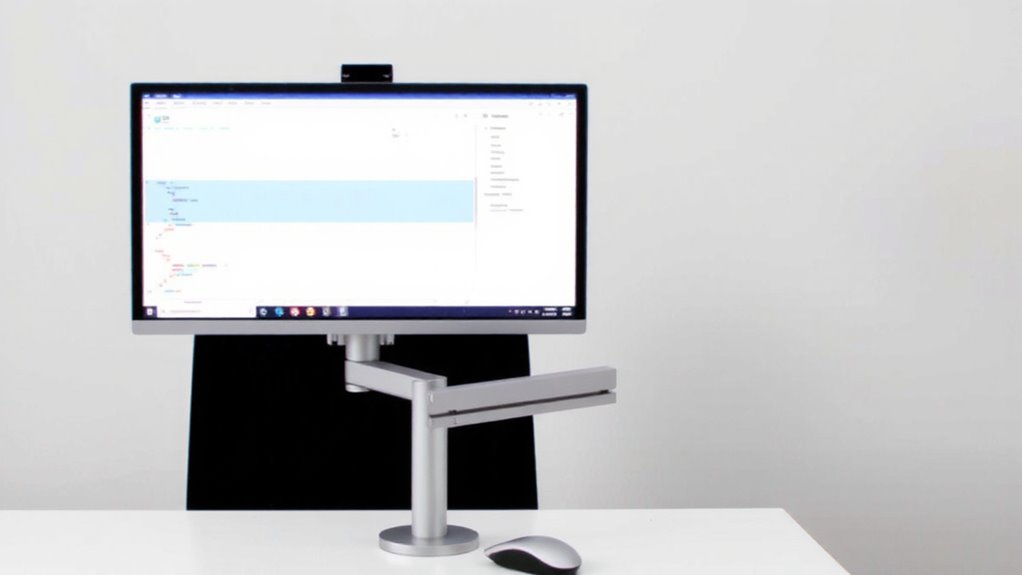
While your monitor’s default stand lets you adjust height and tilt, it’s the swivel function on a dedicated mount that really transforms how you work. You can pivot smoothly between landscape and portrait modes or share your screen with a coworker without leaning forward. That kind of flexibility speeds up multitasking, especially if you edit documents, code, or manage spreadsheets. Good cable management keeps wires tucked and out of sight, reducing clutter and improving safety. A clean setup also boosts workspace aesthetics, making your desk feel intentional and organized. Most mounts support VESA patterns (75x75mm or 100x100mm) and hold displays up to 27 inches. Look for models with at least a 3-year warranty and gas-spring arms for smooth motion. Just note: installation takes more time than using the stock stand, and not all desks accommodate clamp mounts. For reliable options, check reviews of the best monitor mounts to find one that suits your workspace needs.
Reduce Neck and Eye Strain With Monitor Swivel Mounts
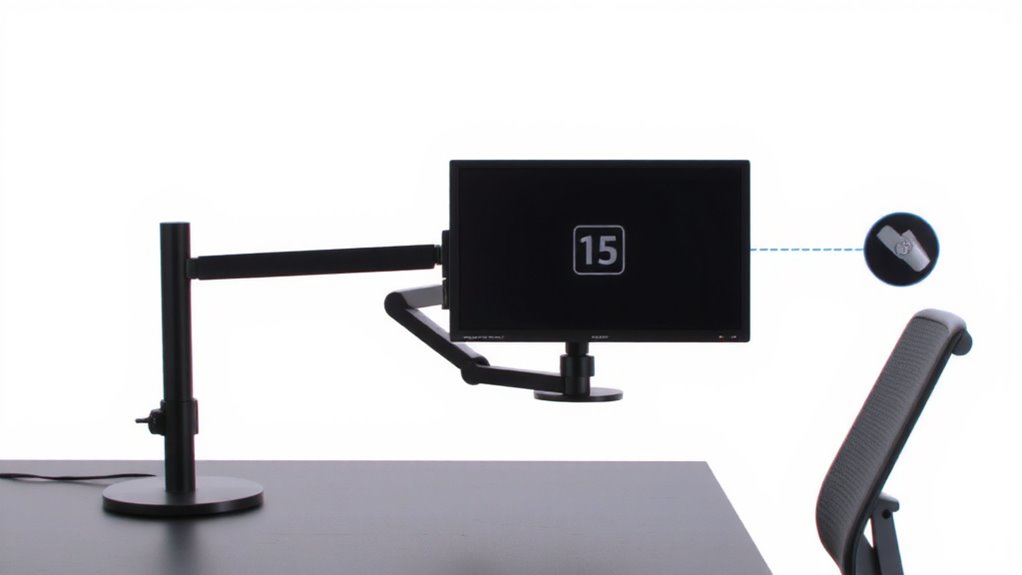
You’ll notice less neck and eye strain once you set up a swivel mount that keeps your screen at eye level and lets you pivot smoothly between tasks. Proper ergonomic alignment reduces the need to tilt your head or squint, minimizing fatigue during long work sessions. A well-positioned swivel mount promotes visual comfort by allowing quick adjustments to lighting and viewing angles, cutting glare and refocusing demands on your eyes. You can shift from side to side or pull the monitor closer without leaning forward, supporting neutral posture. However, effectiveness depends on correct installation-misaligned arms or unstable clamps can worsen discomfort. Most quality mounts offer tilt, swivel, and height adjustments, but always check weight compatibility with your monitor. Look for models with gas-spring arms and 360-degree rotation backed by at least a 3-year warranty for reliability. For optimal setup, consider a product roundup that evaluates top-performing monitor arms based on ergonomics, durability, and ease of installation.
How to Pick the Right Swivel Mount for Your Desk
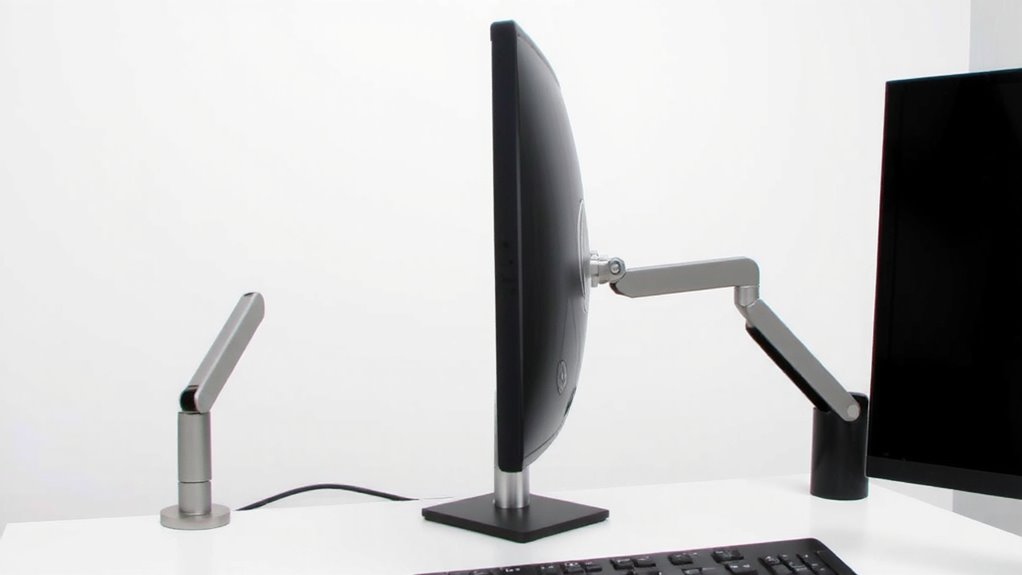
A smart swivel mount does more than just pivot-it transforms your desk into a responsive, ergonomic workspace that reduces strain and boosts productivity. You need one that matches your monitor’s weight compatibility, so always check the specs: most support 4.4–17.6 lbs, but exceeding limits risks instability. Look for VESA patterns (75×75 or 100×100 mm) to guarantee it fits your screen. A mount with built-in cable management keeps wires neat and prevents snagging during adjustments. Consider desk thickness too-clamps typically fit up to 3.1 inches, while grommet mounts need a pre-drilled hole. Gas-spring arms offer smoother motion but cost more. Mounts with a 5-year warranty often signal durability, though real-world testing shows even budget models last if not overextended. Balance features with your setup’s limits to avoid frustration later. For triple-monitor setups, consider a triple monitor mount to ensure proper alignment and stability across all screens.
Rotate Your Screen 360° for Seamless Task Switching
Rotating your screen 360° can considerably improve your workflow if you frequently switch between tasks like coding, writing, and video calls. Screen rotation offers real task flexibility, letting you shift from landscape to portrait for reading documents or coding, then back for videos or spreadsheets. This kind of movement reduces the need to resize windows or squint at poorly formatted content. Most swivel mounts with full rotation support at least 20–30 lbs and allow smooth, one-hand adjustment. Just make sure your monitor model supports VESA mounting-usually 75x75mm or 100x100mm. Keep in mind, constant screen rotation may wear out lower-tier gas springs over time, especially on mounts under $80. Look for models with at least a 3-year warranty to guarantee longevity. Test tension settings regularly to maintain control and avoid drooping.
Best Swivel Mount Features for Multitasking Professionals
Smooth task switching demands a mount built for precision and durability, not just basic movement. You need 360° swivel range with tension control so your screen stays put when you let go. Look for mounts with built-in cable management-channels or clips that keep power and data lines tidy and prevent snagging during rotation. Gas-spring arms offer smooth lift and tilt, letting you shift from coding to video calls without straining your neck. Weight capacity matters too; confirm compatibility with your monitor size, typically 17–32″, and check VESA patterns (75×75 or 100x100mm). Solid steel construction supports space optimization by freeing desk area for essentials. Most reliable models include a 3–5 year warranty and handle up to 20 lbs. Just remember: more adjustability means more parts-install carefully to avoid wobble.
How to Set Up and Adjust Your Swivel Mount
You’ll want to get the setup right-mess it up, and even the most feature-rich swivel mount won’t perform. Start by securing the mount to a stable surface; clamp-on fits most desks up to 3.1 inches thick, while through-bolt offers more stability. Attach the monitor using the correct VESA pattern-common sizes are 75x75mm or 100x100mm. Adjust the tilt adjustment carefully to reduce glare; too much forward tilt strains your neck over time. Swivel smoothly between 180° to 360°, depending on model, for quick task switching. Use built-in cable management to route power and data lines along the arm-this cuts clutter but won’t hide bulky adapters. Most mounts support screens 17–27 inches and up to 17 lbs. Balance is critical: improper counterbalance causes drift. Test motion and stability after setup. Warranties typically cover 3–5 years, but accidental damage usually isn’t included.
On a final note
You’ll likely boost comfort and productivity with a swivel monitor mount, especially if you multitask across documents, coding, or design. Look for 360° rotation, sturdy gas-spring arms, and VESA 75/100mm compatibility. Solid mounts hold displays up to 32” and 9–17 lbs without drooping. Yet, check desk thickness and clamp space-it might not fit all setups. A three-year warranty often signals reliability.