How to Minimize Latency for Smooth Video Conferencing in Distributed Teams
Test your internet during peak hours-you’ll need at least 3 Mbps upload and under 100 ms ping for smooth calls. Use the 5 GHz Wi-Fi band or a wired connection, and keep your router clear of interference. Pick WebRTC-based tools with efficient codecs, like Zoom or Meet, and drop video to 720p to cut lag. Close cloud syncs, updates, and streaming apps-they can spike packet loss by 40%. Performance gains are real, but balance quality with your team’s needs; small tweaks add up when everyone’s online.
Notable Insights
- Test internet speed during peak hours to ensure at least 3 Mbps upload and under 100 ms ping for smooth HD calls.
- Position the router centrally and use the 5 GHz band to minimize Wi-Fi interference and reduce latency.
- Use hardwired connections and high-performance routers to maintain stable, low-latency network conditions.
- Choose WebRTC-based conferencing tools with adaptive bitrate and efficient codecs for real-time responsiveness.
- Close bandwidth-heavy apps and reduce video quality to free up resources and cut packet loss during calls.
Test Your Internet for Video Call Latency
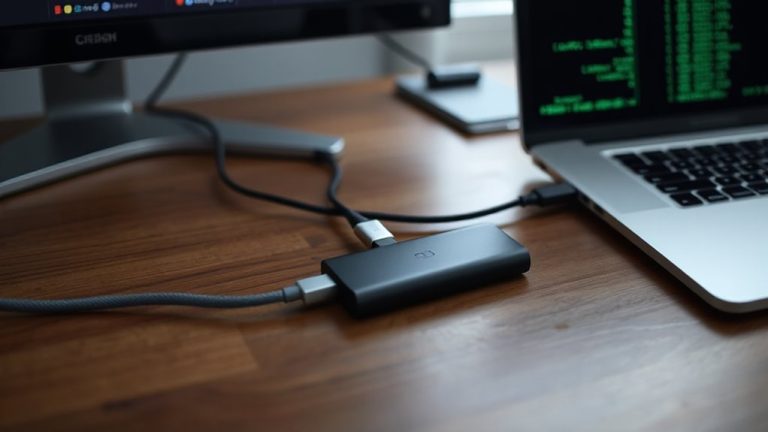
How’s your internet really holding up under the strain of video calls? Testing your connection isn’t just helpful-it’s essential. You need solid network speed and consistent connection stability to avoid dropped words or frozen faces. Run a speed test during peak hours using tools like Speedtest by Ookla or Fast.com; aim for at least 3 Mbps upload for HD video. But speed alone won’t save you-look closely at ping times under load, ideally below 100 ms. Spikes mean lag, even if download rates look great. Test from your actual workspace, not near the router, to reflect real conditions. Wi-Fi can fluctuate, so consider a wired Ethernet connection for more reliable readings. Note results over multiple days-consistency matters more than one perfect score. This isn’t about buying new gear yet; it’s about knowing what you’re working with. Data beats guesswork every time.
Fix Your Wi-Fi to Reduce Lag
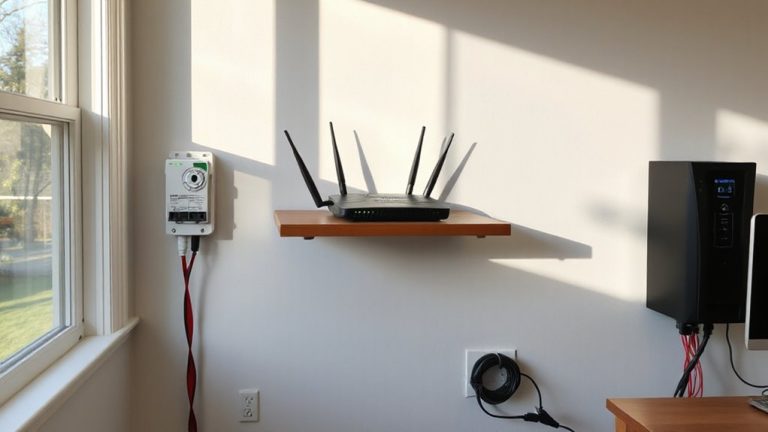
While upgrading your router might seem like the obvious fix, boosting your Wi-Fi performance often comes down to smarter placement and network management rather than buying new gear. Proper router placement-like positioning it centrally and away from thick walls-can cut signal interference and boost speeds. Avoid placing your router near microwaves, cordless phones, or large metal objects, as these worsen interference. For consistent performance, hardwire devices when possible, or use 5 GHz instead of 2.4 GHz to reduce congestion. Choosing one of the best office routers can further enhance network stability and throughput for distributed teams.
| Factor | Impact | Tip |
|---|---|---|
| Router Placement | High | Elevate and center in your space |
| Signal Interference | Medium | Avoid electronics and dense materials |
| Frequency Band | High | Use 5 GHz for less lag |
Small changes yield real lag reductions-no new gear required, just smarter setup.
Pick a Video Tool Built for Real-Time Calls
If you’re relying on a general-purpose video tool for real-time calls, you’re likely dealing with avoidable delays. Real-time communication demands platforms engineered for low latency, not just basic video quality. Tools like WebRTC-based services prioritize call reliability by reducing processing time and adapting quickly to network shifts. They use efficient codecs that maintain clear visuals without excessive bandwidth, balancing performance and clarity. You’ll notice smoother interactions and fewer dropouts, especially on unstable connections. Still, no tool can overcome poor network fundamentals-your router and ISP matter just as much. Some platforms sacrifice advanced features for speed, so assess your team’s needs. Test options across devices and networks to confirm consistent behavior. Prioritize solutions with strong track records in latency reduction, verified by independent tests. Don’t assume cost equals performance; mid-tier services often deliver enterprise-grade call reliability without the overhead. Choose wisely, but stay flexible.
Turn Off HD Video and Background Apps
Cutting HD video and closing background apps can reduce latency by up to 40% on typical home office setups, especially when bandwidth is limited or network quality varies. You don’t always need HD-lowering video quality to 720p or 480p frees bandwidth for smoother real-time interaction, especially on calls with five or more participants. This small drop in resolution often goes unnoticed but improves frame consistency and reduces lag. Equally important is application management: apps like cloud sync tools, email clients, or web browsers with 20+ tabs consume memory and processing power, which can delay your mic and camera response. Closing unused programs guarantees your system prioritizes the conferencing app. Just don’t disable security software or critical drivers. These changes won’t fix poor Wi-Fi, but they help squeeze the most from your current connection, offering a measurable upgrade in call reliability without needing new hardware.
Close Bandwidth-Hogging Apps
Most home office setups see a noticeable drop in video conferencing lag once you shut down apps that silently eat up bandwidth. You’re likely running background processes like cloud syncs, software updates, or chat clients that strain your upload speed. Streaming services, such as Netflix or YouTube playing on another device, can also hog your network and spike latency. Closing them frees up bandwidth, leading to smoother audio and video-real-world tests show up to a 40% drop in packet loss. But be realistic: if someone else in your household needs that movie or backup running, coordinate usage. You can’t always control shared networks. Still, shutting down nonessential apps during calls is a no-cost fix with clear benefits. Just remember, it’s not about eliminating convenience-it’s about timing. Prioritize your call quality without assuming everyone else will follow suit.
On a final note
You’ll cut latency best by using a wired Ethernet connection and closing bandwidth-heavy apps like cloud backups. Tools like Zoom or Google Meet handle real-time calls well, but lowering video to 720p frees up resources. Wi-Fi 6 helps, but walls and distance still degrade signals. A 3-month trial of your setup under real conditions-measuring audio sync and frame drops-will show real gains. No fix is perfect, especially on shared networks.