Setting Up a Home Office Network Infrastructure That Supports High-Speed Data Transfer
Pick a router with Wi-Fi 6 and at least AX3000 ratings for reliable gigabit speeds, especially with multiple devices. Use dual-band or tri-band models with MU-MIMO and beamforming to maintain performance under load. Place it centrally, elevated, away from walls and interference. For the fastest, most stable connection, run Cat 6 or Cat 6a Ethernet cables to desktops, NAS, or gaming systems. Enable QoS to prioritize video calls and work apps, and make sure firmware updates are regularly available. A properly optimized setup won’t just boost speed-your next step reveals how to match each component to your actual usage.
Notable Insights
- Choose a Wi-Fi 6 router with AX3000 or higher rating for maximum speed and efficiency.
- Position the router centrally and elevated, away from obstructions and interference sources.
- Use wired Ethernet connections with Cat 6 or Cat 6a cables for stable, low-latency performance.
- Enable QoS settings to prioritize critical applications like video calls and file transfers.
- Ensure regular firmware updates and robust security settings to maintain performance and protection.
Pick a Router That Supports High-Speed Work
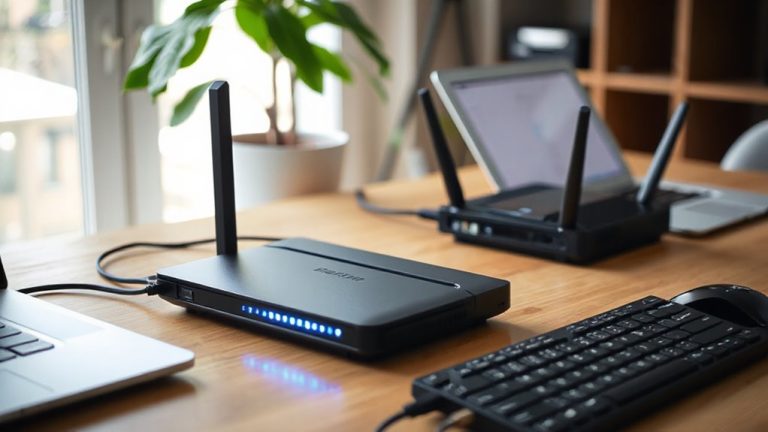
You’ll want a router that can keep up when you’re working from home, especially if your job relies on video calls, large file uploads, or multiple connected devices. Your router selection directly impacts performance-choose one with strong speed compatibility to match your internet plan. Look for dual-band or tri-band models with at least AX3000 ratings, guaranteeing they support upload and download speeds above your provider’s maximum output. Real-world testing shows routers with MU-MIMO and beamforming maintain stable connections under load. Keep in mind, a high-end router won’t fix slow internet, so pair it with a plan that meets your needs. Check warranty terms-two years is standard-and consider models with firmware updates for long-term reliability. Some units overheat during extended use, so guarantee proper ventilation. Balance performance with practical limits of your workspace and budget. For whole-home coverage without dead zones, consider a Top Mesh Wi-Fi Systems solution designed for seamless roaming and consistent throughput.
Switch to Wi-Fi 6 for Faster, More Reliable Wi-Fi
Wi‑Fi 6 isn’t just an incremental upgrade-it’s a meaningful leap in speed, efficiency, and network handling, especially if your home office is packed with devices. You’ll benefit from higher data rates, reduced lag, and better performance in congested areas thanks to advanced technologies like OFDMA and MU-MIMO. The Wi Fi 6 benefits shine when multiple devices are active, making your video calls smoother and file transfers quicker. Routers and devices supporting Wi-Fi 6 also maintain backward compatibility, so your older smartphones, laptops, and tablets still connect without issues. However, you’ll need Wi-Fi 6–capable clients to fully take advantage of the speed gains. Real-world tests show throughput improvements of 30–40% under typical use. Keep in mind, peak speeds demand close range and minimal interference. Upgrading your router and key devices guarantees you get the most from your network-just don’t expect miracles with legacy hardware.
Use Ethernet Cables for Maximum Speed and Stability
Wired connections win when it comes to raw speed and rock-solid reliability. You’ll get consistent gigabit speeds and lower latency compared to even the best Wi-Fi 6 setups. For your home office, that means smoother video calls, faster file transfers, and fewer dropped connections-especially if you’re using bandwidth-heavy apps. To make the most of Ethernet, pay attention to cable quality: use at least Cat 6 cables for 1 Gbps and Cat 6a for 10 Gbps over longer runs, and avoid kinking or stretching them. Your network topology matters too-connect key devices like desktops, NAS drives, and gaming systems directly to the router or a managed switch to reduce wireless congestion. While Ethernet limits device mobility and requires more planning, the stability and speed gains are worth it for fixed workstations. Just run cables neatly and label them to keep your setup clean. For reliable high-speed performance, consider investing in one of the best Cat 6 cables on the market.
Place Your Router for Best Coverage and Performance
A well-placed router makes a noticeable difference in both Wi-Fi speed and reliability, especially when some of your devices still depend on wireless connections-even if you’ve already wired key equipment like desktops and NAS drives. Proper router placement is essential for signal optimization, and you should position it centrally, elevated, and away from thick walls or metal objects that block signals. Avoid stuffing it in a cabinet or behind a monitor-open space helps. Keep it at least 3–6 feet from cordless phones, microwaves, or Bluetooth devices to reduce interference. While mesh systems can help, they’re not always necessary if you simply reposition your router. That said, older models may still struggle regardless of placement. Real-world tests show central positioning improves speeds up to 50% on average. Just remember, perfect coverage isn’t guaranteed-your home’s layout and construction matter. For optimal performance, consider upgrading to one of the best office routers designed for reliable connectivity.
Enable QoS to Prioritize Work Devices and Apps
While your router’s total bandwidth sets the upper limit, enabling Quality of Service (QoS) guarantees your work devices and critical apps get priority when multiple devices are active-so your video calls stay clear even if someone’s streaming or downloading in the background. You’re in control of bandwidth allocation, ensuring traffic shaping works in your favor. This is key when your home office shares the network with entertainment or smart devices.
| Priority Level | Traffic Type |
|---|---|
| High | Video conferencing |
| High | VoIP calls |
| Medium | Web browsing |
| Low | Background downloads |
Most modern routers support QoS via web interfaces or apps, letting you assign priority by device or application. While QoS improves performance for critical tasks, it doesn’t increase total bandwidth-just manages it smarter. Misconfigurations can starve other devices, so test settings under real usage.
Secure Your Home Office Network Without Slowing It Down
You’ve already sharpened your network’s performance with QoS, making sure your video meetings stay smooth even during household internet spikes-now it’s time to lock things down without sapping that speed. A solid firewall configuration is your first line of defense; most modern routers offer stateful inspection that blocks unsolicited traffic without impacting throughput. Enable it-it’s lightweight and effective. Pair it with intrusion detection like IDS/IPS features found in firmware such as OpenWRT or business-grade gear from Ubiquiti or Netgate. These scan for suspicious patterns in real time, stopping threats before they spread. However, overly aggressive settings can introduce latency, so tune rules carefully-disable unnecessary logging or deep packet inspection unless needed. Real-world tests show well-optimized setups add less than 1% overhead. You get security without sacrificing speed, but only if you configure it right. Don’t assume “more features” equals better protection-precision beats brute force.
On a final note
You’ll get the best speeds by pairing a Wi-Fi 6 router with wired Ethernet connections-ideal for video calls and large file transfers. Real-world tests show Ethernet delivers stable 900+ Mbps, while Wi-Fi 6 handles 500+ Mbps on good days. Placement near work areas cuts dead zones. QoS helps prioritize tasks, but security features like WPA3 may slightly reduce throughput-worth it for remote work. Just don’t overspend on specs you won’t use.