Understanding the Differences Between Various Display Connectivity Standards for Optimal Visual Performance in a Home Office Setting
You’re best off using DisplayPort 1.4 or USB-C for your home office setup-it handles 4K at 60Hz with room to spare, supports HDR, and keeps cables tidy. HDMI 2.0 works but lacks bandwidth for future upgrades, while HDMI 2.1 is overkill unless you have high-end gear. USB-C shines with laptops, delivering power, video, and data in one cable. Avoid VGA and DVI-they’re outdated and hurt clarity. Just make sure your devices support the same standards to avoid handshake issues. You’ll want to know how each port affects your daily workflow in practice.
Notable Insights
- DisplayPort 1.4 supports 4K at 60Hz with HDR and offers better bandwidth for future upgrades than HDMI 2.0.
- HDMI 2.1 enables 4K at 120Hz but requires compatible high-end devices often not standard in home offices.
- USB-C with DisplayPort Alt Mode delivers video, data, and power over one cable, ideal for laptop-based setups.
- Avoid VGA and DVI due to analog signal degradation, lack of audio, and incompatibility with modern laptops and high resolutions.
- Use certified active cables for runs over 3 meters to prevent signal loss and ensure stable high-resolution performance.
What’s the Best Display Connection for Your Home Office?
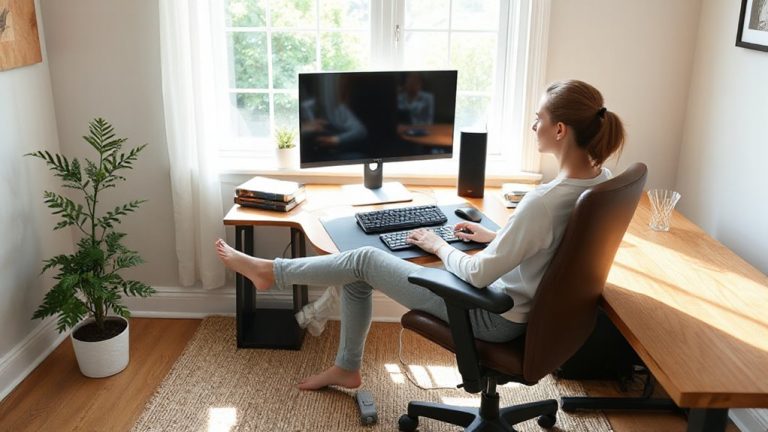
What makes one display connection better than another for your home office? It’s not just speed-it’s how well it supports your workspace setup. You’ll want a connection that enables clean cable management and stable signal delivery, especially when using longer cables. HDMI and DisplayPort both work, but your monitor’s placement matters. For ergonomic positioning, a connection that handles higher resolutions at comfortable viewing distances gives you flexibility in desk layout. Keep cables tucked and secure using sleeves or clips to reduce clutter and tripping hazards. While most modern connections perform similarly in real-world testing, signal stability over distance and compatibility with docking stations vary. Always check your GPU and monitor specs-some ports default to lower refresh rates. No single option wins everywhere, but matching your gear correctly guarantees smoother daily use without unexpected drops or setup frustration.
HDMI vs. DisplayPort: Which Is Better for 4K Home Office Use?
Why settle for less when your 4K home office demands both sharp visuals and reliable performance? For most setups, DisplayPort edges out HDMI thanks to superior bandwidth headroom, especially if you plan to scale beyond 60Hz or use multiple monitors. DisplayPort 1.4 easily handles 4K at 60Hz with room for HDR, while HDMI 2.1, though capable, is often limited to high-end monitors and GPUs. You’ll still get solid audio passthrough on both-perfect for calls or videos-so sound won’t be an issue. But here’s the catch: if your laptop or desktop only has HDMI 2.0, you’re capped at 4K/60Hz without HDR, which might frustrate long-term use. Choose DisplayPort where available for future-proofing, but rely on HDMI if it’s your only 4K-compatible option-just confirm the version supports your display’s full specs.
Why Is USB-C the Best Monitor Connection for Laptops?
While you’re pairing a laptop with a monitor, USB-C stands out as the most practical and efficient connection-especially when your workspace demands both simplicity and high performance. With a single cable, you get video, data, and power delivery up to 100 watts, letting you charge your laptop while working. That means less clutter and fewer adapters on your desk. USB-C supports up to 4K resolution at 60Hz, matching HDMI and DisplayPort for most home office needs. It’s ideal for compact setups where clean wiring matters. Future proofing is another advantage-newer docks and monitors default to USB-C, so investing now guarantees compatibility down the line. But make sure your laptop supports DisplayPort Alt Mode over USB-C; not all do. Also, cable quality varies-opt for certified models to avoid signal drops or slow charging. It’s a smart choice, but only if your devices support it fully.
Should You Still Use VGA or DVI in a Modern Home Office?
Still clinging to VGA or DVI for your home office setup? You shouldn’t. Both suffer from clear drawbacks that don’t align with modern productivity needs. VGA relies on analog signals, so you’ll face analog degradation-fuzzy text and color shifts-especially on larger, high-resolution displays. DVI, while digital, still brings outdated compatibility issues; it’s missing in most current laptops and doesn’t carry audio. Neither supports advanced features like USB-C does, such as power delivery or docking. If you’re stuck with older monitors, adapters may help short term, but they won’t fix inherent signal quality flaws. Upgrading to HDMI or DisplayPort solves these problems cleanly. For long-term reliability and sharper visuals, ditch VGA and DVI. They’re holdovers from a prior tech era and hinder the efficiency a modern home office demands.
Which Cable Supports Your Monitor’s Resolution and Refresh Rate?
If you’re aiming for sharp visuals and smooth performance, HDMI 2.1 and DisplayPort 1.4 are your best bets for matching cable bandwidth to your monitor’s resolution and refresh rate. These standards handle up to 4K at 120Hz or 8K at 60Hz, easily covering most home office setups. But be mindful-older versions like HDMI 2.0 or DisplayPort 1.2 have bandwidth limitations that can restrict high-end performance. Even with the right cable, long runs or poor shielding may cause signal degradation, leading to flickering or dropped frames. Active cables help over distances beyond 3 meters, but test them in your setup. Always verify your source device and monitor support the same specs-compatibility gaps can bottleneck performance. Don’t assume the latest version is in your port; check device manuals. With proper matching, you’ll maximize clarity and responsiveness without overpaying for unused gaming features.
Can Your Cable Charge and Transfer Data Too?
Your cable can do more than just carry a video signal-it might power your laptop and shuttle files, too. USB-C with power delivery supports up to 100W charging and data transfer speeds up to 10Gbps, making it ideal for sleek, single-cable setups. But not all cables offer this; older HDMI or DisplayPort versions lack power delivery, limiting convenience. Signal interference can degrade performance, especially with longer or poorly shielded cables. A reliable connection also depends on using high-quality adapters, such as USB to USB-C adapters that support full power and data throughput. Below is a quick comparison:
| Standard | Power Delivery | Data Transfer |
|---|---|---|
| USB-C | Yes (up to 100W) | Yes (up to 10Gbps) |
| HDMI 2.1 | No | No |
| DisplayPort 2.1 | Limited | Yes (up to 80Gbps) |
Check These Specs to Avoid Connection Problems
A few key specs can make or break your setup, so checking them ahead of time saves you from flickering screens, slow transfers, or unexpected downtime. You’ll want to verify both cable length and bandwidth support to prevent signal degradation, especially with 4K content or high refresh rates. Longer cables-over 3 meters for HDMI or 2 meters for DisplayPort-often weaken the signal unless they’re actively amplified or certified for extended reach. Cheaper materials increase the risk of interference, so go for cables with shielding and official certification like HDMI 2.1 or DisplayPort 1.4. Keep in mind that USB-C to display adapters may add another point of failure if not properly powered. Always test connections before finalizing your layout. While longer runs offer flexibility, they demand higher-quality components to maintain stability-cutting corners here leads to frustration, not savings.
On a final note
You’re best off using DisplayPort or HDMI 2.0 for 4K work, as both support 60Hz refresh rates and full color depth. USB-C beats them when your laptop supports it-delivering power, data, and video in one cable. Always verify your monitor’s specs, though; some budget models limit bandwidth. Older standards like VGA or DVI lack resolution and reliability. Check cable length and build quality-poor shielding causes flickering. For most setups, a single high-quality USB-C or DisplayPort cable is the smartest, most future-proof choice.