How to Optimize Dual-Monitor Layout for a Remote Developer Using IDE and Browser
Set your IDE front and center on a 27-inch 1440p primary monitor at eye level to reduce strain and boost focus, using split views and docked terminals for efficiency. Place your browser and docs on a secondary monitor just beside it, ideally in portrait mode with a 16:10 or 3:2 screen for more visible lines of code or text. Keep chat apps small and tucked away to avoid distractions, and use keyboard shortcuts to switch between coding, debugging, and review layouts. Dark themes and snapped windows help maintain flow, but adjust brightness and posture to avoid fatigue over long sessions-your setup should support deep work without sacrificing comfort. There’s more to fine-tuning your workspace for sustained focus and speed.
Notable Insights
- Position the IDE on a 27-inch 1440p primary monitor centered at eye level to reduce strain and improve code clarity.
- Place browser and documentation on a secondary monitor beside the IDE for quick glances without head turning.
- Use portrait orientation on the secondary screen with 3:2 or 16:10 aspect ratio to increase visible text and reduce scrolling.
- Dock chat apps in a small, fixed area on the secondary monitor and disable notifications to minimize distractions.
- Assign keyboard shortcuts to switch between coding, debugging, and review layouts using snapped IDE, terminal, and browser windows.
Set Your IDE as the Main Focus
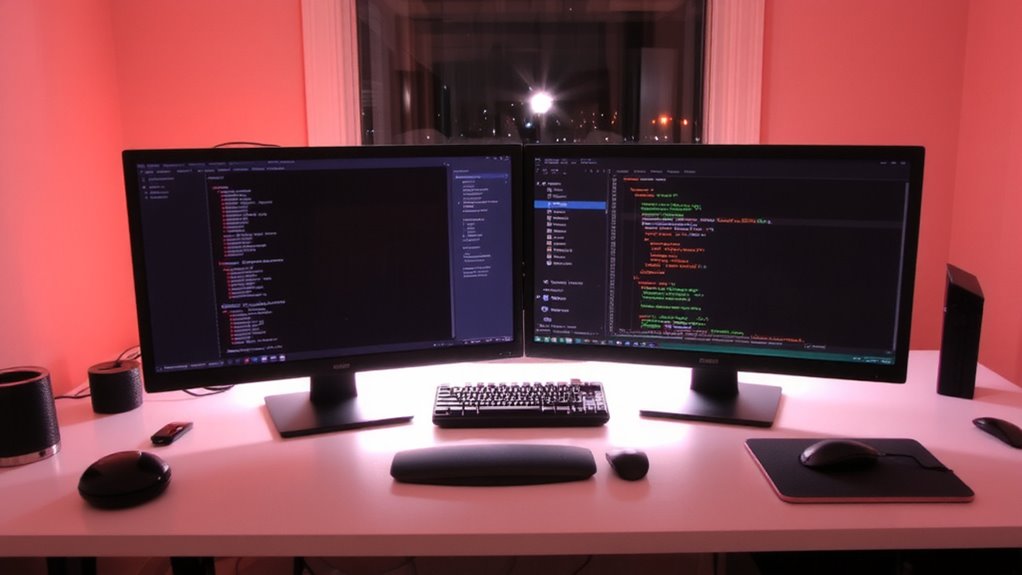
Your workspace starts with your IDE-treat it like the command center it’s meant to be. Center it on your primary monitor, ideally a 27-inch 1440p display, to boost code clarity with more visible lines and sharper syntax highlighting. Maximize workflow efficiency by disabling distracting IDE plugins and using split views for related files. Dock terminals and debug consoles vertically or horizontally so you don’t lose context. Dark themes reduce eye strain during long sessions, but test them under your room’s lighting. Position the IDE monitor directly in front of you at eye level to avoid neck fatigue. While a large screen helps, going beyond 32 inches can force wider eye movements, slowing focus. Built-in scaling in editors like VS Code or JetBrains works well, but confirm compatibility with your OS. Remember, even the best setup won’t fix poor habits-clean code and consistent shortcuts matter just as much.
Place Browsers and Docs for Fast Access
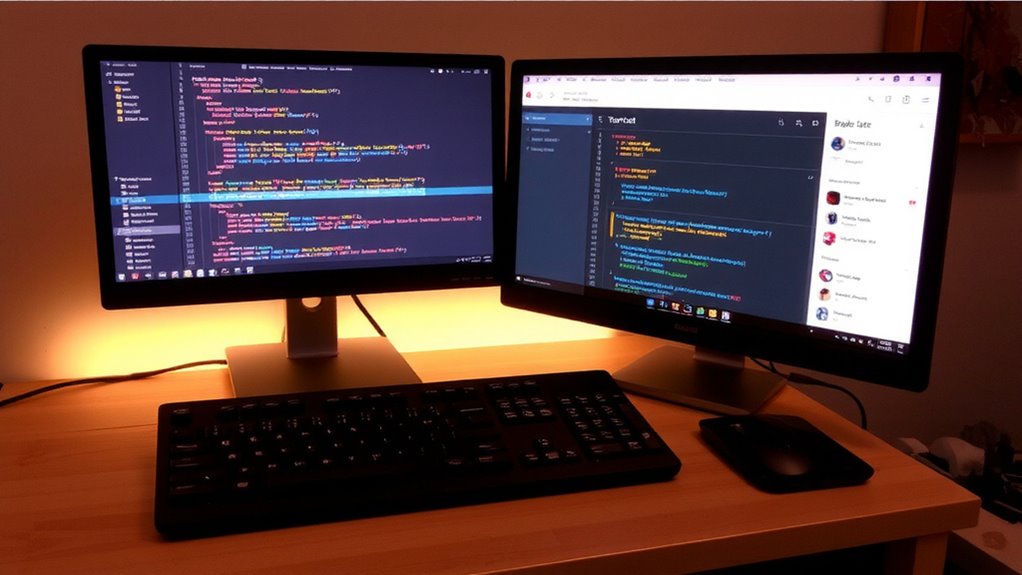
Keep your browser and documentation on the secondary monitor, positioned just to the side of your IDE so you can glance over without turning your head. Smart browser positioning reduces eye strain and keeps your workflow smooth. You’ll want document accessibility at a glance-API references, project wikis, or task tickets-without minimizing your code. Dock the browser window snapped to one side, using built-in OS snapping tools (like Windows Snap or macOS Split View) for stability. Avoid full-screen mode; it slows window switching. A 1080p or higher monitor guarantees text stays sharp, especially with multiple tabs. You’ll trade some screen real estate for speed, but tight positioning balances both. Don’t place it behind the IDE-you’ll waste time toggling. Test the layout with your most-used tools: if switching feels sluggish, adjust spacing or tab organization. Good placement should feel invisible, not clever. For a seamless multi-monitor experience, consider a setup using the best monitors for a triple setup.
Optimize Vertical Space on Secondary Screen
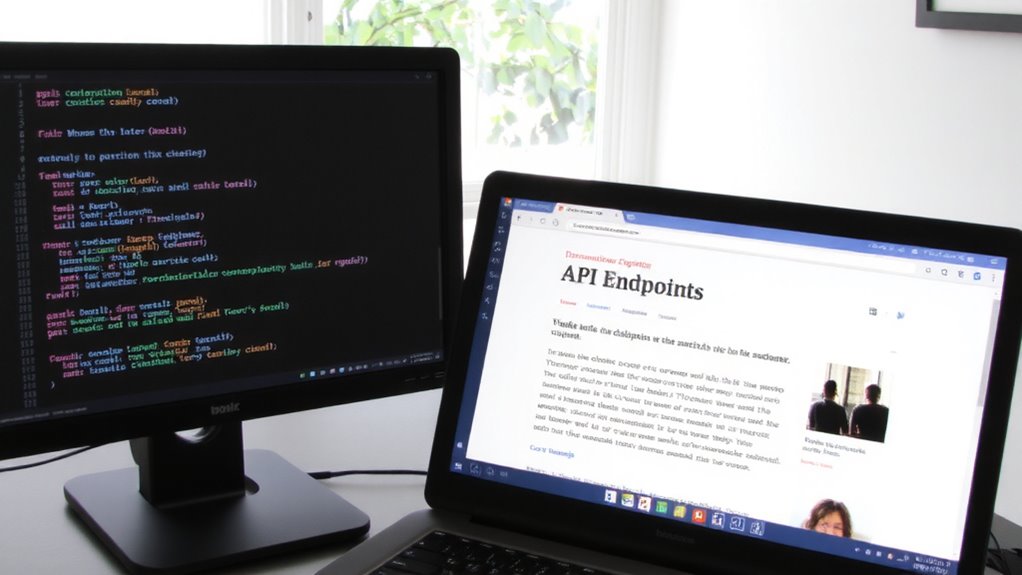
Vertical real estate on your secondary screen makes a tangible difference when juggling docs, tickets, and API references. You’ll want to maximize viewport height so you can see more content without constant scrolling. Use a portrait orientation with a 16:10 or 3:2 aspect ratio monitor-these give you 20–30% more vertical space than standard 16:9 screens, which really adds up during long sessions. Adjust zoom levels and font sizes in your browser to fit more text while keeping readability. Collapse sidebars, hide toolbars, and use minimalist themes to reduce clutter and free up usable pixels. Mounting your screen on an adjustable arm lets you fine-tune height and tilt, aligning the top of the screen just below eye level to prevent neck strain. While taller screens help focus, they can limit horizontal space for wide tables or design tools-so balance matters.
Keep Chat and Meetings Out of Your Way
A dedicated secondary screen gives you room to offload documentation and workflows, but it also creates new risks when messaging apps and video calls start taking over your workspace. You need to minimize distractions to stay focused, especially during deep coding sessions. Keep chat apps like Slack or Teams on your secondary monitor but confine them to a small, fixed window-don’t let them full-screen unless absolutely necessary. Use split-screen features to stack chat beside documentation, not over it. Manage notifications aggressively: disable pop-ups, mute non-essential channels, and schedule do-not-disturb periods. Consider tiling window managers or built-in OS tools to lock app positions and sizes. Remember, a clean secondary screen helps, but constant alerts will still break focus. Video calls should be temporary-resize meeting windows and avoid leaving them open post-call. These steps trade slight convenience for lasting concentration.
Switch Between Coding, Debugging, and Review Layouts
When you’re juggling code, breakpoints, and feedback, having predefined window layouts saves time and reduces mental clutter. Use window snapping to anchor your IDE on one monitor and your browser or terminal on the other, then switch between coding, debugging, and review setups with keyboard shortcuts. This keeps your workflow smooth without dragging or resizing windows. Below are three common layouts:
| Layout | Left Monitor | Right Monitor |
|---|---|---|
| Coding | IDE (full) | Browser (docs) |
| Debugging | IDE (debug mode) | Terminal/logs |
| Review | IDE (split) | PR tool / feedback |
Most OS-level snapping tools (like Windows Snap or macOS Mission Control) work reliably, but test them under load. Some IDEs override system shortcuts, so customize keyboard shortcuts to avoid conflicts. Snapping isn’t flawless-resizing gaps or multi-app stacks may require manual tweaks.
On a final note
You’ll boost productivity with a dual-monitor setup, but only if configured intentionally. Keep your IDE dominant on the primary screen to reduce eye movement, while placing docs and browsers on the secondary for quick reference. Use vertical orientation on the second monitor to view more code or web content. Position chat and meetings in less distracting areas. Switch layouts when debugging or reviewing-you’ll gain focus, but you’ll need discipline to maintain it.