How to Set Up Dual Monitors for a Podcast Producer Editing and Monitoring Audio
Set up dual monitors to boost your editing speed and monitoring accuracy by dedicating one screen to your DAW and the other to meters or communication apps like Zoom. Use matching IPS panels with 99% sRGB for clear waveforms and eye comfort, such as Dell UltraSharp models, and connect via HDMI or DisplayPort based on your GPU. Arrange displays side-by-side at eye level, extend (don’t mirror) the desktop, and calibrate brightness and color to reduce strain. Guarantee both monitors have low input lag-under 5ms-to avoid sync issues during playback. Proper cable management and staggered positioning prevent clutter and neck fatigue. Matching resolutions avoids window scaling problems in your DAW. A well-aligned dual-monitor setup saves time on every edit, especially with long-form content. You’ll get even better results when you fine-tune each monitor’s role to match your editing rhythm.
Notable Insights
- Use one monitor for your DAW timeline and the other for real-time audio feedback or communication apps to minimize tab-switching.
- Choose matching IPS monitors with 99% sRGB coverage for accurate waveform visuals and consistent color across screens.
- Connect both monitors using compatible HDMI or DisplayPort cables, then extend the display to avoid mirroring.
- Arrange screens in operating system settings to match your physical desk layout for seamless mouse movement.
- Calibrate brightness, color temperature, and resolution on both monitors to prevent eye strain and scaling issues.
Why Dual Monitors Boost Podcast Editing Efficiency
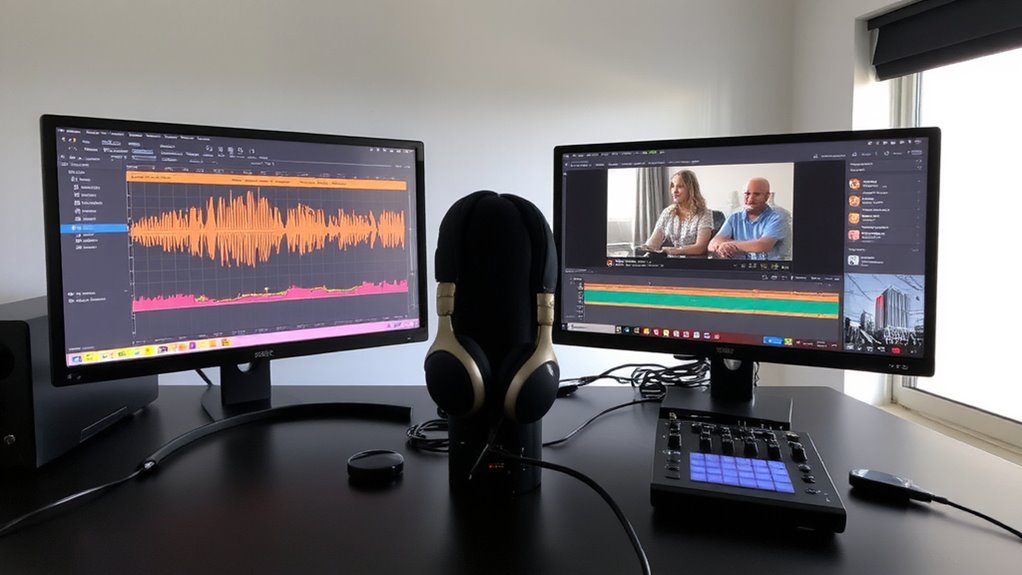
While editing long podcast episodes, relying on a single screen can slow you down more than you realize. Dual monitors improve time management by letting you keep your DAW on one screen and tools like transcripts or email on the other-no constant tab-switching. You’ll cut minutes off every edit, which adds up across episodes. Visual clarity also increases when waveforms stay large and uncluttered, helping you spot clips or noise faster. Most producers report fewer errors and smoother workflows. That said, dual monitors demand desk space and proper alignment to avoid neck strain. Mounting arms or staggered positioning help, but setup time is real. Not every DAW scales perfectly across displays, so test your software first. The boost in efficiency is measurable, especially for long-form content, but only if your room and routine support the change. It’s a smart upgrade-not a magic fix.
Choose Monitors That Fit Your DAW and Budget
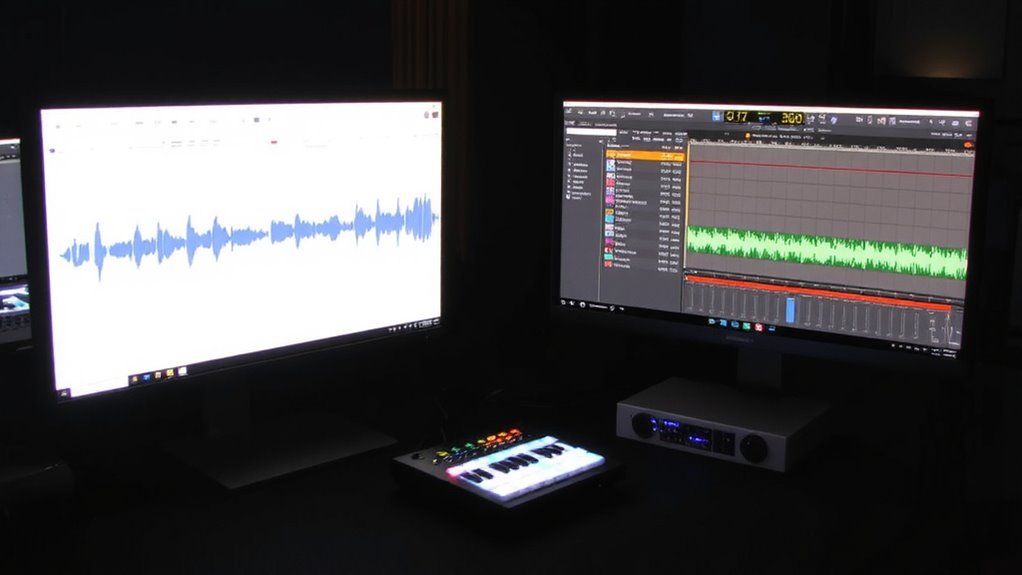
What makes a monitor truly work for podcast editing? It’s not just size or price-it’s how well it supports your DAW’s interface and your need for precision. You’ll want solid color accuracy so waveforms and spectral views are easy to read and consistent. Even if you’re not color-grading video, off colors can make editing fatigue set in faster. Look for IPS panels with at least 99% sRGB coverage. Monitor calibration capabilities matter too-some models include built-in tools or support hardware calibration via USB-C or DisplayPort. Entry-level options like Dell’s UltraSharp series offer strong performance and three-year warranties, while pricier choices like the ASUS ProArt deliver finer tuning. But don’t overspend-a $300 monitor often beats two mismatched $150 ones. Balance specs, calibration support, and real-world DAW performance.
Connect and Arrange Two Screens for Seamless Workflow
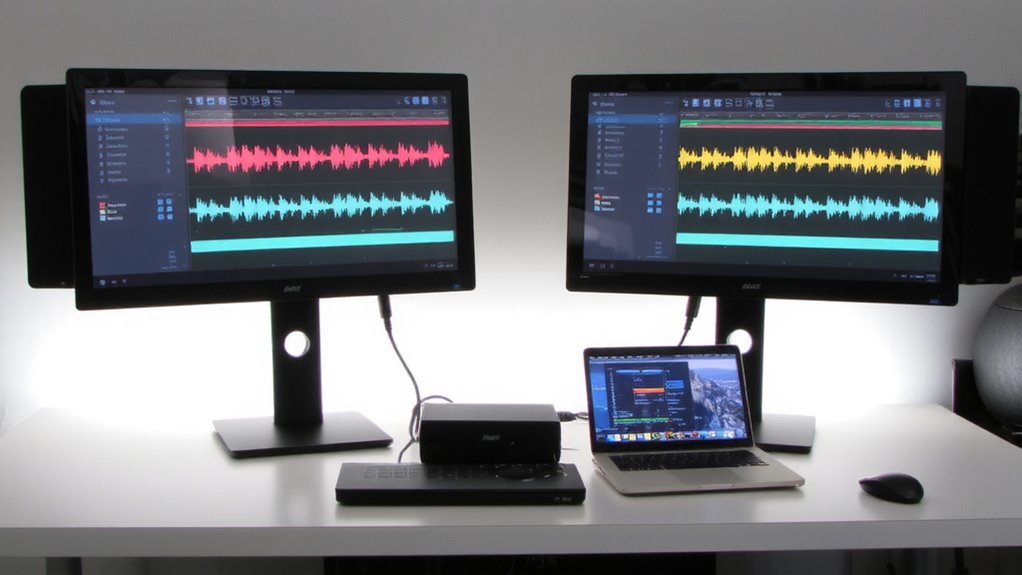
If you’re running two monitors, getting the connections right means fewer headaches and smoother editing. Use HDMI or DisplayPort cables that match your GPU and monitor inputs-check the ports on both devices first. Connect each screen securely, then arrange them in your OS display settings to mirror how they sit on your desk, reducing mouse movement strain. Good cable management keeps clutter down and airflow up; use sleeves or clips to bundle wires neatly. Poor setup can cause lag or flickering, so test both screens thoroughly. Screen calibration is essential-mismatched brightness or color temps cause eye fatigue over long sessions. Adjust both monitors to similar white points and luminance, especially if you’re switching views often. Not all panels calibrate the same, so built-in controls may need manual tweaking. Cheap mounts can wobble; invest in stability if you edit for hours.
Display Audio Meters and Communication Apps Side by Side
A dual-monitor setup lets you keep audio meters visible on one screen while running communication apps like Zoom or Slack on the other, so you can monitor levels and stay in touch without tabbing back and forth. This gives you visual clarity, reducing errors during live recordings or remote interviews. Position meters on your primary display and apps on the secondary to minimize eye movement and boost focus. Avoid screen mirroring-it limits workspace and defeats the purpose of dual monitors. Instead, extend your desktop to use both screens independently. Most modern GPUs support this natively, but verify driver compatibility. Keep both displays the same resolution to prevent scaling issues. While the setup improves workflow, it demands desk space and extra cables. Test arrangements first-some apps may shift windows unexpectedly on boot. For optimal clarity and color accuracy, consider selecting a 27-inch monitor from a top-rated model designed for professional use.
Edit Faster by Using Dual Screens for Real-Time Monitoring
You get more done in less time when you use dual screens to edit with real-time monitoring, building directly on the visual efficiency you already gain from keeping audio meters and communication apps separate. One screen runs your DAW timeline while the other displays real time feedback from playback or client calls, so you can trim clips and adjust levels without pausing. Use the secondary monitor for full-screen audio preview, reducing the need to zoom or scrub repeatedly. This cuts editing time noticeably, especially with long interviews or multi-track episodes. However, sync issues can occur if monitor lag exceeds 5ms-test with a waveform flash to confirm alignment. Also, mismatched screen brightness may strain your eyes during long sessions. Position both monitors at eye level, ideally in a 16:9 or 21:9 aspect ratio, for consistent viewing. Dual screens aren’t magic, but with the right setup, they make editing faster and more accurate.
On a final note
You’ll edit faster and monitor better with dual monitors, especially when pairing a color-accurate IPS panel for your DAW with a secondary 1080p display for meters or chat apps. Just make sure both screens have adjustable stands and matching brightness to reduce eye strain. Expect some desk space loss, and verify your GPU supports two outputs-like HDMI and DisplayPort-before buying. Test refresh rates: 60Hz is enough, but lower input lag helps.