Optimal Distance Between Eyes and Monitor Screen to Prevent Eye Strain and Blurry Vision
Sit 20 to 30 inches from your monitor to prevent eye strain and blurry vision. For a 24-inch 1080p screen, 30 inches is ideal to avoid pixelation; higher-resolution displays like 27-inch 1440p allow closer viewing. Keep the top of the screen at or slightly below eye level and match brightness to ambient light. Poor flicker control or extreme angles increase fatigue. You’ll find how setup details impact comfort just as much as distance.
Notable Insights
- Sit 20 to 40 inches from your monitor, with 30 inches ideal for a 24-inch 1080p screen to prevent pixelation.
- Choose higher-resolution screens like 1440p for closer viewing, as they offer sharper images and reduce eye strain.
- Position the top of the screen at or slightly below eye level to maintain neutral neck posture.
- Match screen brightness to ambient lighting and use flicker-free monitors to minimize eye fatigue.
- Avoid sitting too close to low-resolution screens, as visible pixels and flicker can cause blurry vision and discomfort.
How Far Should You Sit From Your Monitor?
While your ideal desk setup depends on several factors, you’ll generally want to sit between 20 and 40 inches from your monitor, with the exact distance shaped by screen size and resolution. If you’re using a 24-inch 1080p screen, around 30 inches is ideal-any closer and pixels become noticeable. Larger screens, like 27-inch 1440p, let you sit nearer without eye strain, thanks to higher pixel density. But distance alone won’t prevent discomfort-adjusting monitor brightness to match ambient light reduces glare, while enabling flicker-free backlights minimizes screen flicker that can cause fatigue. You’ll especially notice this during long sessions. Just remember, even the best positioning won’t fix poor ergonomics if brightness is too high or persistent flicker goes unnoticed. Always test settings in real lighting conditions, and consider built-in features like auto-brightness or low-blue-light modes as complements-not replacements-for proper viewing distance.
Why Monitor Distance Causes Eye Strain
If you’re sitting too close to your monitor, your eyes have to work harder to process fine details and manage focus shifts across the screen, especially on lower-resolution displays where pixelation strains visual clarity. Low pixel density means individual pixels are more visible up close, forcing your eyes to constantly refocus, leading to fatigue. Screen flicker, often imperceptible, worsens the strain when you’re near the display because your eyes detect rapid brightness changes more intensely at short distances. Even high-refresh-rate monitors can’t fully eliminate this if brightness or PWM dimming is poorly implemented. You’ll likely notice discomfort after just 20–30 minutes. The right distance-typically 20–30 inches-gives your eyes a clearer image with less flicker impact and reduces muscular strain. But don’t assume bigger or higher-end screens solve this automatically-check specs like pixel per inch and flicker behavior in real-world reviews.
Where to Place Your Monitor for Best Posture
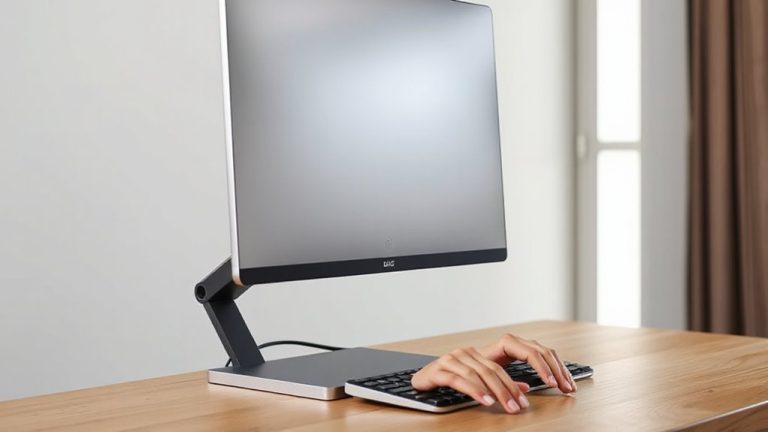
You should place your monitor directly in front of you, centered with your keyboard and aligned to your natural posture, so you’re not twisting your neck or hunching sideways during long typing sessions. For best results, set the monitor height so the top of the screen is at or just below eye level-this prevents neck strain from tilting your head up or down. If your screen’s too low, use a stand or books to raise it; if it’s too high, adjust the mount or lower your desk chair. Apply a slight screen tilt-about 10 to 20 degrees-to reduce glare and maintain a comfortable viewing angle. Avoid extreme angles that distort the image or require head tilting. These adjustments work well across most monitors, including curved and ultrawide models, but verify fit with your desk depth and seating position. Results vary if you wear progressive lenses or share workspaces.
Match Your Viewing Distance to Screen Size
A good rule of thumb is to sit about an arm’s length from your screen-roughly 20 to 30 inches away-depending on the monitor’s size and resolution. If you’re using a 24-inch monitor, 24 inches is ideal; for 27-inch screens, aim closer to 30 inches. This balance helps maintain sharp text clarity and supports visual comfort. You’ll also want to adjust screen brightness to match your environment-too bright causes glare, too dim strains your eyes. Sitting at the right distance guarantees you’re not squinting or leaning forward, which disrupts posture over time. Higher-resolution screens let you sit closer without pixelation, but only if text remains easily readable. Consider your workspace limits, but don’t sacrifice viewing distance for desk space. Ultimately, pairing correct distance with proper screen brightness reduces eye fatigue and boosts long-term comfort, without relying on specialized gear or unproven accessories.
Are You Sitting Too Close or Too Far?
Proper viewing distance directly affects both visual clarity and long-term comfort, so getting it right matters more than most realize. If you’re squinting or leaning forward, you’re likely too close-increasing exposure to screen flicker and harsh monitor brightness that can trigger eye strain. Sit farther back than arm’s length, ideally 20–30 inches from your screen, depending on size and resolution. Too far, though, and you’ll strain to read text, especially on lower-resolution displays. Distance also interacts with lighting; excessive brightness in a dark room worsens flicker perception. Adjust both monitor brightness and ambient light to reduce contrast. While modern screens have minimal flicker if set to DC dimming or high refresh rates, poor positioning amplifies risks. There’s no universal sweet spot, but testing different distances while noting comfort over hourly use gives the best results. Trade-offs exist: more space improves posture but may require higher text scaling.
On a final note
You should sit about an arm’s length from your monitor-roughly 20 to 30 inches away. This distance reduces eye strain and helps keep text sharp, especially on 24- to 27-inch screens at 1080p or higher. Position the top of the screen at or slightly below eye level. If you wear glasses or scroll for long stretches, you might need minor adjustments, so test what keeps your eyes comfortable by midday.