How to Use Task Lighting to Eliminate Monitor Glare on Glossy Screens
Use a gooseneck LED task lamp with adjustable brightness and 4000K color temperature to cut monitor glare-position it opposite your dominant hand to avoid reflections. Aim the light downward across your desk, not at the screen, to balance ambient brightness around 300–500 lux. Match monitor output to room light (100–150 nits) and avoid cool white bulbs above 5000K that worsen glare. Flicker-free LEDs with CRI over 90 improve clarity. You’ll see how small tweaks add up through real-world use.
Notable Insights
- Use adjustable LED desk lamps to direct light downward and forward, avoiding direct screen reflections.
- Position the task light on the opposite side of your dominant hand to minimize glare on glossy screens.
- Choose LED bulbs with a color temperature of 4000K for balanced brightness without washing out the display.
- Match monitor brightness to ambient light (100–150 nits) to reduce contrast and eye strain.
- Balance task lighting with room lighting (300–500 lux) to prevent harsh contrasts and screen reflections.
Use Task Lighting to Stop Glossy Screen Glare
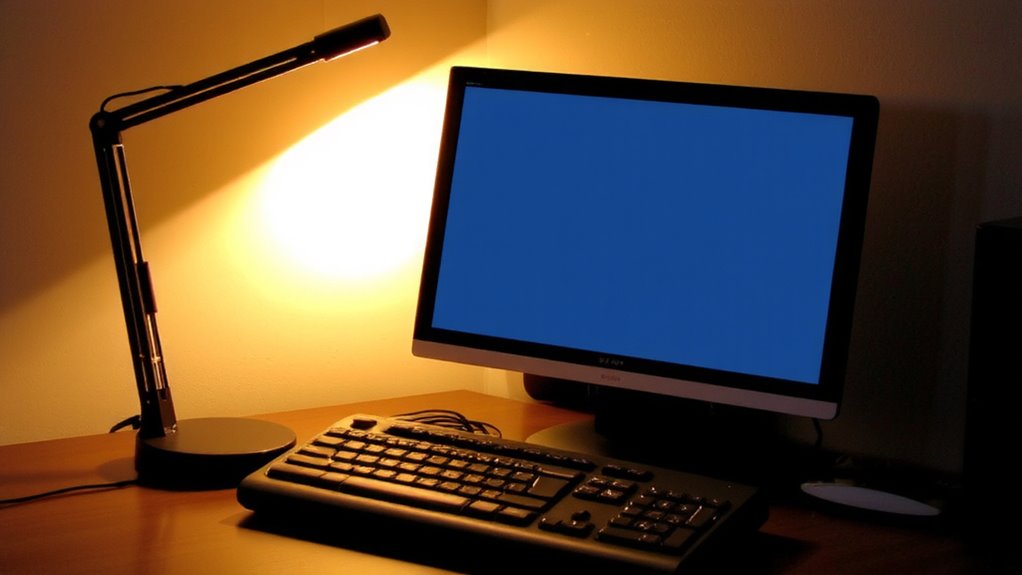
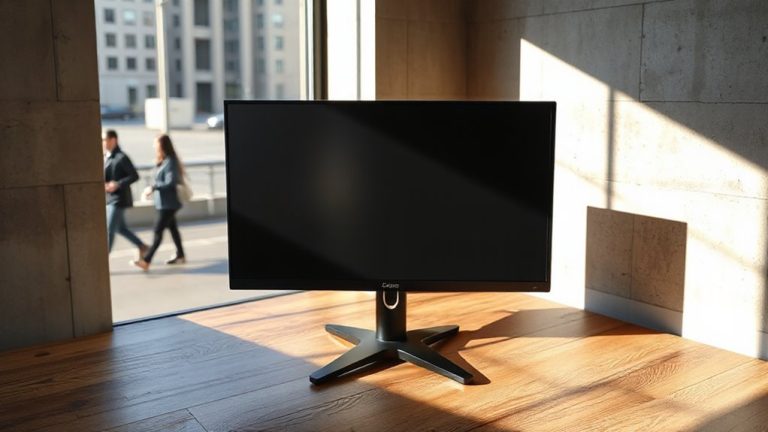
Why does your glossy monitor still glare even when the lights are on? Because overhead lighting floods the screen unevenly, boosting reflections that cause eye strain. You need task lighting placed strategically to balance brightness and improve visual comfort. A well-positioned LED desk lamp with adjustable brightness and color temperature lets you match ambient light to screen output, reducing harsh contrasts. Look for models with gooseneck or articulated arms for precise aiming-this control matters more than raw lumens. But be careful: placing the lamp incorrectly can worsen glare. Avoid shining it directly on the screen. Tests show that users report less fatigue after 60 minutes of use with proper task lighting. Still, no lamp fixes poor room layout. Pair it with matte screen filters if needed, but expect a slight trade-off in image clarity. For designers, choosing the right lighting is critical, and the best options often feature top desk lamp designs.
Choose a Task Light That Reduces Monitor Glare
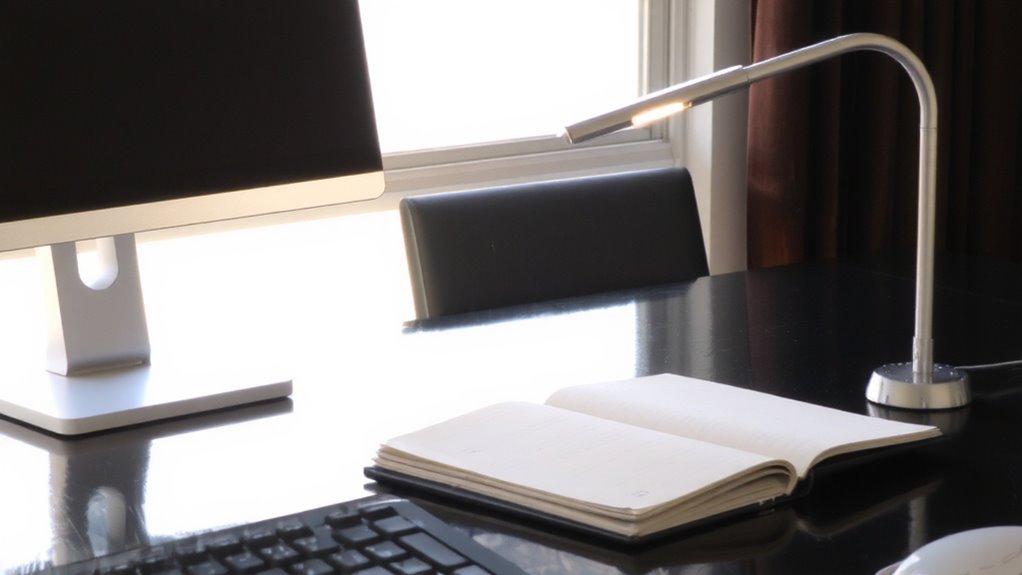
While not every desk lamp cuts monitor glare, choosing one designed for precision lighting makes a noticeable difference-if you know what to look for. Look for a lamp design that directs light downward and forward, shielding the bulb from direct view to prevent reflections on glossy screens. An adjustable arm lets you fine-tune the angle without shifting the base. The bulb type matters just as much: opt for LED with a color temperature around 4000K-bright enough to illuminate your work surface without washing out your display. Avoid cool white bulbs above 5000K; they increase screen glare and eye strain. Full-spectrum LEDs mimic natural light but can be pricier. Check for flicker-free performance and a CRI above 90 for true color accuracy. A solid warranty-three years or more-backs better build quality. For top-performing options, explore the best desk lamps for remote work.
Position Your Lamp to Eliminate Screen Glare
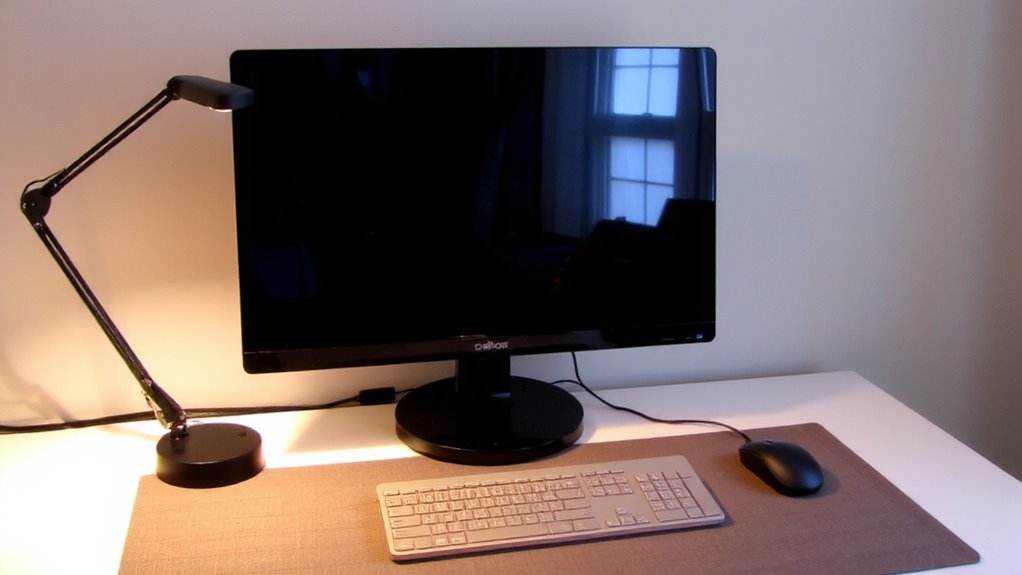
Position your lamp just to the side of your monitor-ideally on the opposite side from your dominant hand-so the light flows across your desk without hitting the screen directly. Proper lamp placement prevents reflections, while smart screen positioning reduces ambient bounce. Angle the lamp shade downward to focus light where you need it: on your keyboard and reading material, not your display. Writers benefit from lamps with adjustable arms and diffused lighting, making top desk lamps for writers a smart choice for glare-free productivity.
| Light Source | Glare Risk | Ideal Use Case |
|---|---|---|
| Direct overhead | High | Not recommended |
| Opposite hand side | Low | Writing, typing |
| Behind monitor | High | Avoid |
| Adjacent, shaded | Low | Daily work |
| Front-facing | Medium | Controlled settings |
Avoid placing lights in line with your screen. Small adjustments in lamp placement and screen positioning make a big difference-test angles during daytime and evening to confirm performance.
Set Brightness & Color to Reduce Glare
A well-adjusted monitor doesn’t just make your workspace look better-it actively reduces eye strain and glare by matching ambient lighting conditions. You should set your screen’s brightness to roughly match the light in the room; if it’s too bright or dim, you’ll boost ambient contrast, making glare worse and straining your eyes over time. Most people do best around 100–150 nits in typical office lighting. Use your monitor’s presets or manual controls to adjust this quickly. Also, shift the color temperature toward warmer tones (around 6500K) during the day and lower it at night-this reduces harshness without sacrificing clarity. Built-in features like flicker-free backlights or blue light filters help, but don’t rely on them completely. These tweaks work best when combined with proper lamp placement. Some monitors handle this better than others-check real-world reviews for consistency.
Balance Desk and Room Lighting to Prevent Glare
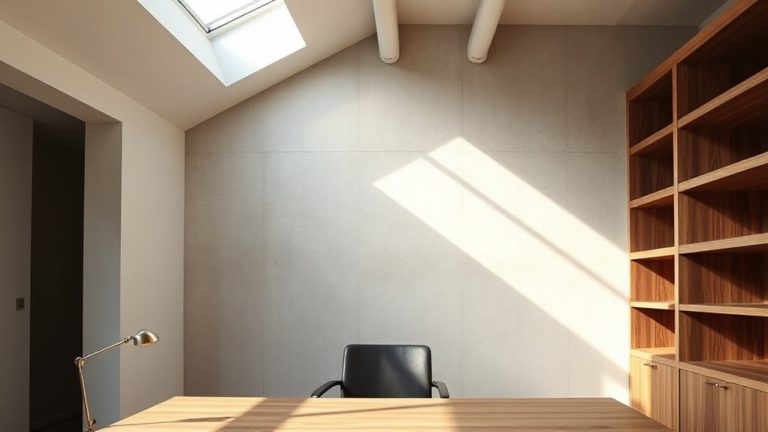
You’ll get the best results by matching your desk lamp’s brightness and color output to the ambient light in your room-this cuts down on contrast that causes glare and eye fatigue. Keeping ambient contrast low helps your eyes shift comfortably between screen and surroundings, reducing strain over hours of use. A lamp with broad light diffusion spreads illumination evenly, avoiding harsh hotspots that reflect off glossy screens. Aim for a room brightness of 300–500 lux, with your task light adding only what’s needed. Don’t overpower the space-too much desk lighting worsens glare. Floor or ceiling fixtures with matte shades improve diffusion, softening overall output. Remember: even the best lamp can’t fix poor room lighting. Test combinations in real time, adjusting angles and intensities. You’ll see clearer images and feel less fatigue, but only if both layers-desk and room-work together.
On a final note
You’ll cut most glare by aiming an adjustable task light-like a dimmable LED with a gooseneck-away from your screen and toward your task surface. Position it at 45 degrees to your monitor to minimize reflections. Set color temperature near 4000K and match ambient brightness carefully. But don’t over-brighten: too much light worsens glare. Matte screen protectors help but reduce clarity. Test placements daily; results vary by room and screen finish.